

Getting Started with Revenue Recognition
Closed beta. Revenue Recognition is in closed beta for customers using both MonetizeNow CPQ and Billing. See Revenue Recognition.
Tutorial. About 15 minutes. Requires Tenant Admin. You'll need a quote you can process, ideally in a sandbox.
You'll turn on revenue recognition and set a method on three products. Then you'll process a quote and open its revenue schedule. The example customer is Bad Wolf Media, and the quote is:
| Offering | Product | Type | Amount | Method |
|---|---|---|---|---|
| Time Lord Enterprise | Time Lord Platform | Subscription | $36,000 | Straight-Line, Using Exact Days |
| Time Lord Enterprise | Gold Support | Subscription | $6,000 | Straight-line by even periods |
| TARDIS Onboarding | Onboarding & Training | One-Time | $5,000 | Immediate |
Its service period runs from Jan 15, 2026 to Jan 14, 2027, and its total contract value is $47,000.
Step 1: Turn on revenue recognition
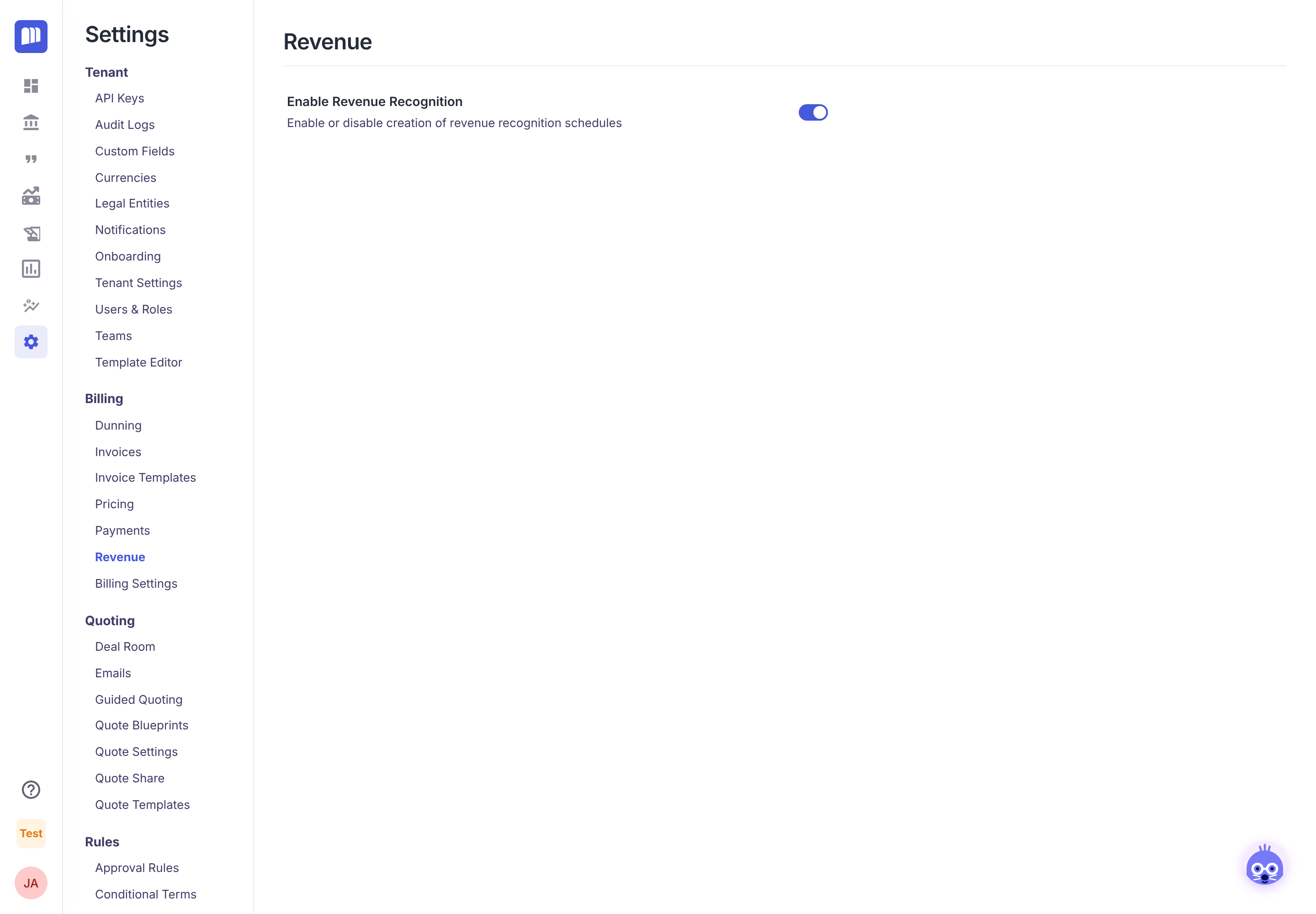
Go to Settings → Billing → Revenue and switch on Enable Revenue Recognition. It saves right away. A Revenue item appears in the main menu.
Step 2: Set a method on each product
-
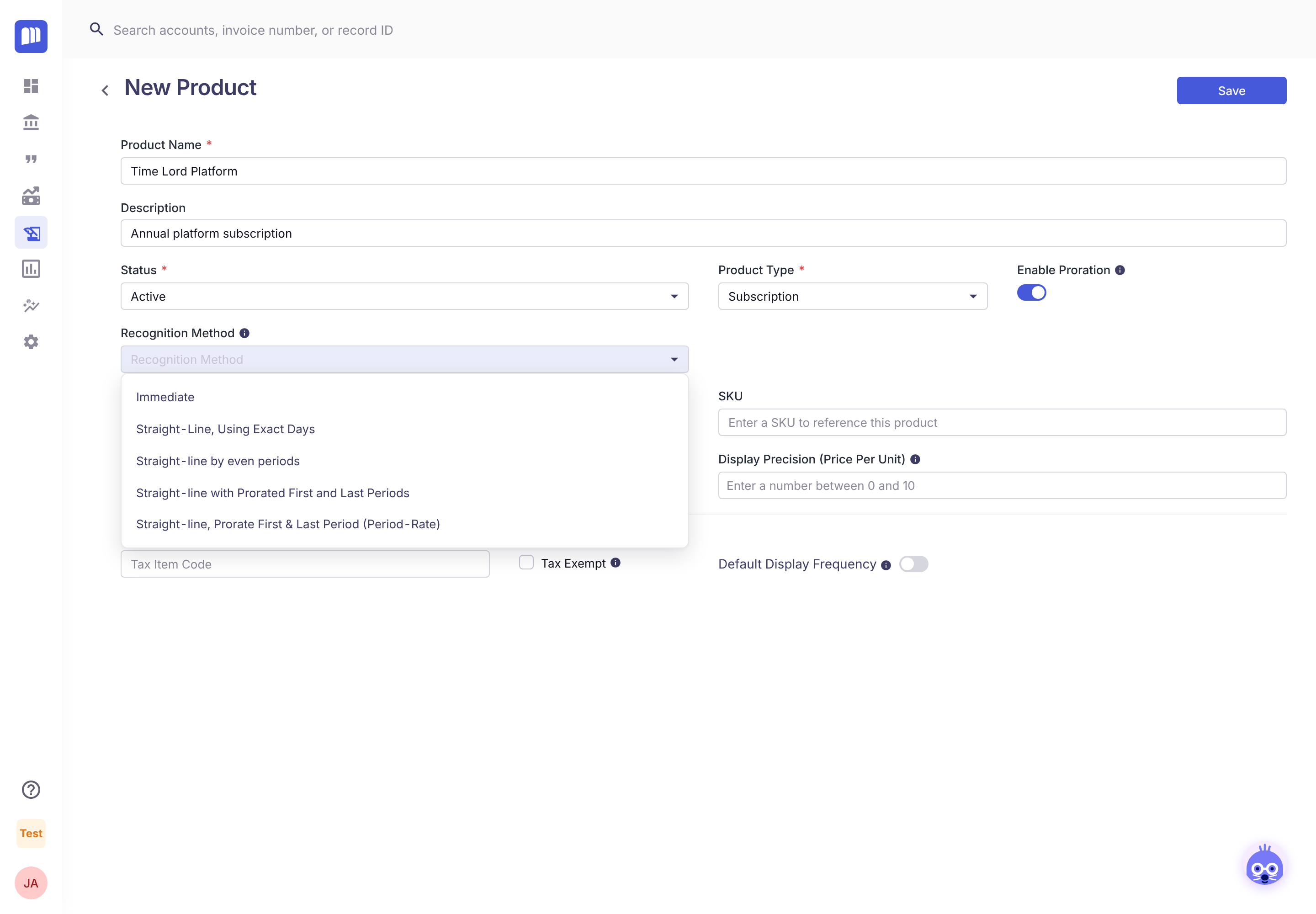
Go to Product Catalog and open (or create) Time Lord Platform.
-
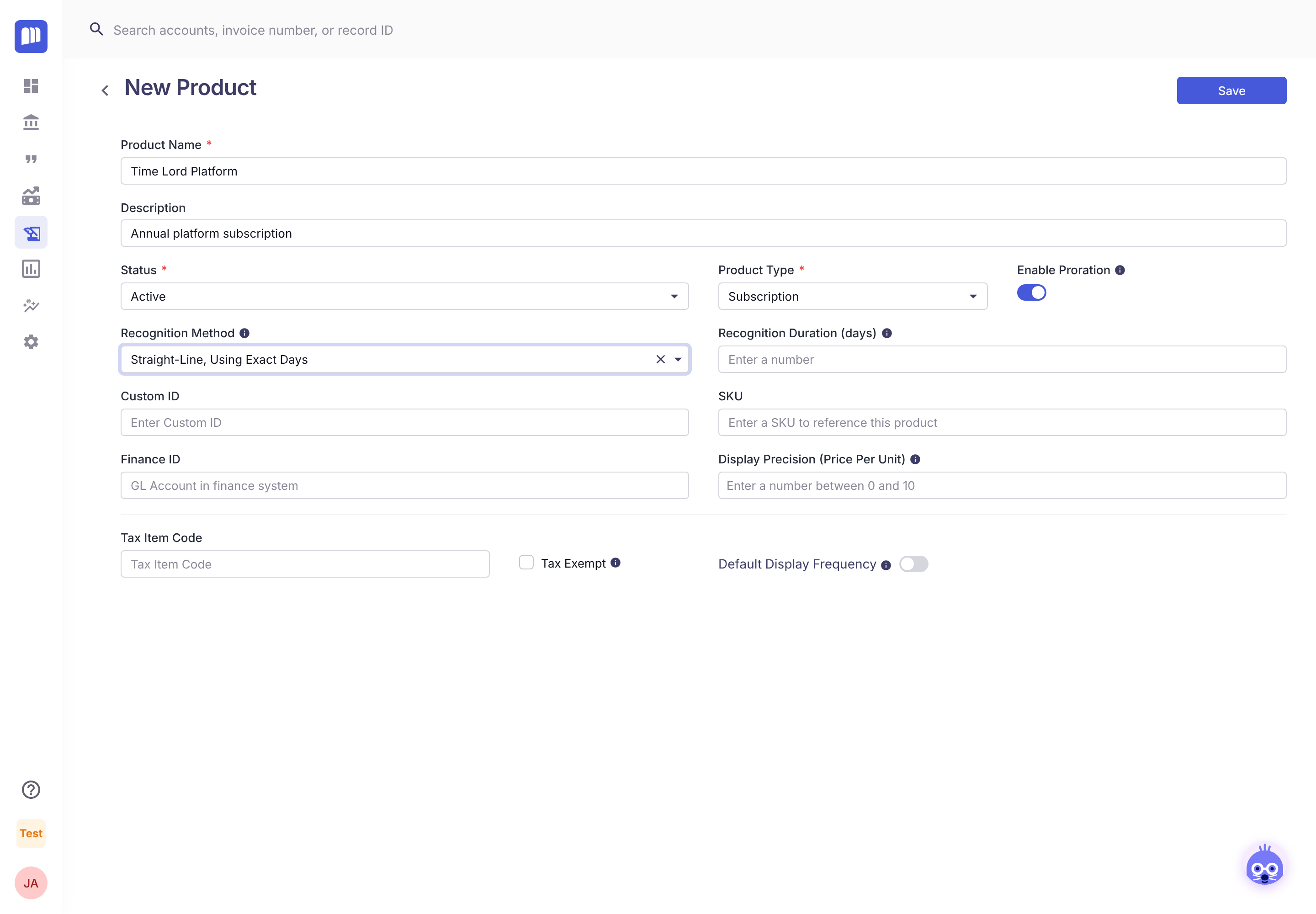
In Recognition Method, choose Straight-Line, Using Exact Days.
-
Leave Recognition Duration (days) blank so revenue follows the service period. Click Save.
-
Do the same for Gold Support (Straight-line by even periods) and Onboarding & Training (Immediate).
Set the method before the product is used. Once a product is in use it becomes locked, and its recognition settings can't be changed, so choose them when you create the product. Not sure which to pick? See Recognition Methods.
Step 3: Process the quote
Create the quote for Bad Wolf Media with these three lines, then take it through to Processed as usual.
Step 4: Open the revenue contract
-
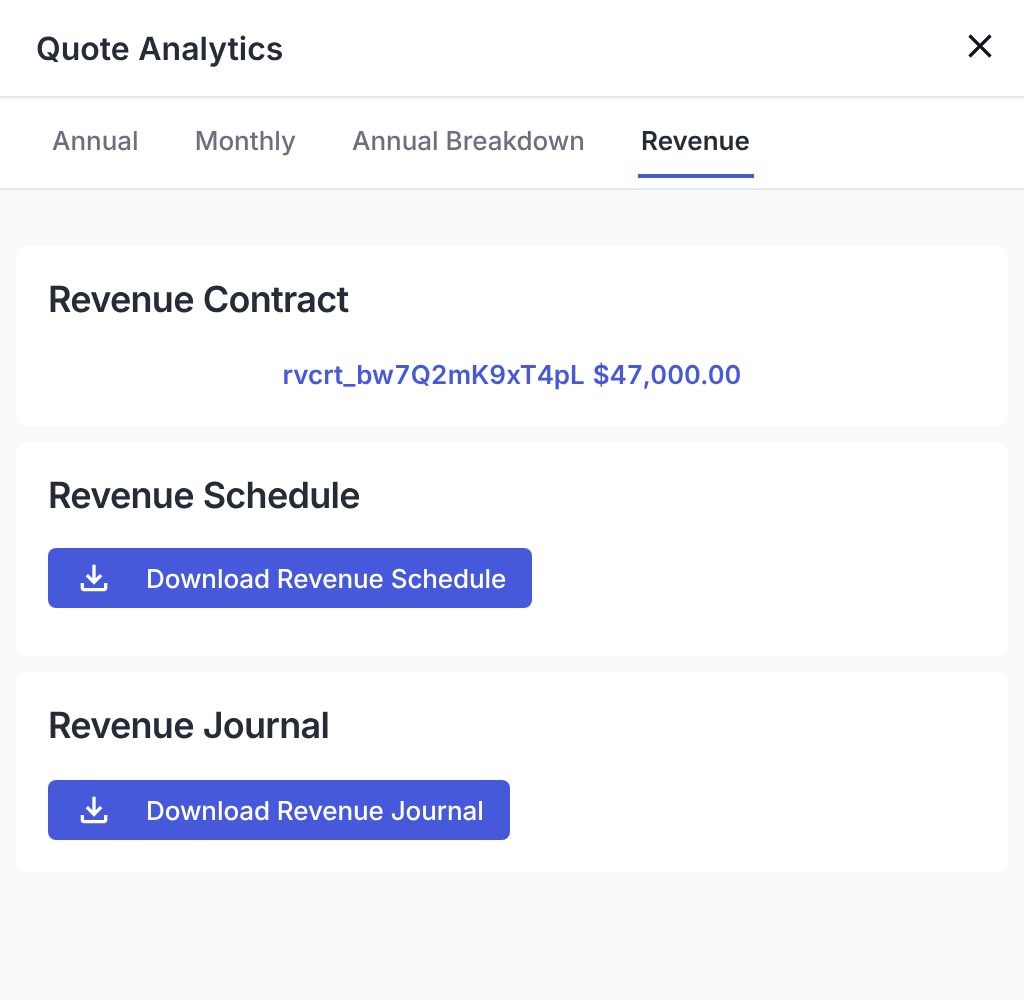
Open the processed quote and click its TCV amount in the header to open Quote Analytics. (Or use ⋮ → Revenue.)
-
Go to the Revenue tab. Once the schedule is ready, you'll see:
- the Revenue Contract with its ID and value, and
- two download buttons: Download Revenue Schedule and Download Revenue Journal.
-
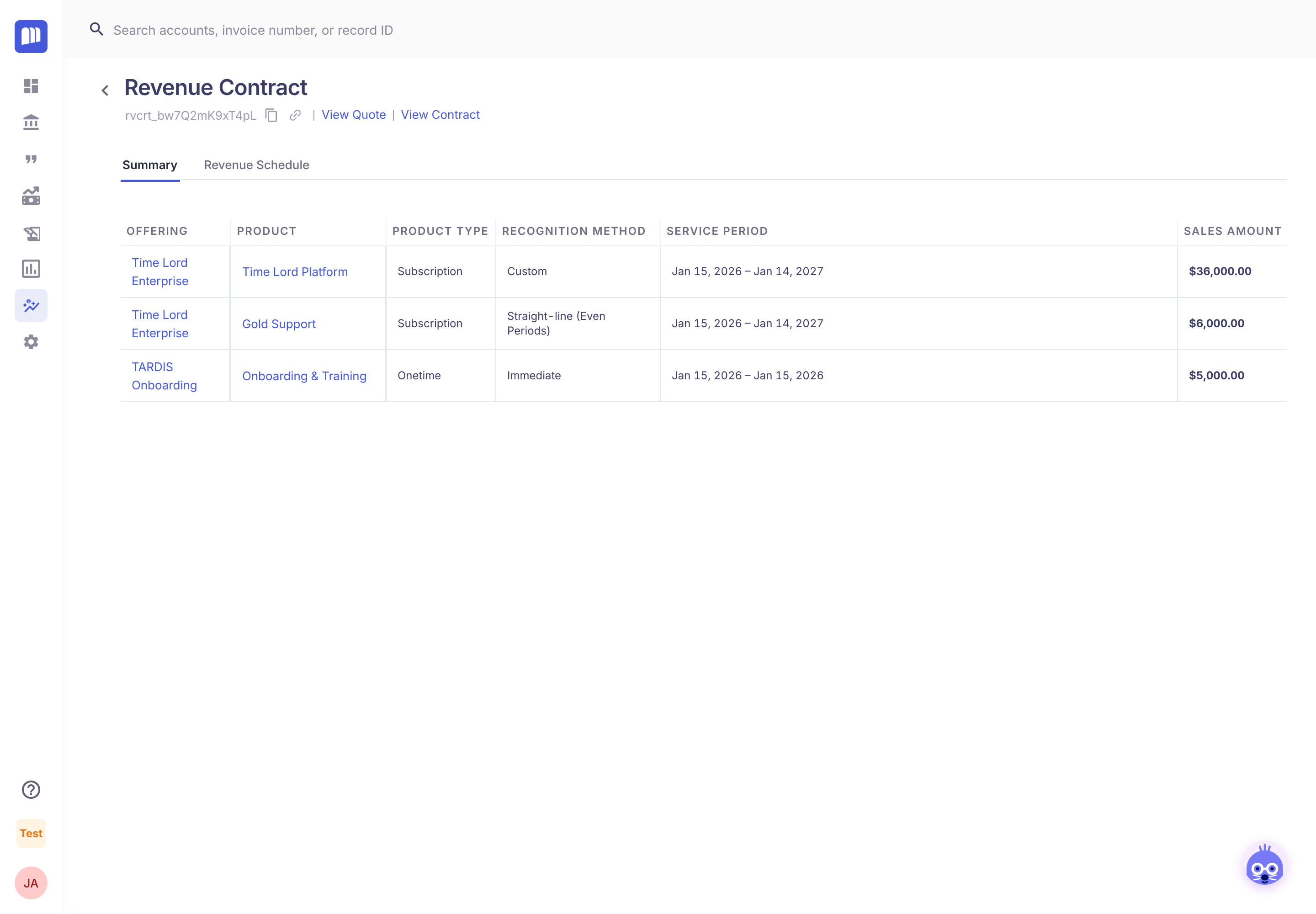
Click the revenue contract ID. The Summary tab lists each product line with its method, service period and amount.
Step 5: Read the schedule
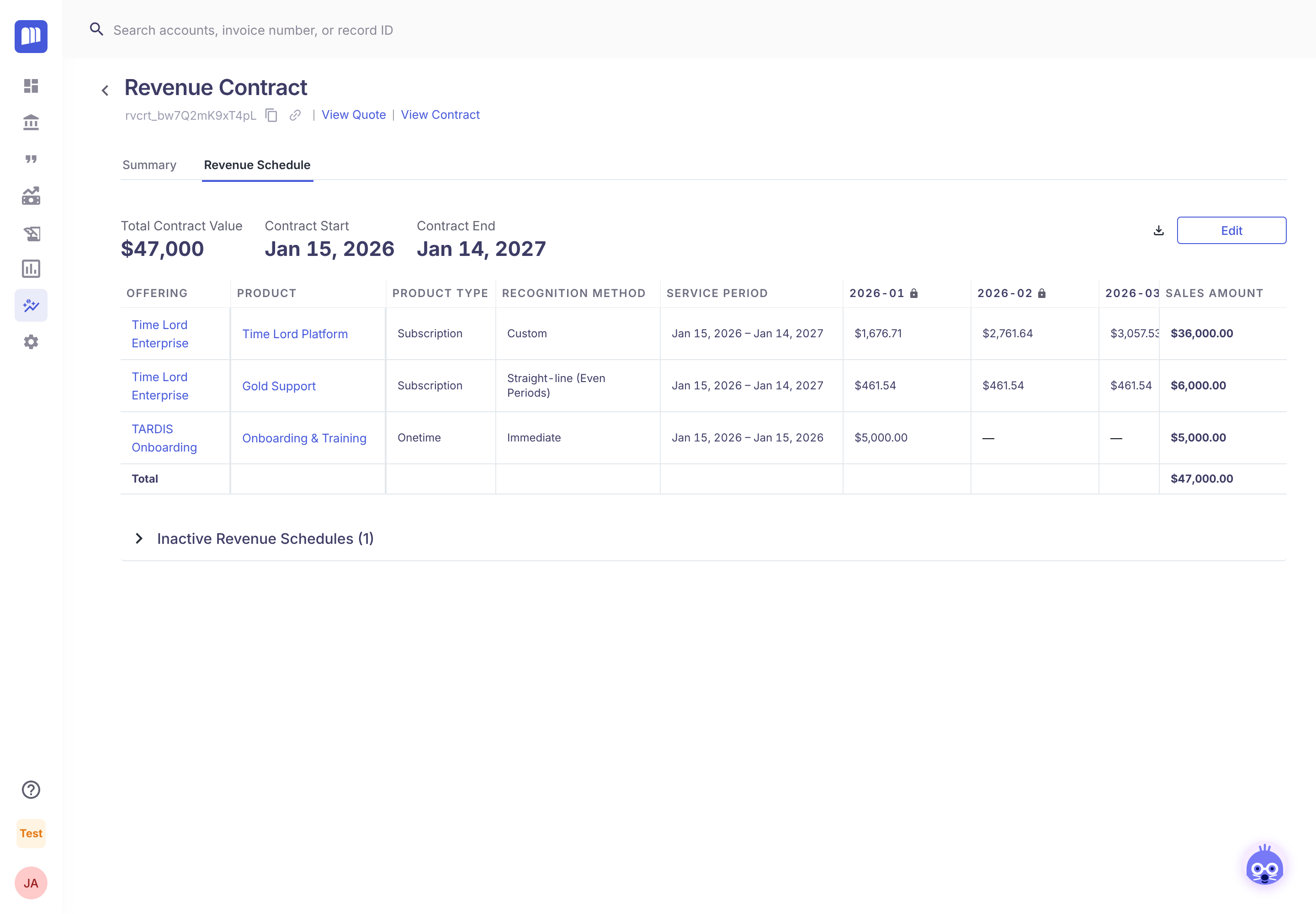
Open the Revenue Schedule tab. In this example:
- Time Lord Platform earns $1,676.71 in January (17 days) and $2,761.64 in February (28 days).
- Gold Support earns $461.54 every month.
- Onboarding & Training earns all $5,000 in January.
- The total matches the contract value: $47,000.00.
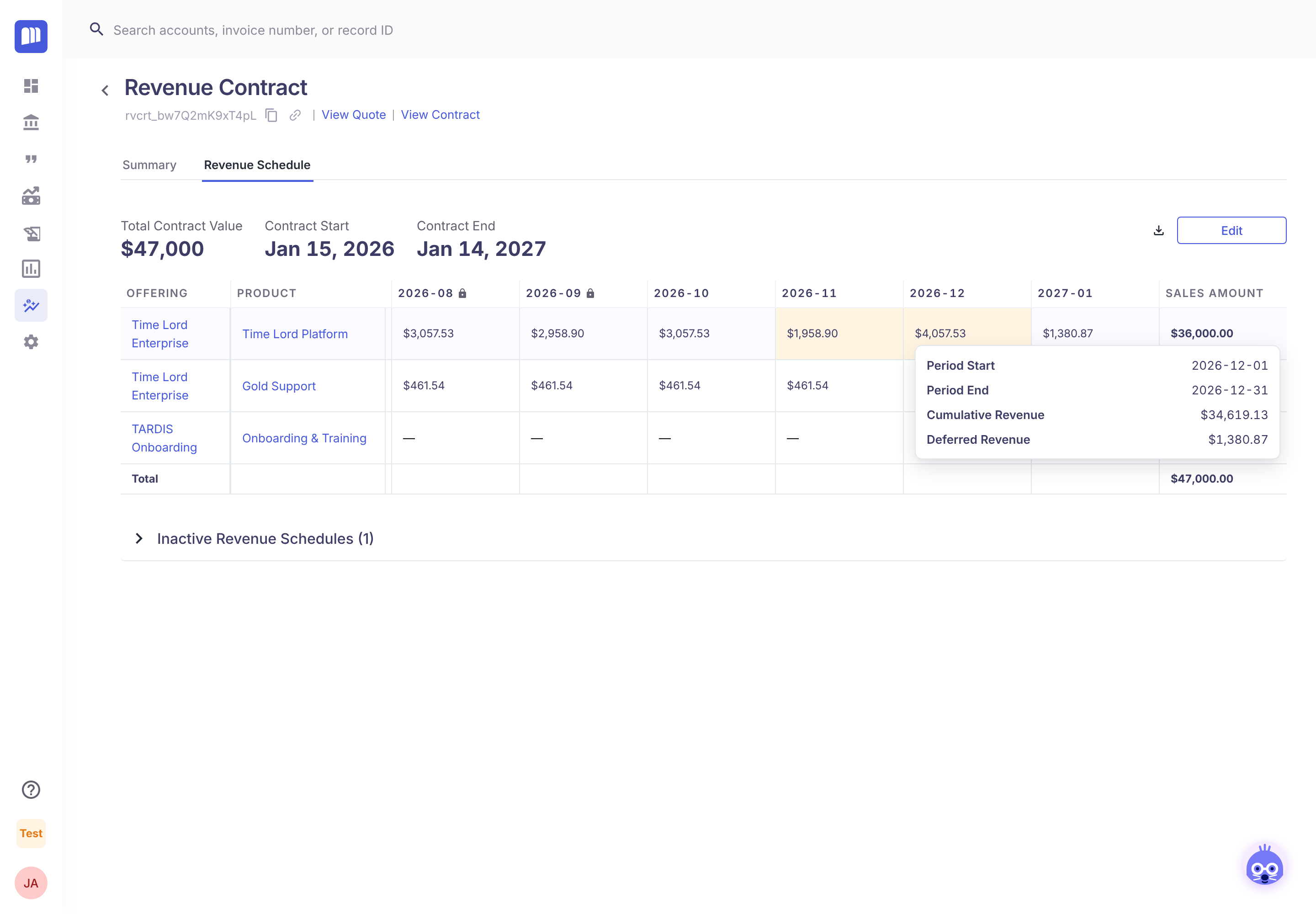
Click any amount to see that month's dates, Cumulative Revenue and Deferred Revenue.
You're done. From now on, every processed new-business quote and amendment gets a schedule automatically.
Next steps
- Edit a schedule when revenue should fall differently.
- Lock your first closed month.
- Download your journal entries.
Reference: turning it on and off
How-to. Requires Tenant Admin or Billing Admin.
- Go to Settings → Billing → Revenue and switch Enable Revenue Recognition on or off.
- While it's off, no new schedules or journal entries are created. Existing ones stay.
Turning it on doesn't build schedules for quotes processed earlier.
Reference: product settings
How-to. Requires access to the product catalog.
- Open the product in Product Catalog.
- Choose a Recognition Method. For Subscription and One-Time products, optionally enter a Recognition Duration (days).
- Click Save.
Things to know:
- Changes only apply to quotes processed afterwards. Existing schedules don't change.
- Once a product is in use it becomes locked, so set the method when you create the product.
- Every product on a quote needs a method. Lines whose product has none are left out of the schedule.
Updated 20 days ago