
Upload your first catalog
Load a small example catalog from start to finish in Sandbox.
Follow along once, start to finish, in a Sandbox tenant. You'll load a small example catalog (5 products, 3 offerings, 4 rates) and learn the whole flow. Afterwards, use the Catalog template reference for your own catalog. It takes about 20 minutes.
You need:
- A Sandbox tenant (a Test badge appears at the bottom of the left rail).
- The Tenant Admin or Billing Admin role.
The example business, Acme Analytics, sells:
| Product | Type | Sold in offering |
|---|---|---|
| Analytics Platform | Subscription | Analytics Pro (required) |
| Analyst Seat | Subscription | Analytics Pro (required) |
| API Calls | Usage | Analytics Pro (optional) |
| Implementation Services | Onetime | Implementation Package |
| Premium Support | Subscription | Premium Support |
Step 0: Open the Configure Catalog card
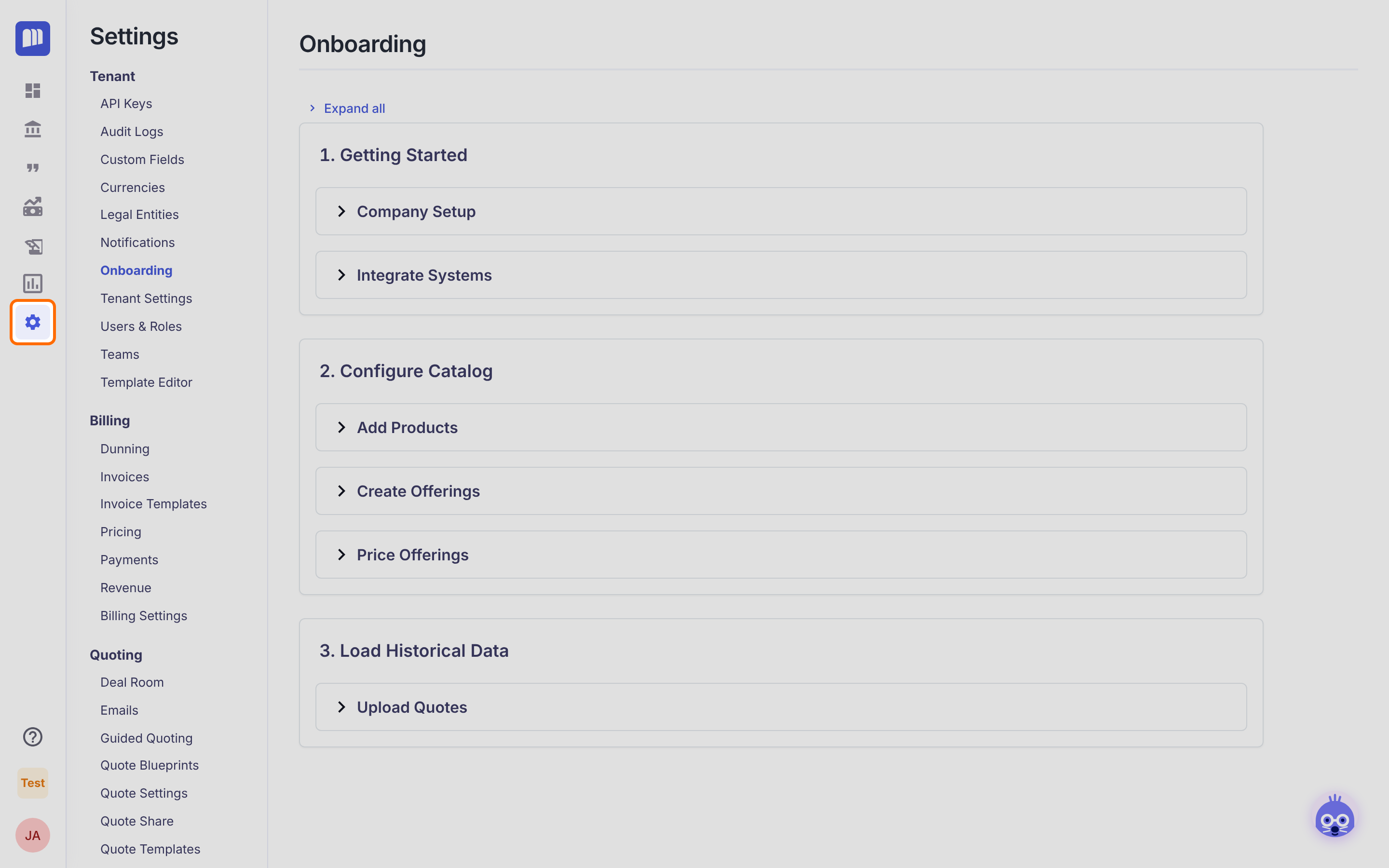
- In the left rail, click the Settings (gear) icon.
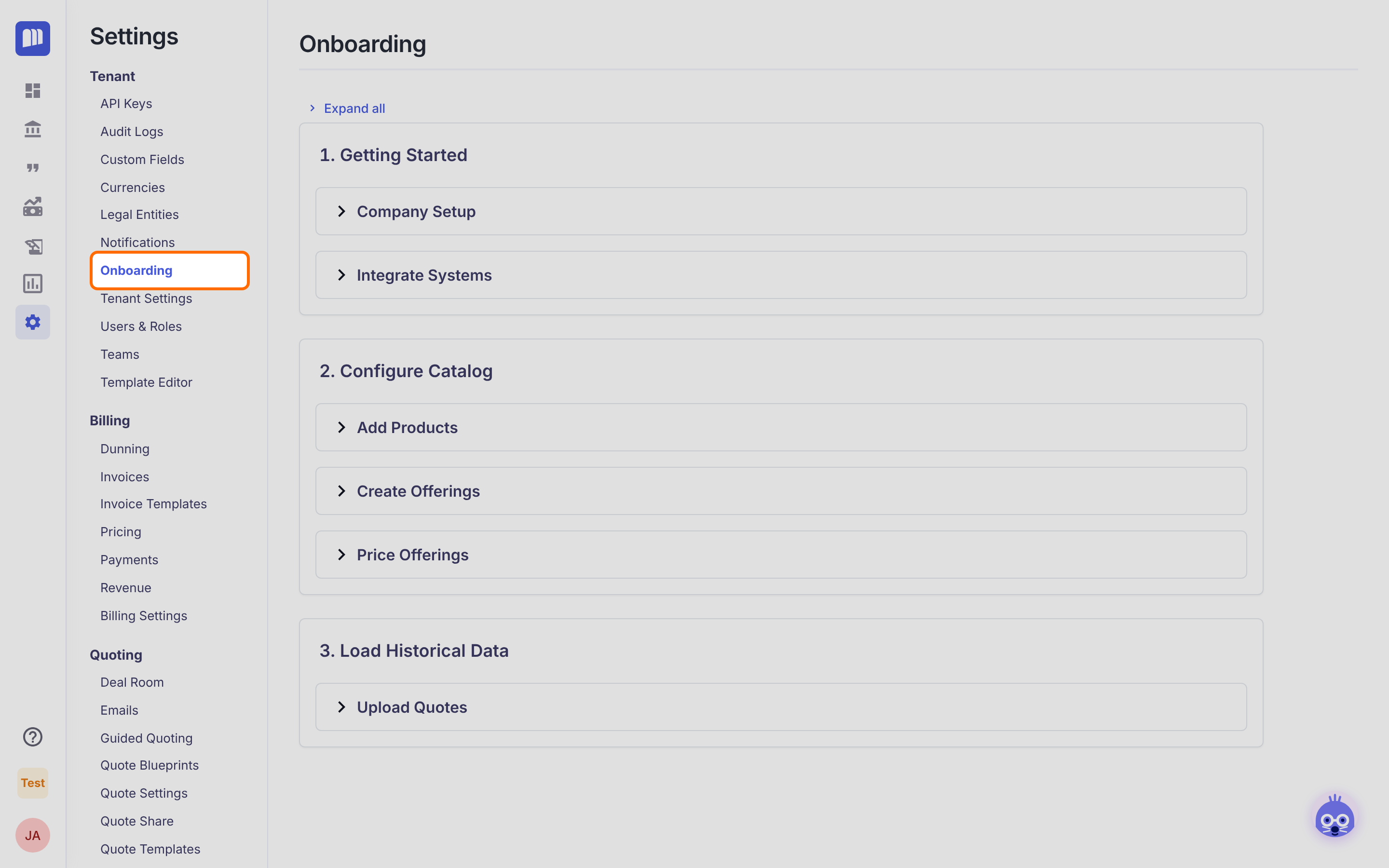
- In the Settings menu, under Tenant, click Onboarding.
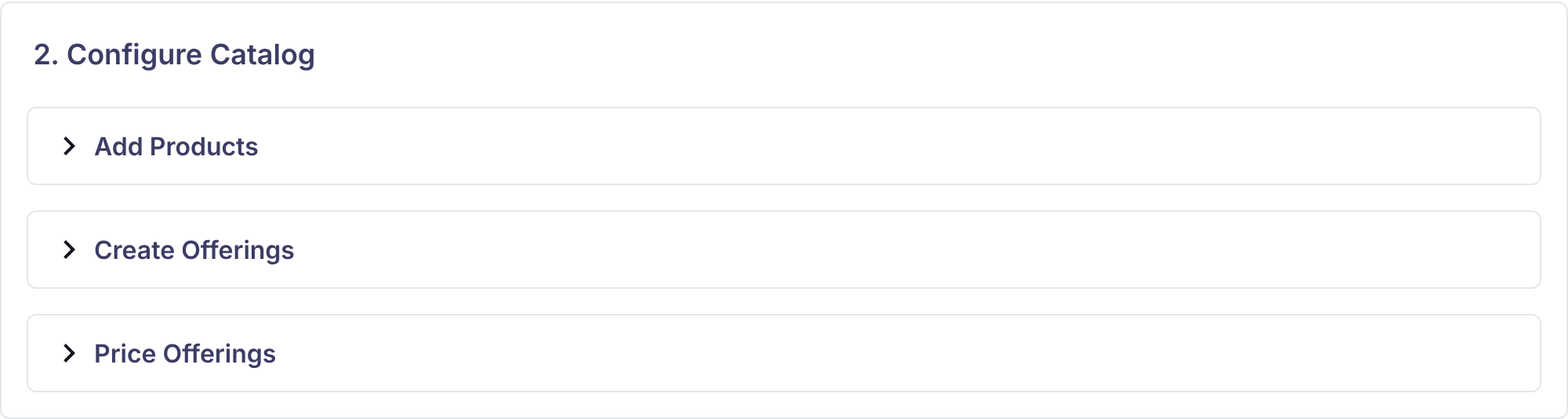
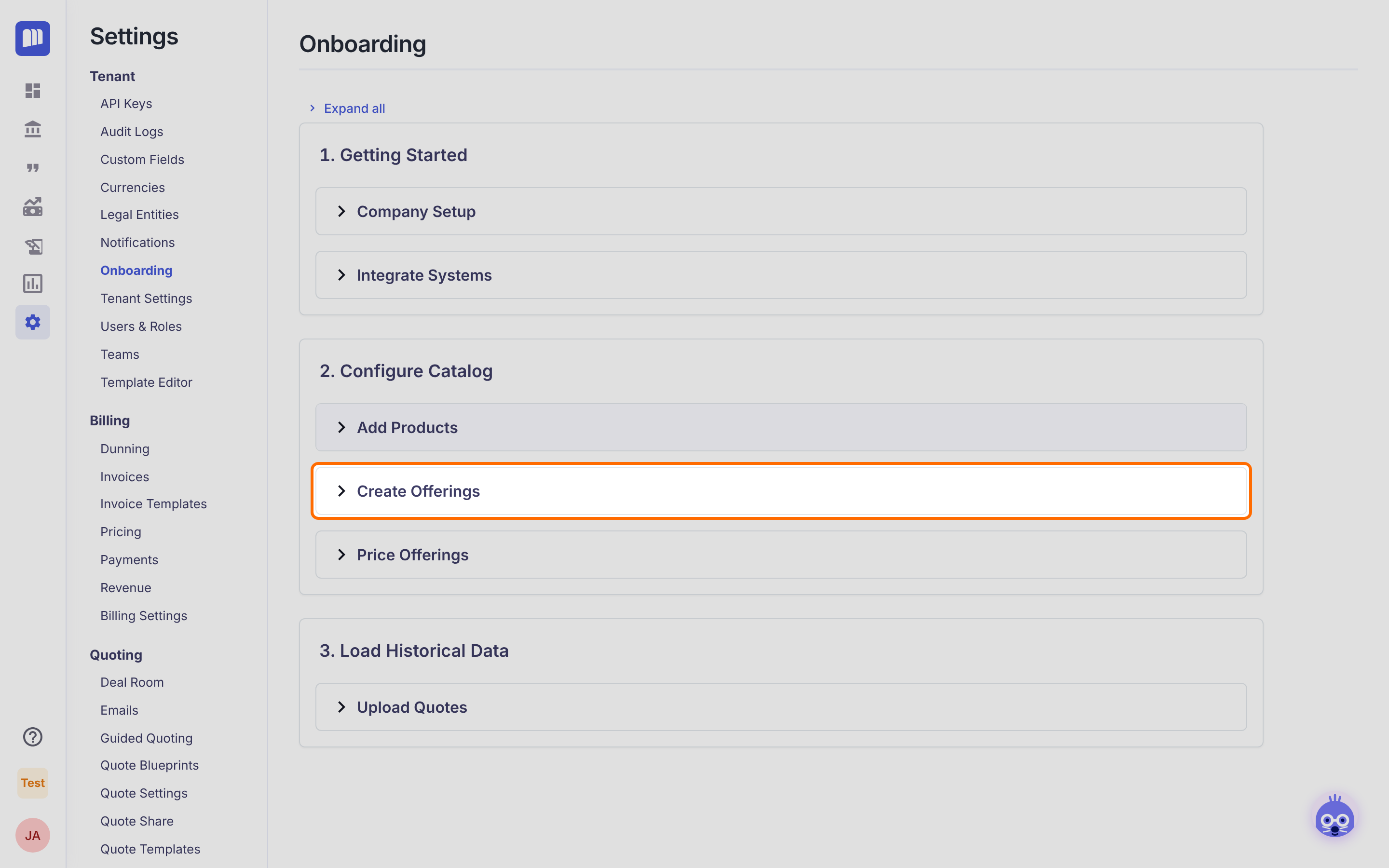
- Scroll to the 2. Configure Catalog card. It has three sections: Add Products, Create Offerings and Price Offerings.
Step 1: Add products
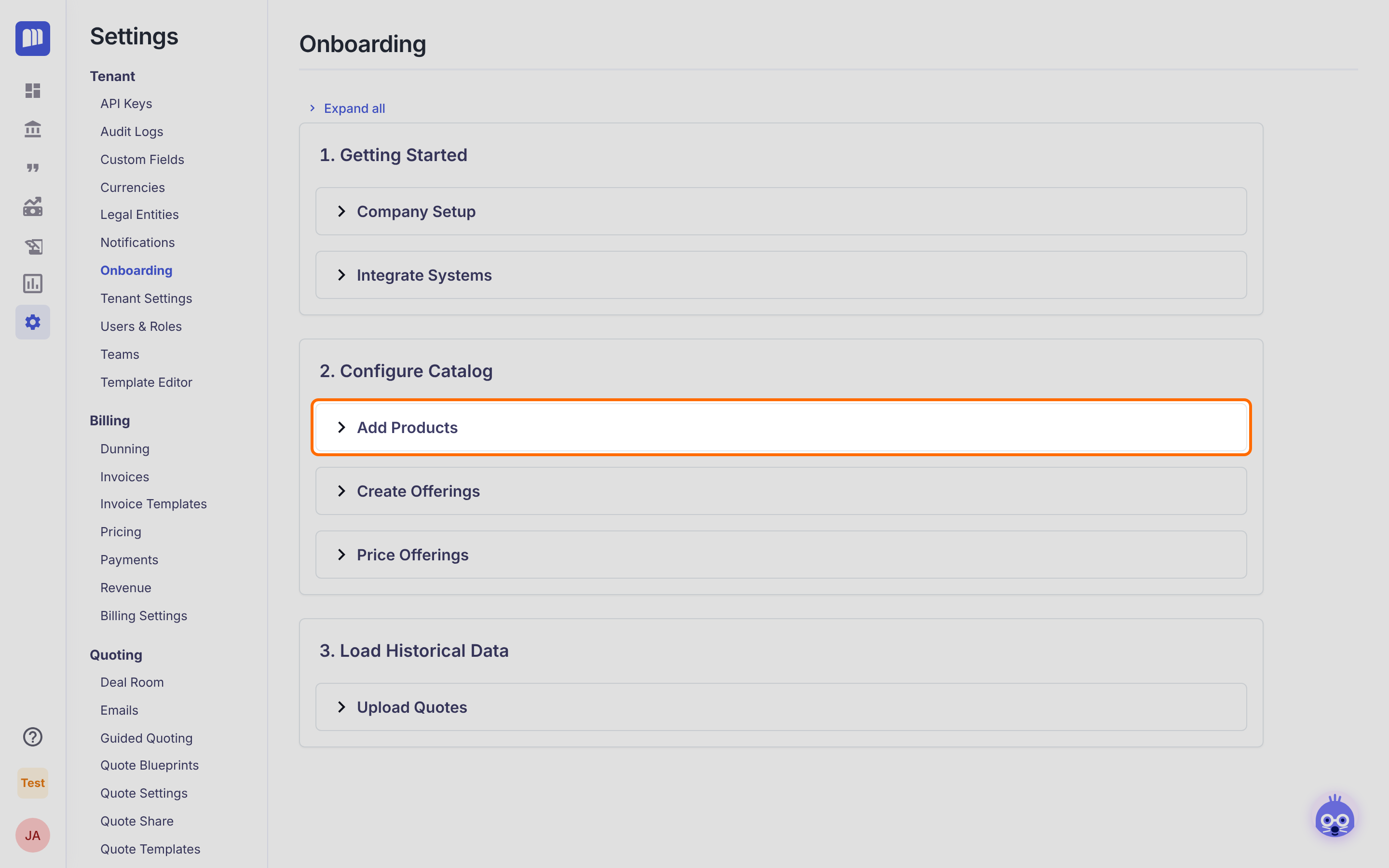
- Click Add Products to expand it.
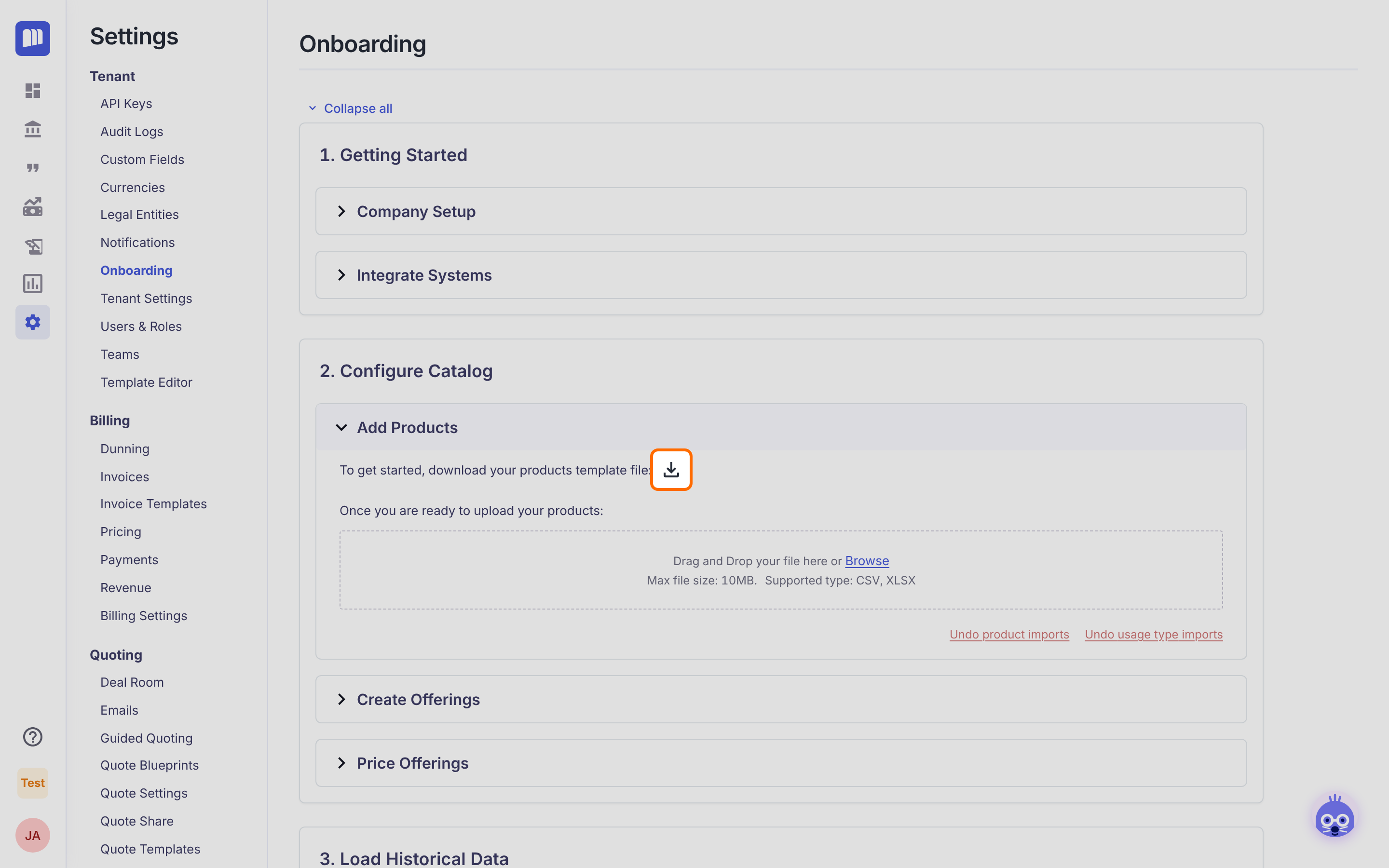
- Click the download icon next to "To get started, download your products template file:". You get
Onboarding - Products Template.xlsxwith three sheets:- Instructions: the rules and an example.
- Products: where you type.
- Values: holds the dropdown lists. Don't edit it.
- On the Products sheet, enter these five rows:
| Product Name | Description | Product Type | Status | SKU | Recognition Method |
|---|---|---|---|---|---|
| Analytics Platform | Core analytics platform license | SUBSCRIPTION | ACTIVE | AP-100 | STRAIGHT_LINE_EVEN_PERIODS |
| Analyst Seat | Named analyst user seat | SUBSCRIPTION | ACTIVE | AS-200 | STRAIGHT_LINE_EVEN_PERIODS |
| API Calls | Metered API calls | USAGE | ACTIVE | API-300 | |
| Implementation Services | One-time onboarding and setup | ONETIME | ACTIVE | IMP-400 | IMMEDIATE |
| Premium Support | 24x7 premium support add-on | SUBSCRIPTION | ACTIVE | SUP-500 | STRAIGHT_LINE_EVEN_PERIODS |
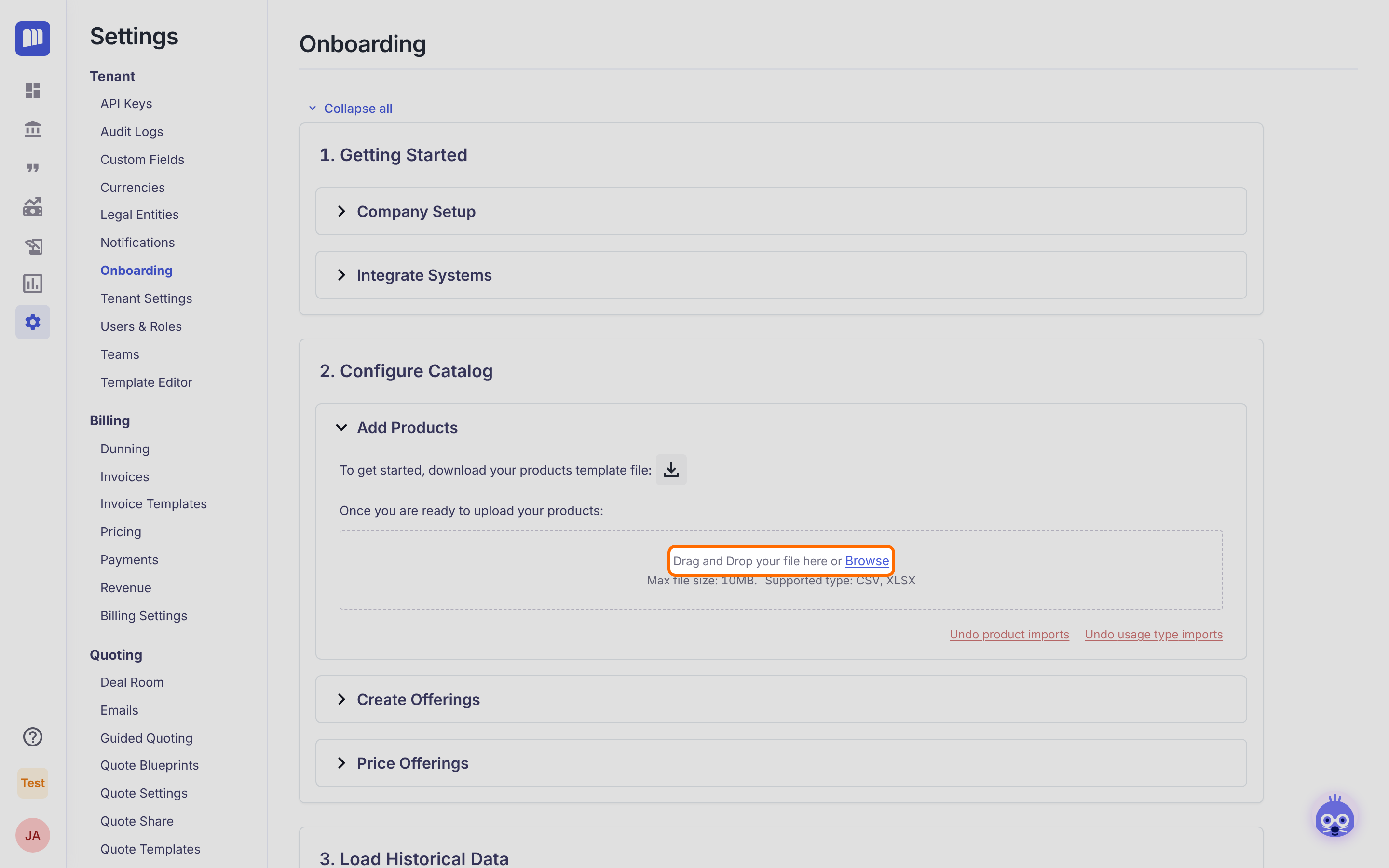
- Drag the file onto Drag and Drop your file here, or click Browse.
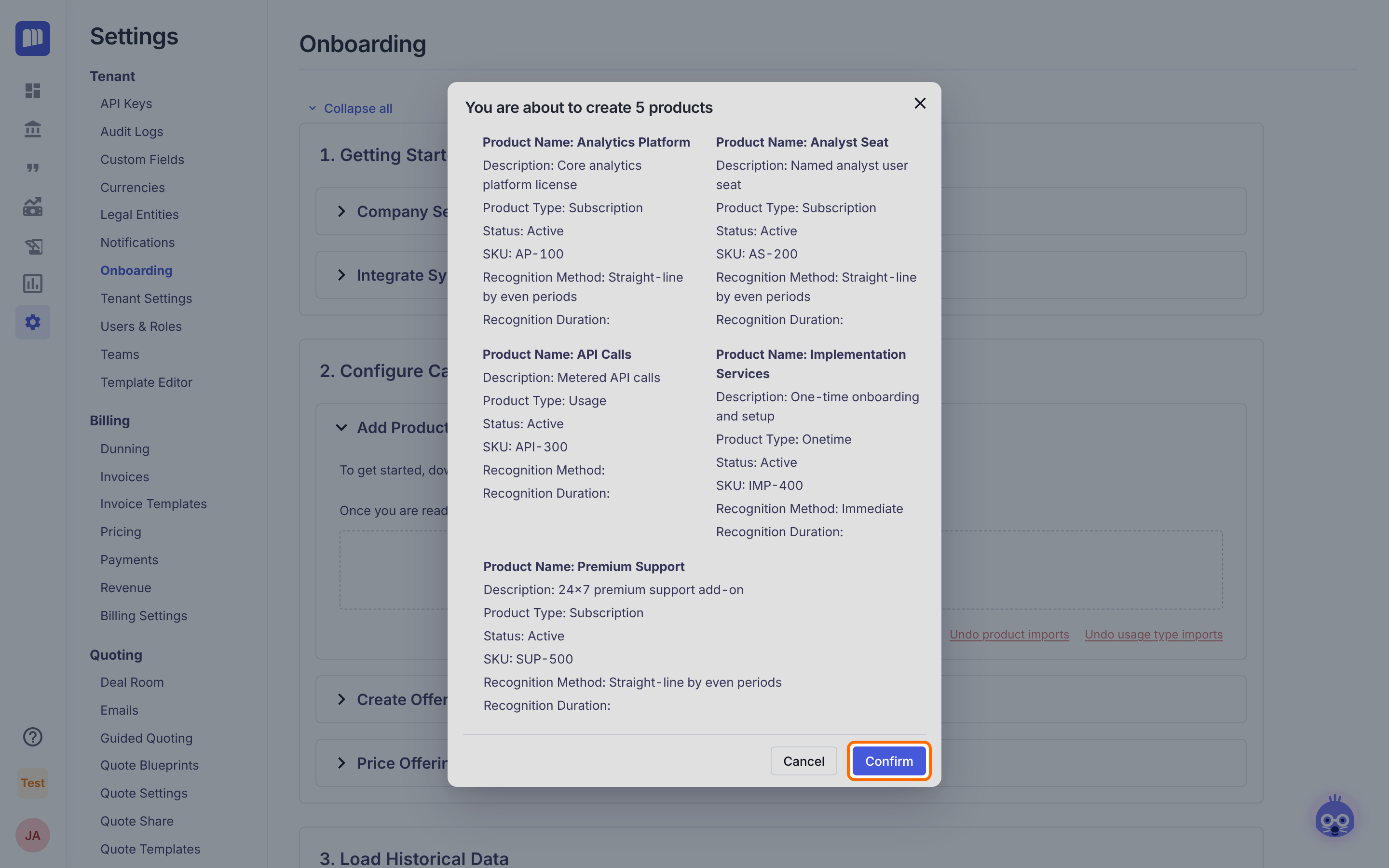
- A preview opens: "You are about to create 5 products". Check each card, then click Confirm.
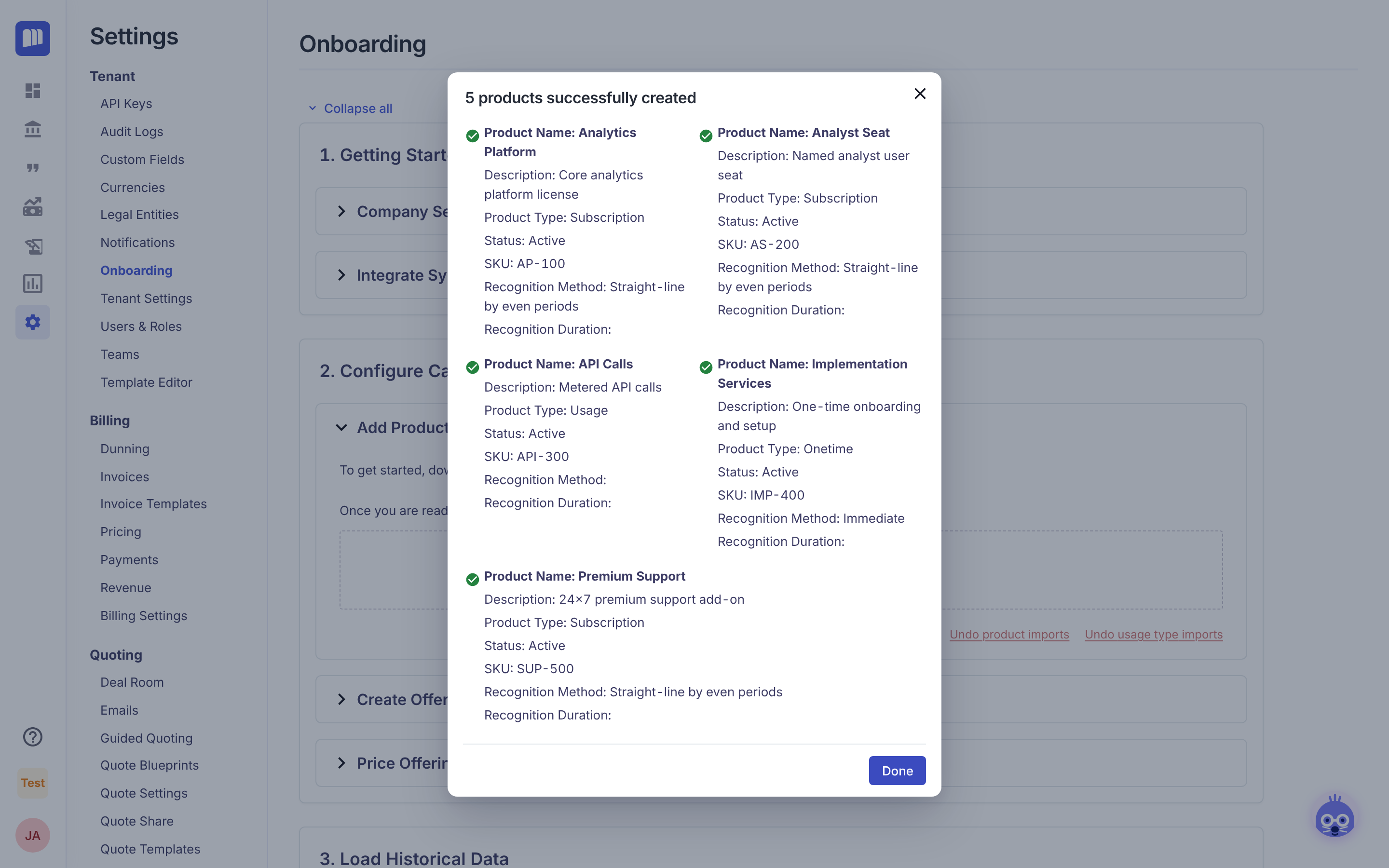
- Each card gets a green check as it is created. The title changes to "5 products successfully created". Click Done.
Usage productsBecause API Calls is a Usage product and the row had no
Usage Type IDs, MonetizeNow also created a usage type with the same name (unit "Unit", 0 decimal places).
Step 2: Create offerings
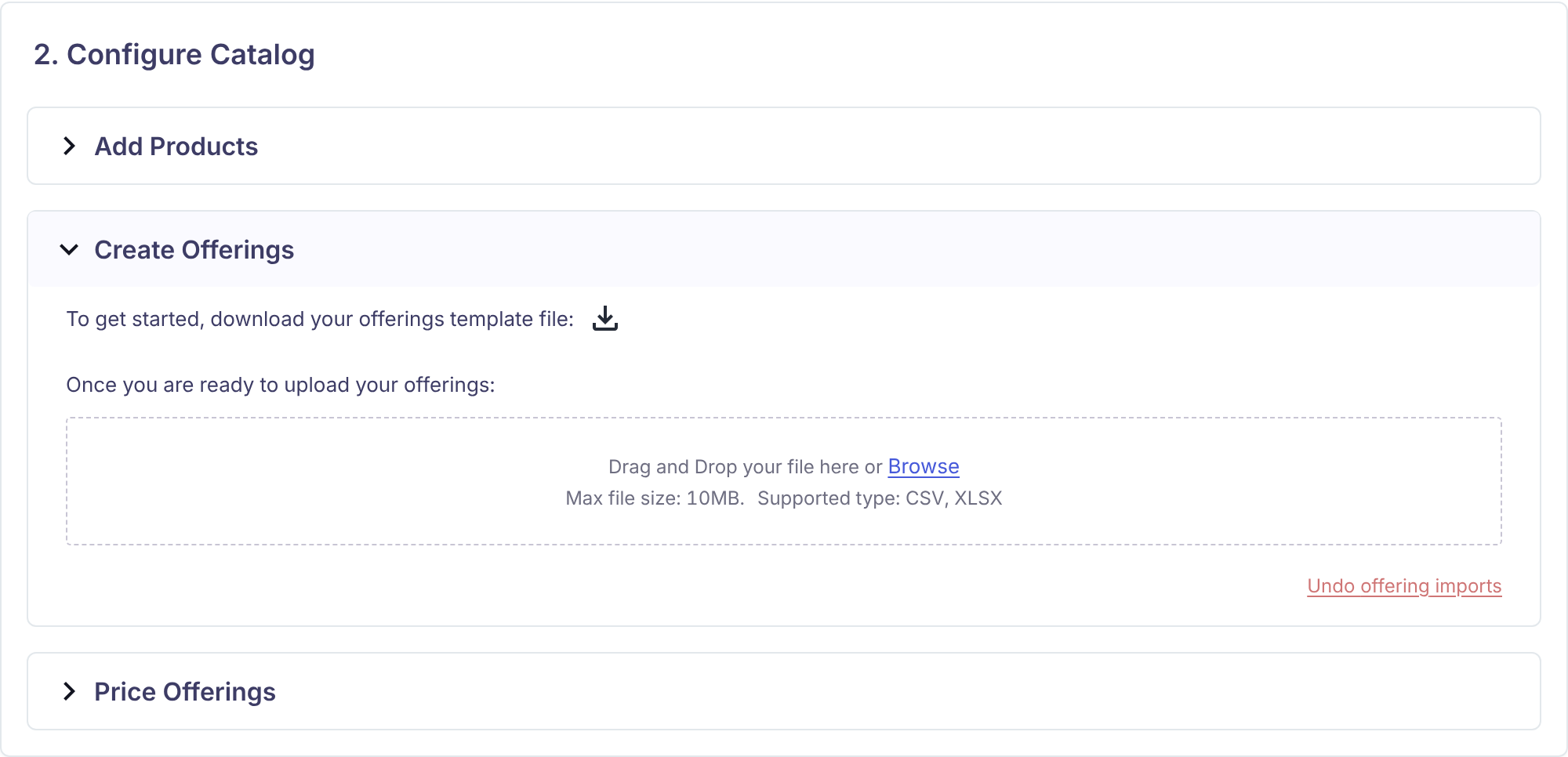
- Collapse Add Products and expand Create Offerings.
- Click the download icon to get
Onboarding - Offerings Template.xlsx. It was generated just now, so its Product Name dropdown lists the five products you created in Step 1.
- On the Offerings sheet, enter one row per product per offering:
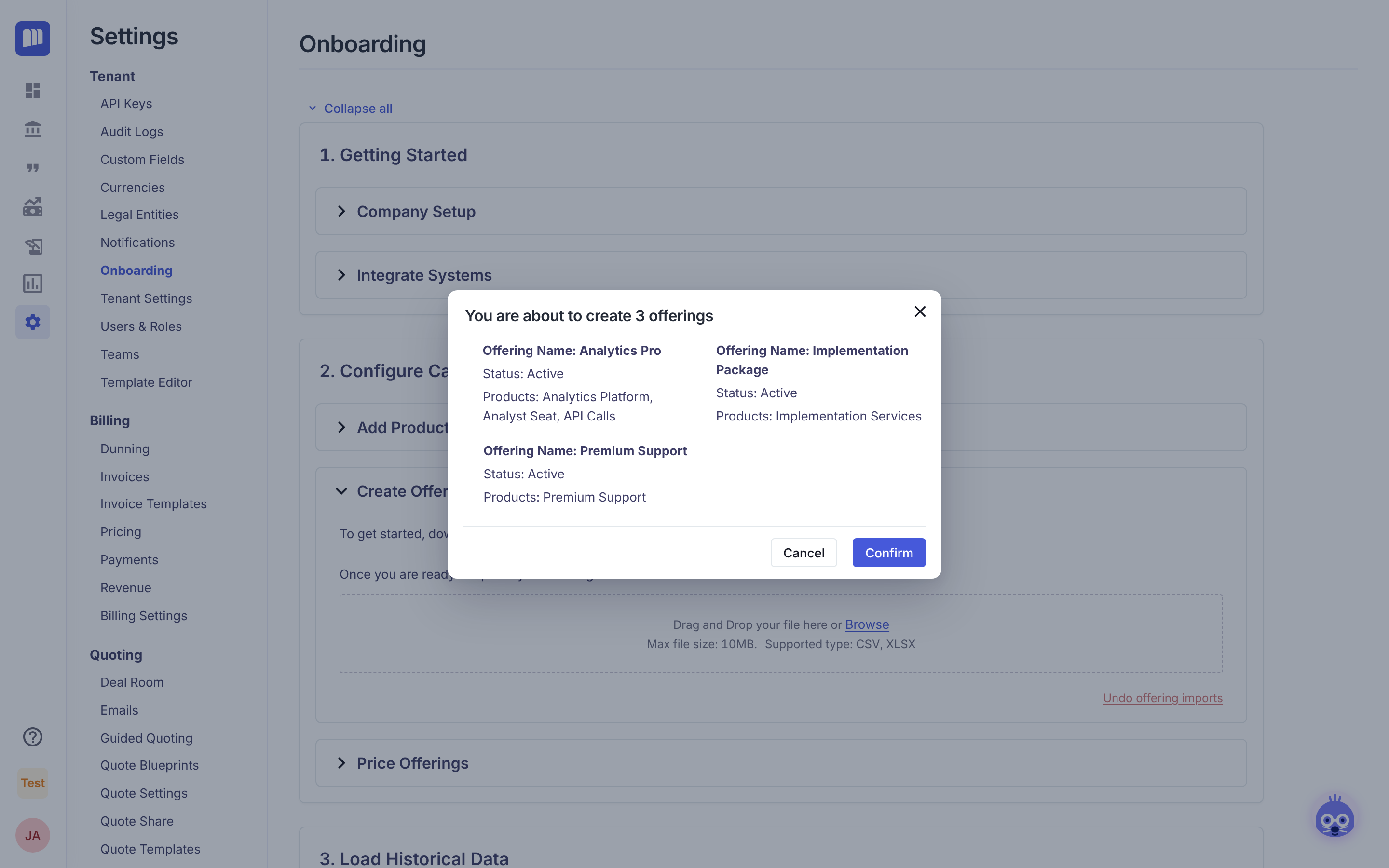
| Offering Name | Status | Product Name | Product ID | Required |
|---|---|---|---|---|
| Analytics Pro | ACTIVE | Analytics Platform | (fills in) | Y |
| Analytics Pro | ACTIVE | Analyst Seat | (fills in) | Y |
| Analytics Pro | ACTIVE | API Calls | (fills in) | N |
| Implementation Package | ACTIVE | Implementation Services | (fills in) | Y |
| Premium Support | ACTIVE | Premium Support | (fills in) | Y |
Pick Product Name from the dropdown and Product ID fills in by itself. Rows with the same Offering Name are grouped into one offering, and products are added in row order.
- Upload the file. The preview reads "You are about to create 3 offerings". Click Confirm.
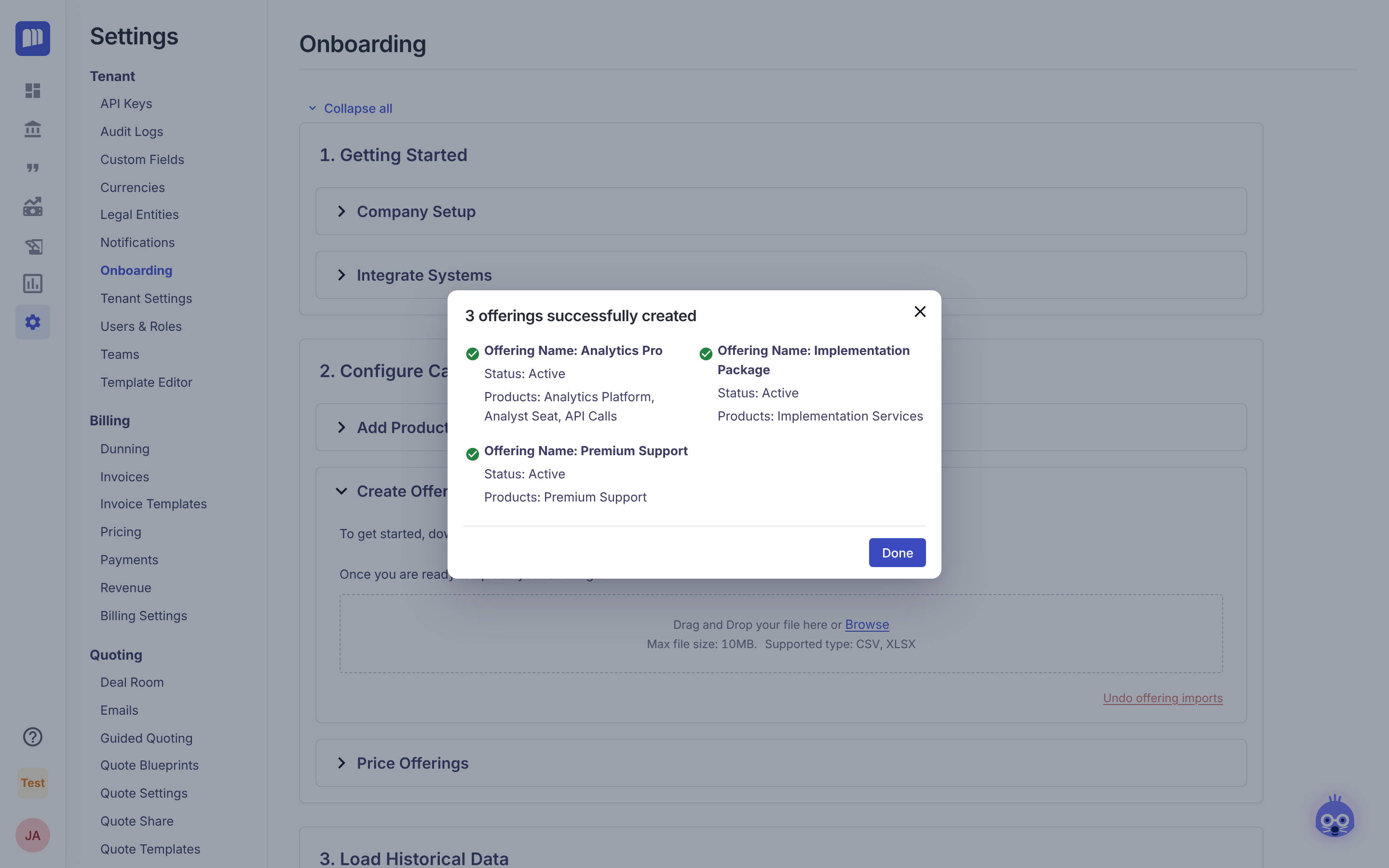
- The title changes to "3 offerings successfully created". Click Done.
Step 3: Price offerings
- Expand Price Offerings.
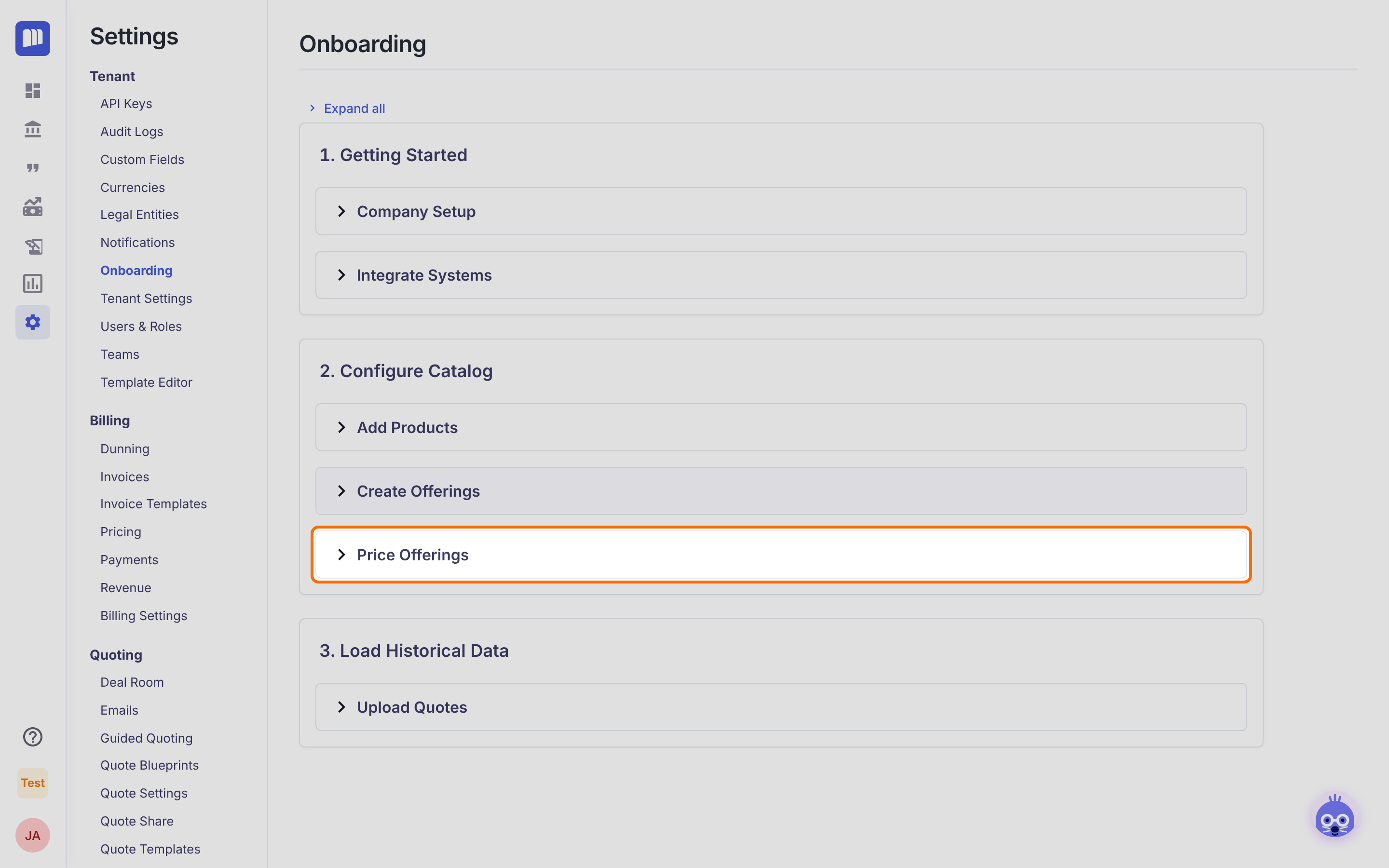
- This section offers two template downloads. Both download
Onboarding - Rate Template.xlsx.- Microsoft Excel: the Product Name dropdown changes depending on the Offering Name you picked.
- Google Sheets : simple dropdowns that work in any spreadsheet tool.
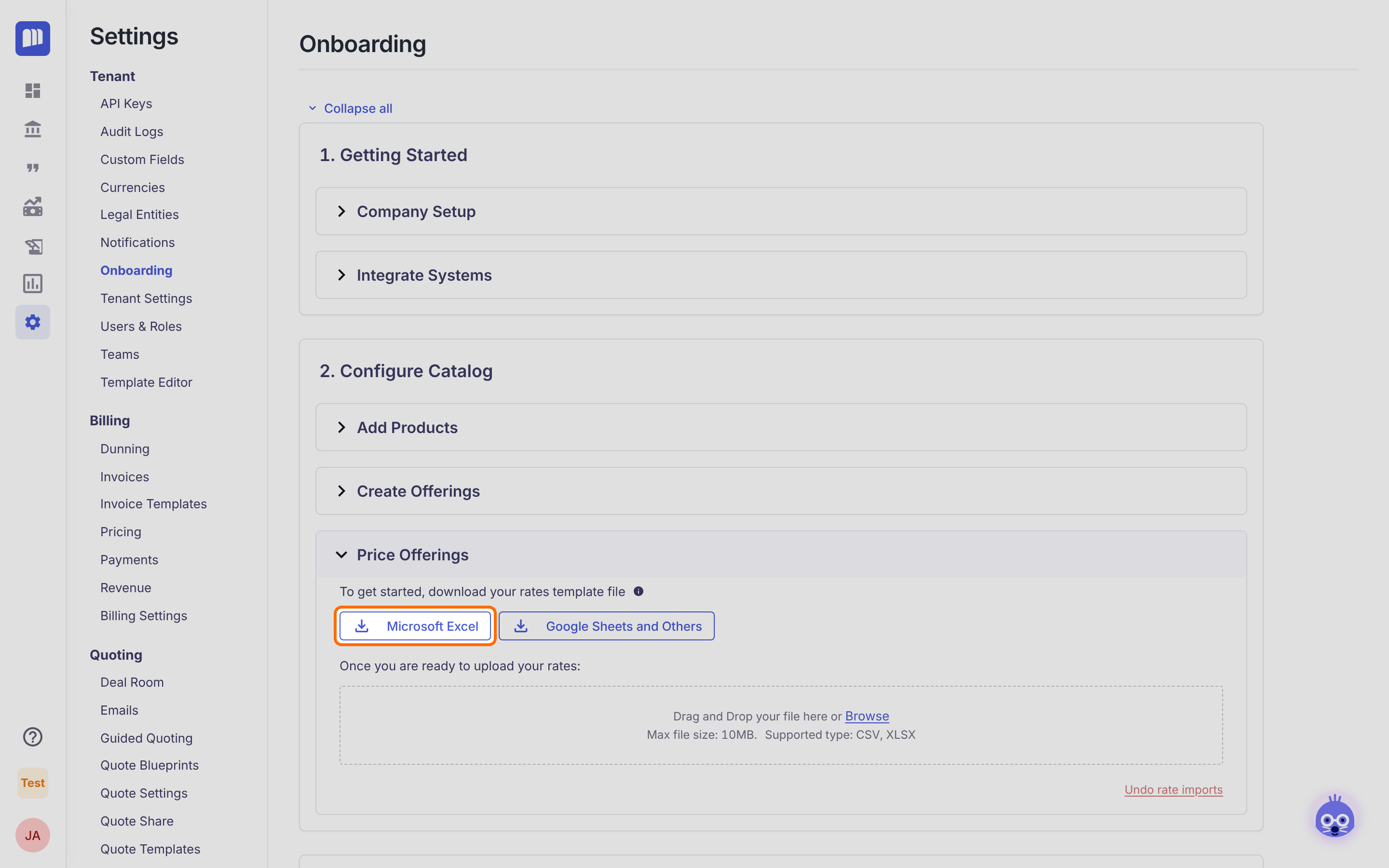
- On the Rates sheet, enter one row per price line. Pick Offering Name and Product Name, and Offering ID and Product ID fill in by themselves. Enter these rows:
| Offering Name | Rate Name | Billing Frequency | Subscription Timing | Product Name | Type | From | To | Price | Currency |
|---|---|---|---|---|---|---|---|---|---|
| Analytics Pro | Monthly | MONTHLY | ADVANCE | Analytics Platform | FLAT | 0 | 500 | USD | |
| Analytics Pro | Monthly | MONTHLY | ADVANCE | Analyst Seat | VOLUME | 0 | 10 | 50 | USD |
| Analytics Pro | Monthly | MONTHLY | ADVANCE | Analyst Seat | VOLUME | 11 | 40 | USD | |
| Analytics Pro | Monthly | MONTHLY | ADVANCE | API Calls | TIERED | 0 | 100000 | 0.002 | USD |
| Analytics Pro | Monthly | MONTHLY | ADVANCE | API Calls | TIERED | 100001 | 0.001 | USD | |
| Analytics Pro | Annual | ANNUALLY | ADVANCE | Analytics Platform | FLAT | 0 | 5400 | USD | |
| Analytics Pro | Annual | ANNUALLY | ADVANCE | Analyst Seat | VOLUME | 0 | 10 | 540 | USD |
| Analytics Pro | Annual | ANNUALLY | ADVANCE | Analyst Seat | VOLUME | 11 | 432 | USD | |
| Analytics Pro | Annual | ANNUALLY | ADVANCE | API Calls | TIERED | 0 | 100000 | 0.002 | USD |
| Analytics Pro | Annual | ANNUALLY | ADVANCE | API Calls | TIERED | 100001 | 0.001 | USD | |
| Implementation Package | One-time | ONETIME | ADVANCE | Implementation Services | FLAT | 0 | 2500 | USD | |
| Premium Support | Annual | ANNUALLY | ADVANCE | Premium Support | FLAT | 0 | 3000 | USD |
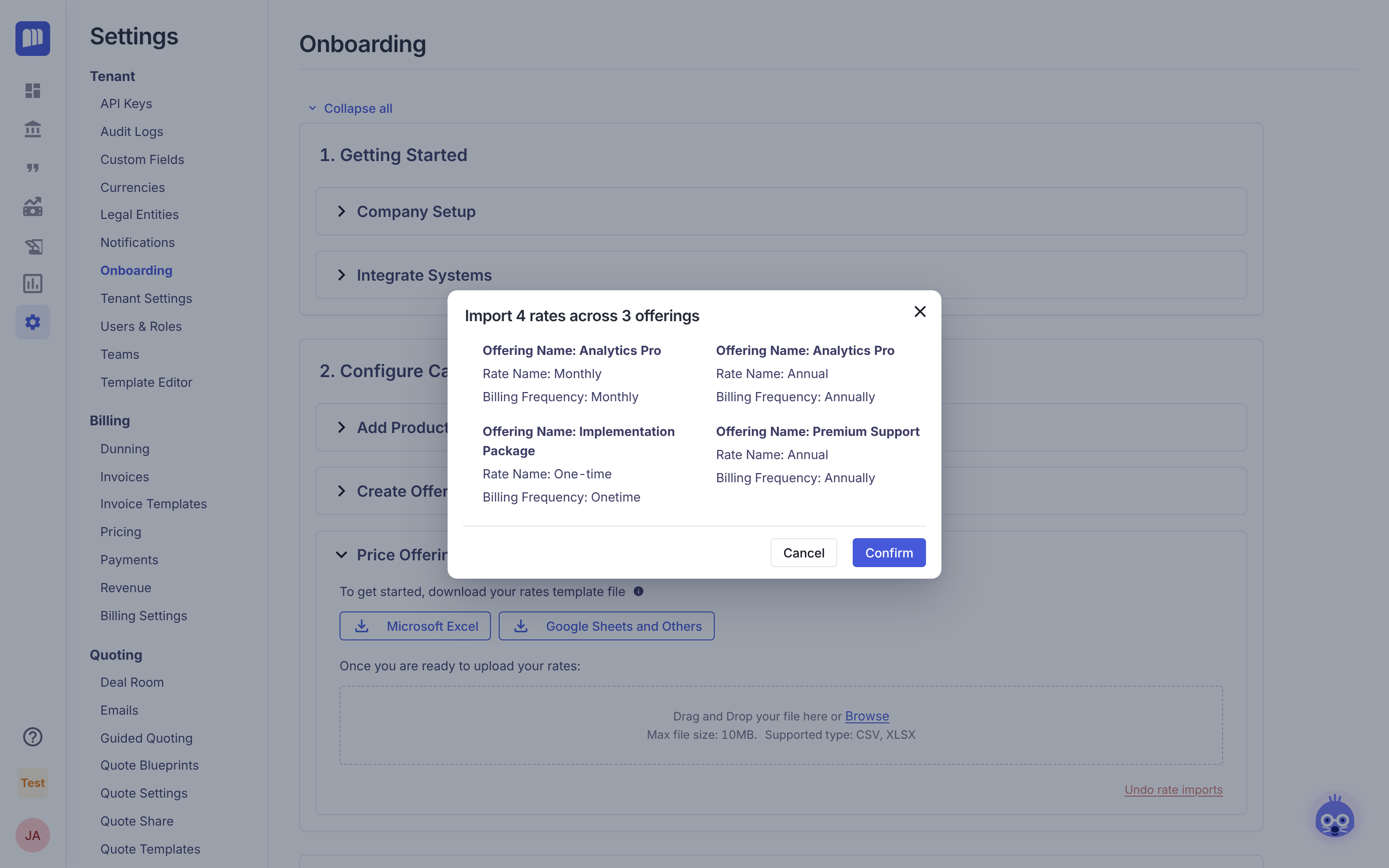
Rows with the same Offering, Rate Name, Billing Frequency and Subscription Timing become one rate. These 12 rows make 4 rates.
- Upload the file. The preview reads "Import 4 rates across 3 offerings". Click Confirm.
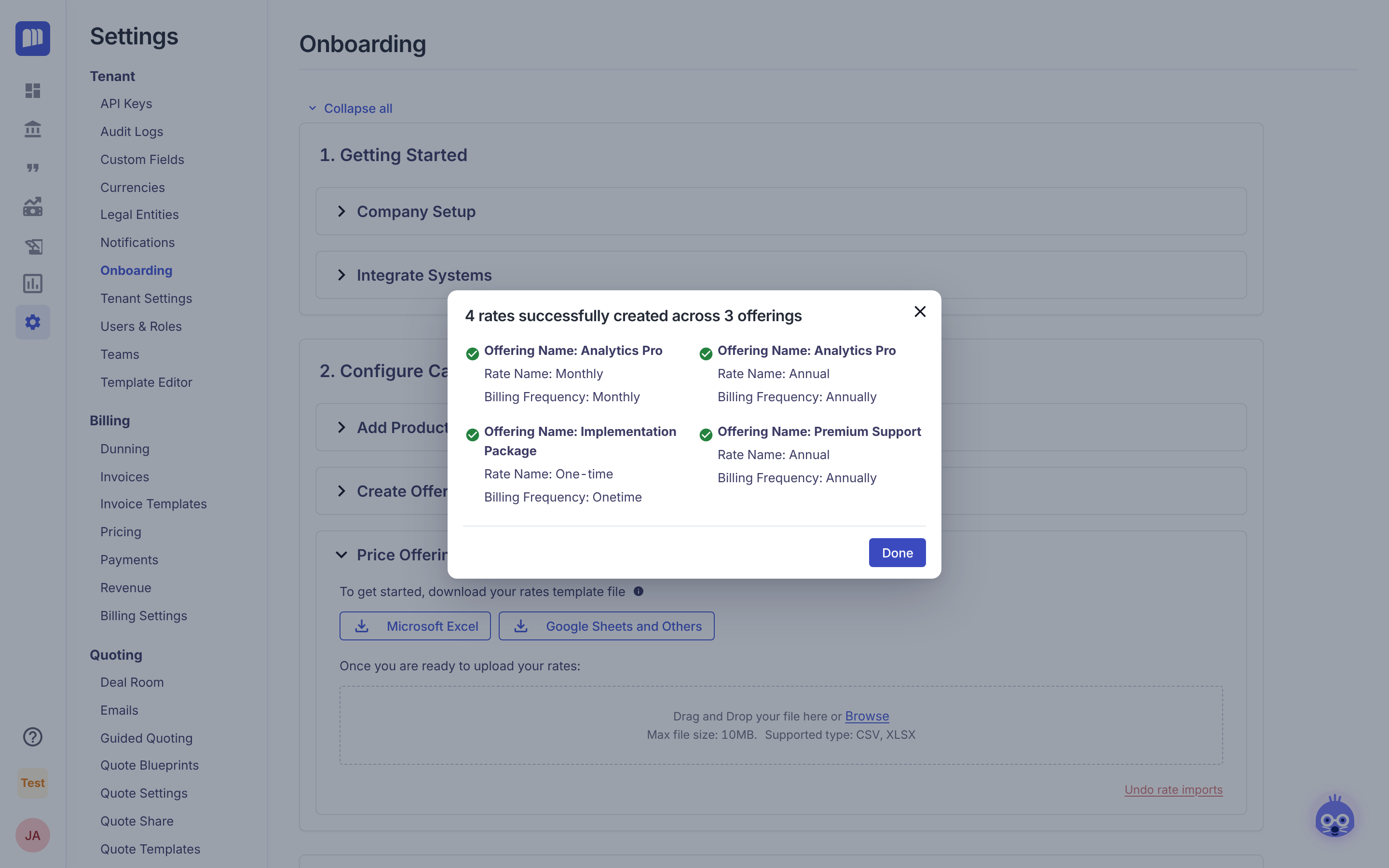
- The title changes to "4 rates successfully created across 3 offerings". Click Done.
What you learned
- The order is products → offerings → rates. Download each template after the previous upload.
- Templates fill in IDs for you from their Values sheet.
- Offerings group by Offering Name. Rates group by Offering + Rate Name + Billing Frequency + Subscription Timing.
- Every upload shows a preview first. Nothing is created until you click Confirm.
Next: Undo a catalog import to clean up this practice run.
Updated about 2 hours ago