

Creating your first Offering
This tutorial walks you through building a complete, quotable offering from scratch. It takes about 10 minutes. You'll create:
- 2 products: what you sell
- 1 offering: the bundle you sell them in
- 2 rates: the prices, one for SMB customers and one for Enterprise
You'll need: Tenant Admin or Billing Admin access.
The scenario
Gallifrey Software sells access to the TARDIS Platform per seat. It also charges a one-time implementation fee to get each customer started. SMB and Enterprise customers pay different prices on different billing schedules:
| SMB | Enterprise | |
|---|---|---|
| Seats | $100 per seat per month | $2,000 per seat per year for seats 1–50, then $1,500 for each seat after that |
| Billed | Monthly, in advance | Annually, in advance |
| Implementation fee | $10,000, once | $20,000, once |
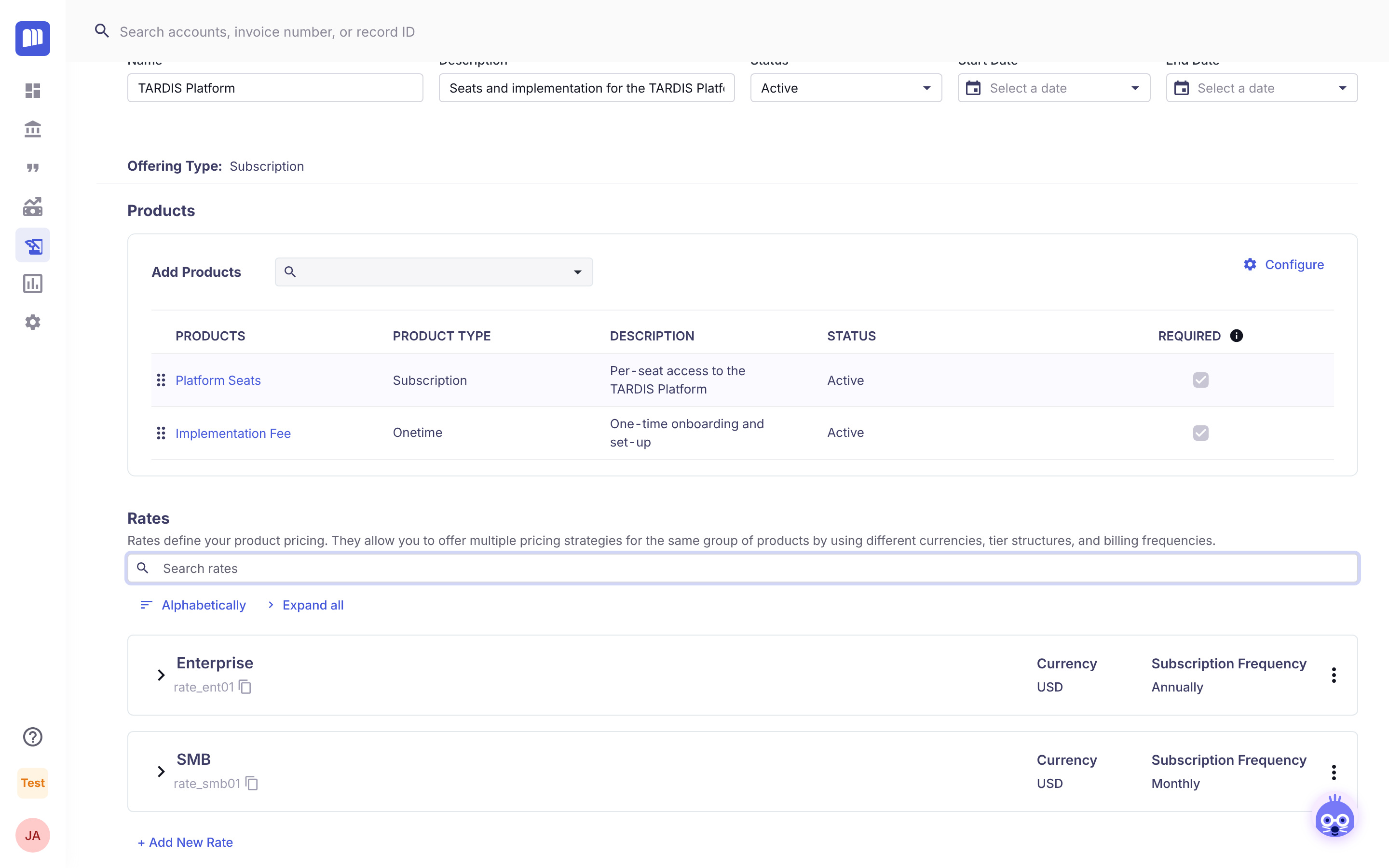
In MonetizeNow, this is two products in one offering with two rates:
TARDIS Platform (offering)
├── Platform Seats (Subscription product)
├── Implementation Fee (Onetime product)
├── SMB rate (Monthly)
└── Enterprise rate (Annually)
Step 1: Create two products
A product is something you sell. Products don't have prices; the rates you add in step 3 do.
-
Go to Product Catalog. On the Products tab, click New Product.
-
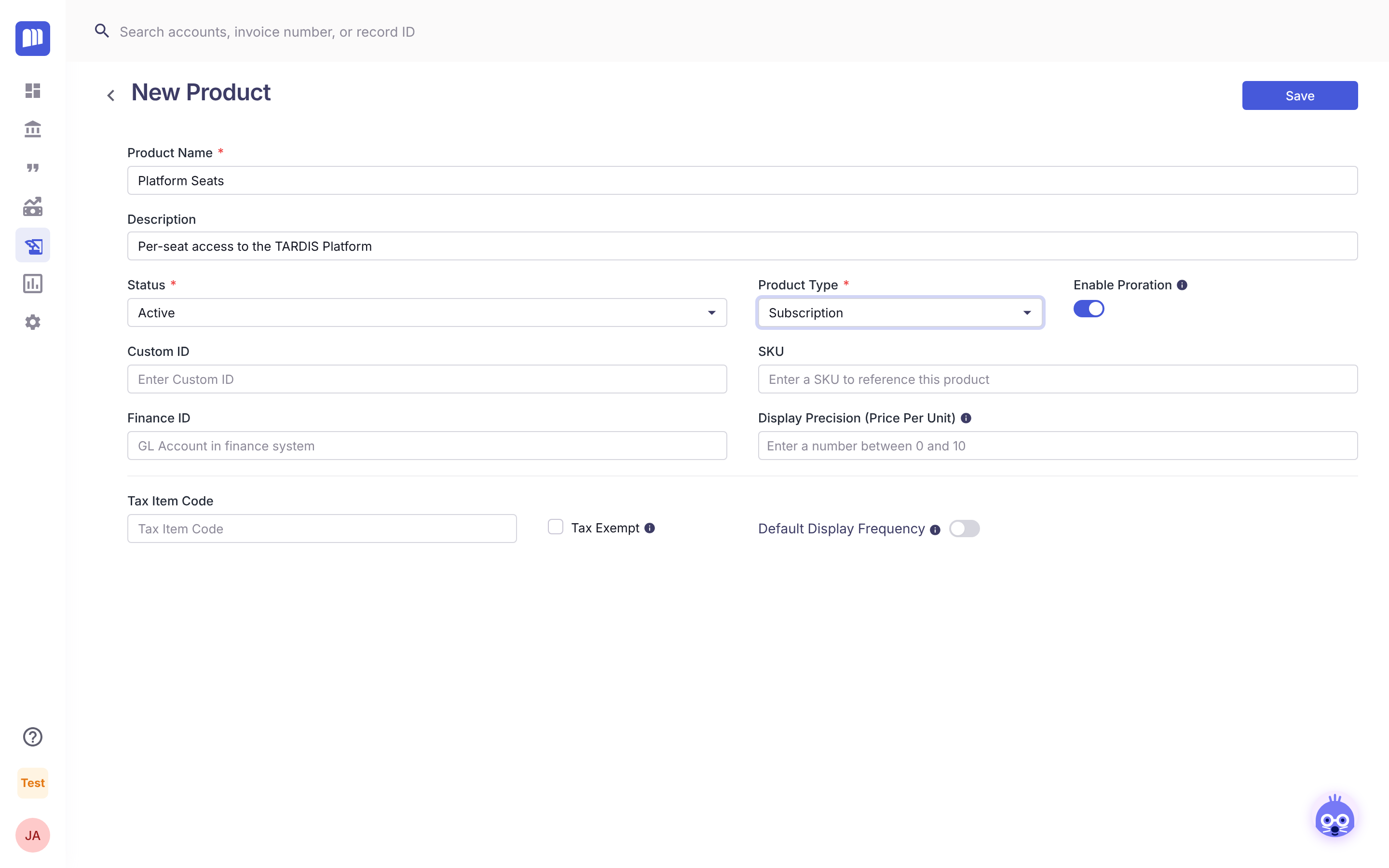
Create the seats product:
- Product Name: Platform Seats
- Description: Per-seat access to the TARDIS Platform
- Product Type: Subscription
-
Click Save.
-
Click New Product again and create the fee:
- Product Name: Implementation Fee
- Description: One-time onboarding and set-up
- Product Type: Onetime
-
Click Save.
Why two types? A Subscription product is billed every billing period. A Onetime product is billed once. You can sell both in the same offering.
Step 2: Create the offering
An offering bundles the products you sell together. Reps add offerings to quotes.
- Go to the Offerings tab and click New Offering.
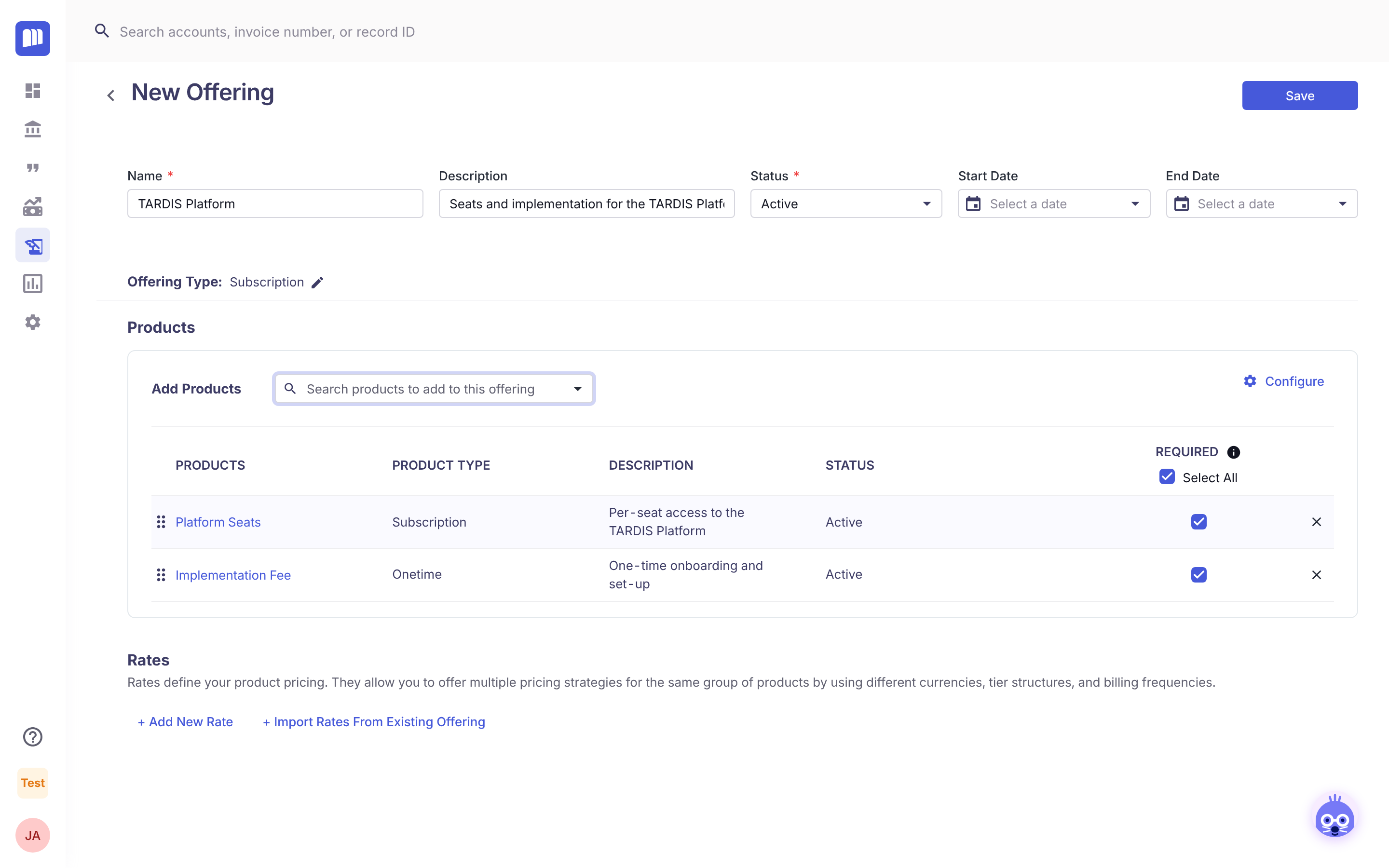
- Enter:
- Name: TARDIS Platform
- Description: Seats and implementation for the TARDIS Platform
- Under Choose Offering Type, keep Subscription. This type lets you bundle subscription, usage and one-time products.
- In Add Products, pick Platform Seats. Open the list again and pick Implementation Fee. Both are ticked Required by default, so they're always on the quote.
- Click Save.
Step 3: Add the SMB rate
A rate sets the price of every product in the offering, plus the currency and billing schedule.
-
On the offering, under Rates, click + Add New Rate.
-
Fill in the top of the rate:
Field Value Rate Name SMB Currency USD Subscription Frequency Click it and choose Monthly (1) Subscription Timing Advance (the default) -
Under Product Prices, set:
Product Pricing Model Amount Platform Seats Volume $100.00 Implementation Fee Flat $10,000.00 -
Click Save.
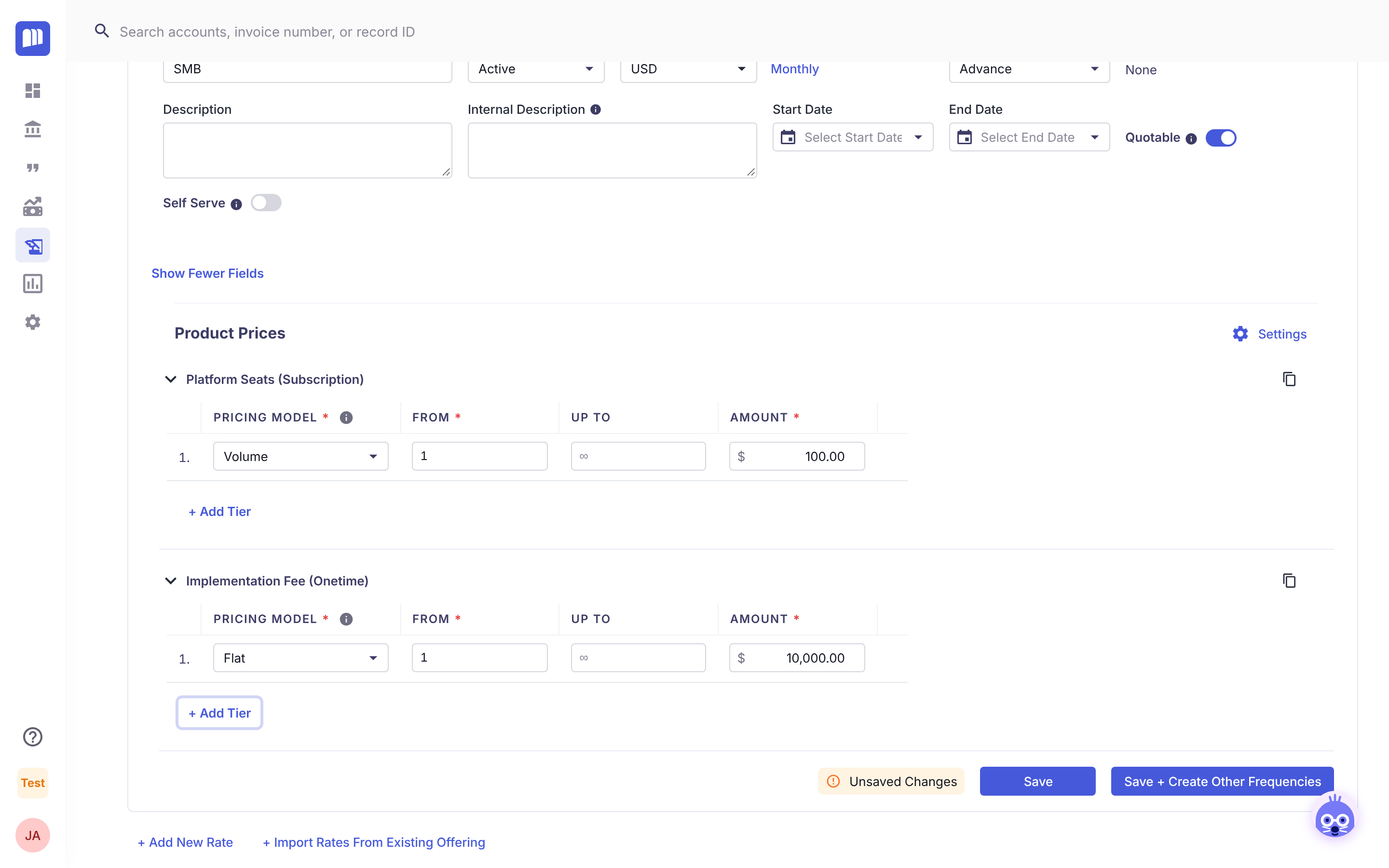
Why Volume for seats? Volume multiplies the price by the quantity, so 20 seats cost 20 × $100 = $2,000 a month. Flat is one fixed price whatever the quantity, which suits a one-off fee. If you priced seats as Flat, the customer would pay $100 however many seats they had.
Step 4: Add the Enterprise rate
-
Click + Add New Rate again.
-
Fill in the top of the rate:
Field Value Rate Name Enterprise Currency USD Subscription Frequency Annually (the default) Subscription Timing Advance (the default) -
For Platform Seats, choose Tiered:
- Tier 1: From 1, Up to 50, Amount $2,000.00
- Click + Add Tier. Tier 2 starts at 51 automatically. Leave Up to empty (∞) and enter Amount $1,500.00.
-
For Implementation Fee, choose Flat, Amount $20,000.00.
-
Click Save.
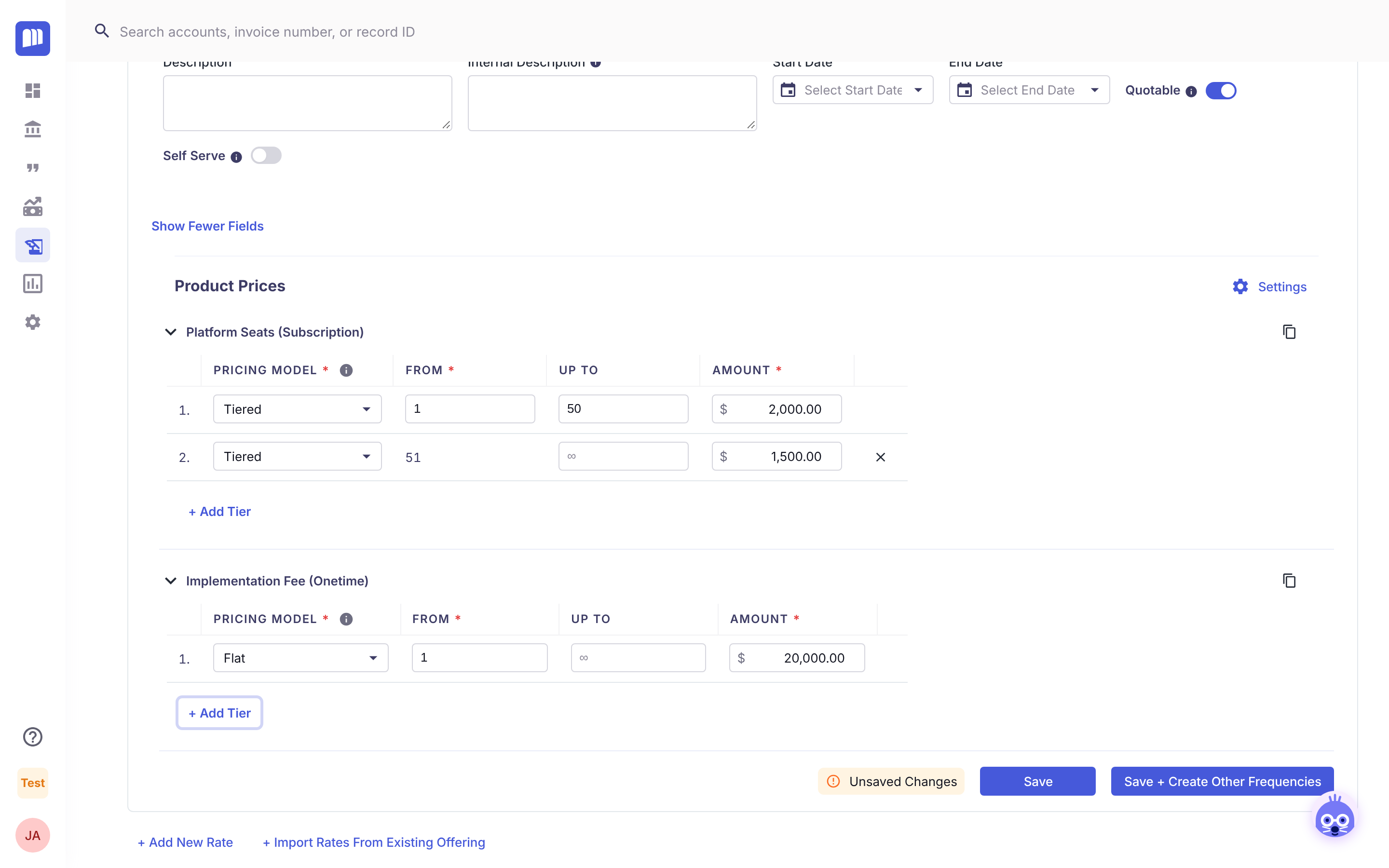
Why Tiered? Tiered prices each seat in the tier it falls into. 60 seats cost 50 × $2,000 + 10 × $1,500 = $115,000 a year. Volume tiers would price every seat at the tier the total falls into: 60 × $1,500 = $90,000. Use Tiered when the discount applies only to the seats above the break.
You're done
TARDIS Platform now has two rates, ready for reps to add to quotes.
| 20 seats, SMB | 60 seats, Enterprise | |
|---|---|---|
| Seats | $2,000 a month | $115,000 a year |
| Implementation fee | $10,000, billed once | $20,000, billed once |
Before you start quoting
- Set up the products fully first. Once a product is in an offering, its type and other key settings are locked. Once the offering has active rates or is used on quotes, its products can't be changed.
- Every product needs a price on every rate. That's how SMB and Enterprise can charge different implementation fees.
Next steps
- Create copies of a rate at other billing frequencies with Save + Create Other Frequencies: see Rates.
- Let reps leave out add-ons: see Optional products.
- Learn every product setting: see Products.
- See how the catalog fits together: see Product Catalog Overview.
Updated 4 days ago