

Billing Schedule
The Billing Schedule shows, in one place, every invoice for a bill group's contracts:
- invoices already created;
- invoices still to come, with their dates and amounts.
| I want to… | Go to |
|---|---|
| Understand what it's for | What the billing schedule is for |
| Answer "when is my next invoice, and how much?" | Check upcoming invoices |
| See what's on an invoice | See what each invoice includes |
| Share or analyze the schedule | Export the billing schedule |
| Know what's not shown | What's included |
What the billing schedule is for
Explanation
- Customer questions, answered in seconds. When a customer asks "When is my next invoice? How much will it be? When does my contract end?", anyone on the team can open one tab and answer.
- Transparent invoicing. Finance can check every upcoming invoice for a bill group at any time, and spot surprises before they're invoiced.
The schedule is calculated from each contract, so amendments show up automatically. A renewal creates a new contract, which appears as its own row.
Check upcoming invoices
How-to
-
Open the bill group. From an account, go to the Bill Groups tab and click the bill group's name.
-
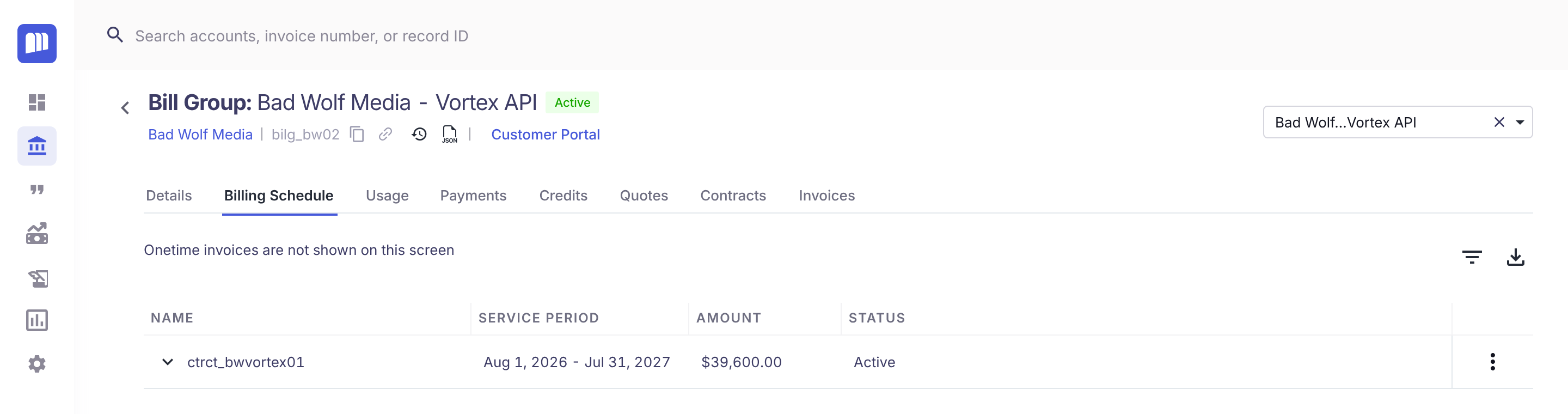
Select the Billing Schedule tab. Each row is a contract in the bill group, with its Service Period (the contract term), total Amount and Status.
-
Click a contract to expand it. You'll see one row per invoice for the whole contract term:
Column What it shows Name The invoice, for invoices already created, or Upcoming Invoice Service Period The period the invoice covers Invoice Date When the invoice is, or will be, created Amount The invoice amount Status Invoiced or Not Invoiced 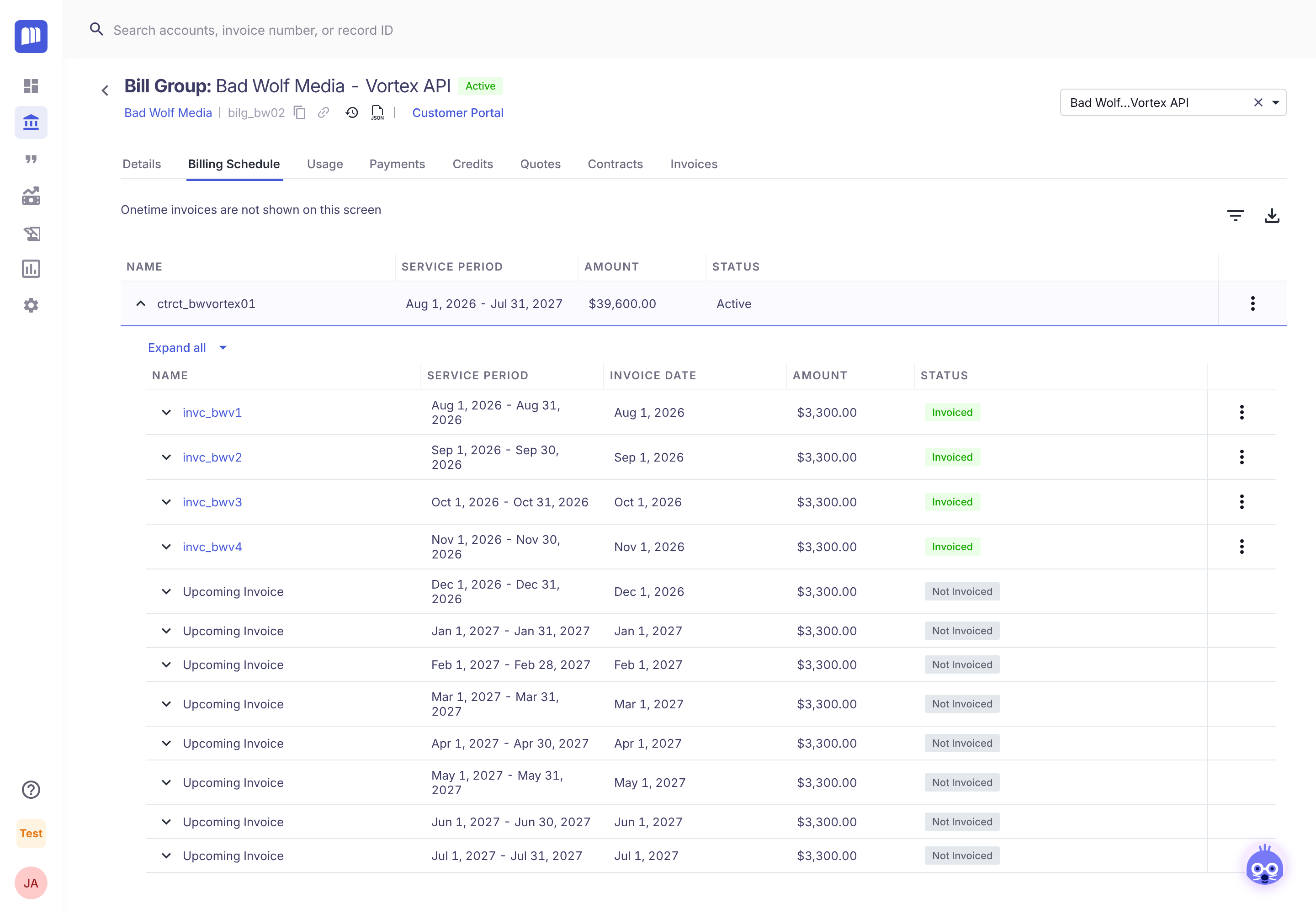
In this example, Bad Wolf Media's contract runs from Aug 1, 2026 to Jul 31, 2027 and is billed monthly. Four invoices have been created, and the next one, $3,300 on Dec 1, 2026, is the first Upcoming Invoice.
Tip: click Expand all to open every invoice's line items at once.
See what each invoice includes
How-to
Click an invoice row to see its line items:
- Service Period
- Offering Name
- Product Name
- Quantity
- PPU (price per unit)
- Amount
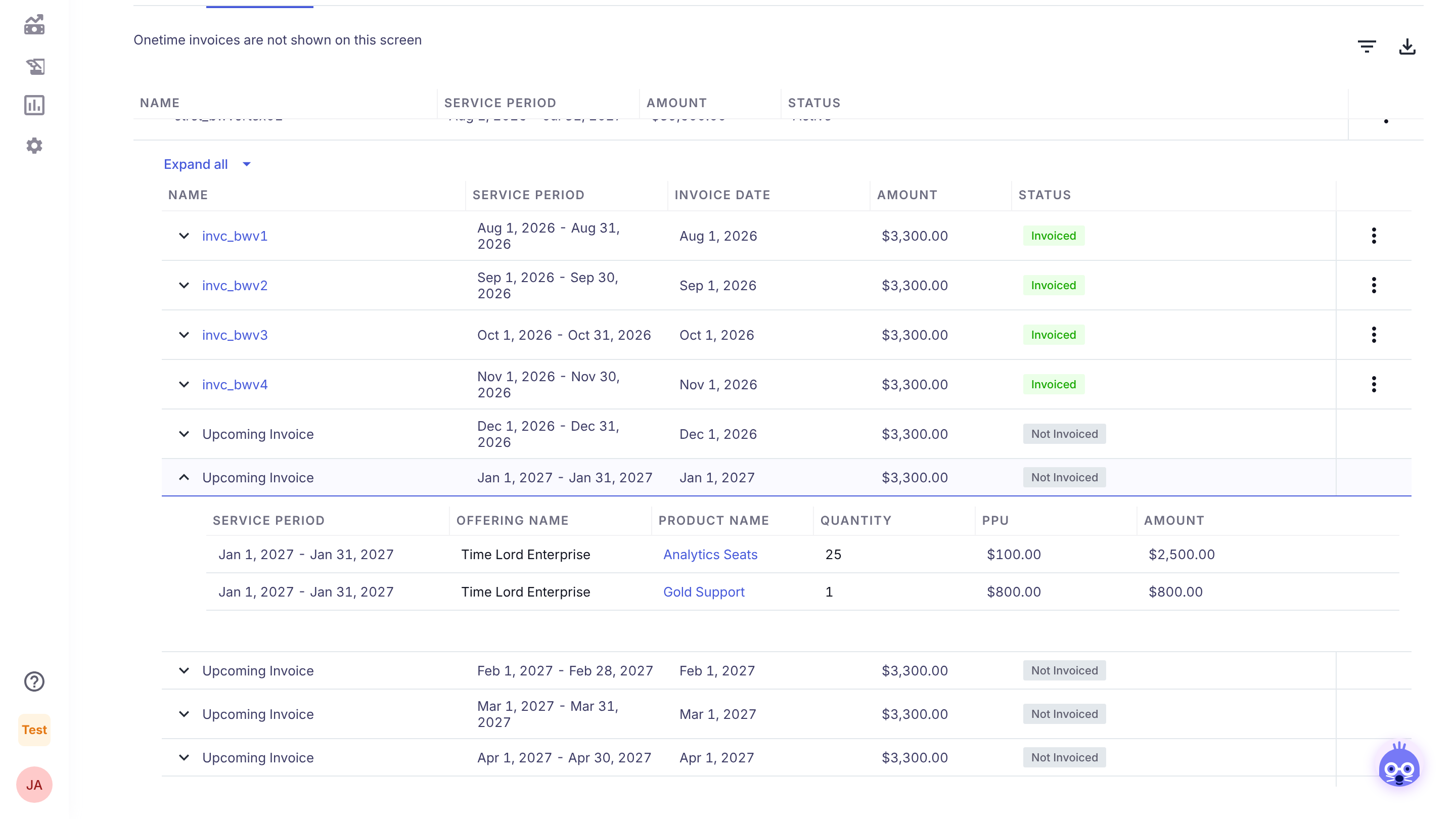
For invoices that have been created, open the row's ⋮ menu and click View Invoice PDF to see the invoice itself.
Export the billing schedule
How-to
- Every contract in the bill group: click the Export CSV (download) icon at the top right of the tab. Filters you've applied with the filter icon are respected.
- One contract: open the contract's ⋮ menu and click Export CSV.
To open the contract itself, use ⋮ → View Contract.
What's included
Reference
| Included | Every invoice for each contract in the bill group, past and upcoming |
| Not included | One-time invoices. The tab says "Onetime invoices are not shown on this screen." |
| Usage | Upcoming amounts exclude usage, because usage is calculated when the invoice is created. When a contract has usage products, upcoming amounts are marked with an asterisk (*) and the tab notes: "Excludes usage. Usage is calculated at time of Invoice generation." |
| No contracts | If the bill group has no contracts, you'll see "No contracts in this bill group" |
Related
Updated 3 days ago