

Teams
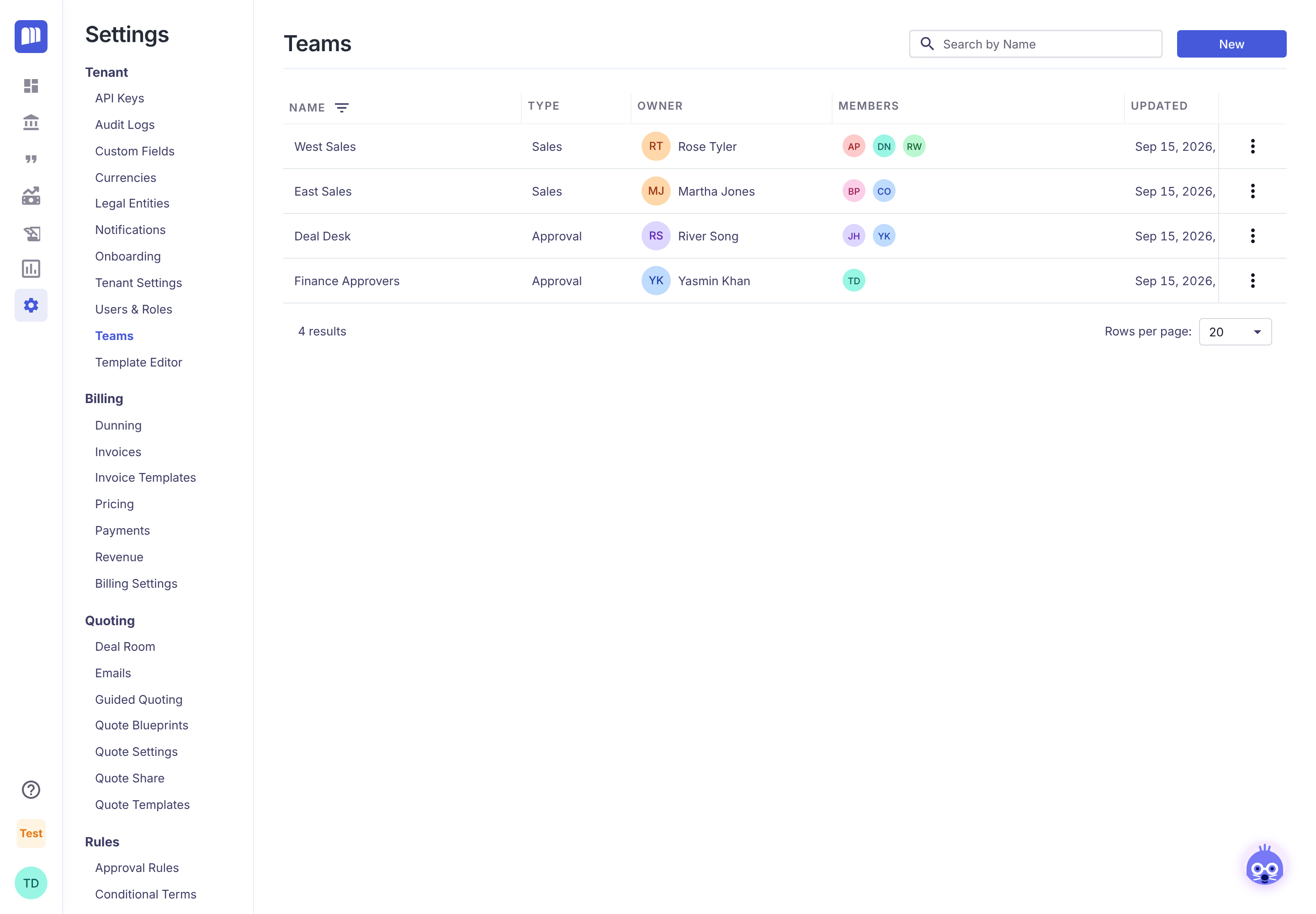
A team is a named group of users with one owner, usually a manager. Teams let you:
- send quote approvals to a group instead of one person,
- write rules that depend on which team a quote's owner is in,
- let a manager see and manage their team's quotes and contracts, and
- filter dashboards and contracts by team.
Find them in Settings → Tenant → Teams.
| I want to… | Go to |
|---|---|
| Understand what teams do | How teams work |
| Create a team | Create a team |
| Add or remove people, or change the owner | Manage a team |
| Route approvals by team | Use teams in approval rules |
| Look up a rule or limit | Reference |
How teams work
Explanation
Owner and members
Every team has exactly one owner and any number of members. The owner is always a member too. A user can belong to several teams.
What being in a team does
| Where | What teams do |
|---|---|
| Approvals | An approval rule can name a team as the approver. Every member is notified (email, and Slack if connected), and any one member can approve. |
| Rules | Quote rules (approval, validation, conditional terms and quote-based Record Automation) can check Owner's Team: the teams the quote's owner belongs to. |
| Quote list | Users who aren't Tenant Admin, Sales Admin or Sales Full normally see only their own quotes. If they own a team, they see the quotes of everyone in the teams they own. |
| Contracts | A team owner can change the owner of contracts owned by their team members. The contract list can be filtered by Team. |
| Dashboard | Sales and approval figures can be filtered by a person or a team. |
Team types
When you create a team you choose a Team Type:
- Sales: for example a manager and their reps.
- Approval: for example a deal desk or finance approvers.
The type helps you organise teams; both types work the same way everywhere above. Teams created before types existed show Legacy.
Create a team
How-to. Requires Tenant Admin or Sales Admin.
-
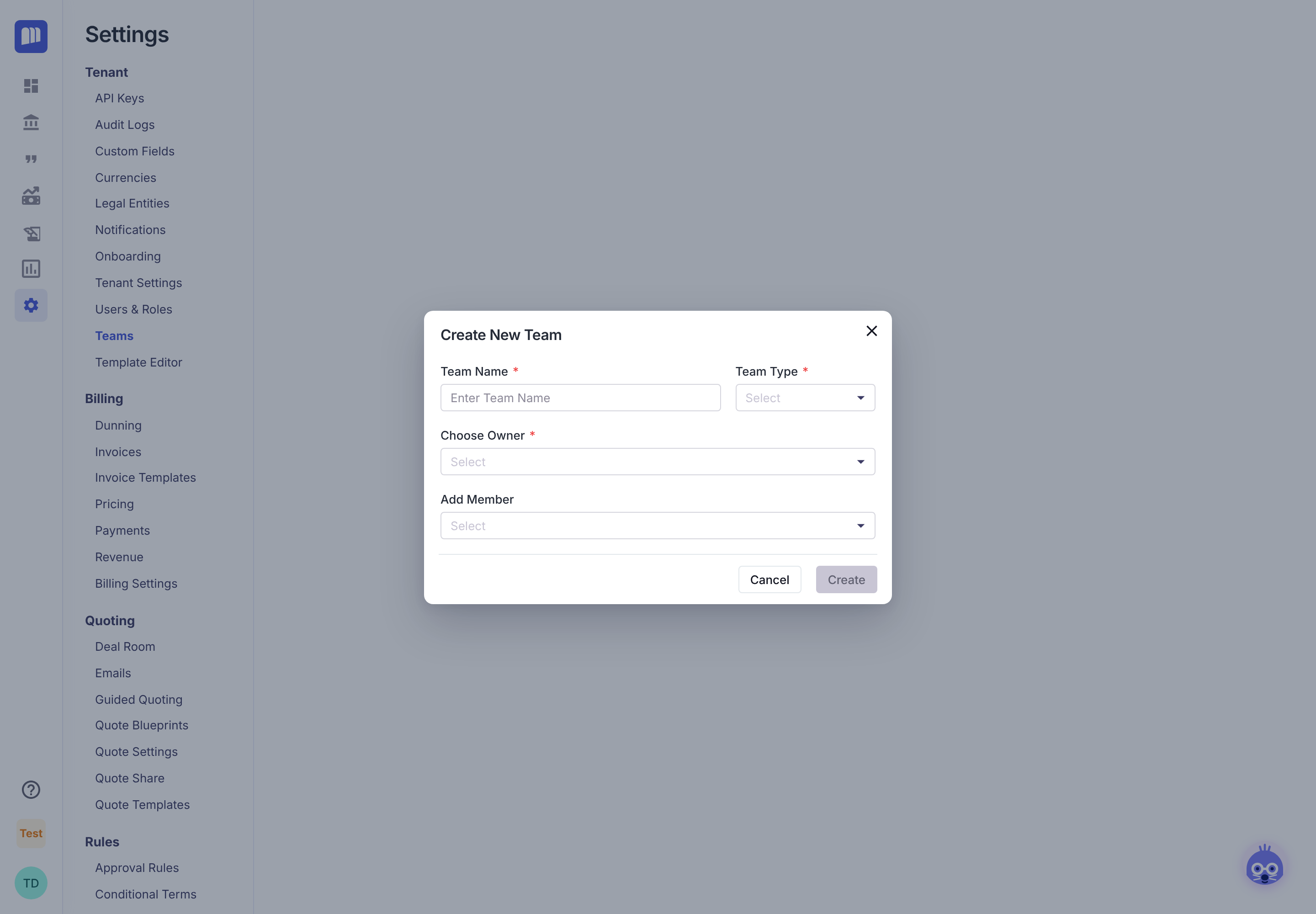
Go to Settings → Tenant → Teams and click New.
-
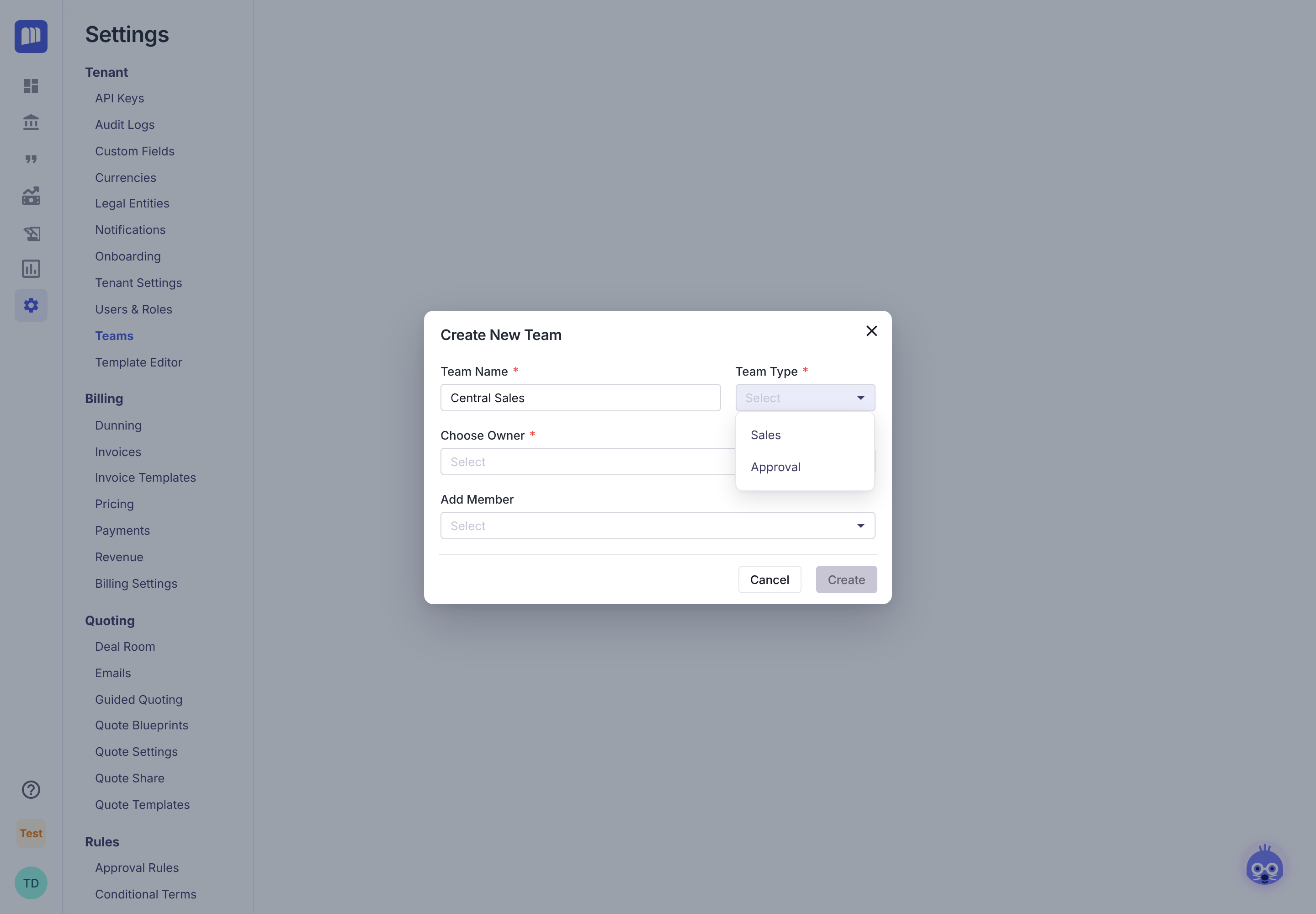
Enter a Team Name, for example Central Sales.
-
Choose a Team Type: Sales or Approval.
-
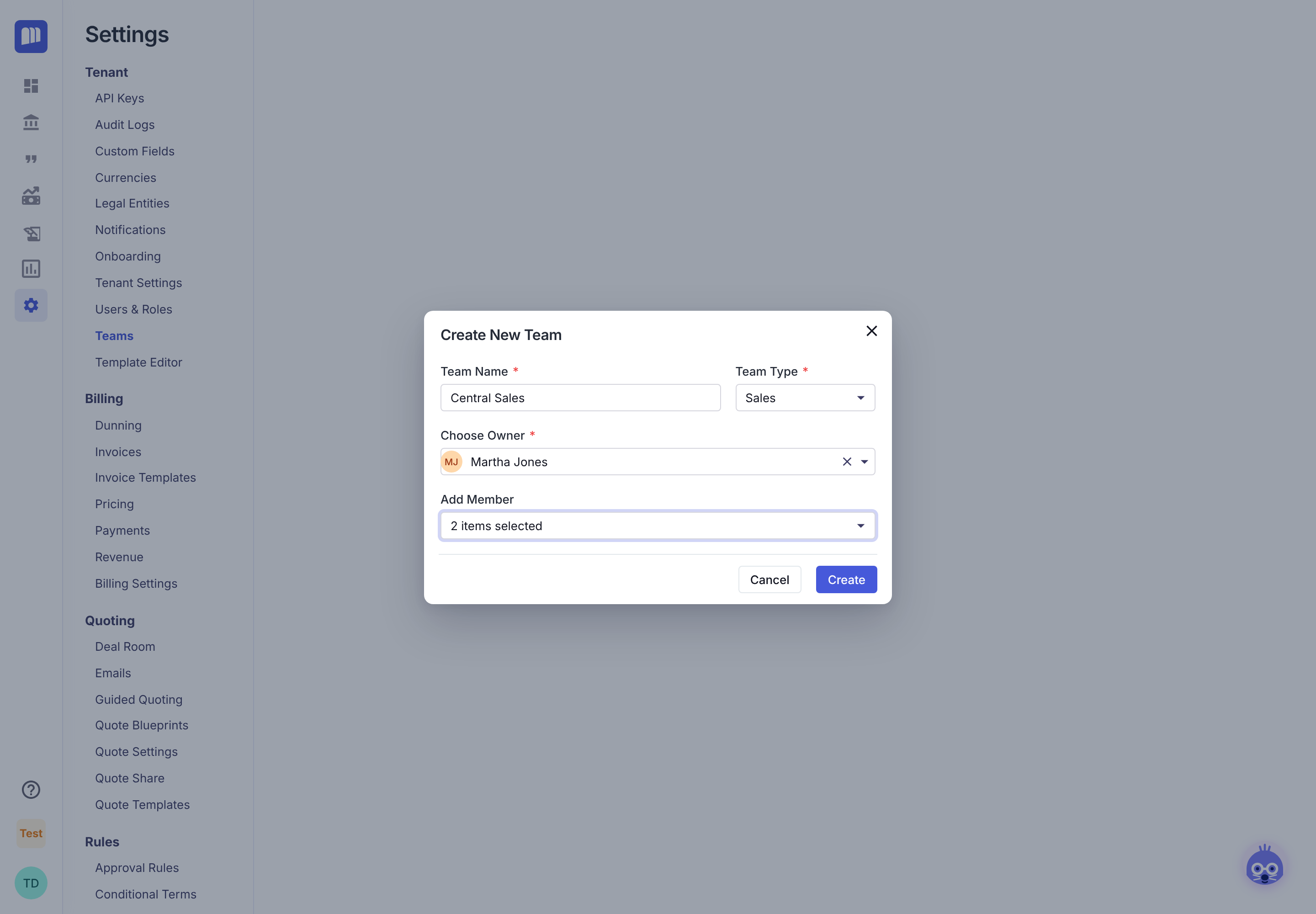
In Choose Owner, pick the team's owner, usually the manager.
-
In Add Member, check the people to add, then click Create.
Manage a team
How-to. Requires Tenant Admin or Sales Admin.
Click a team in the list to open it.
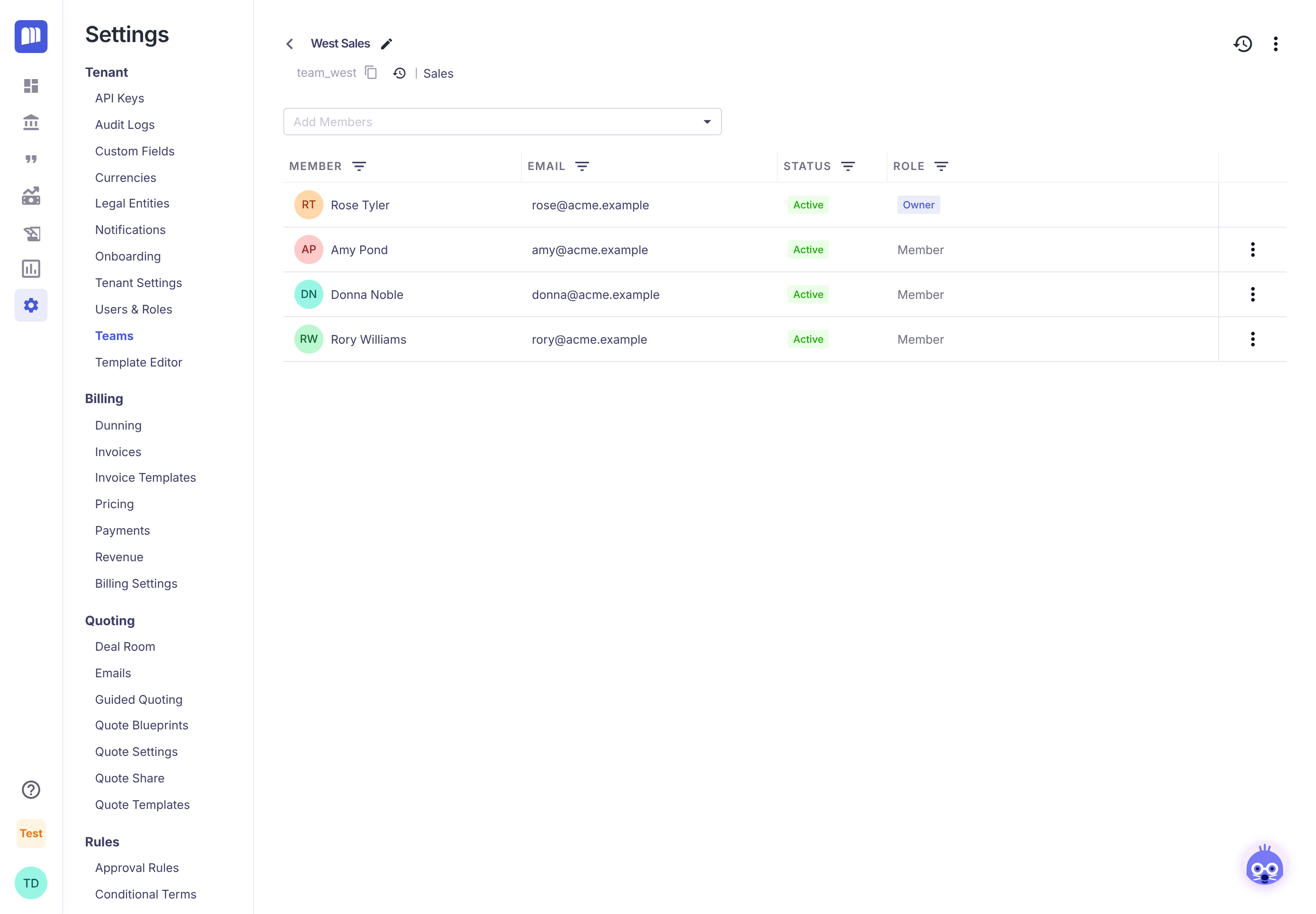
| To… | Do this |
|---|---|
| Rename the team | Click the pencil next to its name. |
| Add members | Use Add Members at the top. |
| Remove a member | Click ⋮ on their row → Remove. A team must keep at least one member. |
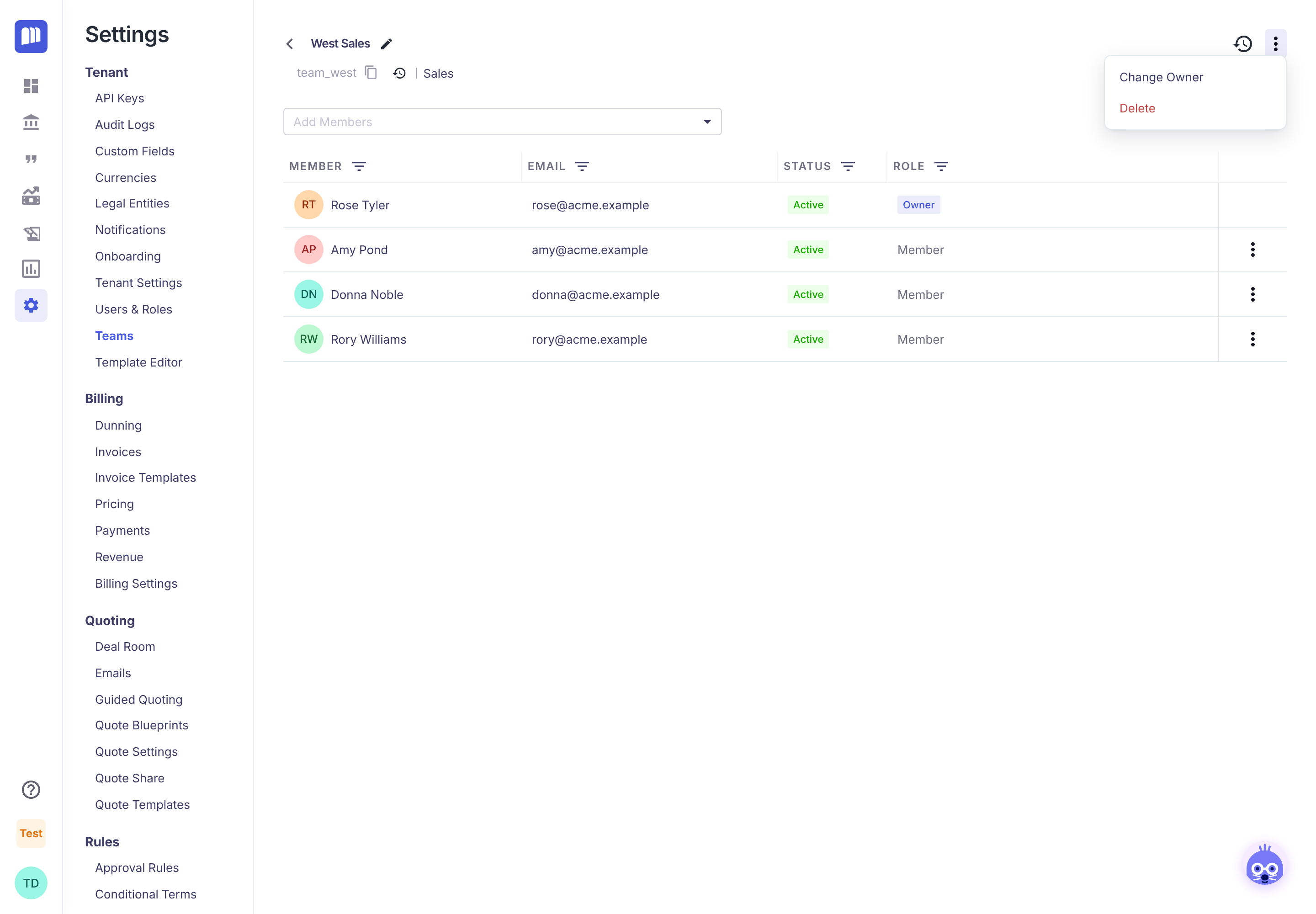
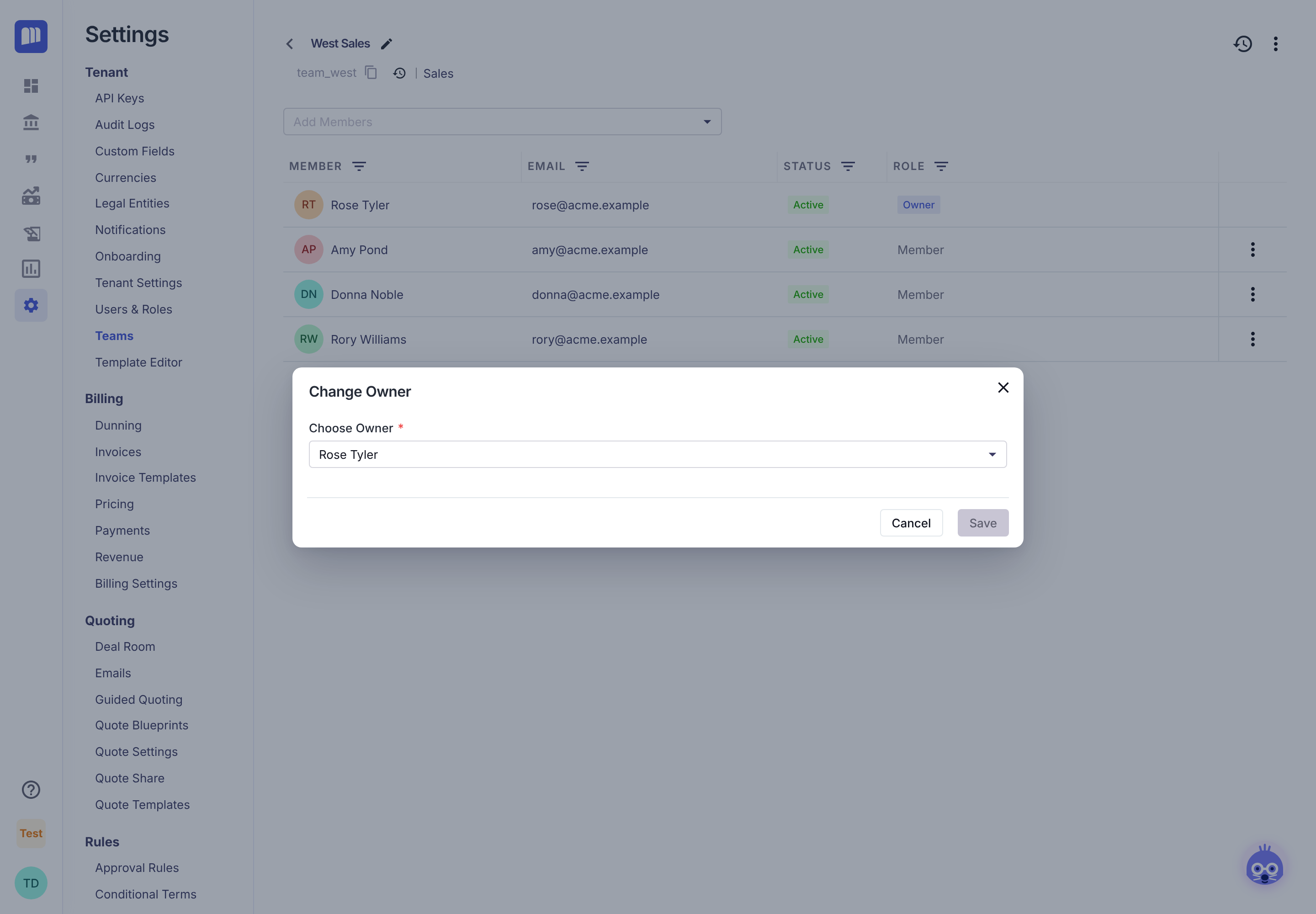
| Change the owner | Click ⋮ at the top right → Change Owner, pick a member and save. The team needs at least one other member. |
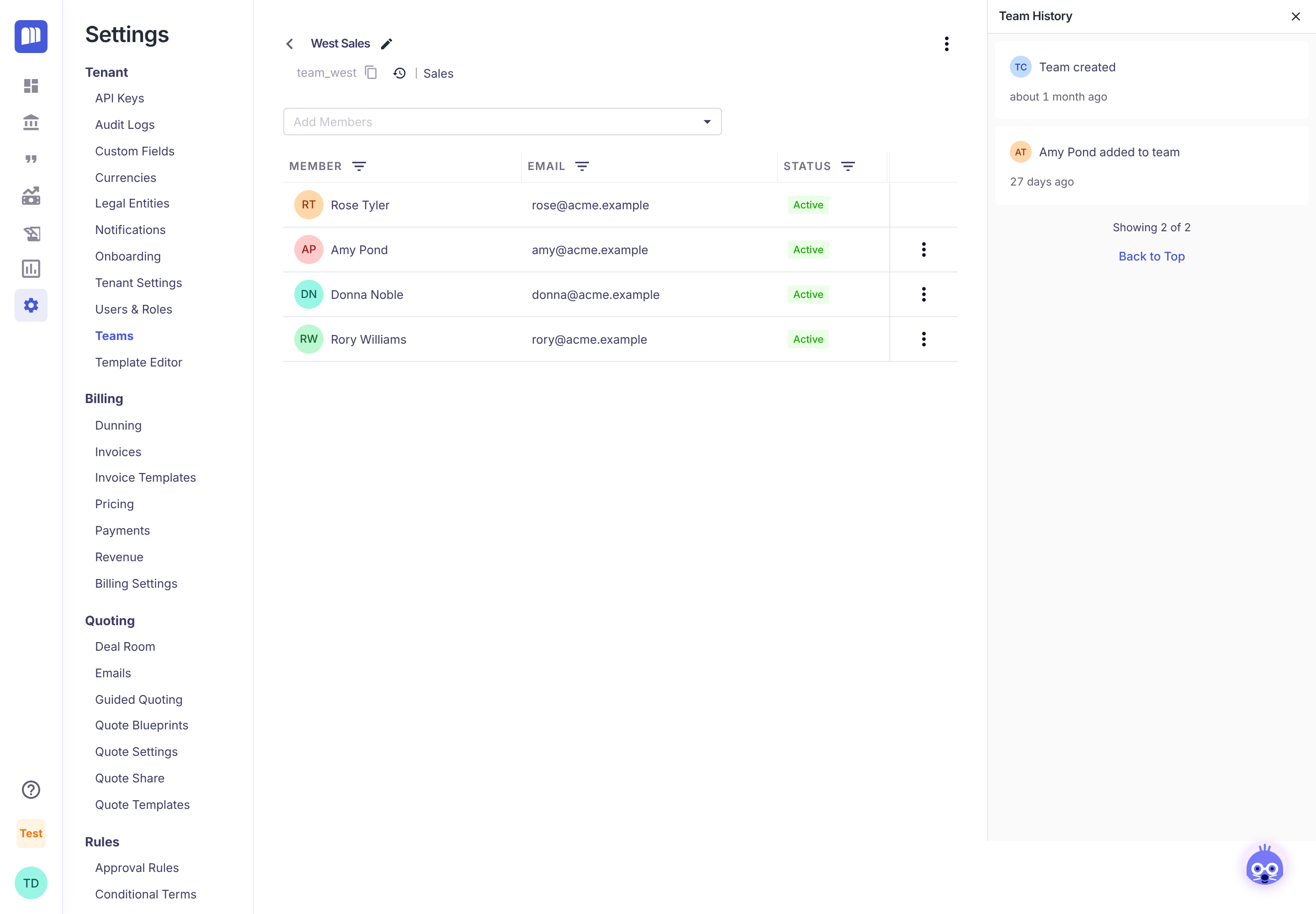
| See what changed | Click the history icon. Team History lists who was added or removed, and when. |
| Delete the team | Click ⋮ → Delete (on the team page or in the list). See the limits below. |
Use teams in approval rules
How-to. See Approval Rules for the full rule builder.
There are two ways to use teams in an approval rule. You can combine them.
Route by the rep's team (IF)
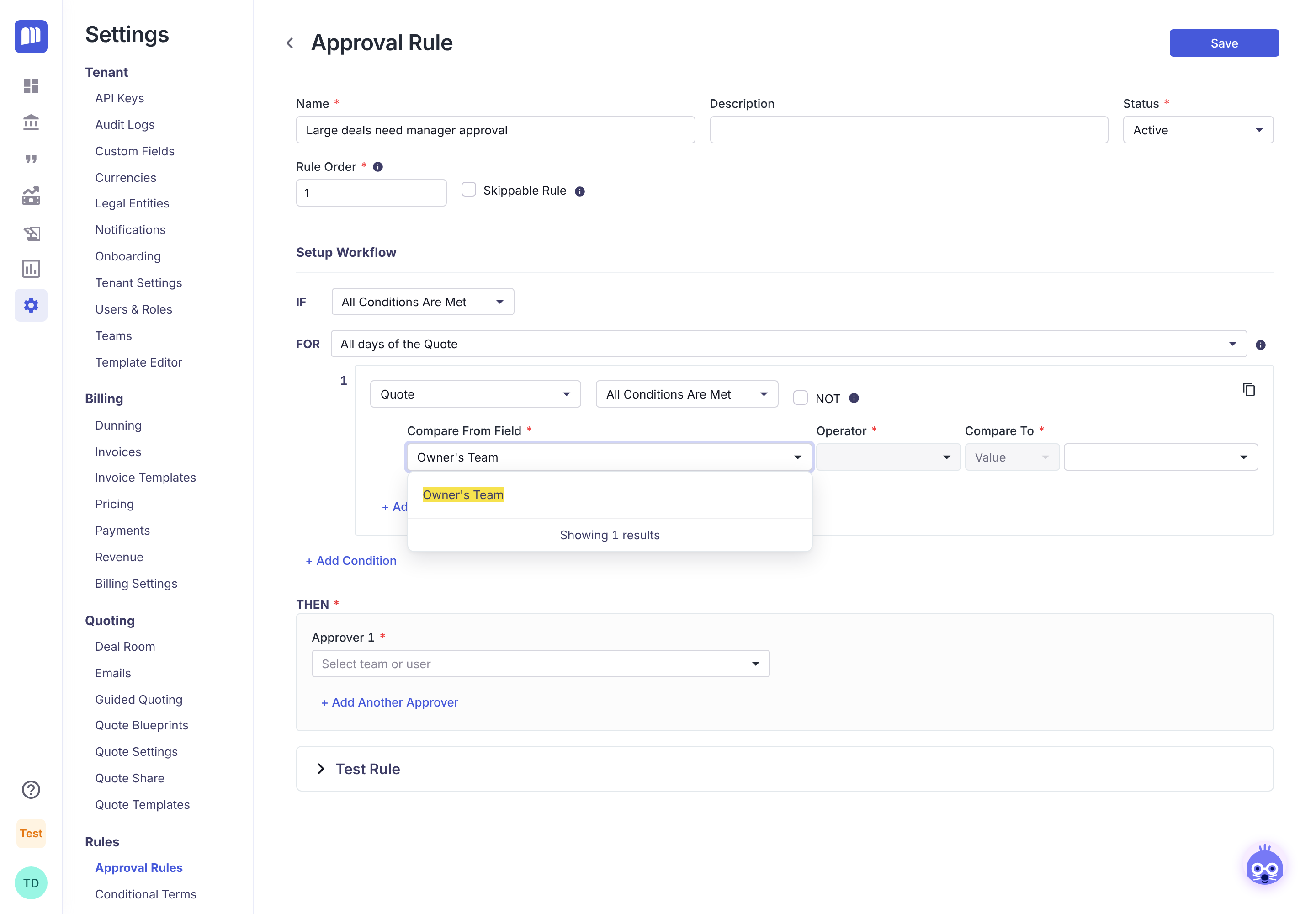
Under IF, choose Quote, then Compare From Field → Owner's Team, and pick a team. The rule applies when the quote's owner is a member of that team.
Send the approval to a team (THEN)
Under THEN, open Approver, switch to the Team tab and pick a team. Every member is asked, and the first one to approve satisfies that step.
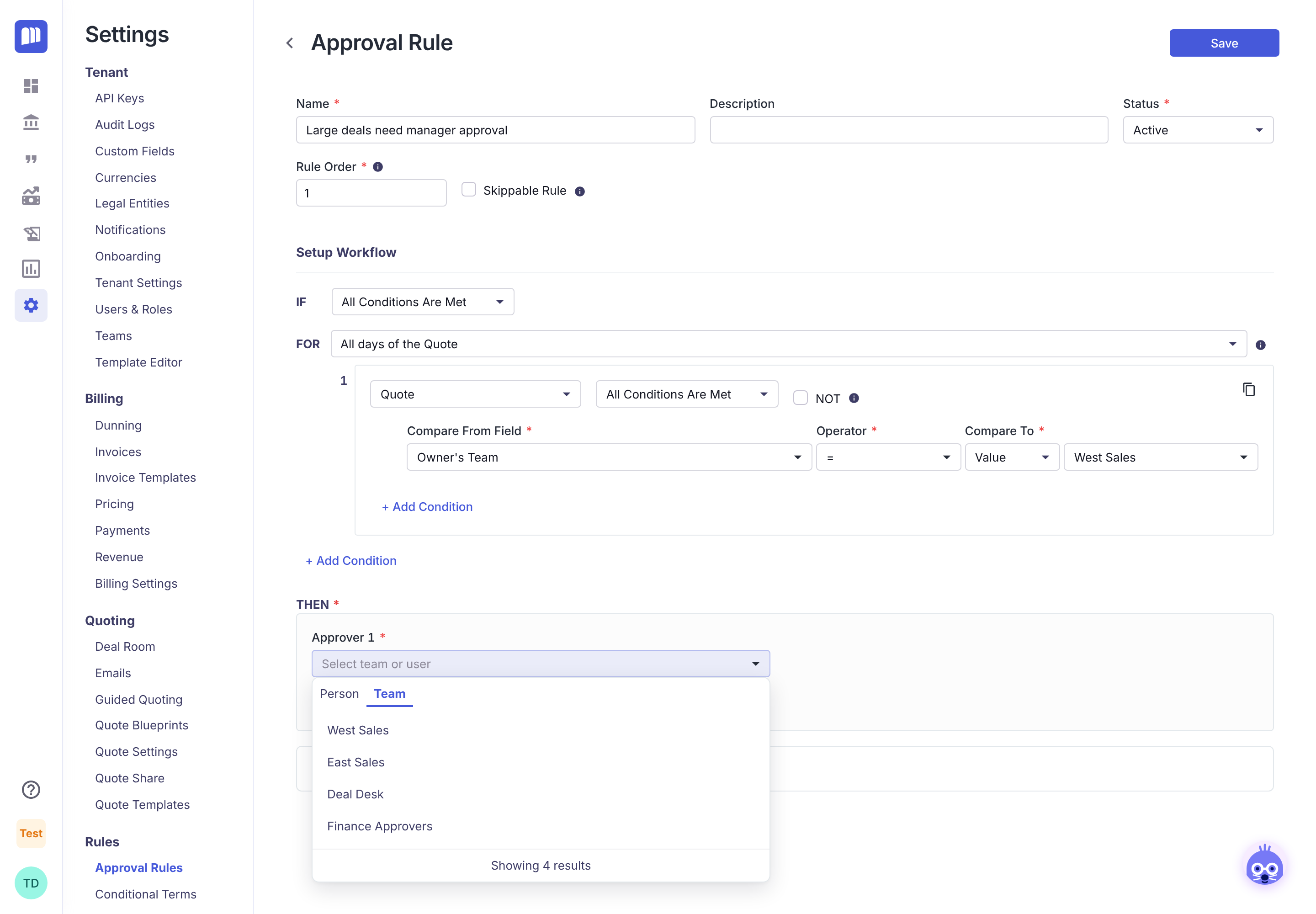
Example: each manager approves their own reps' large deals. Create one Sales team per manager. For each team, create a rule:
- IF Owner's Team = West Sales and Amount > 50,000
- THEN Approver = Rose Tyler (Person tab), the team's manager
To let anyone on a deal desk approve instead, make the approver the Deal Desk team.
Reference
Limits and rules
| Situation | What happens |
|---|---|
| Delete a team that an approval rule uses as its approver | Blocked. MonetizeNow lists the rules to update first. |
| Deactivate a user who is in any team (member or owner) | Blocked. Remove them from their teams first. |
| Remove every member | Not allowed. A team must keep at least one member. |
| Change the owner of a team with no other members | Not available. Add a member first. |
Who can manage teams
| Role | Access |
|---|---|
| Tenant Admin, Sales Admin | View, create, edit and delete teams |
| Settings Read Only | View the Teams list |
Updated 11 days ago