

Bill Groups
Bill Groups
A bill group holds everything MonetizeNow needs to turn an account's subscriptions into invoices:
- who receives the invoice;
- when it's created and when it's due;
- how it's paid;
- what happens if it isn't paid.
It's also where you see the billing state: the next invoice date, what's been invoiced, and what's outstanding.
| I want to… | Go to |
|---|---|
| Understand when bill groups are created | How bill groups work |
| Find an account's bill groups | Find a bill group |
| Change who gets invoices, payment or dunning | Edit a bill group |
| Look up a setting | Bill group settings |
| Know what I can't change, and why | What locks once there's a contract |
How bill groups work
Explanation
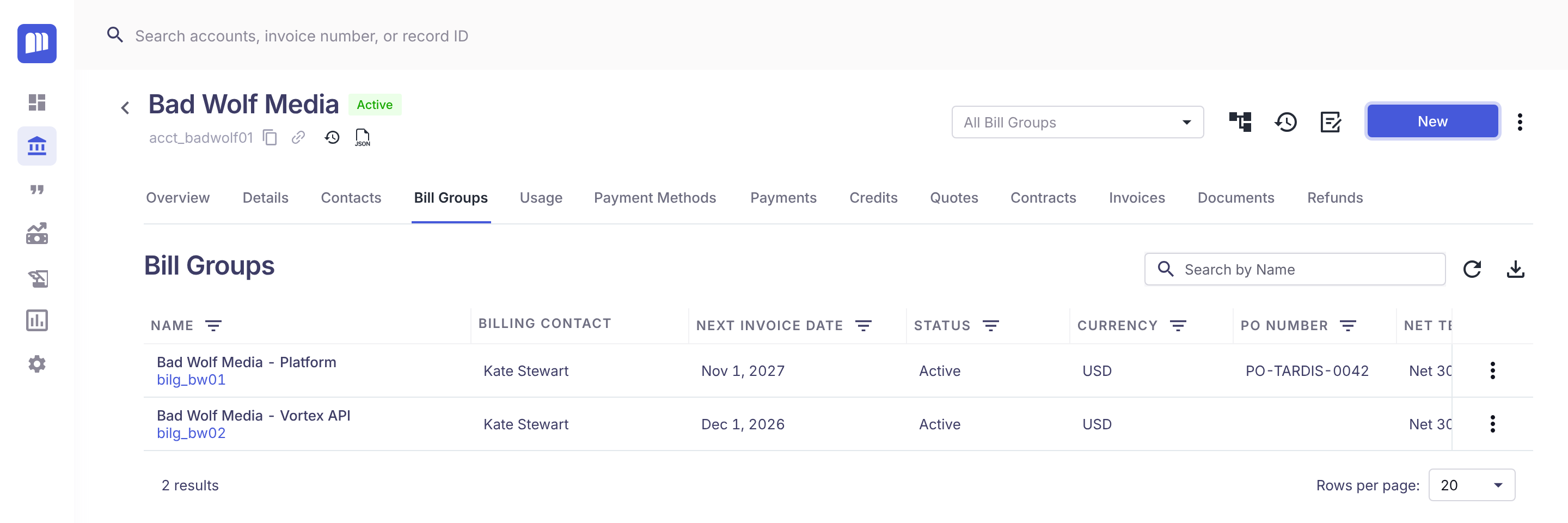
An account usually needs one bill group per billing relationship. Most customers have one. A customer with separate, unrelated contracts, such as one per business unit or one per product line, can have several. Each bill group is invoiced on its own, with its own contacts, currency and payment terms.
Example: Bad Wolf Media has two bill groups:
- Bad Wolf Media – Platform, billed annually for the TARDIS Platform contract;
- Bad Wolf Media – Vortex API, billed monthly for API usage.
%%{init: {'theme': 'base', 'themeVariables': {'primaryColor': '#F2F3FF', 'primaryBorderColor': '#7779F6', 'primaryTextColor': '#05115E', 'lineColor': '#7779F6', 'fontFamily': 'Inter, system-ui, sans-serif'}, 'flowchart': {'padding': 16, 'wrappingWidth': 320}}}%%
flowchart TD
    A["<b>Account</b><br/>Bad Wolf Media"] --> BG1["<b>Bill Group</b><br/>Bad Wolf Media – Platform"]
    A --> BG2["<b>Bill Group</b><br/>Bad Wolf Media – Vortex API"]
    BG1 --> C1["<b>Contract + subscriptions</b>"]
    BG2 --> C2["<b>Contract + subscriptions</b>"]
    C1 --> I1["<b>Invoices</b><br/>annually"]
    C2 --> I2["<b>Invoices</b><br/>monthly"]
    classDef default font-family:Inter,system-ui,sans-serif
When bill groups are created
Bill groups are created automatically. You don't create them by hand in the app.
| Event | What happens to the bill group |
|---|---|
| A new quote is processed | MonetizeNow creates a bill group and a contract. The bill group is named Account name – date, with settings from the quote and your tenant defaults. |
| A quote is processed on an existing bill group | That bill group is reused. Its legal entity and currency come from the bill group. |
| An amendment is processed | The contract stays on the same bill group |
| A renewal is processed | A new contract is created on the same bill group, so billing carries on uninterrupted |
| Any quote is processed | The bill group's net terms, billing and shipping contacts and addresses are updated from the quote. PO and VAT numbers are updated too when those quote settings are on. |
| A contract is canceled for its whole term and no other contract is active | The bill group becomes Canceled. Processing a renewal or amendment on it makes it Active again. |
Developers: you can also create a bill group through the API:
POST /api/accounts/{accountId}/billGroups.
Where new bill groups get their defaults
| Setting | Default comes from |
|---|---|
| Create Invoices, first-invoice creation, Offset from Billing Schedule | Settings → Invoices → Invoice Creation |
| Collect Invoice Automatically, Auto-Payment Timing | Settings → Payments |
| Dunning Process | The account's Dunning for New Bill Groups field, or else your default dunning process |
| Net terms, contacts, addresses | The quote |
Find a bill group
How-to
- From an account: open the account and select the Bill Groups tab. Click a bill group's name to open it.
- Filter an account by bill group: use the All Bill Groups selector at the top of the account to see one bill group's subscriptions, invoices and payments.
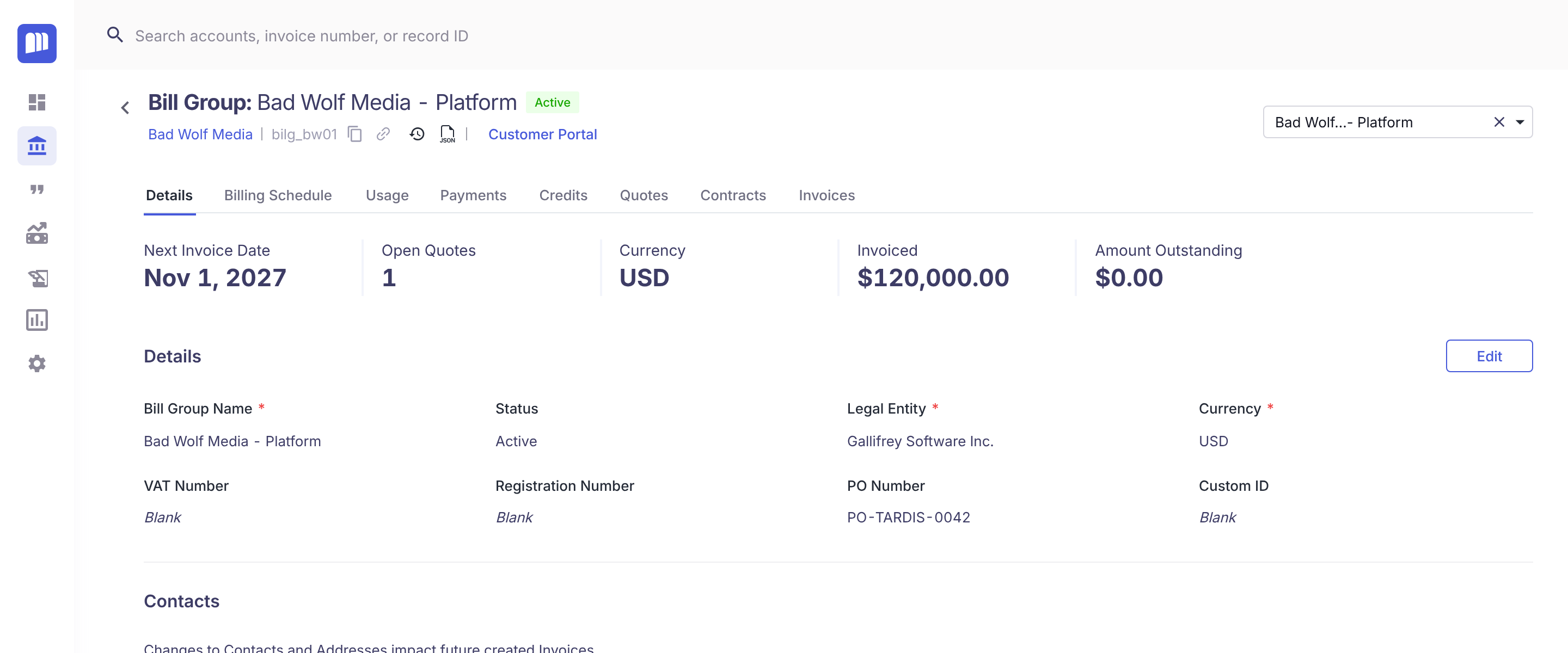
A bill group page shows:
- Next Invoice Date, Open Quotes, Currency, Invoiced and Amount Outstanding at the top;
- tabs for Details, Billing Schedule, Subscriptions, Usage, Payments, Credits, Quotes, Contracts and Invoices.
Edit a bill group
How-to. Requires permission to manage billing.
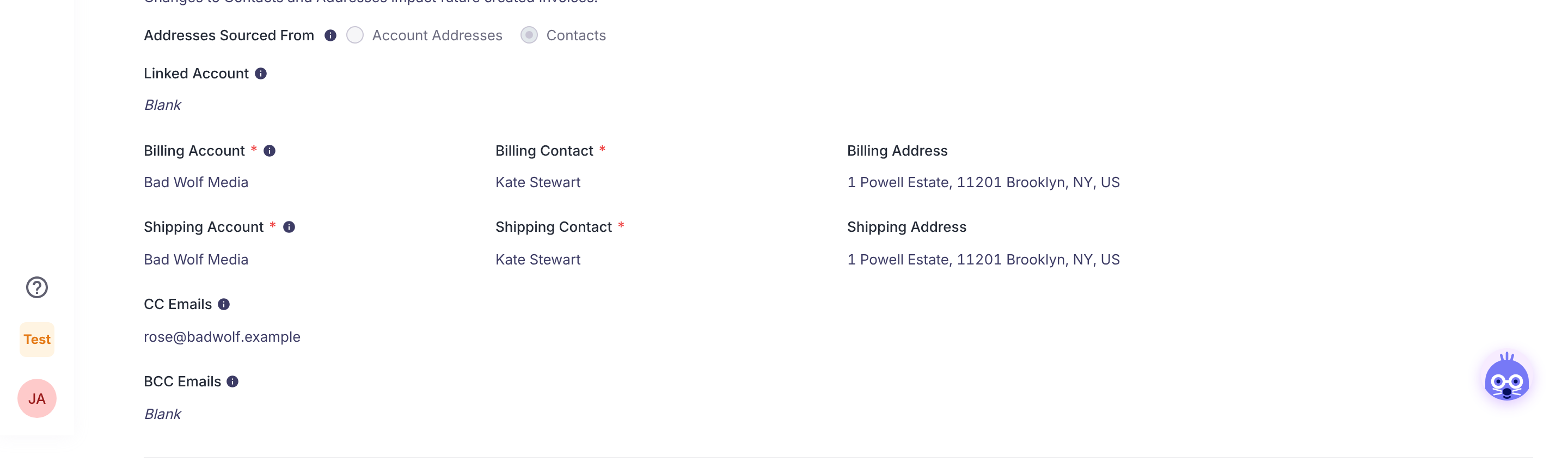
- Open the bill group and select the Details tab.
- Click Edit.
- Change the settings you need (see Bill group settings). Settings that can't be changed are shown as plain text instead of an input.
- Click Save.
Changes apply to future invoices. Contact and address changes affect invoices created from now on, not invoices that already exist.
Common changes
| I want to… | Change |
|---|---|
| Send invoices to someone else | Billing Contact, plus CC Emails / BCC Emails for extra recipients |
| Email invoices automatically | Email Customer Invoices → Automatically |
| Charge a card or bank account automatically | Tick Collect Invoice Automatically and choose the Payment Method |
| Create invoices only when I say so | Create Invoices → Manually |
| Create invoices a few days early or late | Offset from Billing Schedule |
| Change the dunning process | Dunning Process |
| Add a PO number to invoices | PO Number |
Bill group settings
Reference. The Locked column shows settings you can't change once the bill group has a contract.
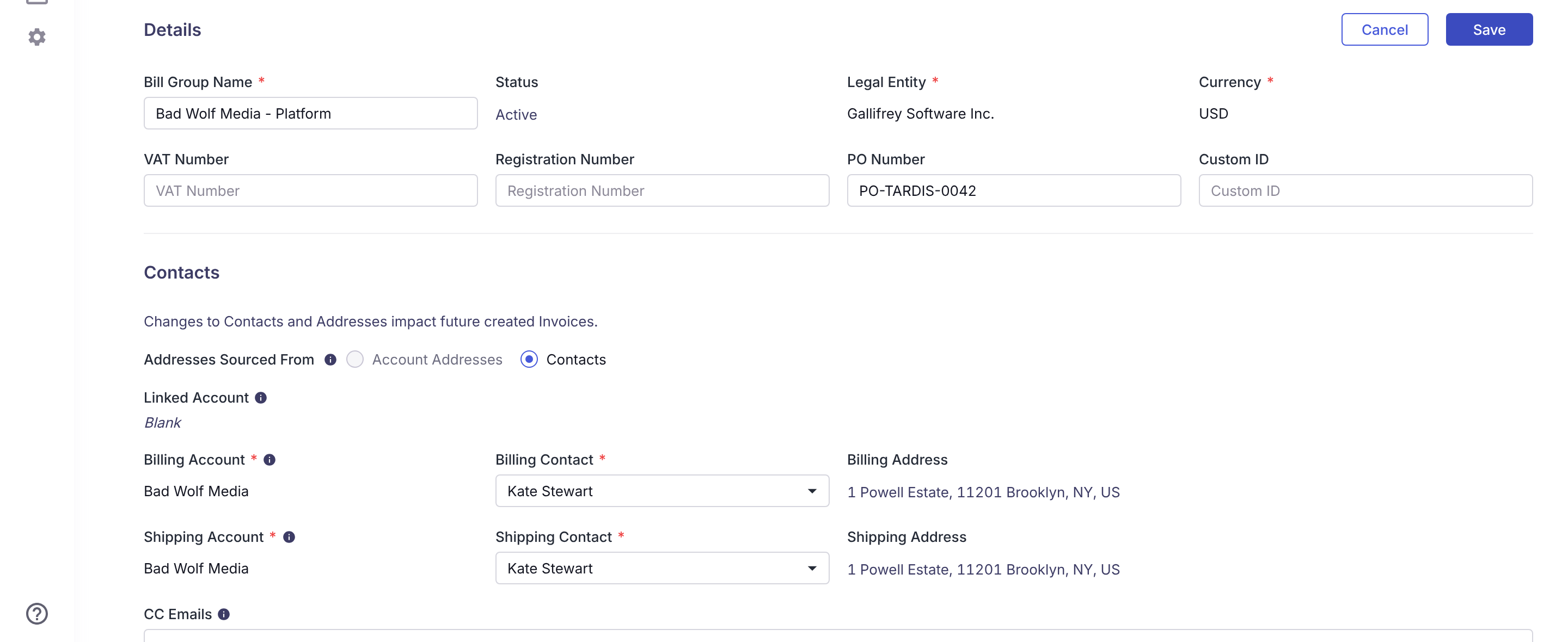
Details
| Setting | What it does | Locked |
|---|---|---|
| Bill Group Name | Name shown in the app | |
| Status | Active, Inactive or Canceled. Set by MonetizeNow. | Yes |
| Legal Entity | Your company entity that issues the invoices | Yes, always |
| Currency | Currency of all invoices in the bill group | Yes |
| VAT Number, Registration Number | The customer's tax identifiers, shown on invoices | |
| PO Number | The customer's purchase order number, shown on invoices | |
| Custom ID | Your own identifier, for example from another system |
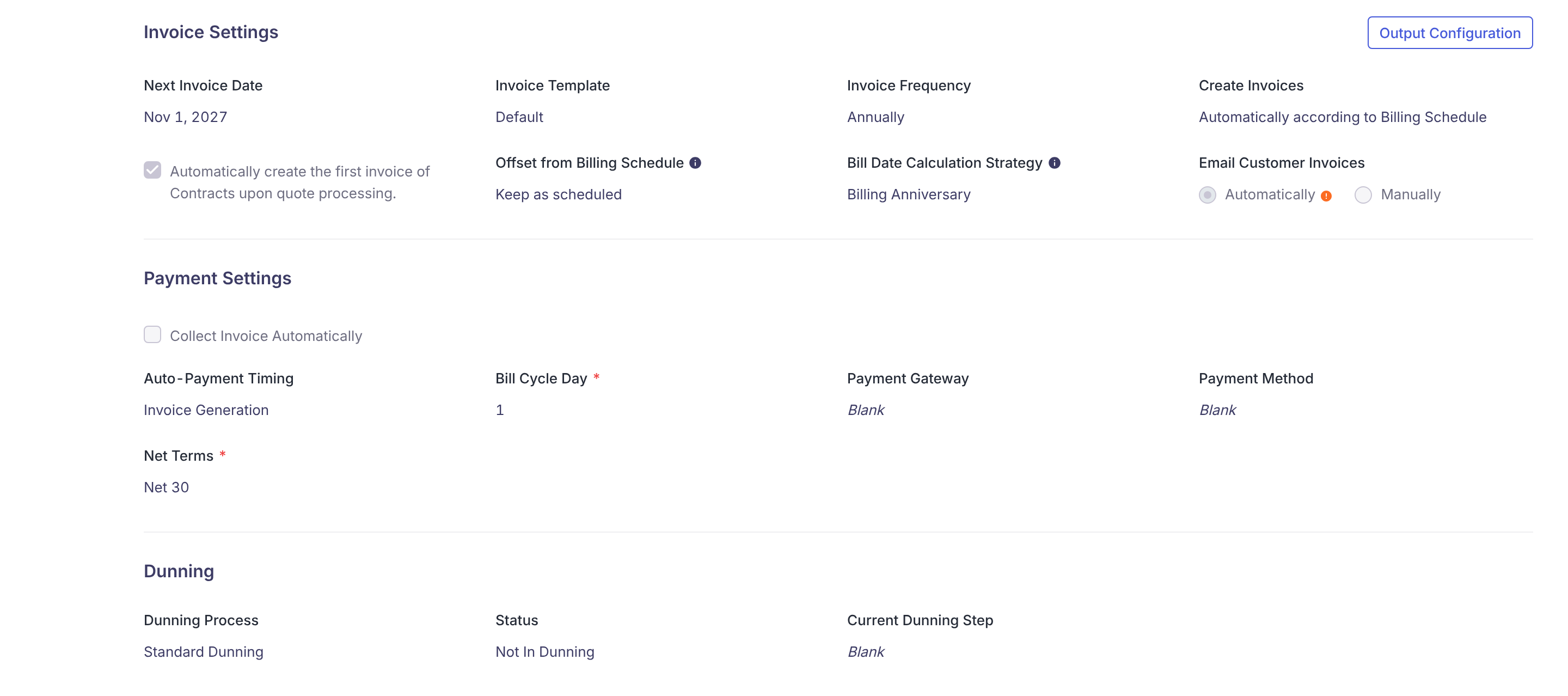
Contacts
| Setting | What it does | Locked |
|---|---|---|
| Addresses Sourced From | Take addresses from the Contacts or from the Account Addresses (needs a connected CRM) | |
| Linked Account | "Optional account, usually a partner or reseller or customer. Used when quoting on behalf of another party." | Yes |
| Billing Account | "The account that will receive the invoice and handle payments." Can be the linked account. | Yes |
| Billing Contact / Billing Address | Who the invoice is addressed and emailed to | |
| Shipping Account | "The account that is using the services and is used to determine taxes." | Yes |
| Shipping Contact / Shipping Address | Where the service is delivered; used for tax | |
| CC Emails / BCC Emails | Extra invoice recipients. Separate addresses with commas. |
Invoice Settings
| Setting | What it does | Locked |
|---|---|---|
| Next Invoice Date | When the next invoice is due to be created | Read-only |
| Invoice Frequency | How often invoices are created. Set by the contract. | Read-only |
| Create Invoices | Automatically according to Billing Schedule, or Manually | |
| Automatically create the first invoice of Contracts upon quote processing | Creates the first invoice as soon as the quote is processed | |
| Offset from Billing Schedule | Creates invoices up to 30 days earlier or later than scheduled. Default Keep as scheduled. Not available when Create Invoices is Manual. Invoices can't be created early when the quote has usage or minimum commit products. | |
| Email Customer Invoices | Automatically: MonetizeNow emails invoices when they're created. Manually: you send them. |
Payment Settings
| Setting | What it does | Locked |
|---|---|---|
| Collect Invoice Automatically | Charges the payment method automatically | |
| Auto-Payment Timing | When to charge: on Invoice Generation or Invoice Send. Available when enabled for your account. | |
| Bill Cycle Day | The day of the month the bill is generated (1–31) | Yes |
| Payment Gateway / Payment Method | How the customer pays. The payment method is the one charged automatically. | Gateway: yes |
| Net Terms | When invoices are due, for example Net 30. Updated from each processed quote. | Yes |
Dunning
| Setting | What it does |
|---|---|
| Dunning Process | The reminder and escalation steps for overdue invoices. See Dunning. |
| Status / Current Dunning Step | Whether the bill group is in dunning, and which step it's on. Pause Dunning and Resume Dunning appear when it is. |
What locks once there's a contract
Explanation
Once a bill group has a contract, the contract drives its billing. To keep invoices consistent with what was sold, these settings can't be changed:
- Legal Entity
- Currency
- Net Terms
- Bill Cycle Day
- Linked Account, Billing Account and Shipping Account
- Payment Gateway
Everything else stays editable, including:
- the name and PO number;
- contacts, addresses and CC/BCC emails;
- invoice creation and email settings;
- automatic payment and payment method;
- dunning.
To change net terms on a contracted bill group, do it on the next amendment or renewal quote. Processing the quote updates the bill group.
Related
Updated 13 days ago