

Invoice Terms
Invoice Terms are standard text that MonetizeNow adds to a section at the bottom of your invoices. Use them for payment instructions, legal notices, links to documents such as your W-9 or MSA, or announcements.
You can set:
- Default Invoice Terms for every invoice, and
- different terms per legal entity and currency, for example German-language terms for EUR invoices from your German entity.
| I want to… | Go to |
|---|---|
| Understand which terms an invoice gets | How invoice terms work |
| Add terms to all invoices | Set your default invoice terms |
| Use different terms for a legal entity or currency | Set terms for a legal entity and currency |
| Change the terms on one invoice | Change the terms on a single invoice |
| Insert the invoice amount or other details | Use merge fields |
| Get ideas | What to put in your invoice terms |
How invoice terms work
Explanation
Which terms an invoice gets
When MonetizeNow creates an invoice, it picks the terms in this order:
flowchart TD
    A[New invoice] --> B{Does the bill group's legal entity<br/>have active terms for the<br/>bill group's currency?}
    B -- Yes --> X[Use those terms]
    B -- No --> C{Are Default Invoice Terms<br/>turned on?}
    C -- Yes --> Y[Use the default terms]
    C -- No --> N[No terms on the invoice]
So legal entity terms override the default, but only for the currencies you choose. Every other currency still gets the default.
Terms are copied onto each invoice
When an invoice is created, its terms are copied onto it. After that:
- Changing your settings affects new invoices only. Existing invoices keep the terms they were created with.
- You can still edit the terms on a Draft or Unpaid invoice. See Change the terms on a single invoice.
- If you credit and rebill an invoice, the new invoice keeps the original invoice's terms.
One-time invoices
When you create a one-time invoice, the Invoice Terms field is filled in for you using the same rules. You can change it before you create the invoice.
Set your default invoice terms
How-to. Requires Tenant Admin or Billing Admin.
-
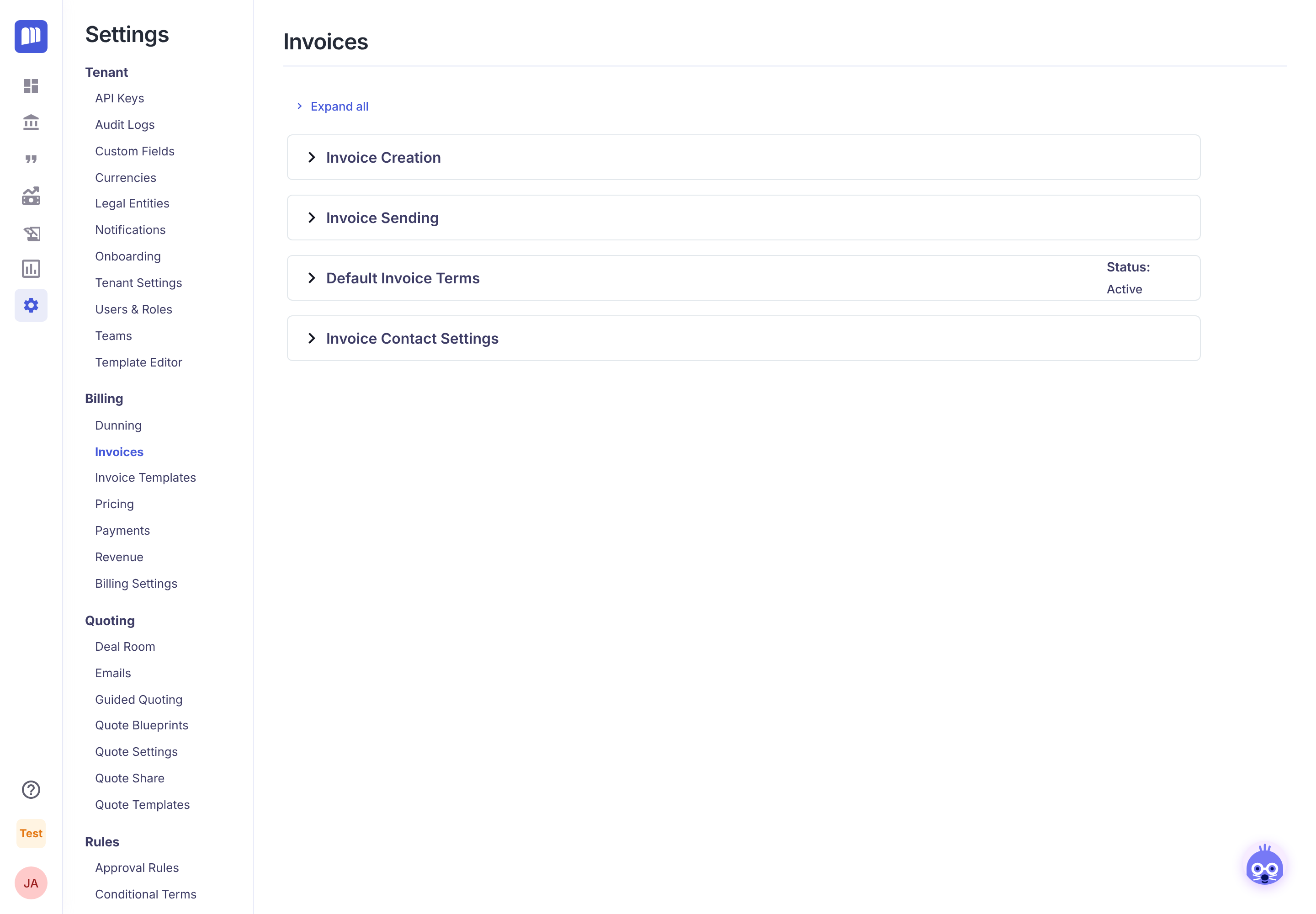
Go to Settings → Billing → Invoices and expand Default Invoice Terms.
-
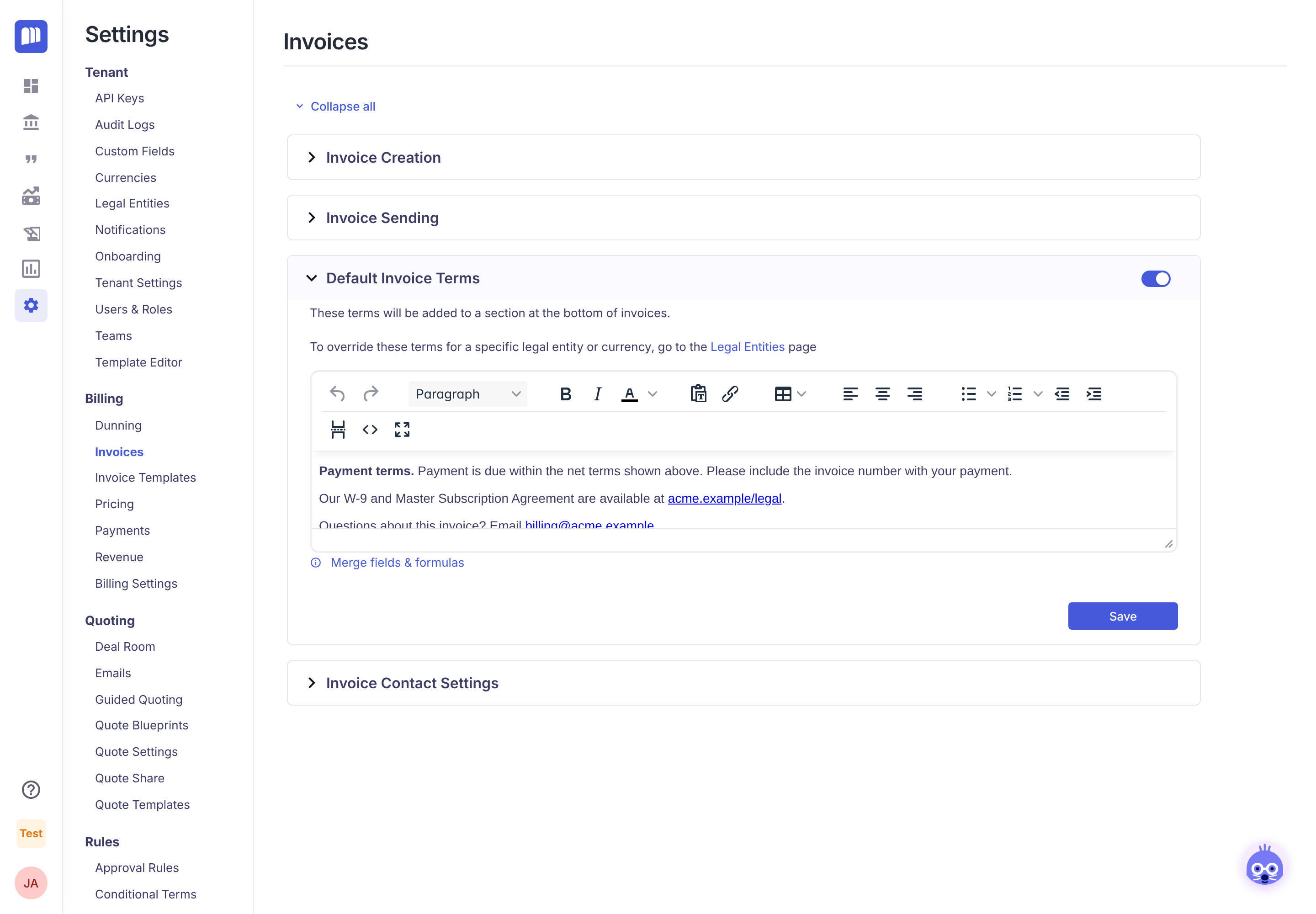
Turn on the switch next to Default Invoice Terms. It saves straight away. The editor only works while the switch is on.
-
Write your terms. You can use bold, links, lists and tables.
-
Click Save.
To stop adding default terms to new invoices, turn the switch off. Your text is kept for when you turn it back on.
Set terms for a legal entity and currency
How-to. Requires Tenant Admin or Billing Admin.
Use this when a legal entity needs its own terms, or when terms differ by currency (for example language, bank details or tax wording).
-
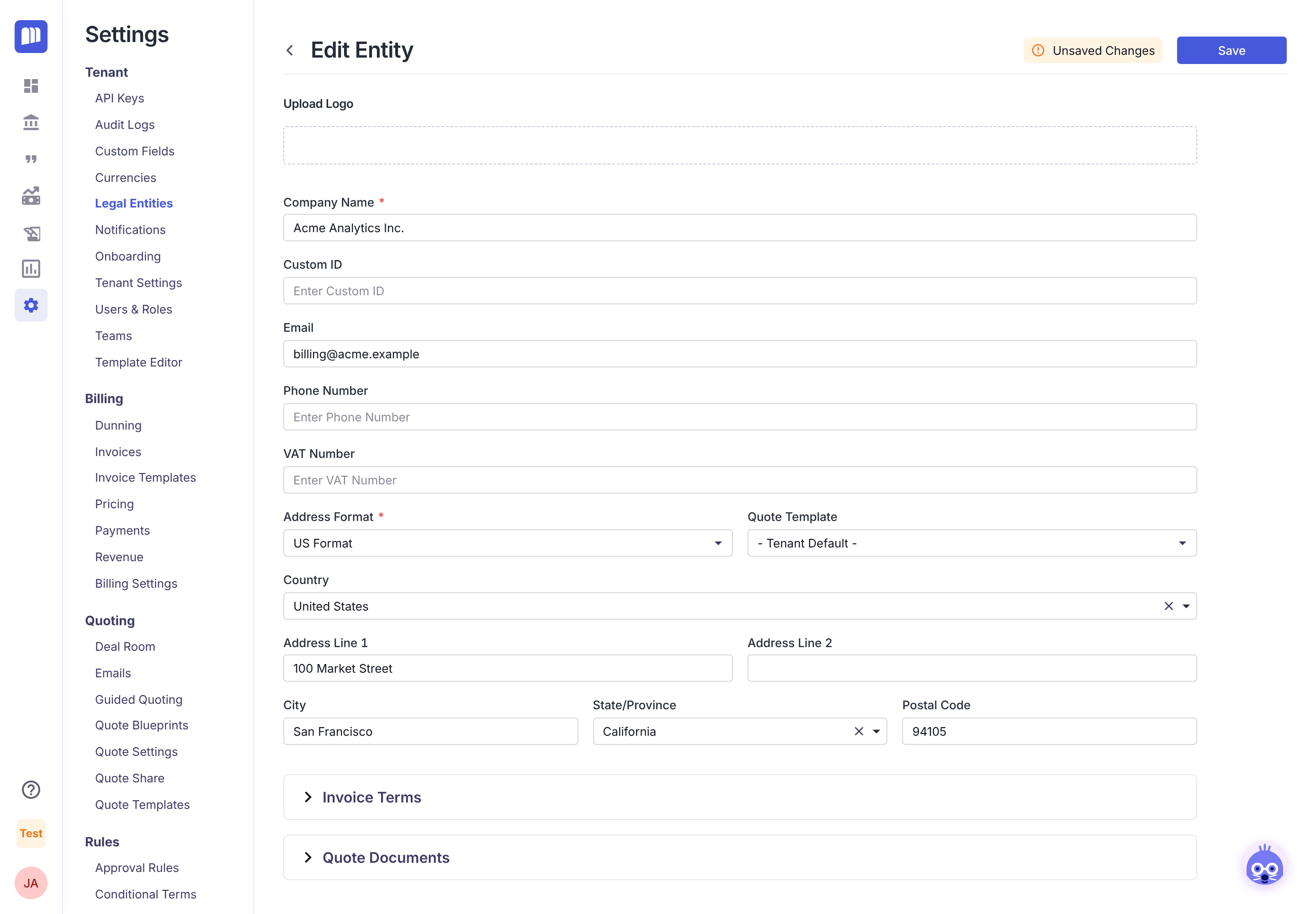
Go to Settings → Tenant → Legal Entities and open the legal entity.
-
Expand Invoice Terms.
-
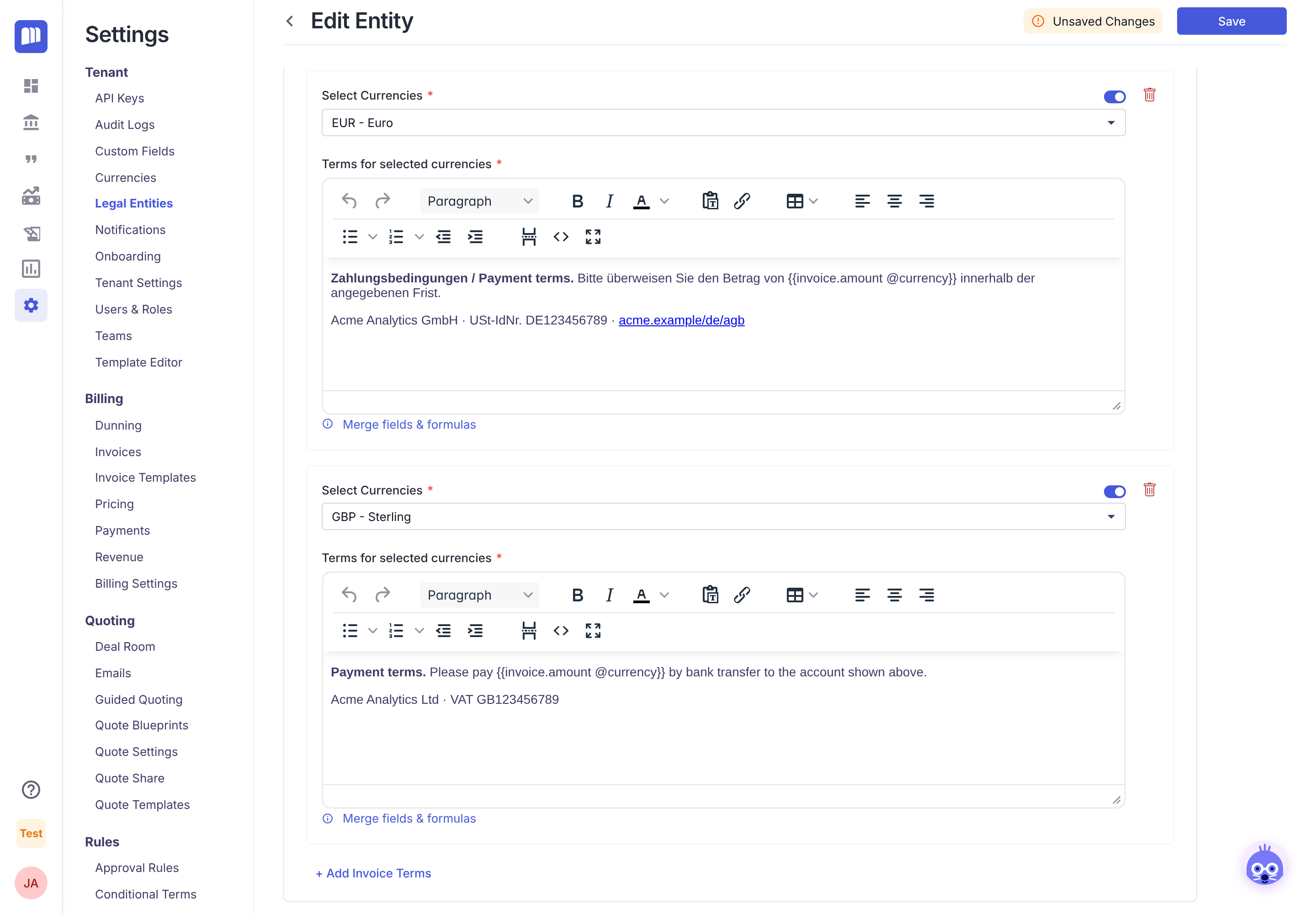
Click + Add Invoice Terms.
-
In Select Currencies, choose one or more currencies and click Apply.
-
In Terms for selected currencies, write the terms.
-
Click Save at the top of the page.
Good to know:
- Each currency can appear in only one set of terms per legal entity. Saving with a currency in two sets shows an error.
- Use the switch next to Select Currencies to turn a set off without deleting it. While it's off, invoices in those currencies fall back to the default terms.
- Click the bin icon to delete a set.
- Currencies you don't add here use the Default Invoice Terms.
Change the terms on a single invoice
How-to. Requires permission to update billing.
- Open the invoice. It must be Draft or Unpaid.
- Click the pencil icon (Edit invoice details). The Edit Invoice window opens.
- Change Invoice Terms and save.
Terms on paid or reversed invoices can't be changed.
Use merge fields
How-to
Merge fields fill in details from the invoice when the invoice document is generated. Wrap them in double curly brackets, for example:
Please pay
{{invoice.amount @currency}}by bank transfer to the account shown above.
Under every invoice terms editor, click Merge fields & formulas for a quick reference.
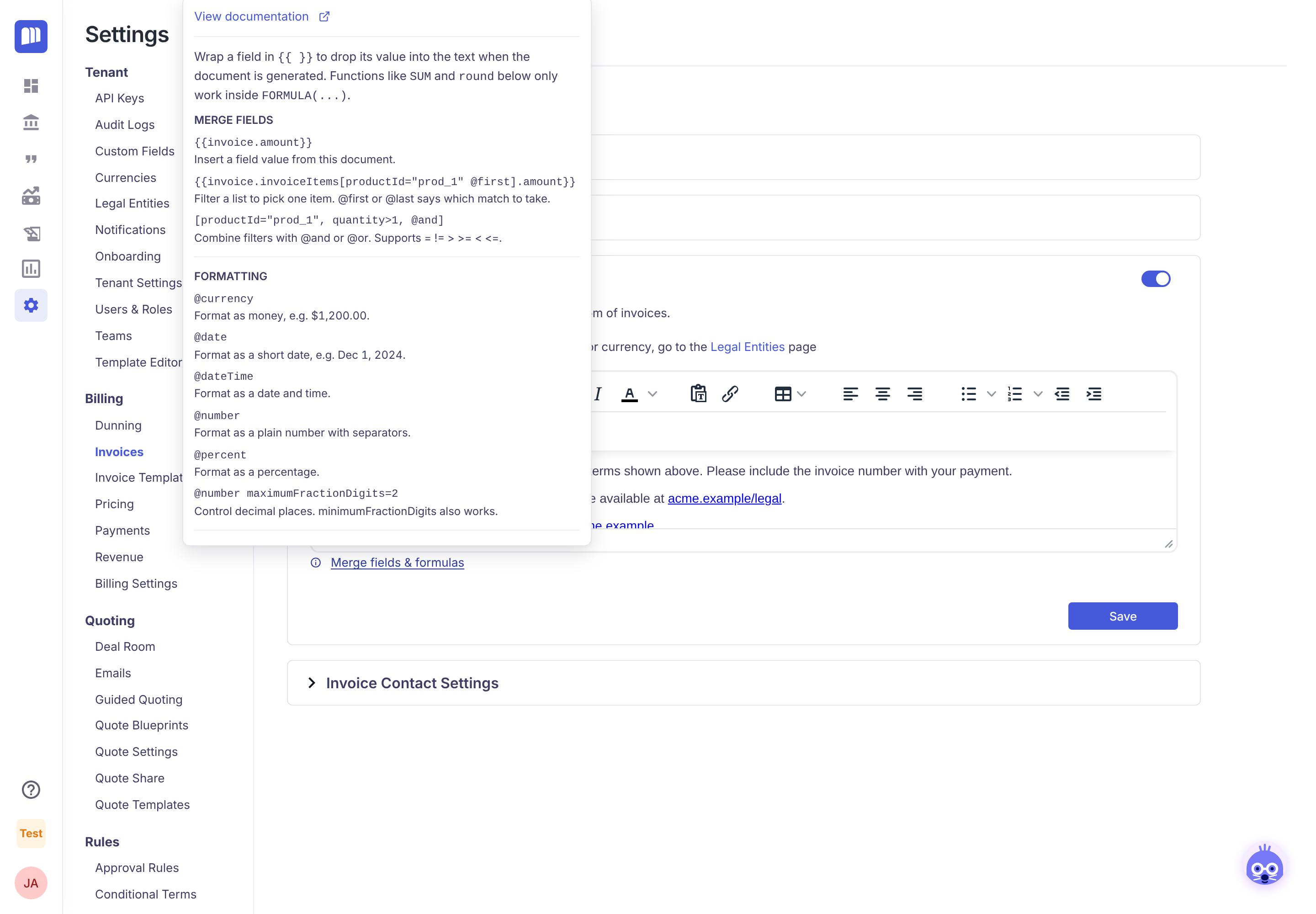
| You want | Write |
|---|---|
| The invoice amount, formatted as money | {{invoice.amount @currency}} |
| The amount of one product's line | {{invoice.invoiceItems[productId="prod_1" @first].amount @currency}} (use your product's ID) |
| A calculated value | {{FORMULA(invoice.amount / 12) @currency}} |
| A total across all lines | {{FORMULA(SUM('invoice.invoiceItems[].amount')) @currency}} |
Formatting options include @currency, @date, @dateTime, @number and @percent. For the full syntax, see Conditional Terms, which uses the same merge fields.
Check your typing. If a merge field has a syntax error, a yellow warning appears under the editor, and that field shows blank on the invoice. You can still save.
What to put in your invoice terms
Ideas
| Use | Example |
|---|---|
| Standard documents | Links to your W-9, MSA or tax certificates on your website or a shared drive. For less public documents, password-protect them and put the password in the terms. |
| Payment instructions | How to pay, what reference to include, who to contact. |
| Notices | Time-limited notices such as a new sub-processor, a tax liability statement, a planned maintenance window or a new product. Remember to remove them when they expire. |
| Local requirements | Per-currency terms in the local language, with the right company registration and VAT details for that entity. |
| Personalised amounts | "Please pay {{invoice.amount @currency}}…" so the amount appears in the wording itself. |
Reference
Where invoice terms are set
| Place | Applies to | Path |
|---|---|---|
| Default Invoice Terms | All new invoices, unless a legal entity overrides them | Settings → Billing → Invoices |
| Legal entity Invoice Terms | New invoices from that legal entity in the selected currencies | Settings → Tenant → Legal Entities → entity → Invoice Terms |
| On the invoice | That invoice only (Draft or Unpaid) | Open the invoice → edit |
| One-time invoice | That invoice only | Pre-filled when you create it |
Who can change invoice terms
| Role | Access |
|---|---|
| Tenant Admin, Billing Admin | Change default and legal entity terms |
| Settings Read Only | View the settings |
| Users who can update billing | Edit terms on Draft and Unpaid invoices |
Updated 3 days ago