

Notifications
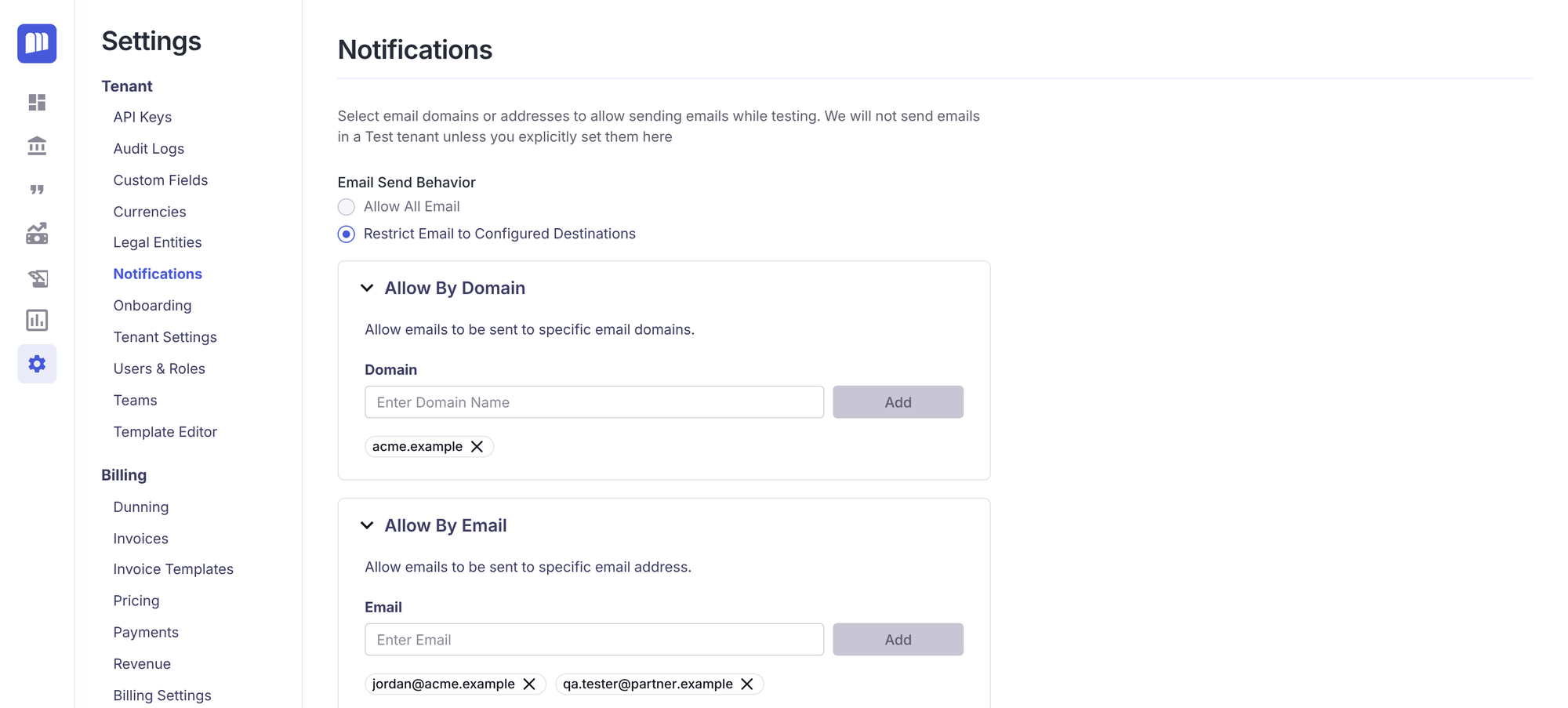
The Notifications setting controls who MonetizeNow is allowed to email. You can let emails go to anyone, or restrict them to an allow list of domains and email addresses. Restricting is mainly for testing, so that test quotes and invoices never email real customers.
Find it in Settings → Notifications.
How it works
Email Send Behavior has two options:
| Option | What happens |
|---|---|
| Allow All Email | MonetizeNow emails every recipient as normal. |
| Restrict Email to Configured Destinations | MonetizeNow only emails recipients on your allow list. All other recipients are skipped. |
When email is restricted, a recipient is allowed if either:
- their email address is in Allow By Email, or
- their domain (the part after
@) is in Allow By Domain.
Matching ignores capitalization. A domain must match exactly: allowing acme.com doesn't allow sales.acme.com.
Test tenants vs. live tenants
| Test tenant | Live tenant | |
|---|---|---|
| Starting setting | Restrict, with the email address of the person who created the tenant already in Allow By Email | Allow All Email |
| Can you choose Allow All Email? | No, the option is disabled. Test tenants always restrict email. | Yes |
What happens to restricted recipients
- Emails with several recipients (for example dunning emails) are sent only to the allowed recipients, across To, CC and BCC. If none of the To recipients are allowed but some CC recipients are, the CC recipients are moved to To.
- Emails to one person (for example an invoice to a billing contact, or an approval request to an approver) aren't sent if that person isn't allowed.
- Sharing an invoice to an address that isn't allowed is rejected.
Emails covered
The allow list applies to emails MonetizeNow sends about your records, including:
- invoice emails to billing contacts, including automatically emailed invoices
- invoice sharing
- dunning emails
- quote notifications to your team, such as approval requests, cancellations, expiration reminders and delayed-billing failures
Set up an allow list
- Go to Settings → Notifications.
- Under Email Send Behavior, select Restrict Email to Configured Destinations. The setting saves as soon as you select it.
- To allow a whole domain, expand Allow By Domain, enter the domain (for example
yourcompany.com) and click Add. - To allow individual people, expand Allow By Email, enter the email address and click Add.
- To remove an entry, click the × on it.
The allow lists can only be edited while Restrict Email to Configured Destinations is selected.
Who can change this
Only Tenant Admins can change notification settings.
Tips
- Before testing in a test tenant, add your own domain (or each tester's email address) so your team receives the emails while customers don't.
- Before going live, check that your live tenant is set to Allow All Email unless you intend to keep restricting.
Updated 3 days ago