
Price Tier Locking
Overview
"Locking" a Price Tier allows Sales Reps to lock a customer into a single per-unit price based on the quantity quoted, while keeping your Catalog pricing unchanged.
When enabled, MonetizeNow creates an account-specific rate for the selected product(s). The locked rate starts at the quantity entered on the quote and extends to infinity at the applicable tier price.
This allows customers to retain their negotiated pricing across future amendments and renewals unless the pricing is explicitly renegotiated.
How It Works
Your Catalog pricing always remains the source of truth for:
- New deals
- Standard pricing
- Future renegotiations
Price Tier Lock does not modify the Catalog rate. Instead, when a rep locks a tier:
- MonetizeNow identifies which pricing tier the quoted quantity falls into.
- An account-specific rate is created for that customer.
- The new rate contains a single tier:
- Minimum Quantity = quoted quantity
- Maximum Quantity = infinity
- Unit Price = price of the matching catalog tier
Example Catalog
| Tier | Quantity Range | Price/Unit |
|---|---|---|
| Tier 1 | 1 - 10 | $30 |
| Tier 2 | 11 - 50 | $25 |
| Tier 3 | 51 - 100 | $20 |
| Tier 4 | 101 - ∞ | $15 |
Quote Scenario
- A Sales Rep enters a quantity of 25 on the quote.
- The quantity falls into Tier 2, priced at $25/unit.
- If the rep locks the tier, MonetizeNow creates an account-specific rate, with a single tier:
- Quantity Range Price 25–∞, at $25/unit
Enabling Price Tier Lock
Enable the Feature Globally
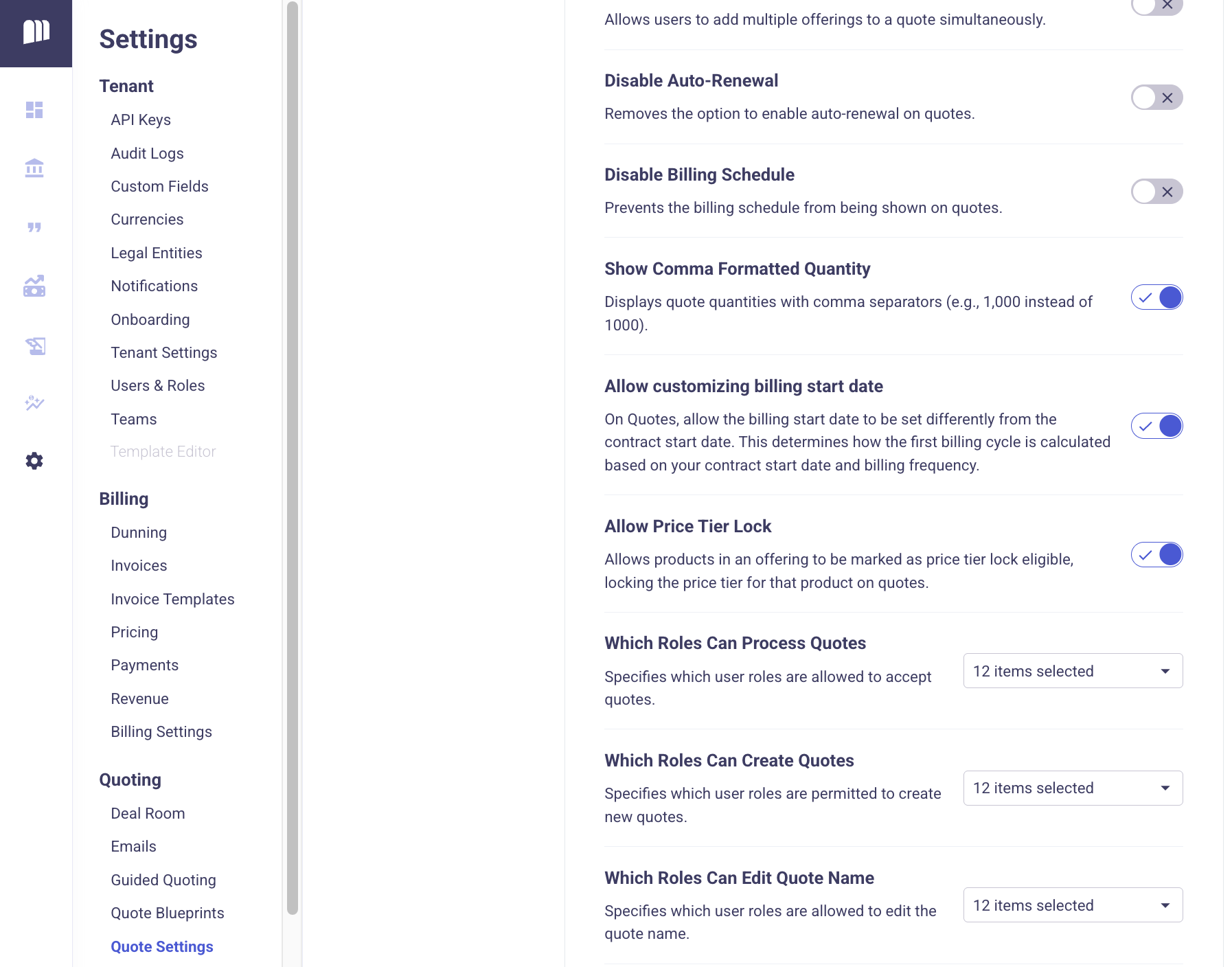
Navigate to: Settings → Quote Settings → Allow Price Tier Lock to enable the setting to allow reps to lock pricing tiers on eligible products.
Configure the Offering
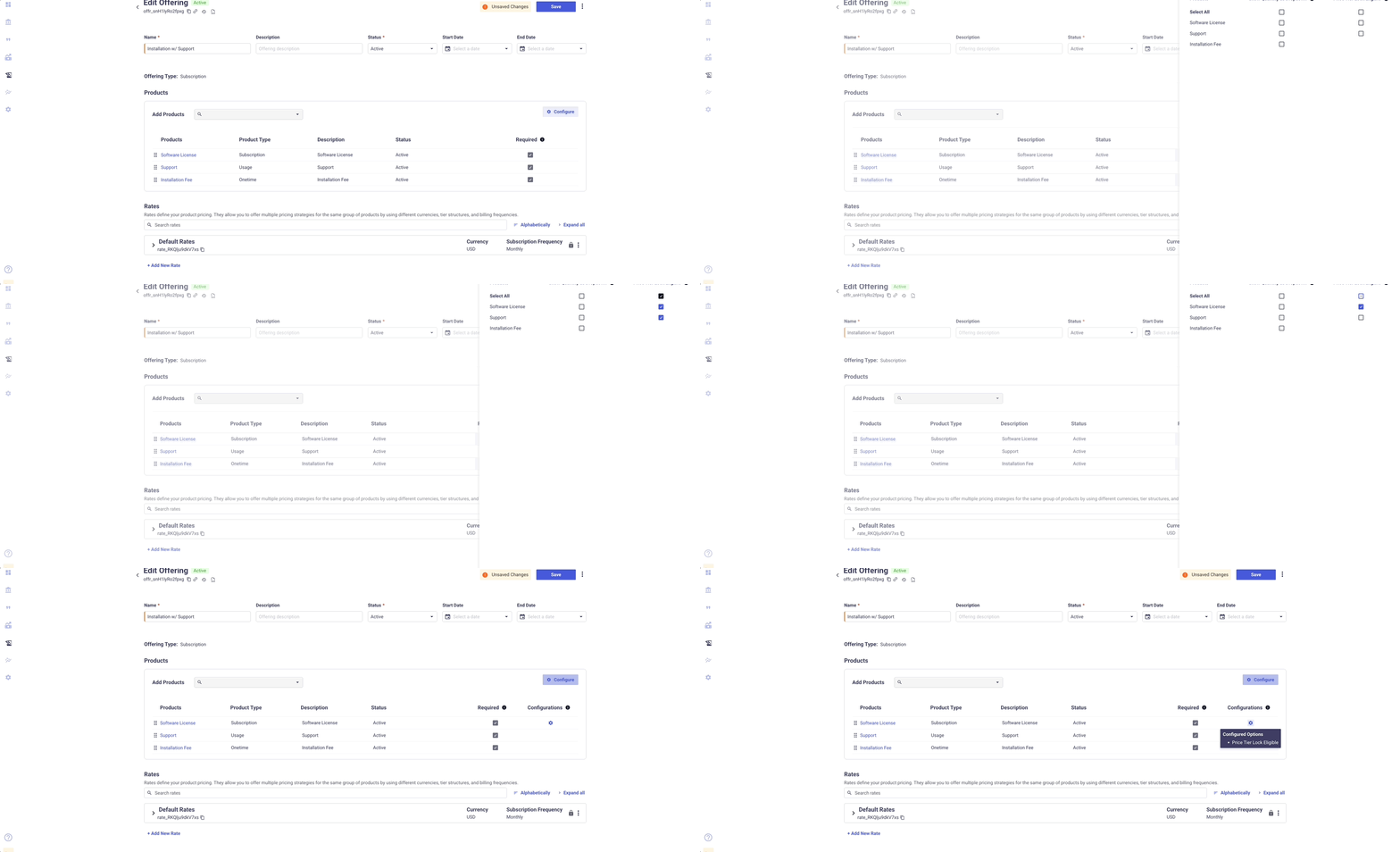
Mark Products as Tier Lock Eligible
- Add products to an Offering
- Click Configure
- Enable: Price Tier Lock Eligible
- This allows reps to optionally lock pricing tiers for that product during quoting.
Unsupported Product Types
The following product types are not eligible for Price Tier Lock:
- Minimum Commit
- Percent of Total
- One Time
- One Time Discount
- One Time Token
- One Time Prepaid Credit
- Usage
Using Price Tier Lock on a Quote
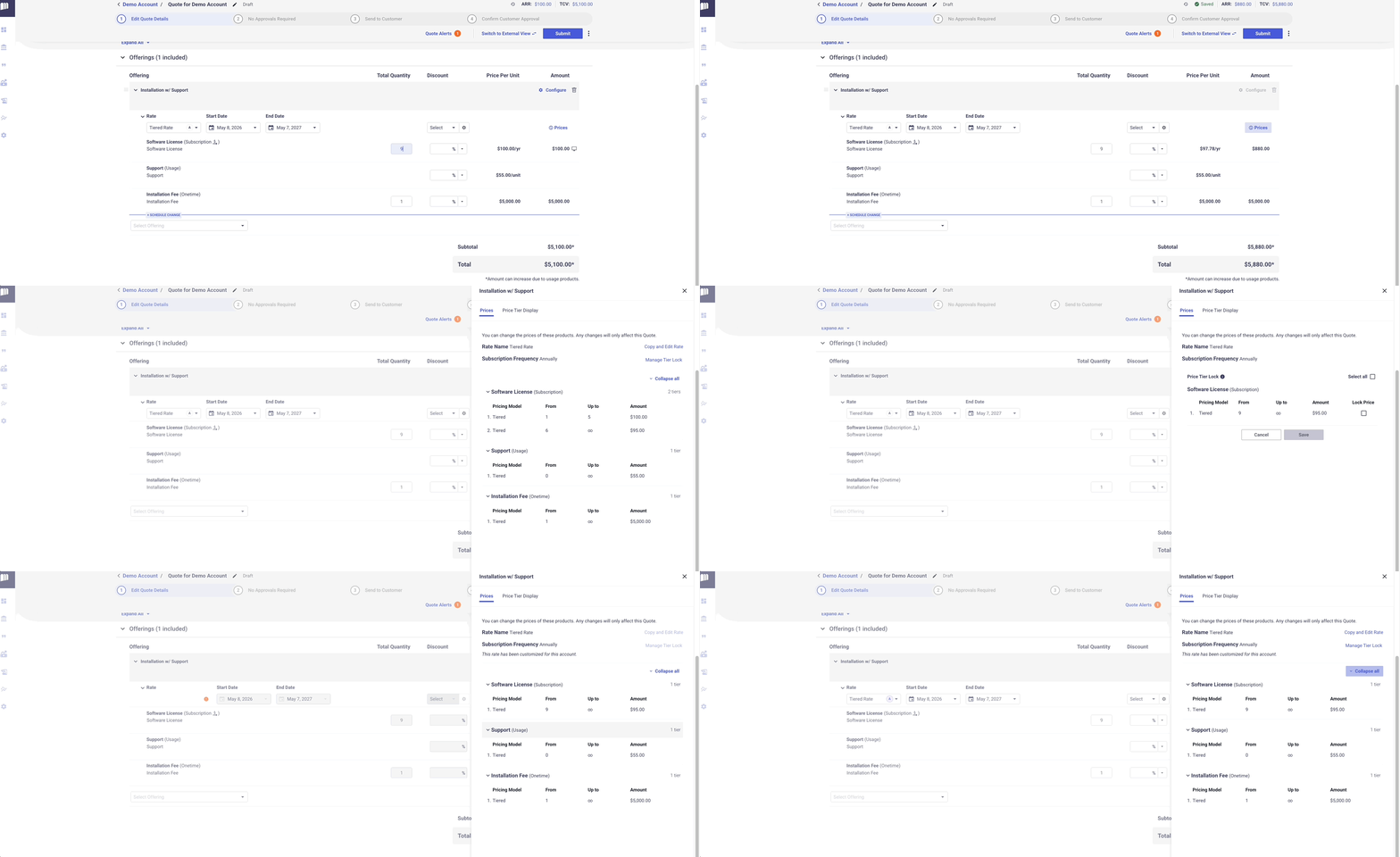
When a quote contains at least one eligible product:
- Open the quote
- Click Prices
- Open the pricing side drawer
- Click Manage Tier Lock
- The Manage Tier Lock page shows:
- Which pricing tier the current quantity falls into
- The account-specific rate that will be created
- Which products are currently locked
- The Manage Tier Lock page shows:
Amendments & Renewals
Locked pricing automatically carries forward to Amendments Renewals.
Reps can also revert back to the original Catalog pricing or select a different rate manually to renegotiate pricing as needed.
Important Notes
- Price Tier Lock only affects the specific product(s) selected in Manage Tier Lock. Other products on the quote remain unchanged.
- Catalog pricing is never modified: Account-specific rates are created automatically when a tier is locked.
- Locked pricing persists until explicitly changed or replaced.
Best Practices
Use Price Tier Lock when:
- Negotiating committed customer pricing
- Preserving pricing consistency across renewals
- Offering volume-based pricing protections
- Preventing customers from losing negotiated rates if usage fluctuates later
It is not recommended to use Price Tier Lock when:
- Pricing is expected to change frequently
- The agreement should always follow current Catalog pricing
Updated 6 months ago