

Optional products
An offering can contain both required and optional products:
- Required products are always on the quote.
- Optional products are add-ons the rep can include or leave out on each quote.
This lets one offering cover a bundle and its add-ons, so you need fewer offerings and fewer rules.
| I want to… | Go to |
|---|---|
| Understand when to use it | How optional products work |
| Mark a product as optional | Set up an offering with optional products |
| Include or exclude one on a quote | Choose optional products on a quote |
How optional products work
Explanation
Example: the Time Lord Enterprise offering includes:
| Product | Required? | On the quote |
|---|---|---|
| Time Lord Platform | Required | Always included |
| Analytics Seats | Required | Always included |
| Gold Support | Optional | The rep decides |
- Products not in the offering can't be added to it on a quote. To sell them, add a different offering.
- Rules can react to the rep's choice. For example, an approval rule can fire when Gold Support is left out.
- Billing follows the quote. Excluded products aren't billed. You can include or exclude an optional product later with a scheduled change or an amendment.
- Minimum quantities aren't set on the offering. Enforce them with the rate's price tiers or a validation rule.
Set up an offering with optional products
How-to. Requires Tenant Admin or Billing Admin.
- Go to Product Catalog → Offerings and create or open an offering.
- Add products under Products → Add Products. New products are Required by default.
- In the Required column, untick the products that should be optional. Select All ticks or unticks every product. The column's tooltip reads "Unchecked items are optional on quote."
- Click Save, then add rates as usual. Every product, including the optional ones, needs a price on each rate.
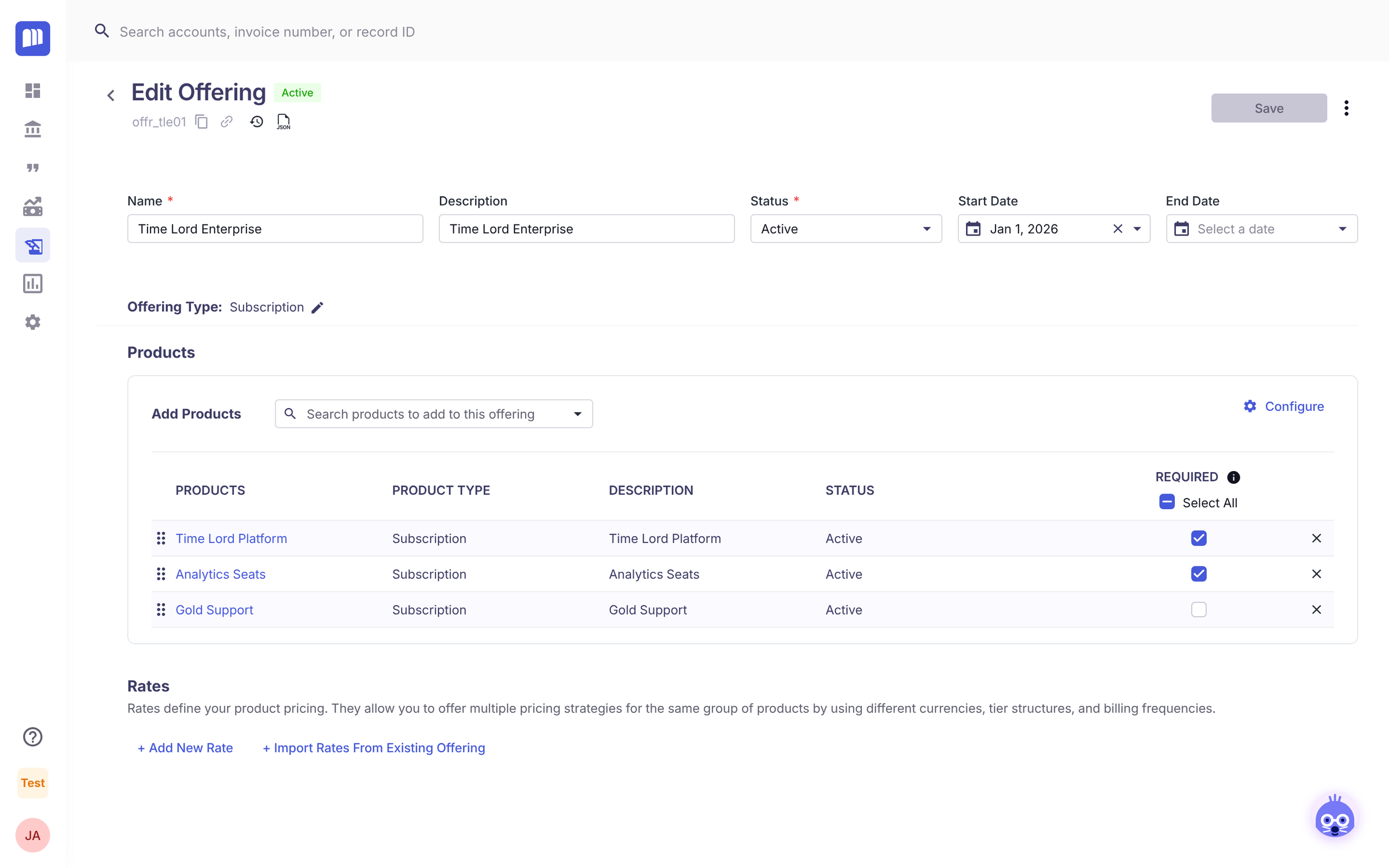
Set this up before the offering is used. The Products table (including Required) can't be edited once the offering has active rates or is in use.
Choose optional products on a quote
How-to
- Add the offering to the quote and choose a rate.
- Click Manage Products (n/m) on the offering. It shows how many of the offering's products are included. The button only appears if the offering has at least one optional product.
- In Select Products for Offering, tick the optional products to include and untick the ones to leave out.
- Required products are ticked and can't be unticked. Their tooltip reads "This product is required".
- At least one product must stay selected.
- Save. The quote, and any rules that depend on it, update.
Related
Updated 12 days ago
Did this page help you?