

Products
Product is any feature that has a price associated with it
A product is anything you sell: a platform license, a seat, a support plan, an API call, a set-up fee. Products are the smallest building block of the product catalog.
A product doesn't have a price. You add it to an offering, and the offering's rates set the price. One product can then be sold at different prices, in different bundles, without creating a new product each time. This avoids "SKU sprawl".
| I want to… | Go to |
|---|---|
| Pick the right product type | Product types |
| Create a product | Create a product |
| Understand each field | Product settings |
| Stop selling a product | Retire a product |
| Go deeper on a type or option | Related pages |
Product types
Explanation
The type decides how a product is billed. It's the most important choice you make, because it can't be changed once the product is in use.
| Type | Billed | Example | More |
|---|---|---|---|
| Subscription | Every billing period. Advance or arrears is set on the rate. | Analytics Seats at $50 per seat per month | Disable proration |
| Usage | On what was used, at the end of each month | Vortex API Calls at $0.002 per call | Billing for Usage |
| Onetime | Once | Onboarding & Training at $5,000 | |
| Minimum Commit | A minimum spend on usage each period | At least $1,000 of API usage a month | Minimum Commitment Products |
| Onetime Pre-Paid Credit | Once, up front, and turned into a credit that pays for usage | $50,000 of prepaid API credit | Prepaid Credits |
| Onetime Discount | Once, as a discount or credit on the quote. It generates a credit note for the discount amount. Available when enabled for your account. | A $2,000 launch credit |
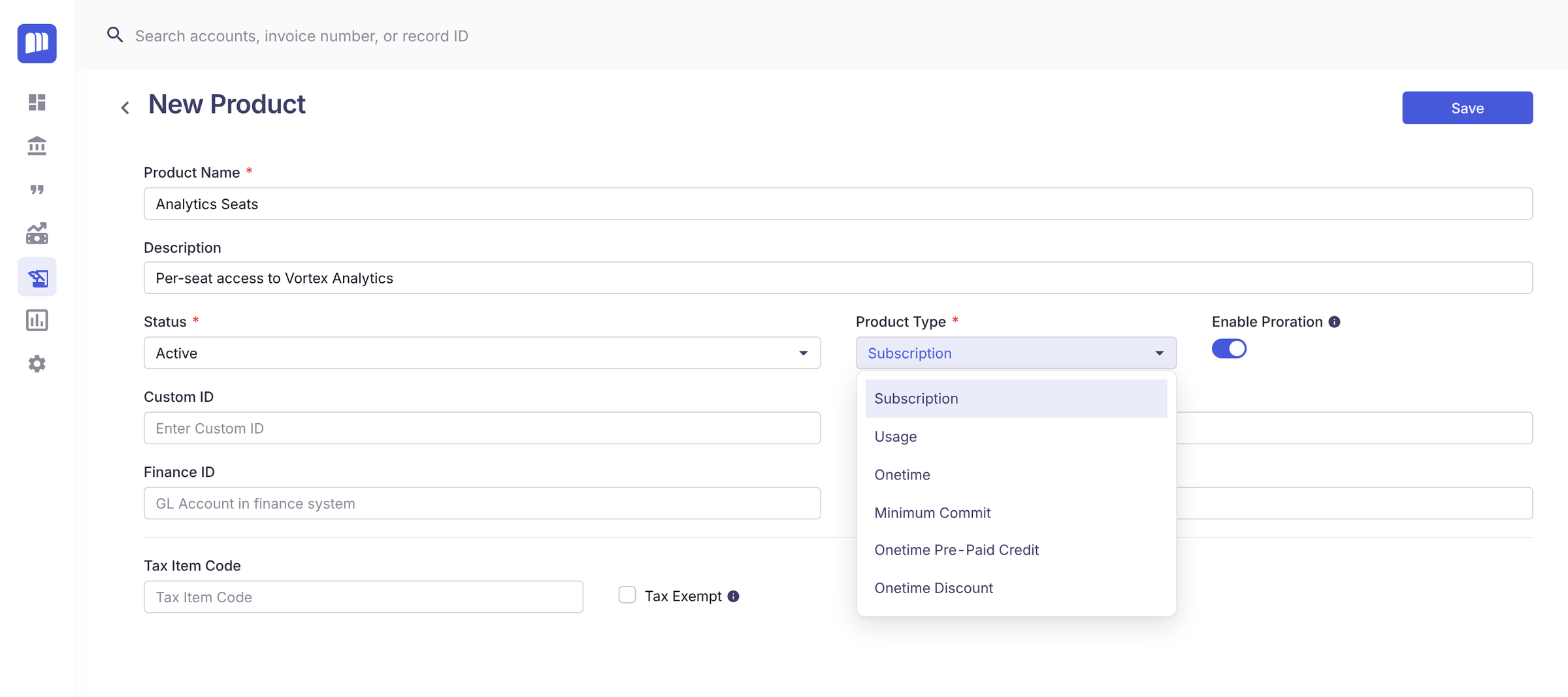
How the types fit together
- Subscriptions are billed in advance (at the start of each period) or in arrears (at the end). You choose this per rate with Subscription Timing. Supported billing frequencies are monthly, quarterly, semi-annually and annually.
- Usage is always billed in arrears, monthly. Each usage product is measured in a usage type, such as API call.
- Minimum Commit and Onetime Pre-Paid Credit only make sense alongside usage products.
- Onetime products can be sold on their own or bundled with subscriptions in one offering.
Create a product
How-to. Requires Tenant Admin or Billing Admin.
-
Go to Product Catalog → Products and click New Product.
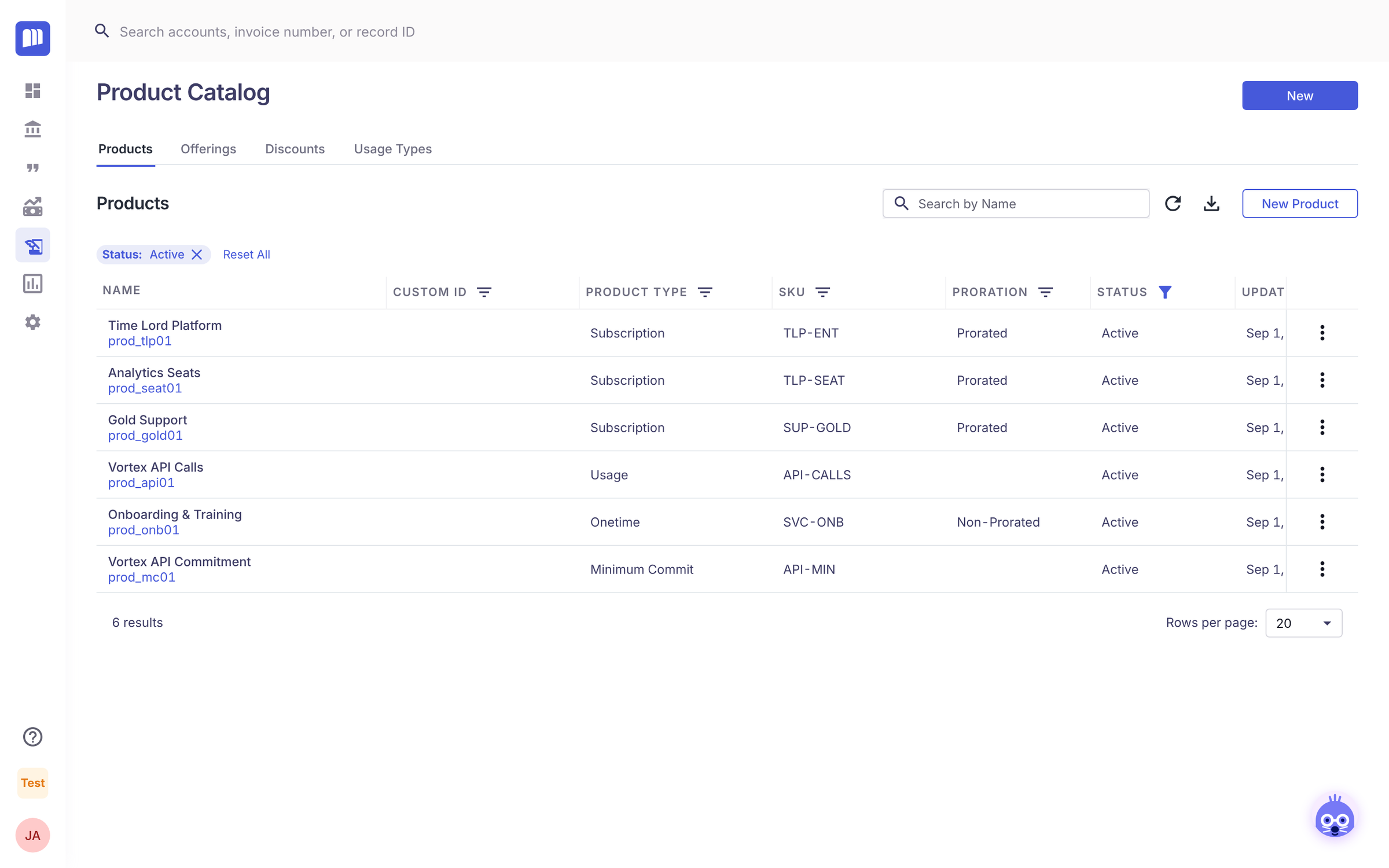
-
Enter a Product Name and, optionally, a Description. The description is what customers see on quotes and invoices, so make it clear.
-
Choose the Product Type (see above). The form changes to show the settings for that type:
Type Extra settings Subscription Enable Proration (on by default) Usage Usage Configuration → Usage Type (required) Onetime Pre-Paid Credit Pre-Paid Credit Configuration → Credit Application 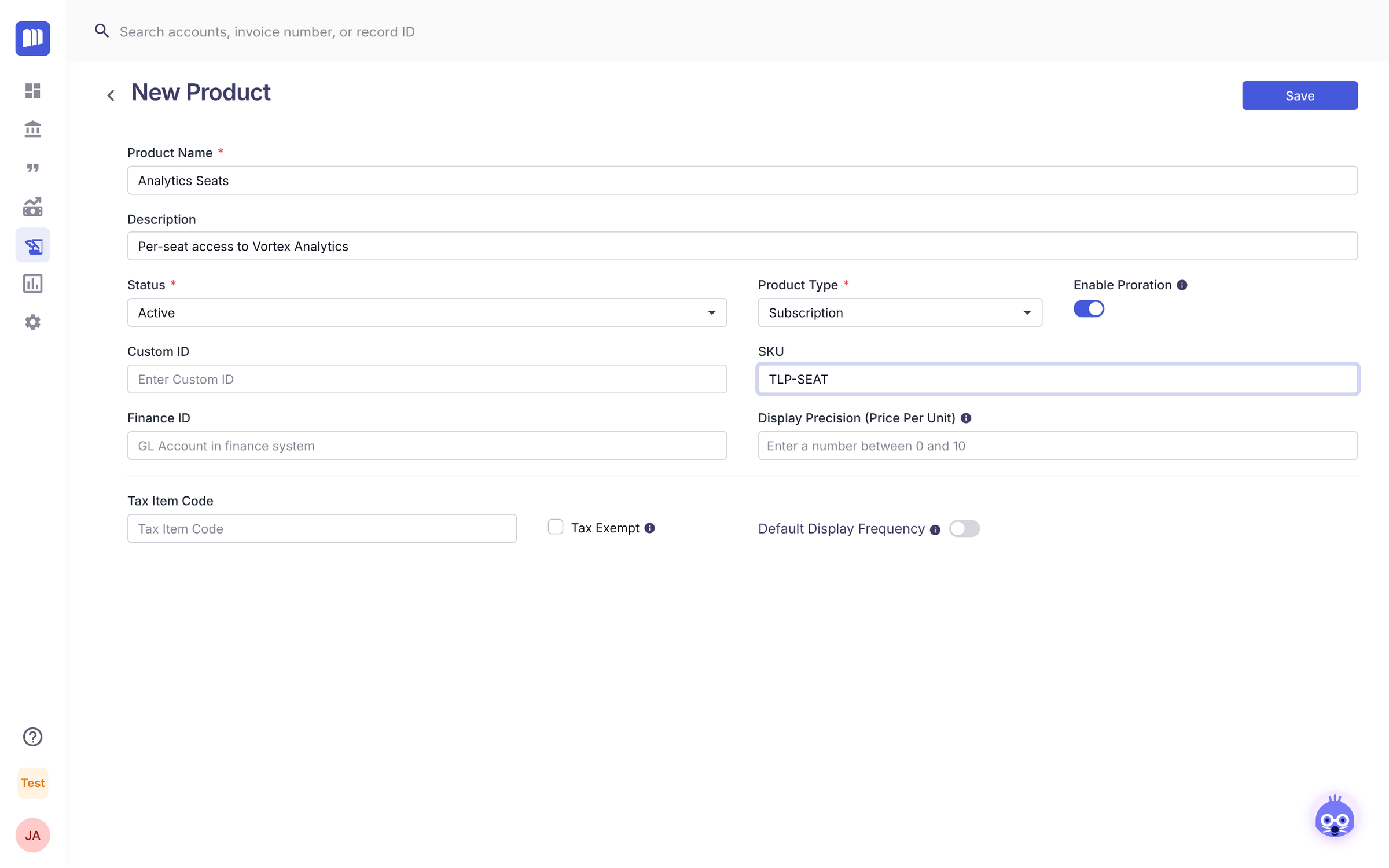
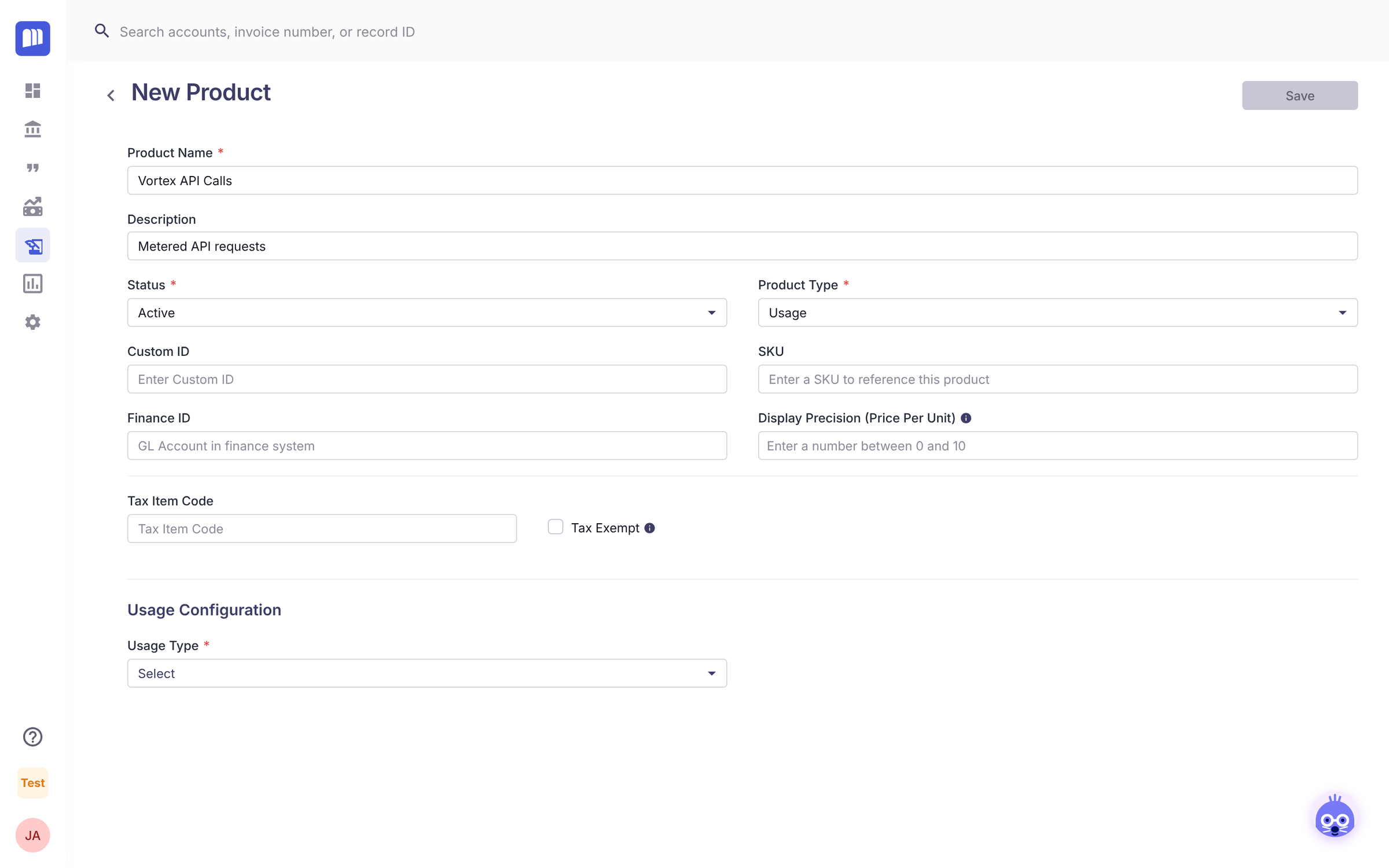
-
Fill in any identifiers you need: Custom ID, SKU, Finance ID. See Product settings.
-
Click Save.
Next: add the product to an offering, then give it a price with a rate.
Choose carefully before adding the product to an offering. Once a product is added to an offering, or used in a discount, it's locked (a padlock shows next to its name). You can no longer change its Product Type, Enable Proration, Recognition Method or Usage Type. To change them, clone the product (⋮ → Clone) and use the copy.
Product settings
Reference
| Setting | Required | What it's for |
|---|---|---|
| Product Name | Yes | The name shown in the catalog, on quotes and on invoices |
| Description | No | A longer description for quotes and invoices |
| Status | Yes | Active products can be added to offerings and quotes. Inactive products can't. |
| Product Type | Yes | How it's billed. See Product types. Locked once used. |
| Enable Proration | Subscription only | On (default): mid-period changes are charged for the time remaining. Off: charged at the full rate for the period. See Disable proration. |
| Custom ID | No | Your own identifier, for example the product's ID in another system |
| SKU | No | Your stock-keeping unit code |
| Finance ID | No | The product's GL account or code in your finance system |
| Display Precision (Price Per Unit) | No | How many decimal places (0–10) prices are shown with. Default 2. It doesn't change stored values or calculations. |
| Tax Item Code | No | The tax code your tax provider uses for this product |
| Tax Exempt | No | If ticked, the product isn't sent to the tax provider, so it's never taxed |
| Default Display Frequency | No | Shows the price per a set number of months on the quote PDF, for example a monthly price on an annual deal. It doesn't affect billing, and reps can change it on quotes. |
| Recognition Method / Recognition Duration (days) | No | How revenue is recognized. Shown only when revenue recognition is turned on. See Revenue Recognition. |
| Usage Type | Usage only | The unit usage is measured in |
| Credit Application | Prepaid credit only | What the credit can pay. Usage Products Only today. |
| Additional Fields | No | Your product custom fields, for example entitlements |
The Related Offerings section on a saved product lists the offerings it's in.
Retire a product
How-to
You can't delete a product that's in use. To stop selling one:
- In Product Catalog → Products, click ⋮ on the product's row.
- Click Deactivate and confirm.
An Inactive product can't be added to new offerings or quotes. Existing subscriptions that include it carry on billing. Click ⋮ → Activate to bring it back.
Related pages
Updated about 18 hours ago