
Attaching Documents
MonetizeNow allows you to manage quote-related documents across all quotes and at the Legal Entity level, giving admins centralized control while still providing flexibility for sales teams during the quoting process.
Note: Currently only PDF-type documents are supported.
Configure Documents for All Quotes
Admins can upload and manage documents in Quote Settings which will automatically be added to all quotes. Admins can specify a default, global MSA, cover page, and/or footer page. These documents will always be included in addition to any documents configured at the Legal Entity level.
Configure Documents by Legal Entity
Admins can upload and manage documents that are available for quotes associated with a specific legal entity.
Documents are managed independently per legal entity. For each legal entity, admins can:
- Define the document type, such as:
- Cover
- Footer
- Custom types (e.g., MSA, Order Form Attachment, Terms Addendum, etc.)
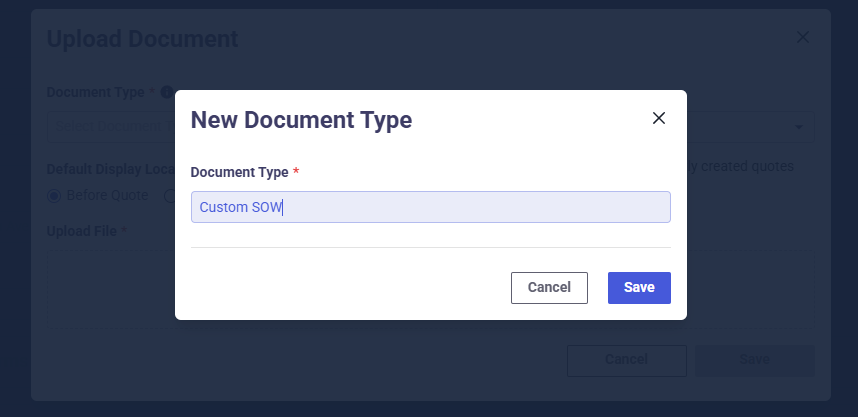
- Admins may upload multiple documents of any type
- Choose whether the document should appear before or after the Quote in the generated PDF
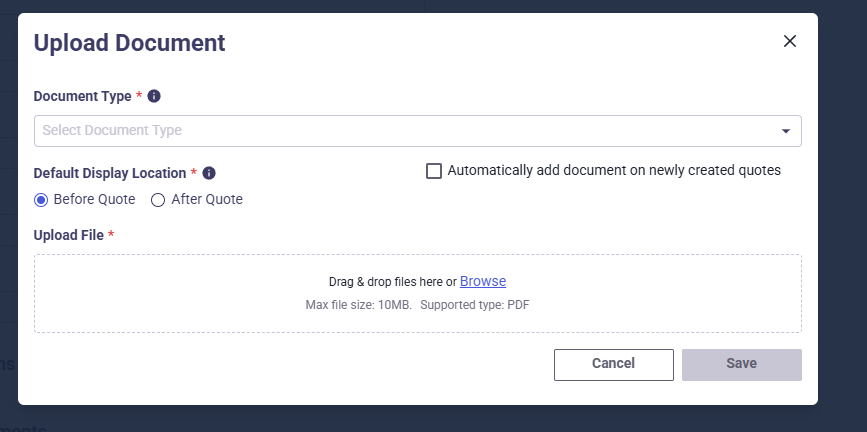
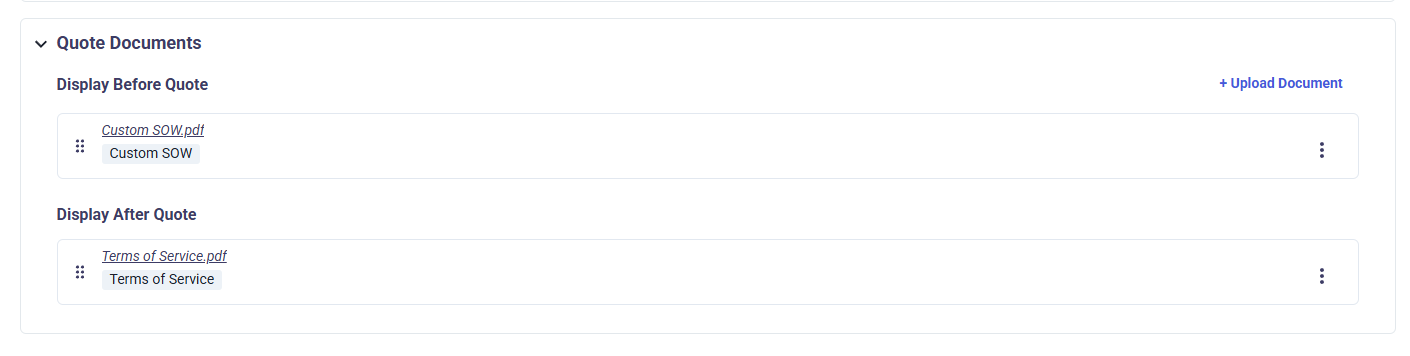
- Determine whether a document should:
- Automatically apply to all new quotes for that legal entity
- Or remain optional for sales reps to add manually
During Quoting: Sales Rep Experience
For any quote created after documents have been uploaded to the legal entity, documents marked as Auto-Apply are automatically added to the quote.
Documents that have been uploaded by an administrator cannot be edited (i.e. the core document cannot be altered regardless of if the document can be removed/added to a quote)
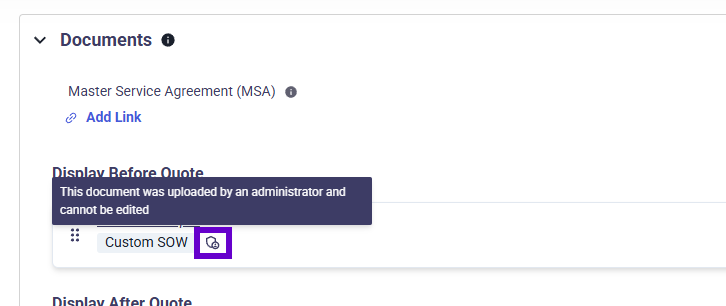
During the quoting process, sales reps retain full control to customize the final document package, including being able to:
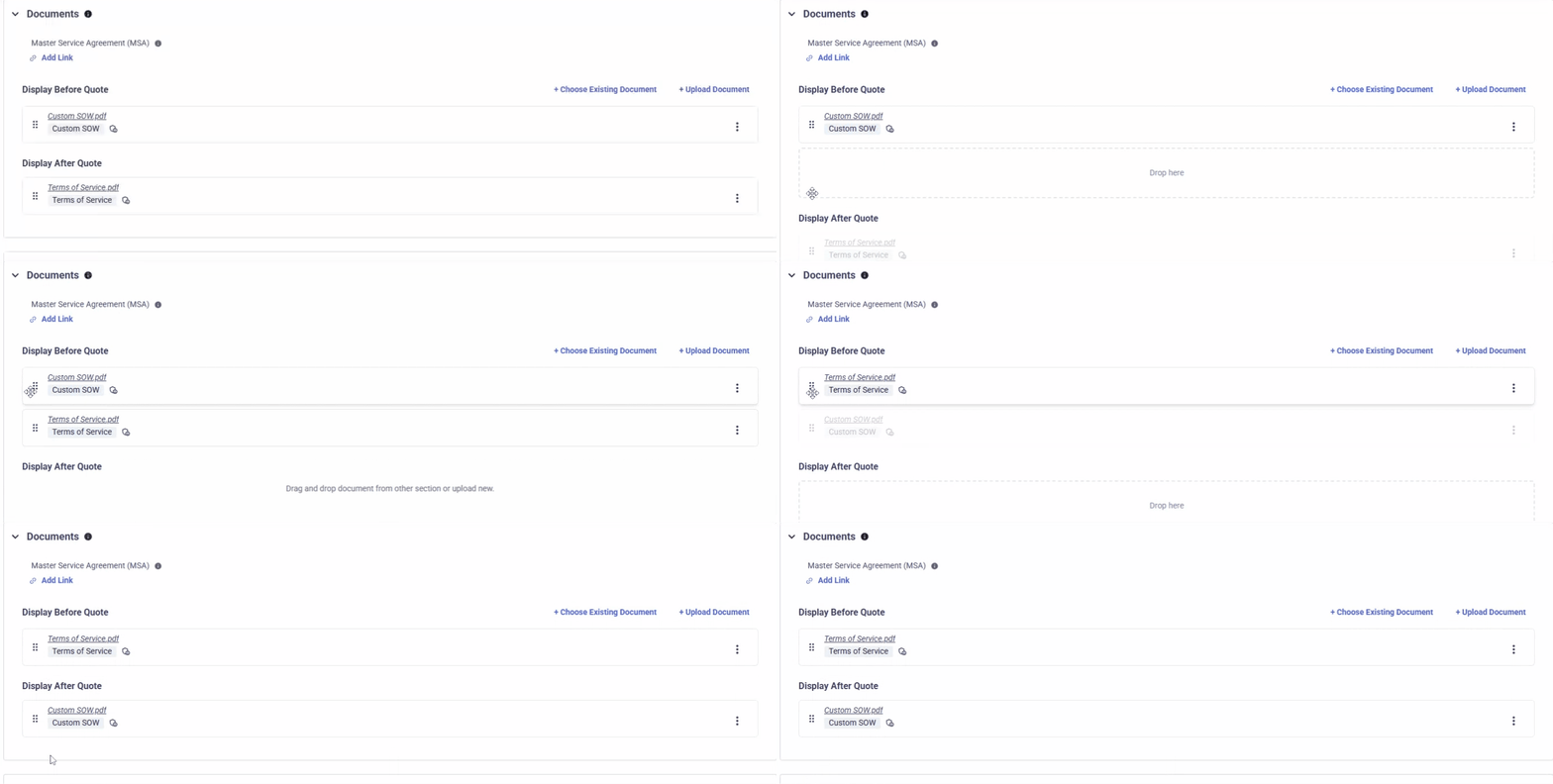
- Reorder & Adjust Placement of Documents
- Drag and drop documents to reorder them
- Change whether a document appears before or after the quote
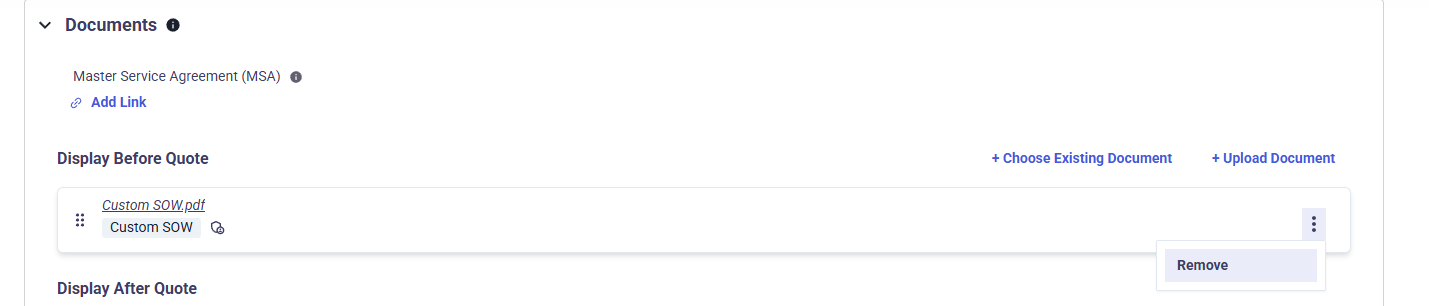
- Remove documents if they are not needed
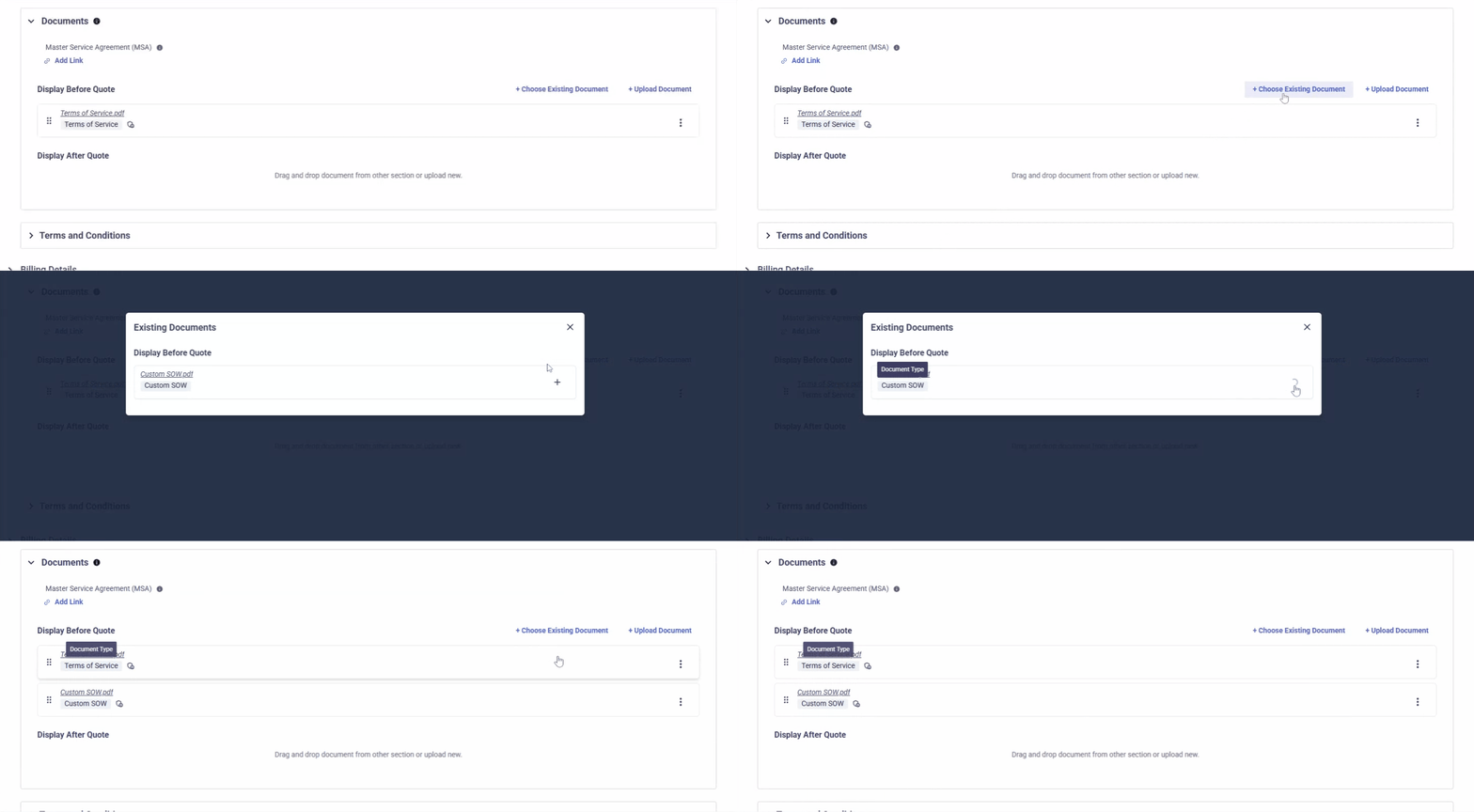
- Quickly Add Pre-defined Available Documents for that Legal Entity
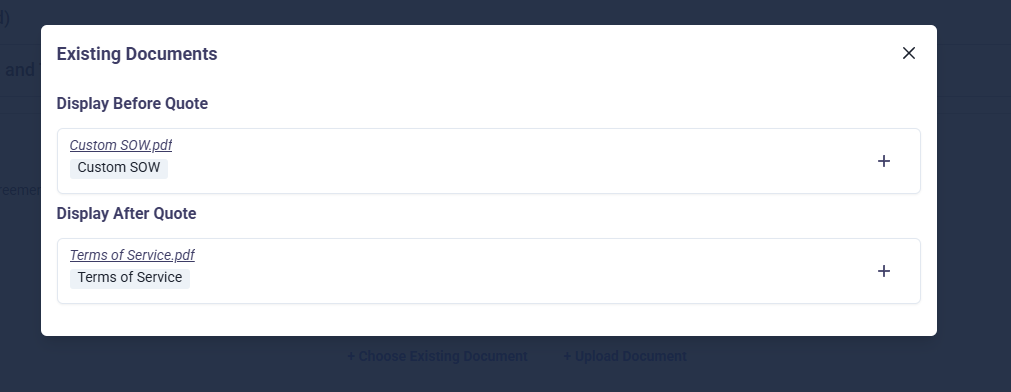
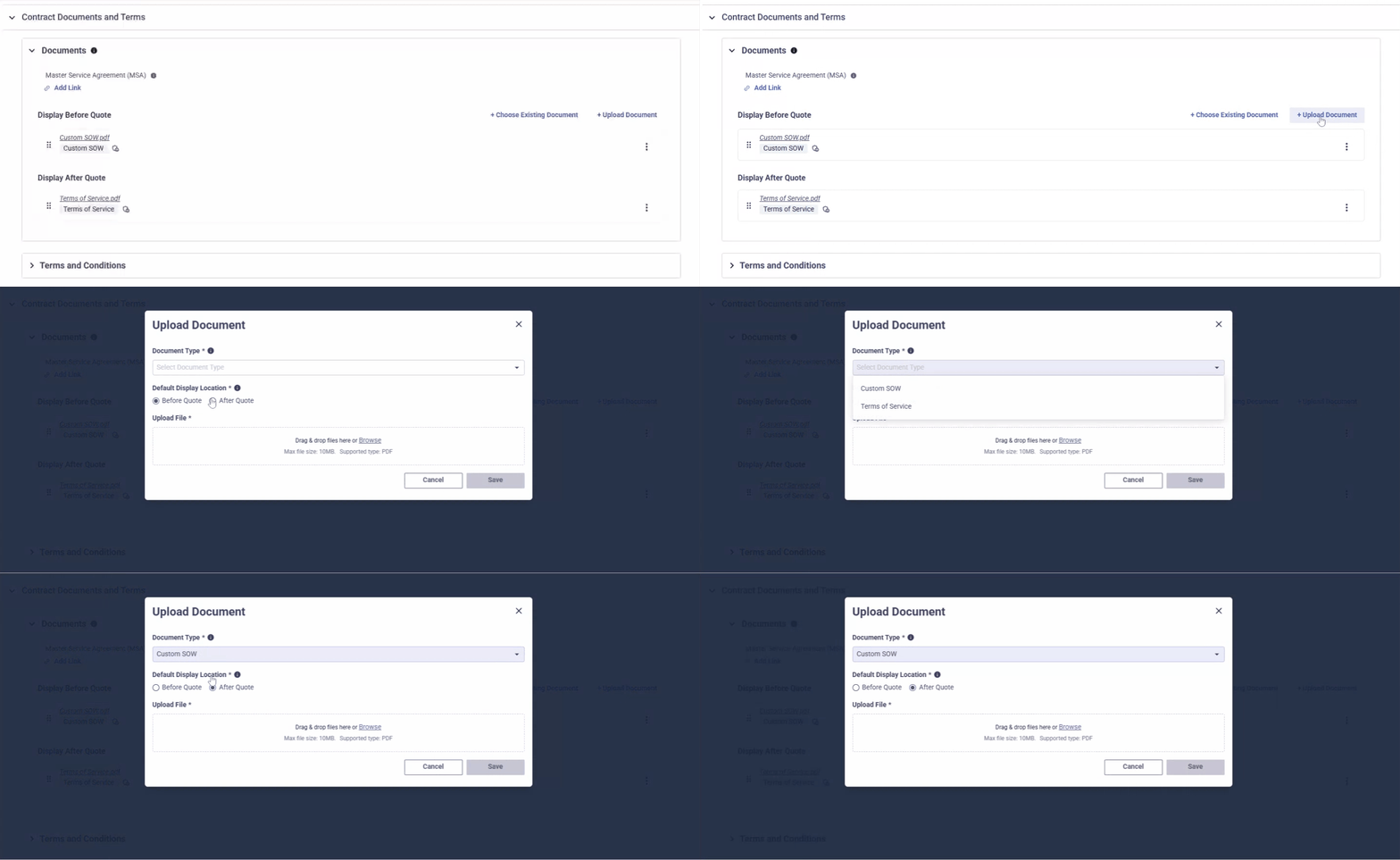
- Click “Choose Existing Document” to select from other admin-uploaded documents available for that legal entity
- Upload Ad-Hoc Documents
- If additional documents are required, sales reps can Click “Upload Document” to upload any PDF file and specify the type and placement.
Updated 7 months ago