
Adobe Sign
Connect Adobe Sign to MonetizeNow, send documents for signature, track agreement status, and troubleshoot common integration issues.
Our Adobe Sign integration enables teams to automate the generation, routing, and signing of quotes, SOWs, MSAs, and custom agreements, seamlessly from within the platform. By embedding e-signature capabilities directly into your quoting workflows, MonetizeNow eliminates friction between sales closure and customer commitment.
This integration supports secure authentication, intelligent document delivery, and real-time signature tracking. Once configured, your team can send documents for signature with a click, track signing status within MonetizeNow, and access signed contracts, all without toggling between systems.
But the real value lies in how this integration aligns with modern deal cycles:
- No more disconnected document handling
- No more email delays for signature follow-ups
- No more manual uploads of signed paperwork
Adobe Sign meets you where the deal lives: inside MonetizeNow.
Once connected, MonetizeNow handles document delivery, tracks agreement status, and syncs signed copies back into the quote or contract object, giving your team an end-to-end signature workflow powered by Adobe Sign.
Integration Overview
MonetizeNow <> Adobe Sign integration supports:
- OAuth-based authentication
- Sandbox and Production environments
- Document delivery via a specified Admin user
- Automated status sync for signed documents
Adobe Sign Configuration Guide
Before enabling e-signature workflows, there are a few foundational pieces you’ll need in place.
Prerequisites
Before you begin, ensure you have access to the following information from your Adobe Sign account:
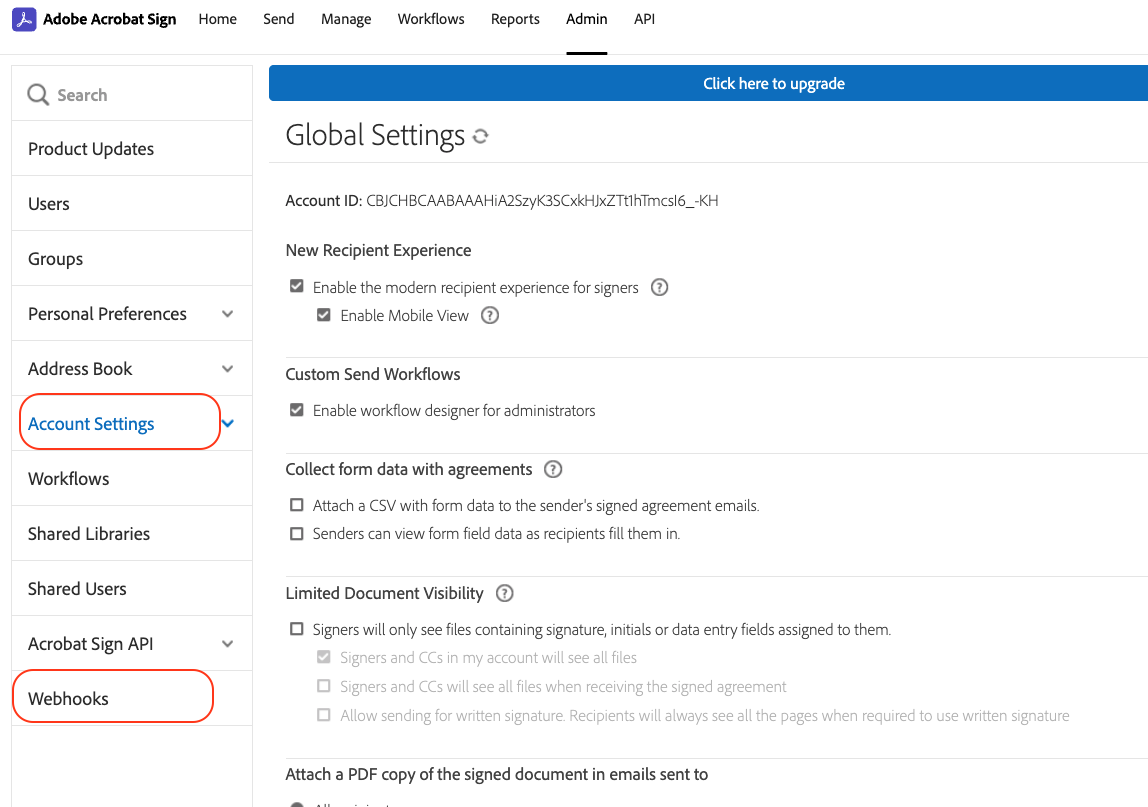
With developer access or access to the admin dashboard /account/accountSettingsPage#pageId::ACCOUNT_SETTINGS. from where you can access Account settings and webhook.
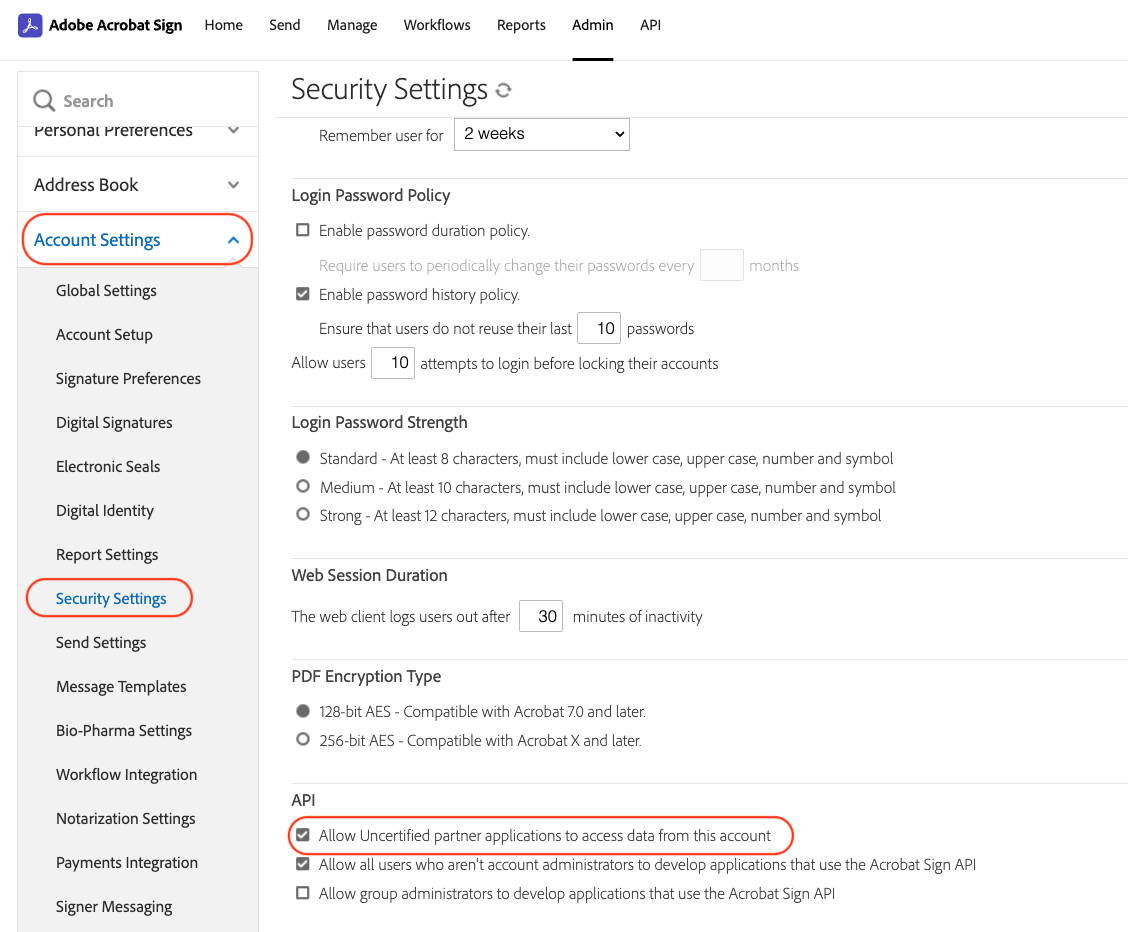
Head over to Account Settings >> Security Settings and check
Allow Uncertified partner applications to access data from this account.
Note: this is temporary our team is working on to getting it certified as soon as possible.
Configuration Steps
- Log in to MonetizeNow and navigate to Settings >> eSign.
- Click the Connect button in the “Adobe Acrobat Sign” module.
- You’ll be taken to adobe for signing in after successful sign in you will be redirected to MonetizeNow and you are good to go.
Note: With developer account if you sign up more than twice with different applications, the integration will fail. Because Adobe allows only two webhook at a time for free developer accounts.
Video: How to set up Adobe Sign with MonetizeNow
Sending Documents for Signature
Once the Adobe Sign is successfully connected, you can begin sending documents for e-signature directly from within MonetizeNow. The signature workflow is designed to fit naturally into the quoting and contracting processes, while keeping control with your team.
This section outlines the steps to send a document, what happens behind the scenes, and what to expect post-signature.
The process to send a document for signature begins from the quote or contract view:
- Open the quote or agreement record or account document.
- Select signers and configure the routing order if required.
- Review the document preview and ensure the correct version is selected.
- Click Send via eSign.
At this point, MonetizeNow creates a Adobe Sign agreement in the background and triggers delivery to the specified recipient(s).
Send on Behalf Of
Adobe Sign can send signature requests so the email appears to come from the original document owner instead of the admin account used to connect Adobe Sign to MonetizeNow.
To set this up:
- Share the original user's Adobe Sign account with the admin account used for the MonetizeNow connection.
- Grant the admin account write permission.
- Confirm the user appears in the Adobe Sign shared user list with write access.
- Enable the required Send setting in Adobe Sign for send-on-behalf behavior.
If the document owner's account is not shared with the admin account, Adobe Sign sends the email from the configured admin account instead.
What happens after sending
Once the agreement is created:
- Adobe Sign sends the document to the selected recipients for signing.
- Each signer receives an email from Adobe Sign with a secure link to review and sign the document.
- The agreement remains tracked within MonetizeNow, with its current status displayed in the quote or contract view.
Statuses include: Sent, Viewed, Completed, Declined, Voided
You do not need to manage these statuses manually, MonetizeNow syncs them from Adobe Sign automatically.
Resending and Managing Signatures
If a signer misplaces the Adobe Sign email or if the document needs to be voided, you can manage the agreement directly within MonetizeNow:
- Resend: Trigger a reminder email from the quote or contract record.
- Void: Cancel the signature request before it is completed.
- Replace signer: Withdraw the original request and resend to the correct party.
Final Document Handling
Once all signatures are collected:
- The signed PDF is attached to the original quote or agreement in MonetizeNow.
- The signature status is updated to Completed.
- Quote stage will now be moved forward for Processing
Agreement Status Sync
Once an agreement is sent through Adobe Sign, MonetizeNow automatically monitors its progress and reflects changes in real-time. This section explains how status updates are synced, where you can monitor them, and how to troubleshoot common issues if something breaks in the flow.
How Status Sync Works
After a document is sent for signature, MonetizeNow establishes a background connection to the associated Adobe Sign agreement. This enables:
- Automatic polling and webhook-based updates from Adobe Sign
- Real-time visibility into document status from within the quote or contract record
- Secure handling of completed signature artifacts (e.g., signed PDFs)
Status changes in Adobe Sign will appear in MonetizeNow within a short window. No manual refresh is required. You can view agreement status under the quote or agreement section where the signature was initiated.
Admin Visibility
Admins can track signature activity, investigate failures, and review document logs directly in MonetizeNow under:
Settings → Audit Logs → eSign Activity
This section shows timestamped events for each agreement and can help identify when and why a failure occurred.
Error Scenarios and What to Check
| Scenario | Likely Cause | Resolution |
|---|---|---|
| Status not updating in MN | Webhook not configured or blocked or delayed. | Verify Adobe Sign Connect webhook settings and ensure the endpoint is active. |
| Signed document not attached | Envelope status updated but document sync failed | Check if Adobe Sign account permissions allow download access for completed agreements while creating the connection. If error persists try removing the connection and connect again. |
| Other API Adobe Related Error | Agreement or Permission or Token related error happened. | You can view the request log from your adobe admin dashboard. Click here |
| Signer didn’t receive email | Email address was mistyped or blocked | Confirm recipient email address and request re-delivery from the quote record. |
| Agreement shows as Voided unexpectedly | Document expired or was canceled from Adobe admin console | Review expiration settings in Adobe Sign or re-initiate the process with new envelope |
Updated 7 months ago