

Configure Product Catalog
Set up the products, offerings and rates your customers buy.
Your Product Catalog is the list of products you sell, the offerings (bundles) customers buy, and the rates (prices) for each offering. Setting it up well is the most strategic part of onboarding to MonetizeNow. Do it together with Product, Marketing and the MonetizeNow team.
This page is the starting point. Pick the guide that matches what you need right now:
| I want to… | Read |
|---|---|
| Understand how to design products, offerings and rates | Designing your product catalog |
| Load a catalog for the first time, step by step | Upload your first catalog |
| Roll back an upload | Undo a catalog import |
| Move a finished catalog from Sandbox to Production | Promote a catalog to Production |
| Look up a column, an allowed value or a rule | Catalog template reference |
At a glance
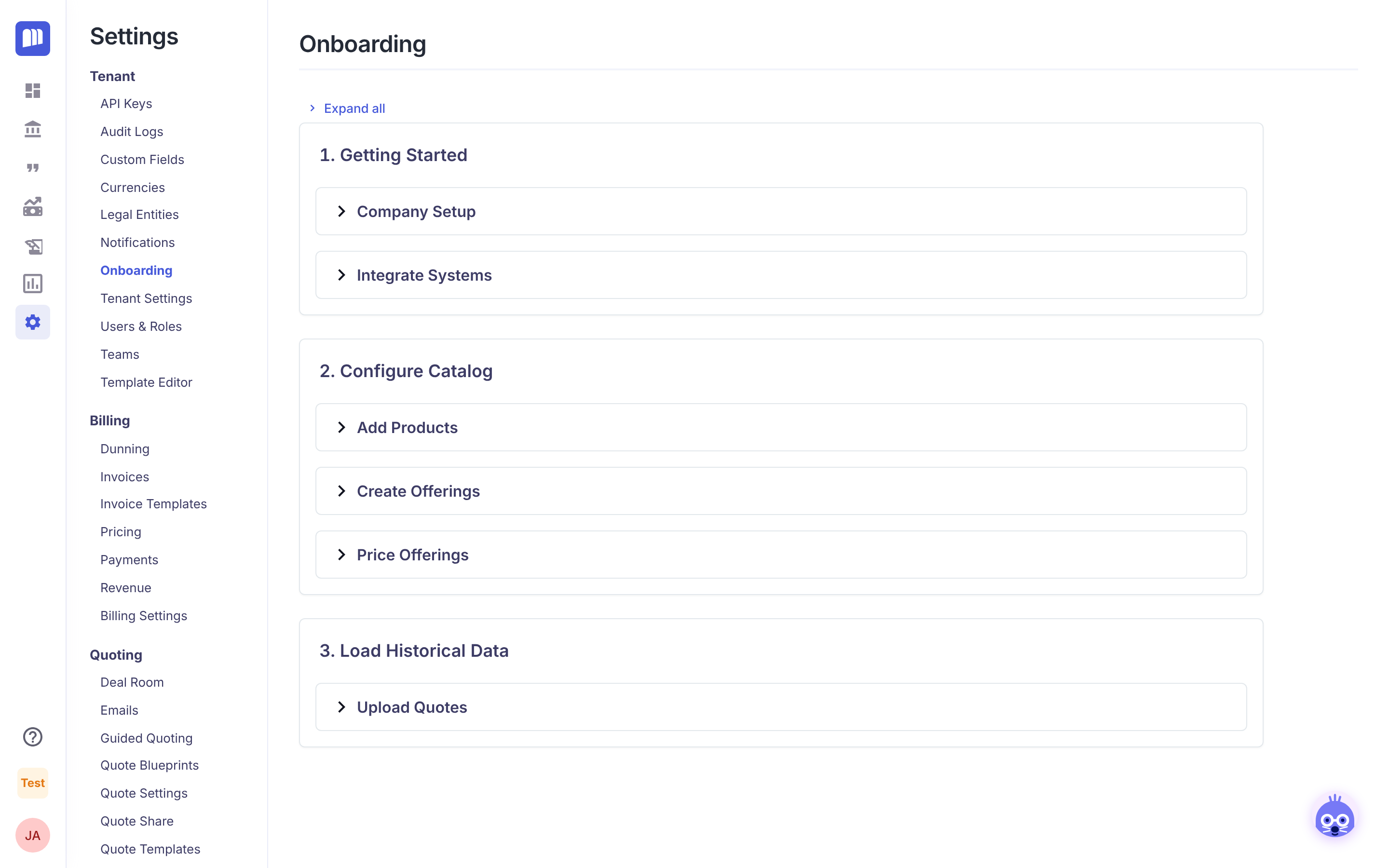
- Where: Settings → Onboarding → 2. Configure Catalog.
- Who: users with the Tenant Admin or Billing Admin role.
- Order matters: Add Products → Create Offerings → Price Offerings. Each template is built from what already exists in your tenant, so download each template after the previous step has been uploaded.
- Files: CSV or XLSX, up to 10 MB. For XLSX, keep the worksheet names from the template (
Products,Offerings,Rates). - IDs fill in automatically: in the Offerings and Rates templates, choose a name from the dropdown and the matching Product ID or Offering ID fills in from the template's own Values sheet. You never copy IDs between files.
- Preview first: every upload shows a preview. Nothing is created until you click Confirm.
- Undo: each section has an Undo … imports link that rolls back everything of that type created in a chosen time window (5 minutes to 24 hours).
Interactive walkthroughs
1. Add products to your catalog
2. Create offerings from your products
3. Price your offerings
4. Undo a catalog import
Related
- Step-by-step guide to building one offering in the UI: Creating your first product, offering and rate
- Pricing strategy blog posts: Part 1 · Part 2
- Questions about templates: [email protected]
Updated 18 days ago
Did this page help you?