
Adding Offerings to a Quote
Offerings are how you build the actual revenue structure in a sale; meaning quote line items, pricing, billing schedules, and later renewals all center around them.
This page shows you how to add offerings to a quote using the two ways MN currently supports:
- Add one offering
- Add offerings in bulk (if your tenant has this feature turned on)
Note: To add an Offerings to a Quote, you must specify both the Offering and the Rate. You may add any number of Offerings to a Quote.
Add One Offering
For when you’re adding standard offerings one at a time
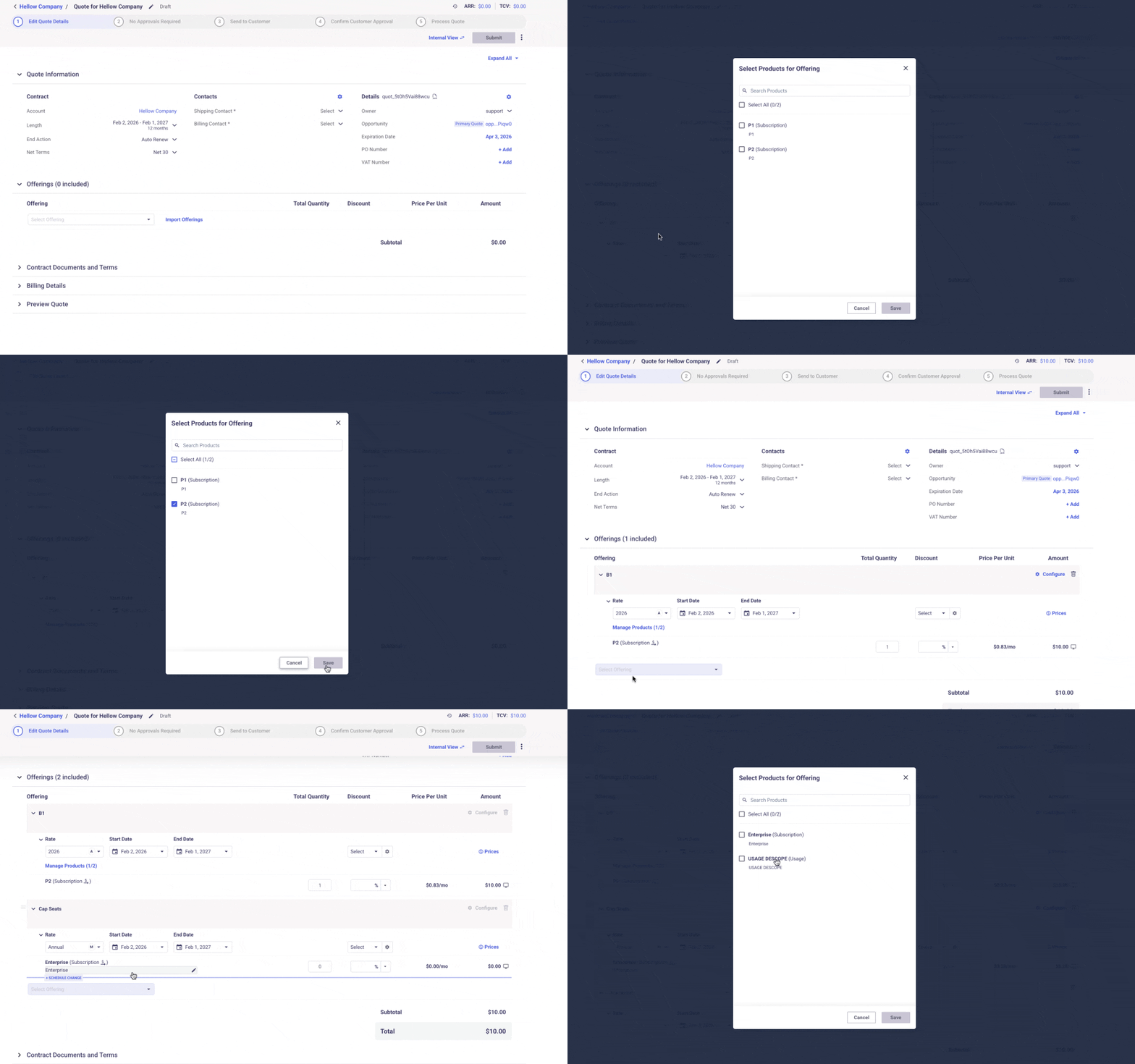
How it works:
- Open the quote you’re working on.
- Scroll to the Offerings section.
- Click the Select offering dropdown.
- Choose the offering you want to add.
- Enter or adjust Quantity and Discount (depending on the Products ).
- Subscription products: Quantity
- Onetime products: Quantity
- Minimum Commit: currency amount of the Minimum Commit
- Review the quote totals once the offering is added.
Once this is done, you’ll see the offering line item appear with pricing and quantity reflected in the subtotal.
Add Offerings in Bulk
For when you want to add several offerings at once. Especially on large deals with many offerings
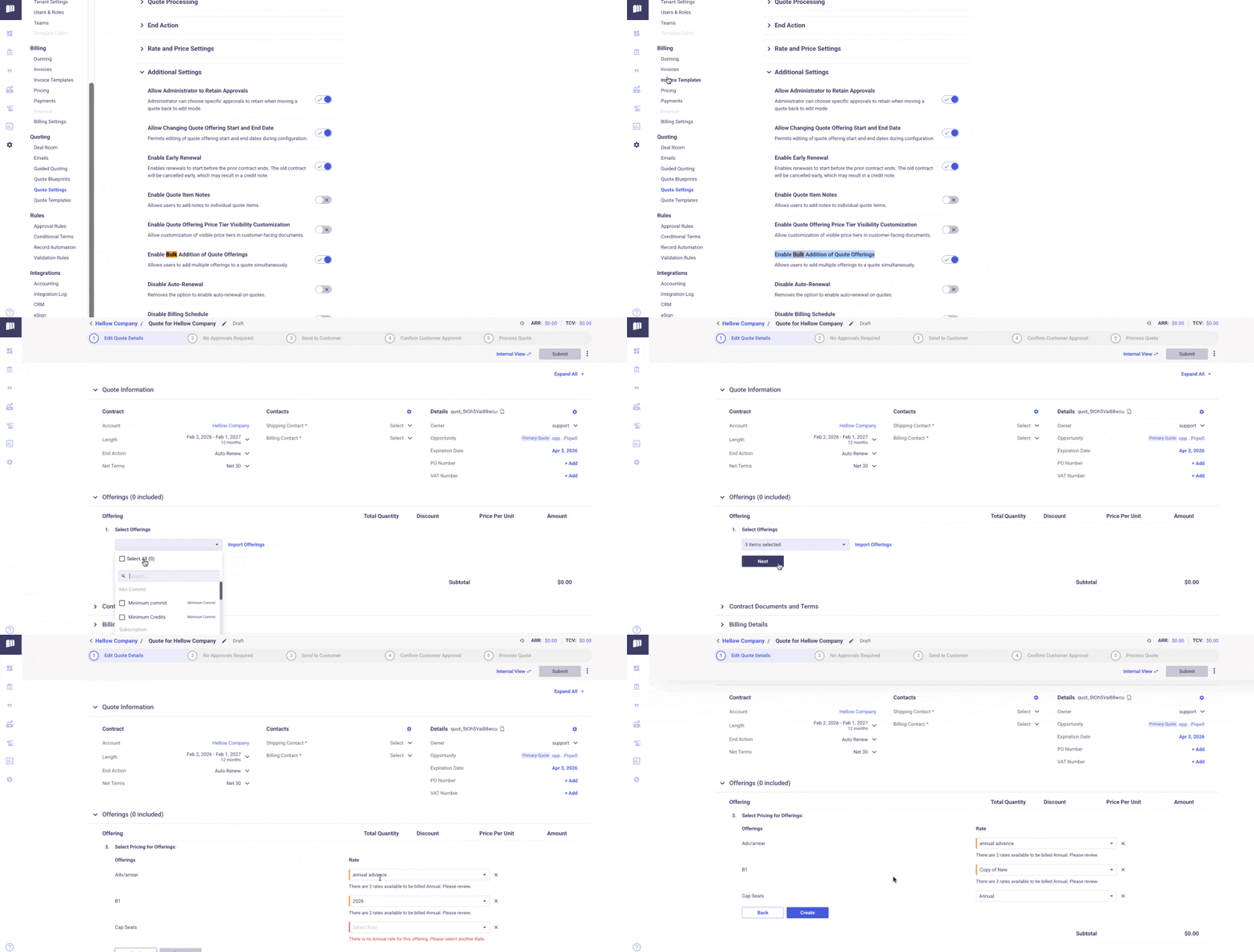
How it works:
Before you can use this path in quote UI, make sure this tenant setting is turned ON:
Settings → Quote Settings → Additional Settings →Enable Bulk Addition of Quote Offerings
- Open the quote you’re building.
- In Offerings section, click Import offerings (or Bulk add).
- In bulk selector, choose all the offerings you want to include.
- Confirm your selections.
- Review added offerings and totals.
What Happens After Adding Offerings
Once offerings are added:
- Quote totals, ARR, and TCV update automatically
- Billing schedule previews reflect new items
- Approval logic will evaluate based on your tenant rules
These happen behind the scenes, so you don’t need to run extra steps for them.
Updated 8 months ago