

Record Automation
Define values for new records based on conditions
Record Automation fills in settings for you, so your team doesn't have to remember them. You write simple if this, then that rules. For example: if the quote is under $5,000, then email its invoices automatically.
Find it in Settings → Rules → Record Automation.
| I want to… | Go to |
|---|---|
| Understand what Record Automation does | How Record Automation works |
| Build my first rule, step by step | Tutorial: your first rule |
| Check a rule before I rely on it | Test a rule |
| Copy a value from a quote onto a bill group | Copy a value from another field |
| Control what customers see in the customer portal | Control the customer portal |
| Get ideas for useful rules | Rules worth building |
| Look up a field or setting | Reference |
Looking for Quote Share rules? They now have their own home in Settings → Quote Share. See Quote Share.
How Record Automation works
Explanation
A rule is "IF this, THEN set that"
Every rule has two parts:
- IF: one or more conditions, for example Quote Amount is less than 5,000.
- THEN: one or more fields to set, for example Auto-Email Invoice = Automatically.
When the conditions are met, MonetizeNow sets the fields for you. When they aren't, nothing changes.
What a rule can change
When you create a rule, you choose its Target Entity: the thing the rule changes.
| Target Entity | What the rule sets | When it runs |
|---|---|---|
| Bill Group | Billing settings on a new bill group, such as auto-emailing invoices, invoice creation, dunning process, CC emails and bill group custom fields | Once, when a processed quote creates a new bill group |
| Customer Portal | What a customer can see and do in their customer portal, such as hiding invoices or turning off payments | Every time the customer opens their portal |
A Bill Group rule sets up the bill group when it's created. It doesn't go back and change bill groups that already exist. If you change a setting by hand later, the rule won't overwrite it.
A Customer Portal rule is checked every time the portal opens. Changing the rule changes what every matching customer sees from their next visit.
Where conditions can look
The IF part can check information from several places:
| Target Entity | Conditions can check |
|---|---|
| Bill Group | The bill group (including its account and custom fields), and the quote that created it: the quote itself, its conditional terms, its offerings and its line items |
| Customer Portal | The bill group and its account, including custom fields |
When several rules set the same field: Priority
Each rule has a Priority. If two rules that both match try to set the same field, the rule with the lower number wins. Priority 1 beats priority 10.
Rules that set different fields don't compete: all of their changes apply.
Tip: Number your rules 10, 20, 30… so you can slot a new rule in between later without renumbering.
Active and Inactive
Only Active rules run. Set a rule to Inactive to switch it off without losing it. Rules can't be deleted, so use Inactive for rules you no longer need.
Tutorial: your first rule
Tutorial. About 5 minutes. You'll build a rule that automatically emails invoices for small deals, then test it.
You need: the Tenant Admin or Sales Admin role, and at least one bill group that was created from a quote (for the test).
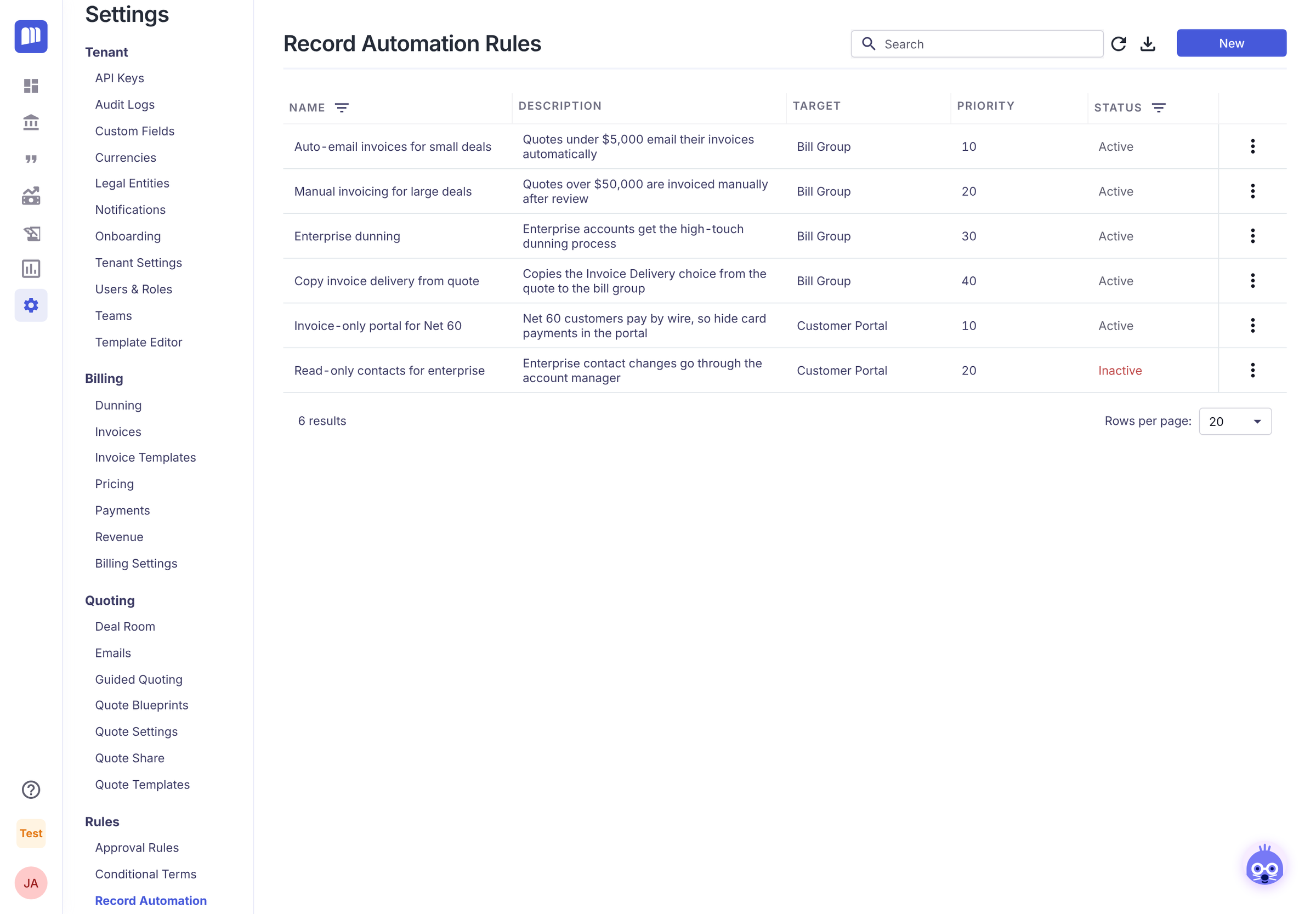
1. Open Record Automation
Go to Settings, scroll to Rules, and click Record Automation. You'll see your existing rules, with their target, priority and status.
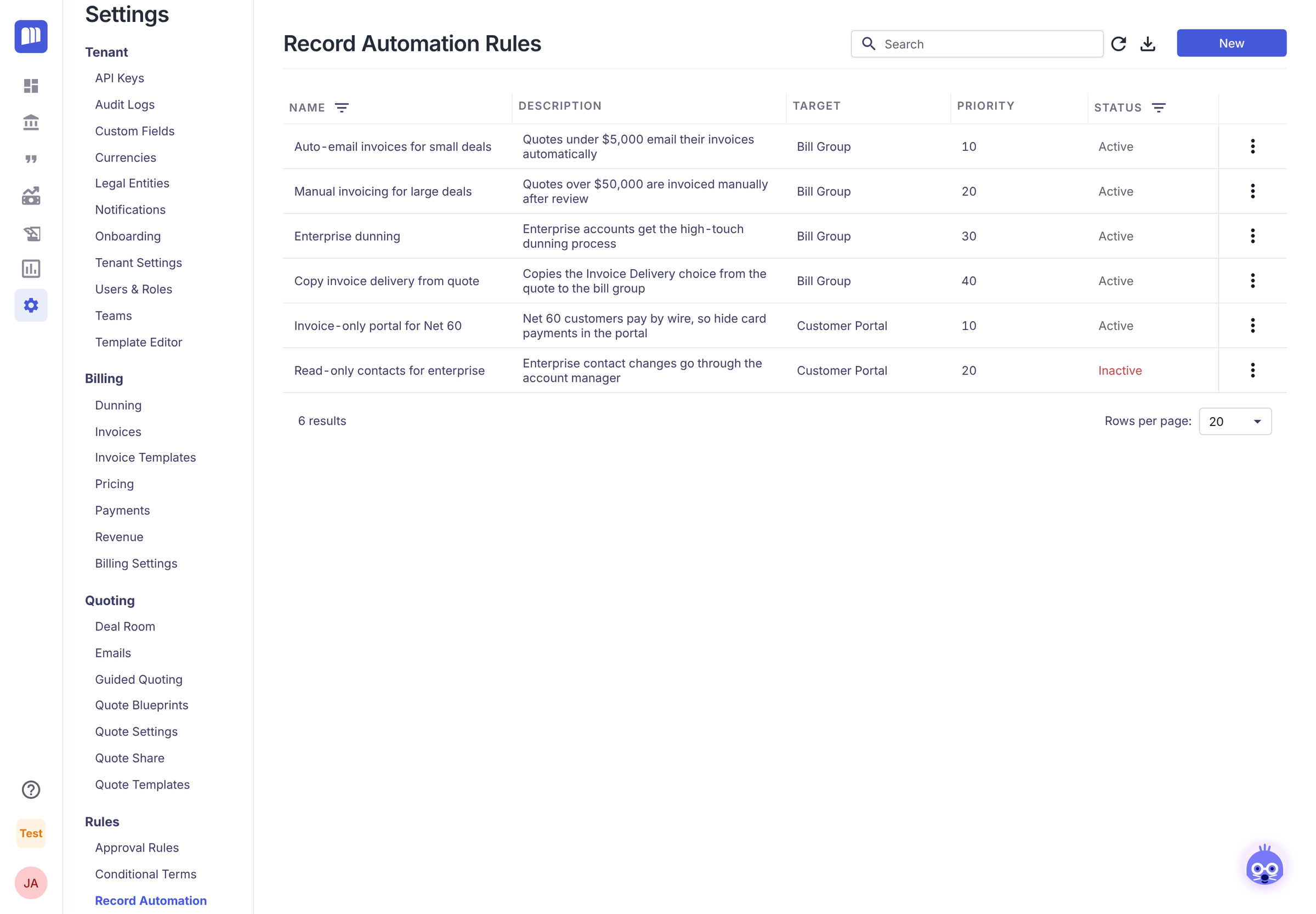
2. Start a new rule
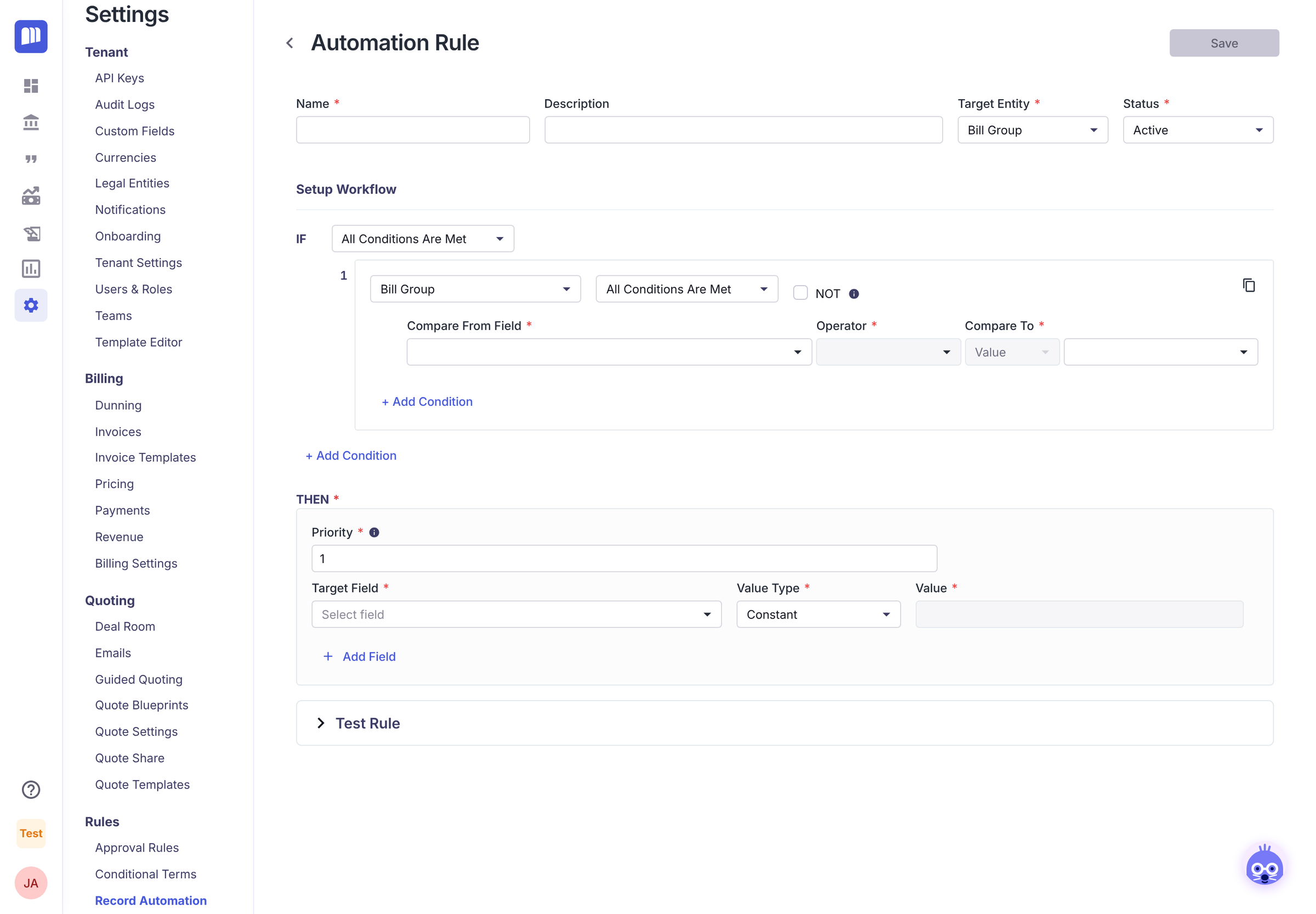
Click New.
3. Name it
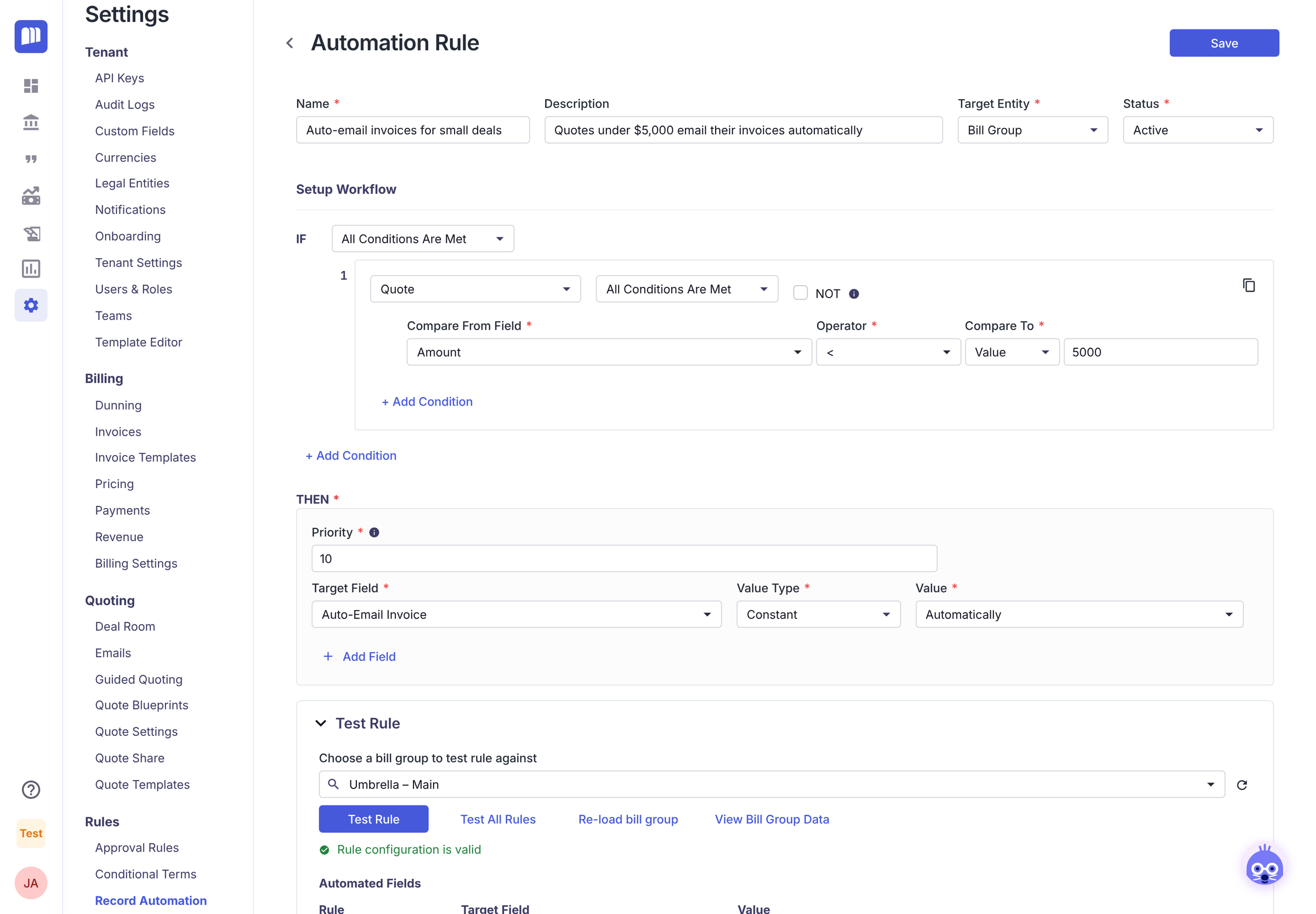
Enter a Name your team will recognise, such as Auto-email invoices for small deals. Add a Description that says why the rule exists.
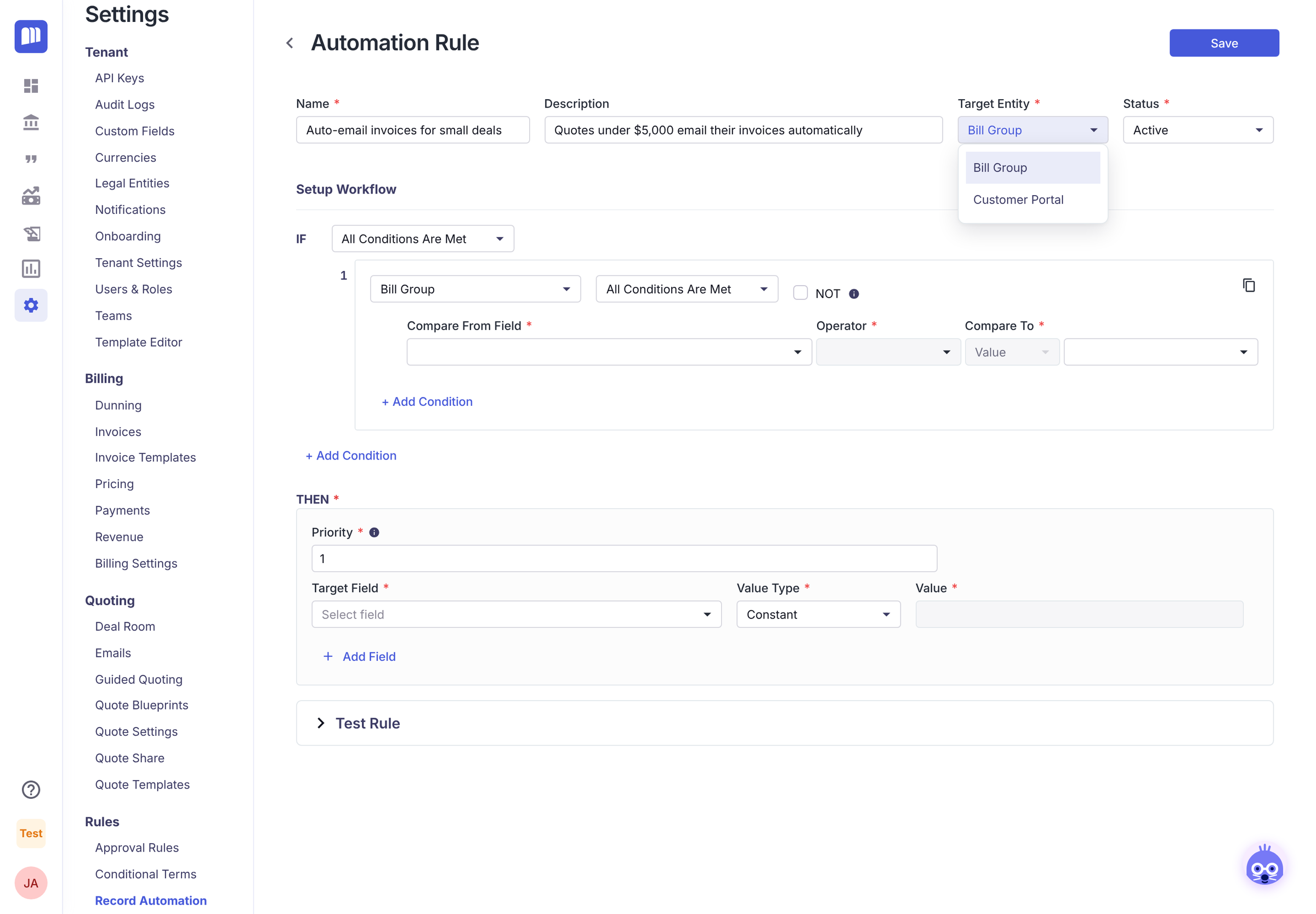
4. Choose what it changes
Leave Target Entity set to Bill Group. Leave Status as Active.
5. Write the IF
Under Setup Workflow → IF:
-
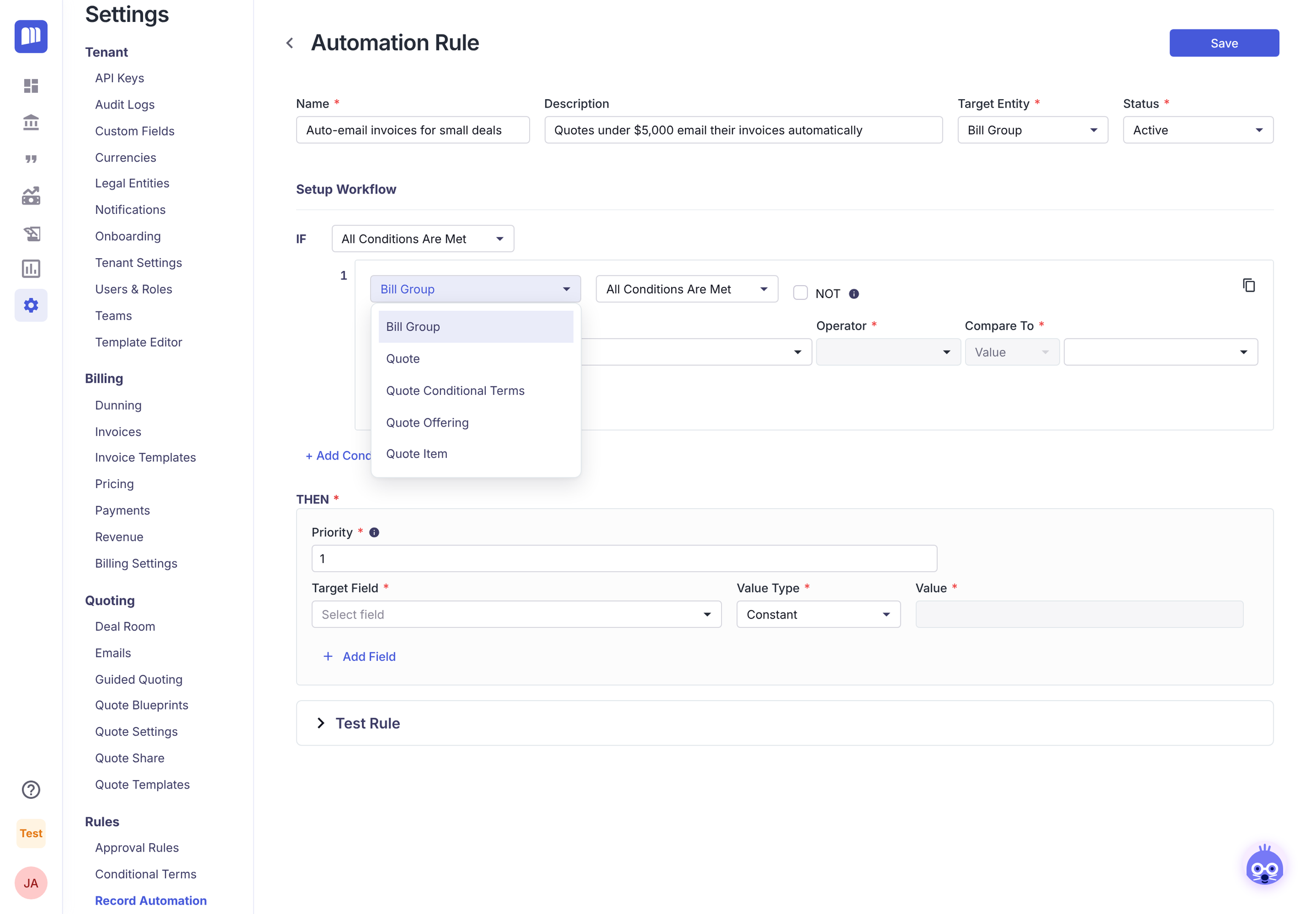
In the first dropdown, choose Quote. This tells the rule to look at the quote that created the bill group.
-
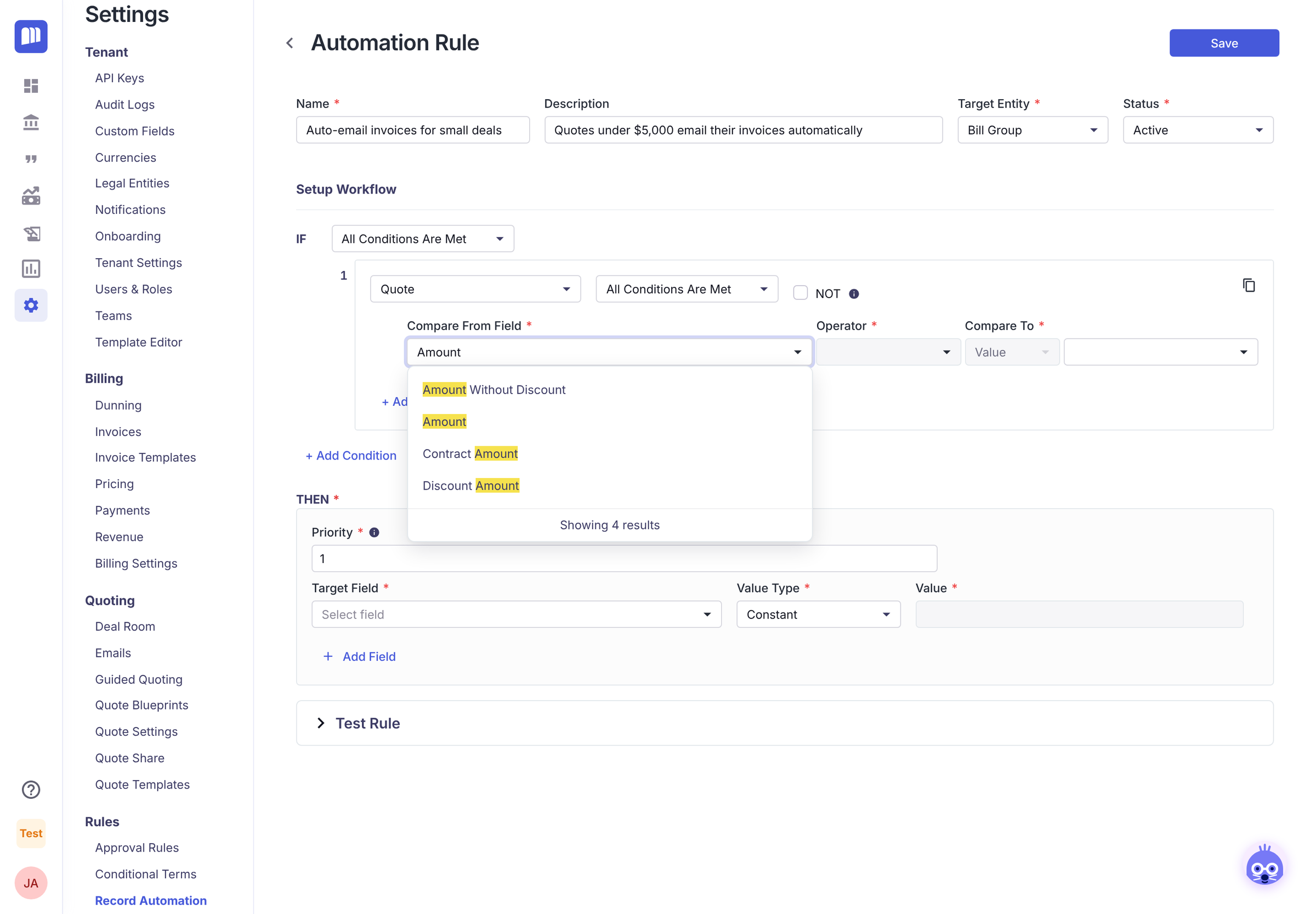
In Compare From Field, start typing Amount and choose Amount.
-
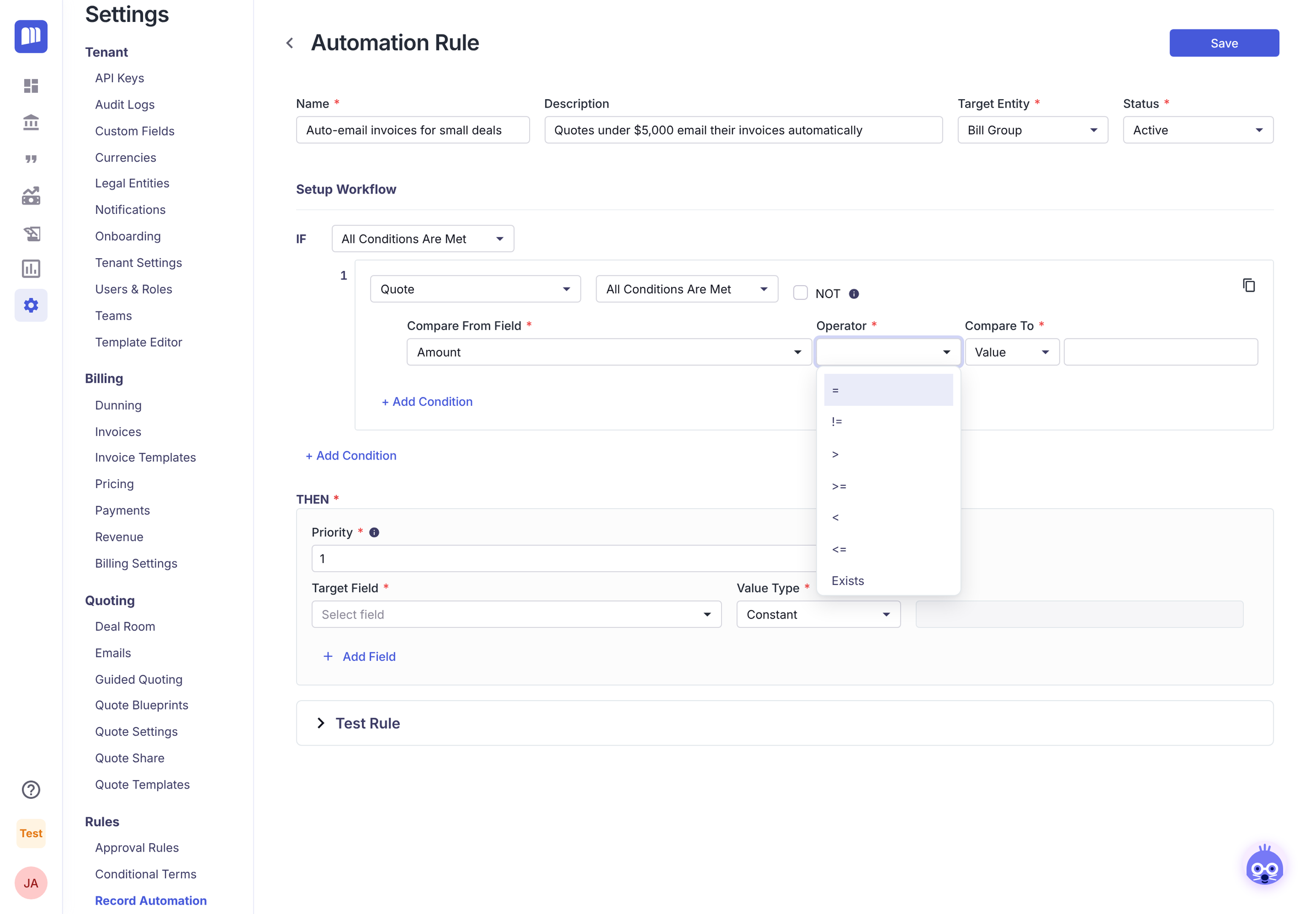
In Operator, choose < (less than).
-
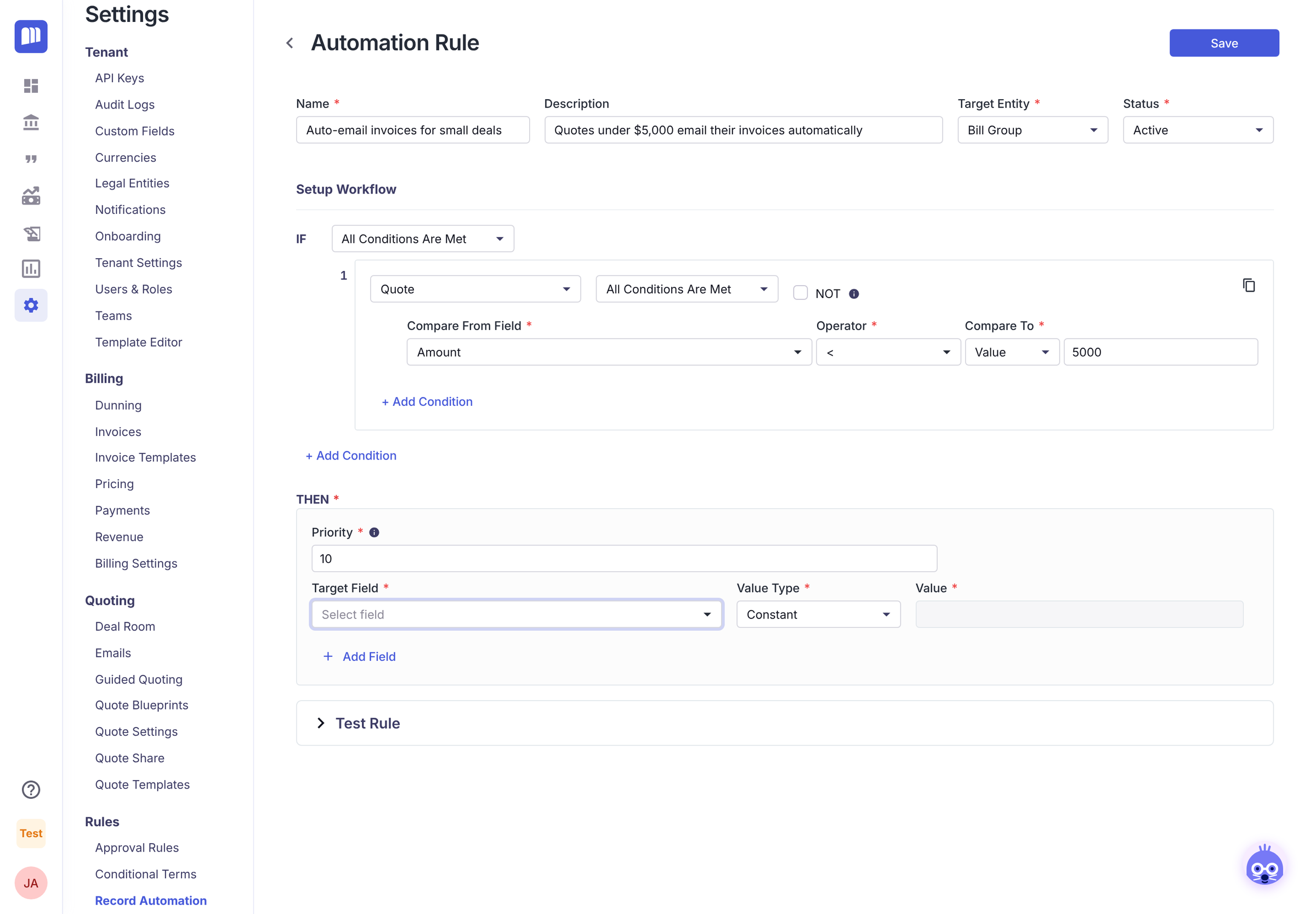
In Compare To, leave Value selected and enter 5000.
6. Write the THEN
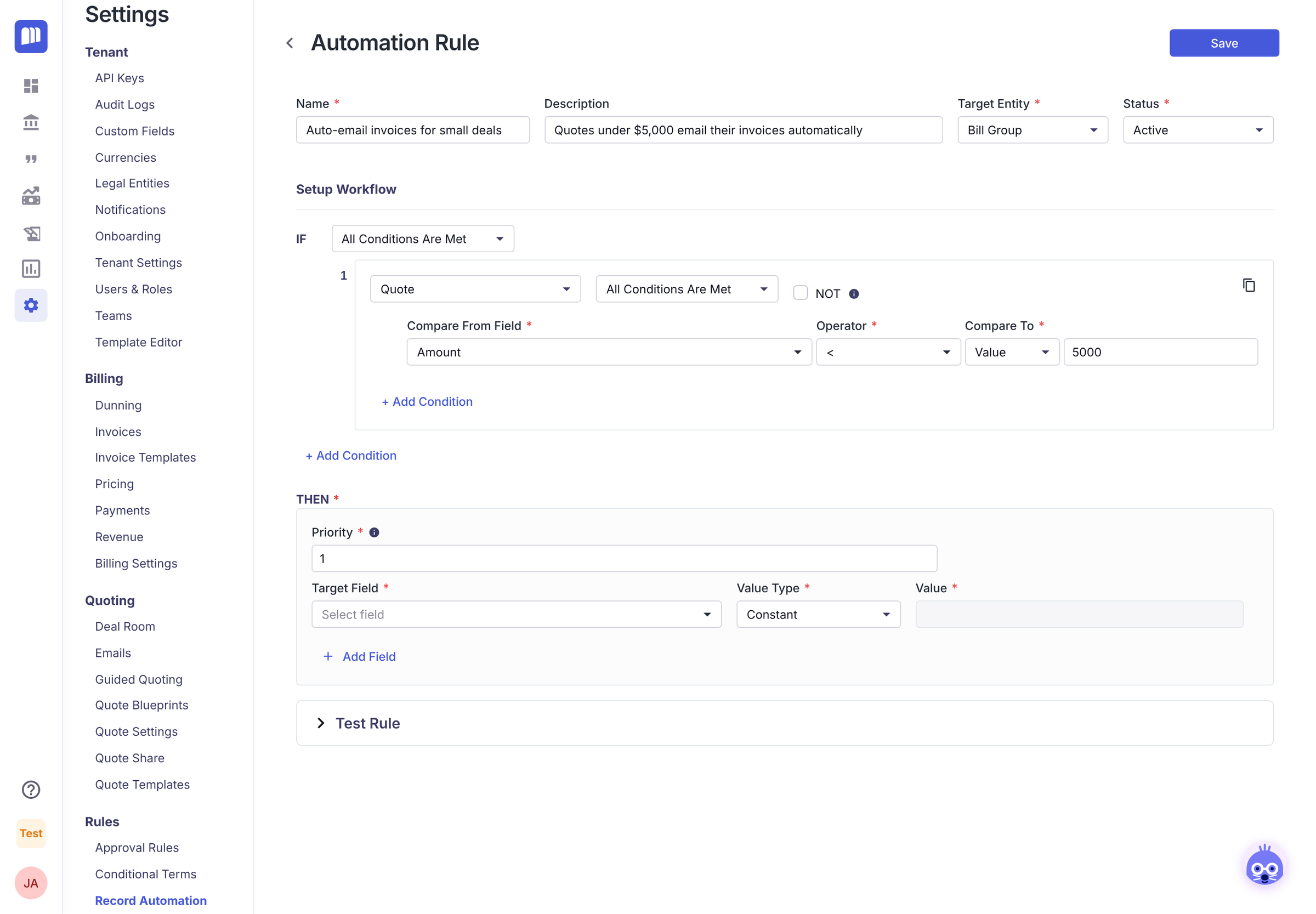
Under THEN:
-
Set Priority to 10.
-
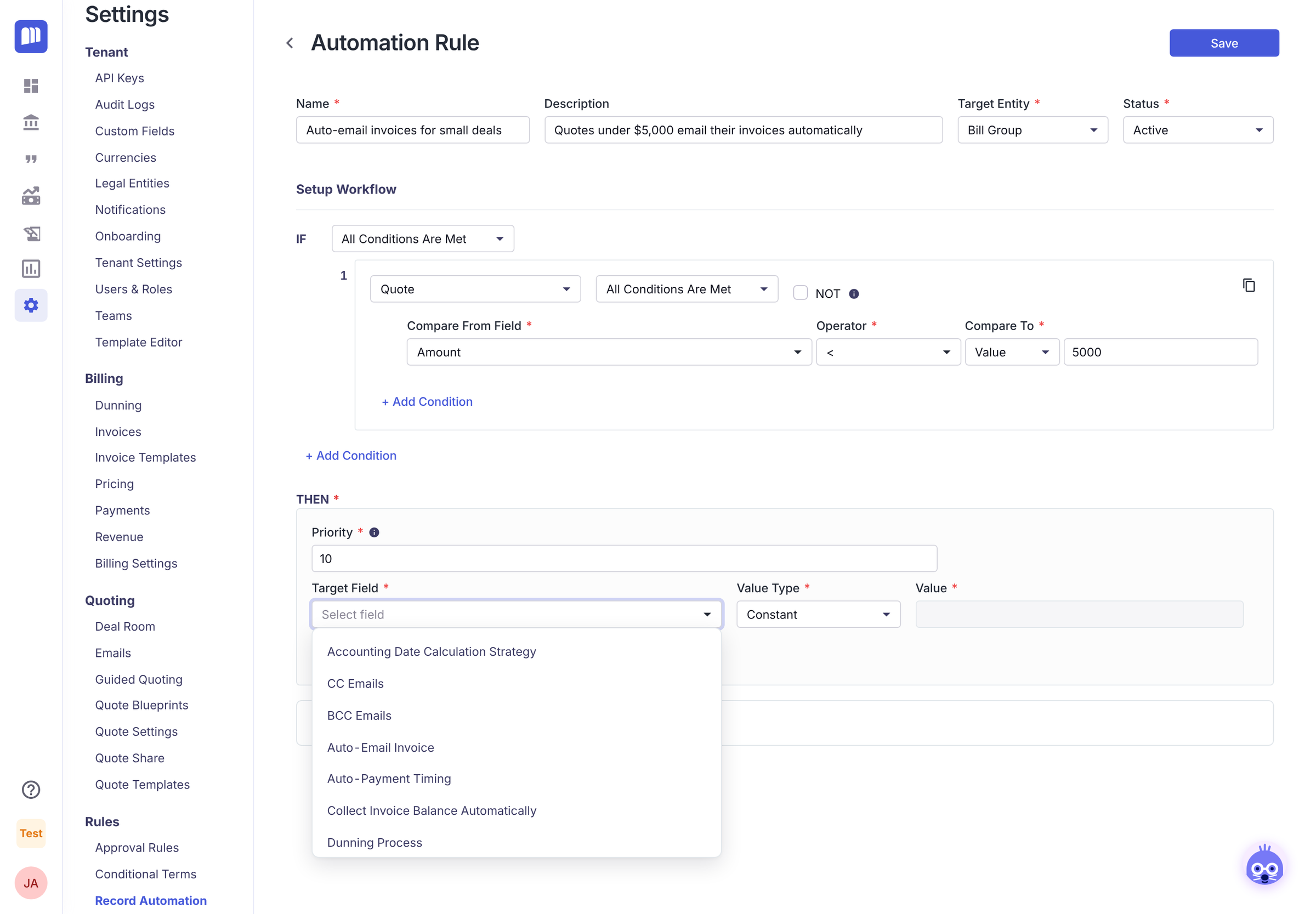
In Target Field, choose Auto-Email Invoice.
-
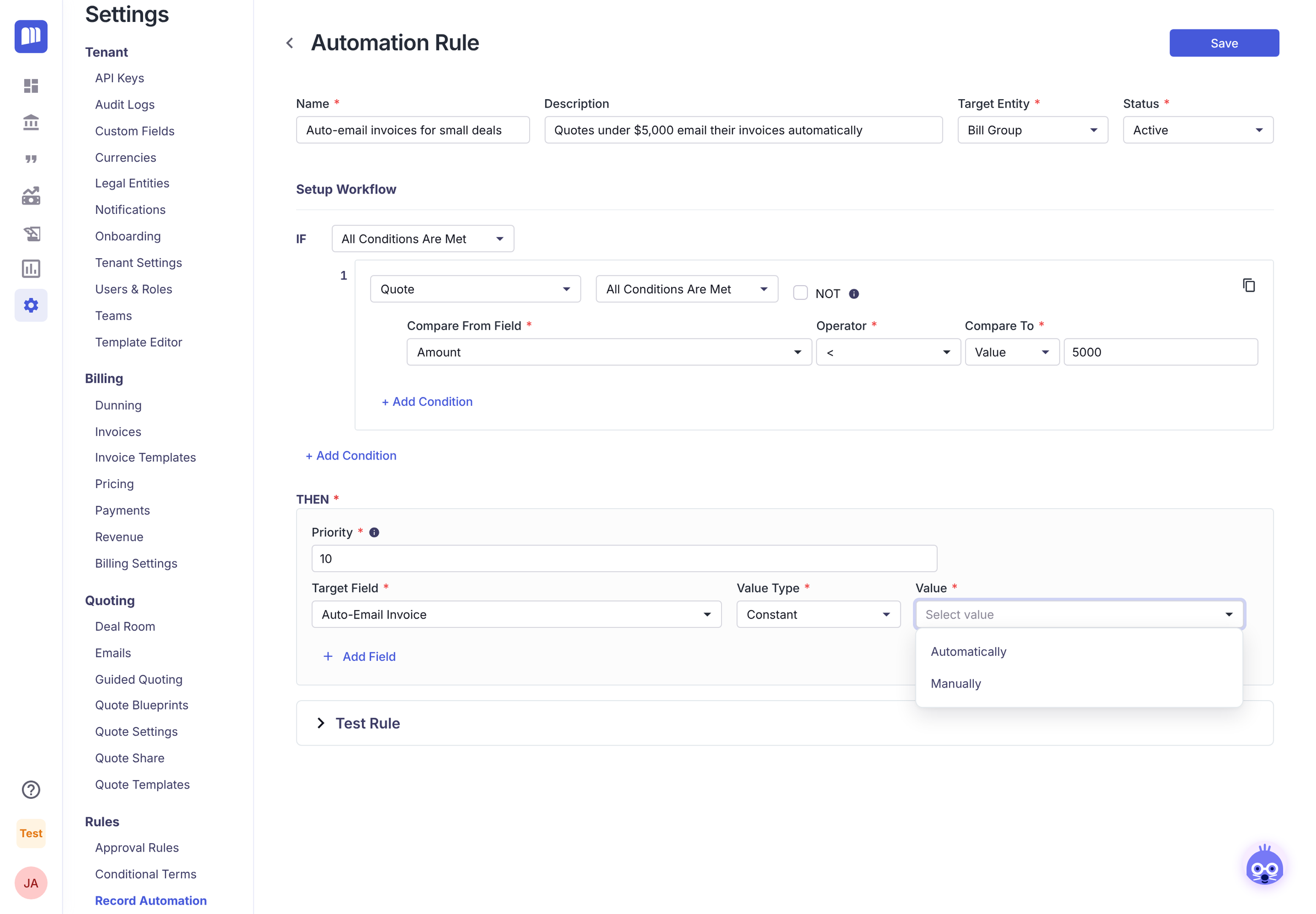
In Value, choose Automatically.
7. Test it
-
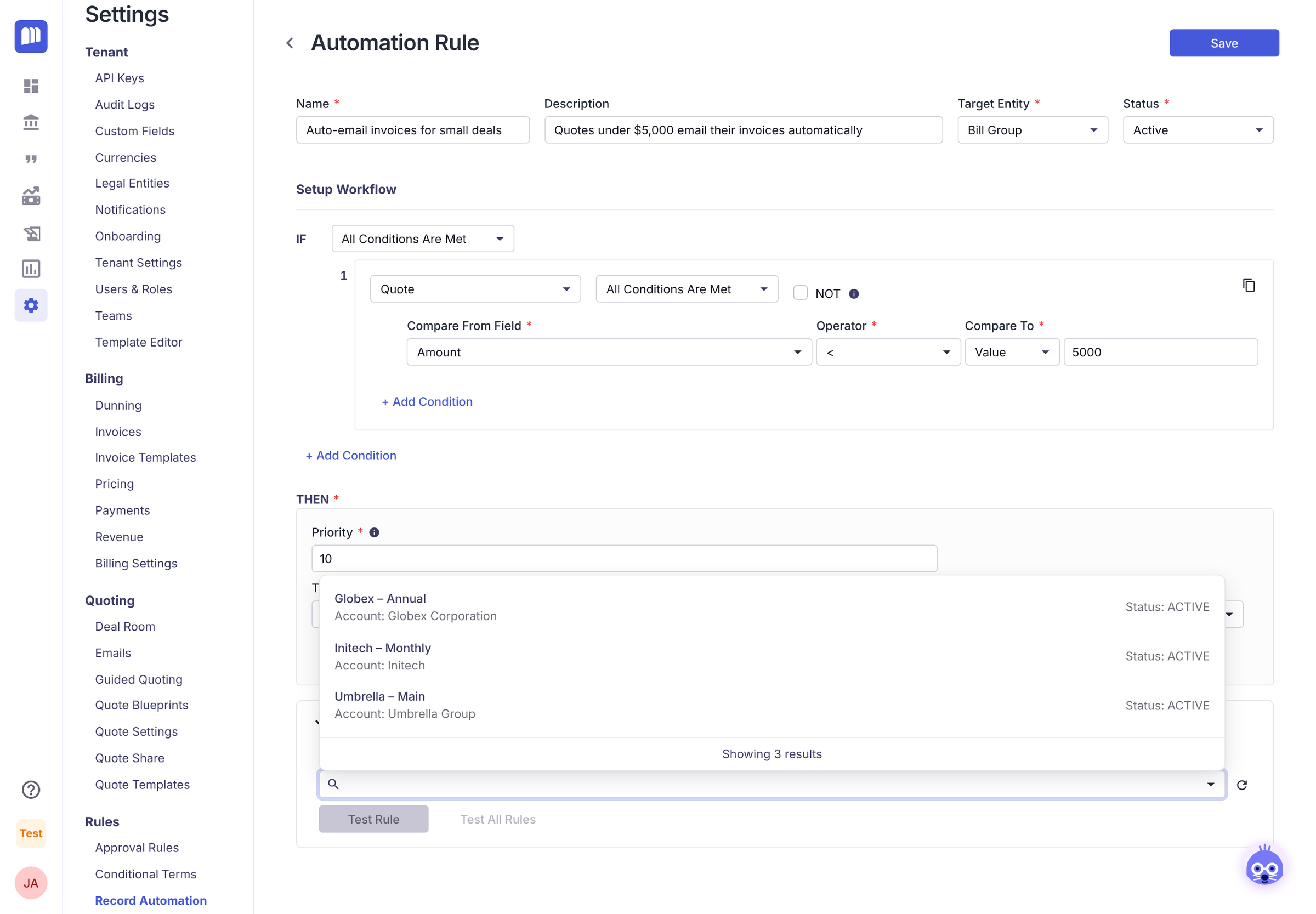
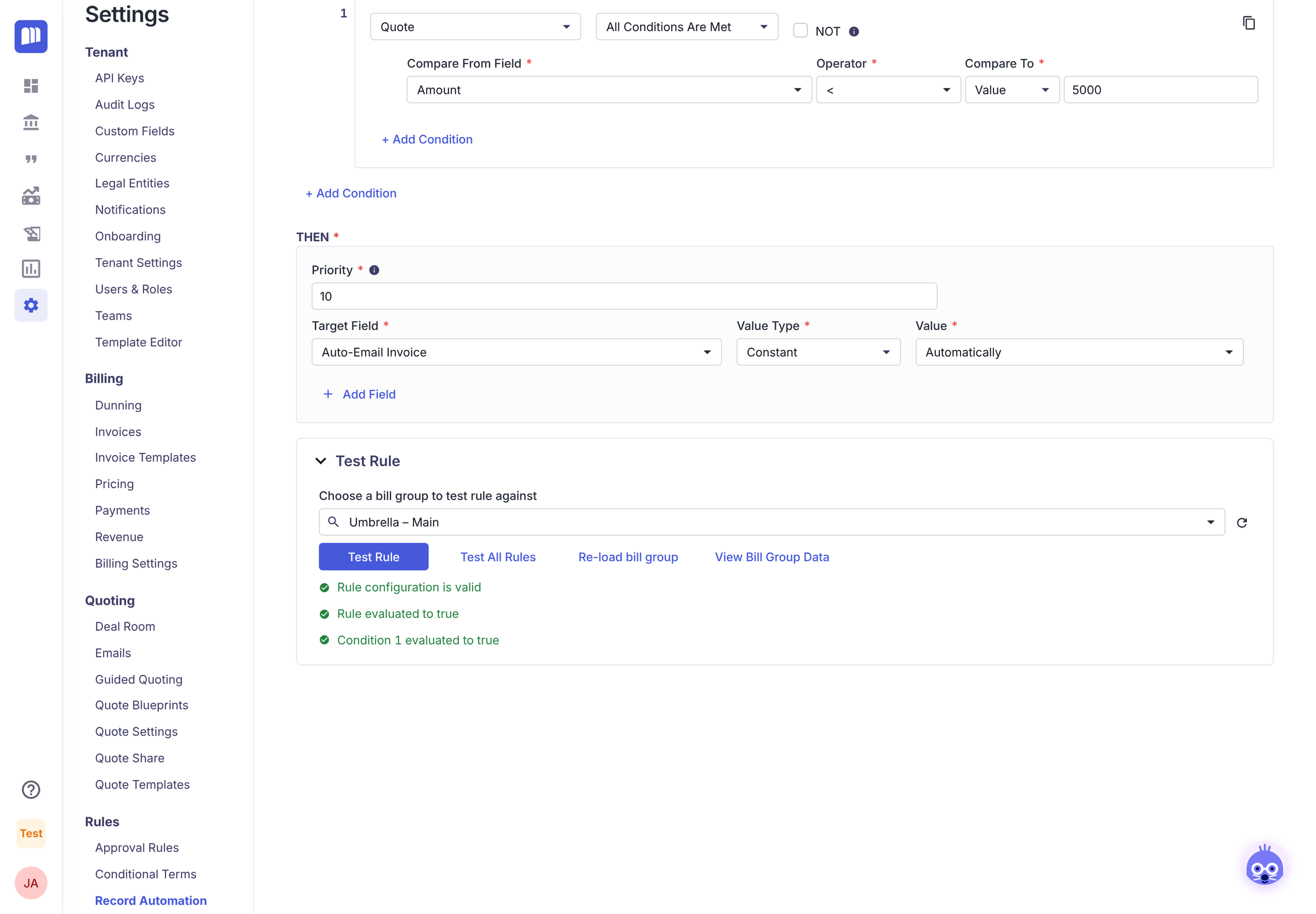
Expand Test Rule at the bottom of the page and choose a bill group whose quote was under $5,000.
-
Click Test Rule. Green ticks show that the rule matches this bill group.
-
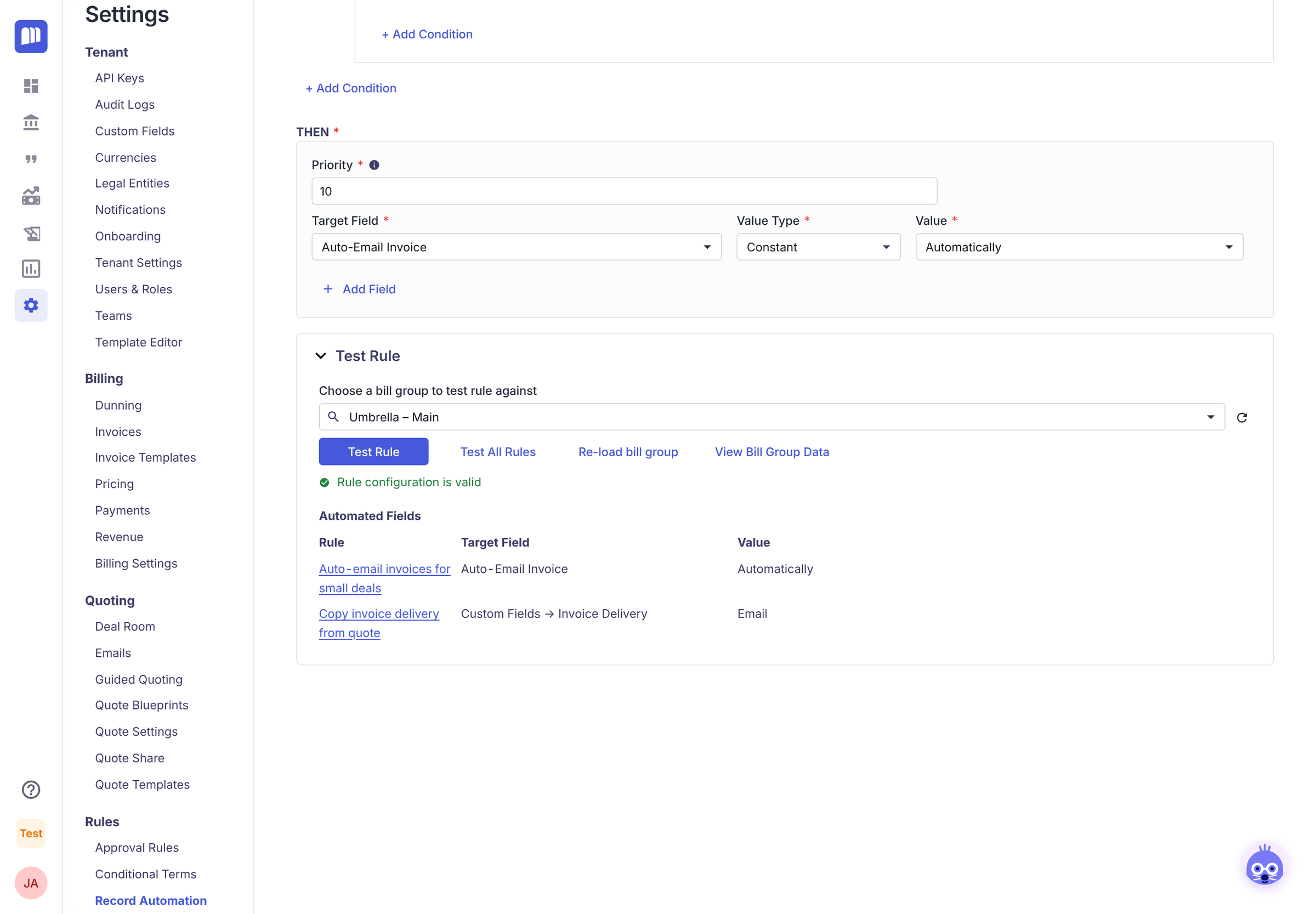
Click Test All Rules to see what all your active Bill Group rules would set on this bill group, after priority is applied.
8. Save
Click Save. From now on, every new bill group created from a quote under $5,000 emails its invoices automatically.
What you learned: every rule is a Target Entity, an IF, a THEN and a Priority. You can test a rule against real data before it affects anyone.
How-to guides
Test a rule
How-to
Test before you save, and again after any change.
- Open the rule and expand Test Rule.
- Choose a bill group from Choose a bill group to test rule against. Bill Group rules also use the bill group's most recent processed quote.
- Click Test Rule to see whether this rule matches. Each condition shows whether it was true or false.
- Click Test All Rules to see the combined result of every active rule for the same target, with priority applied. The Automated Fields table lists each field, the value it would get and which rule set it.
Good to know:
- Testing never changes the bill group.
- Test All Rules includes the rule you're editing. If it's a brand-new rule, save it first so it's included.
- If the bill group changed since you opened the page, click Re-load bill group.
- If a value can't be used on the target field, the result says Invalid Value. This will be ignored and the default value will apply.
Copy a value from another field
How-to. Bill Group rules only.
Instead of a fixed value, a rule can copy a value from the quote or bill group. For example, copy a quote custom field onto a bill group custom field.
- In THEN, choose the Target Field, for example Custom Fields → Invoice Delivery.
- Change Value Type from Constant to Field.
- In Field, choose where to copy from, for example Quote → Custom Fields → Invoice Delivery. Only fields of a matching type are listed.
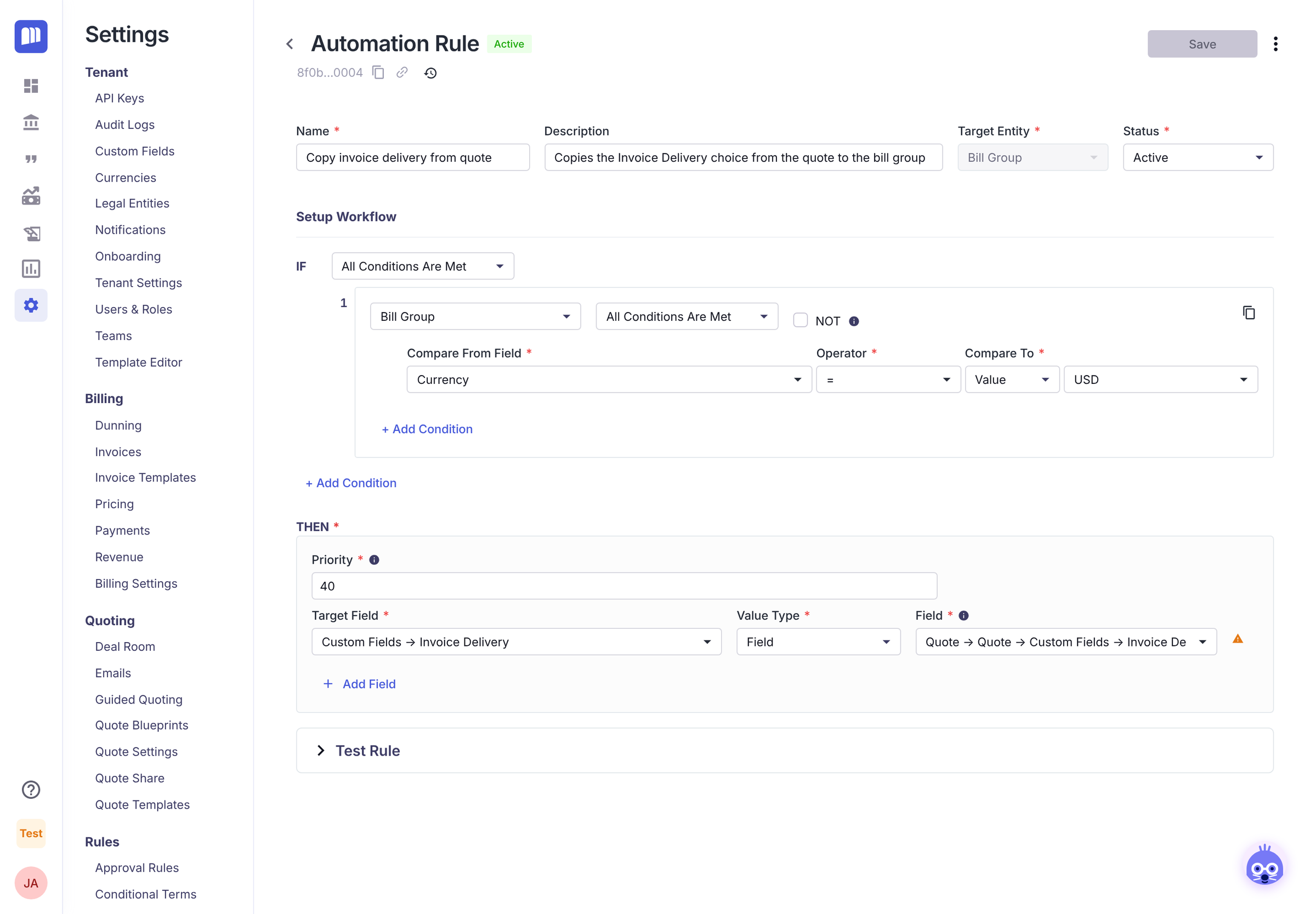
An orange ⚠ icon next to the field is a reminder, not an error: if the source field doesn't hold a value the target field accepts (for example a dropdown option that doesn't exist on the target), the target keeps its default value.
Tip: To copy dropdown custom fields reliably, give both custom fields the same options.
Control the customer portal
How-to
Use a Customer Portal rule to show, hide or lock parts of the portal for certain customers.
- Click New and set Target Entity to Customer Portal.
- In IF, add conditions about the bill group or its account, for example Net Terms = Net 60.
- In THEN, choose a portal area and a value such as View, Edit, Hidden, Enabled or Disabled. Customer Portal rules always use fixed values.
- Test against a bill group, then Save.
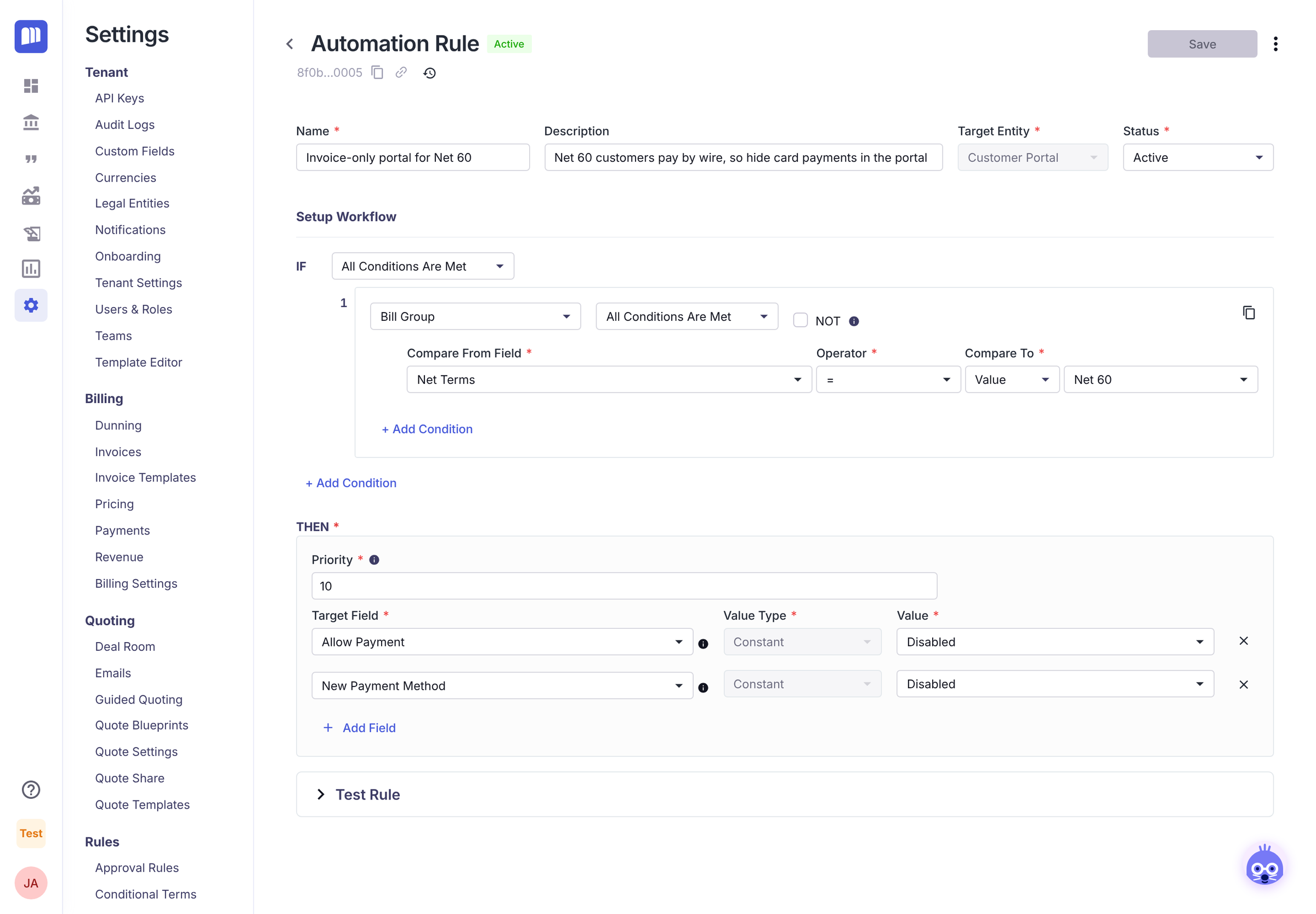
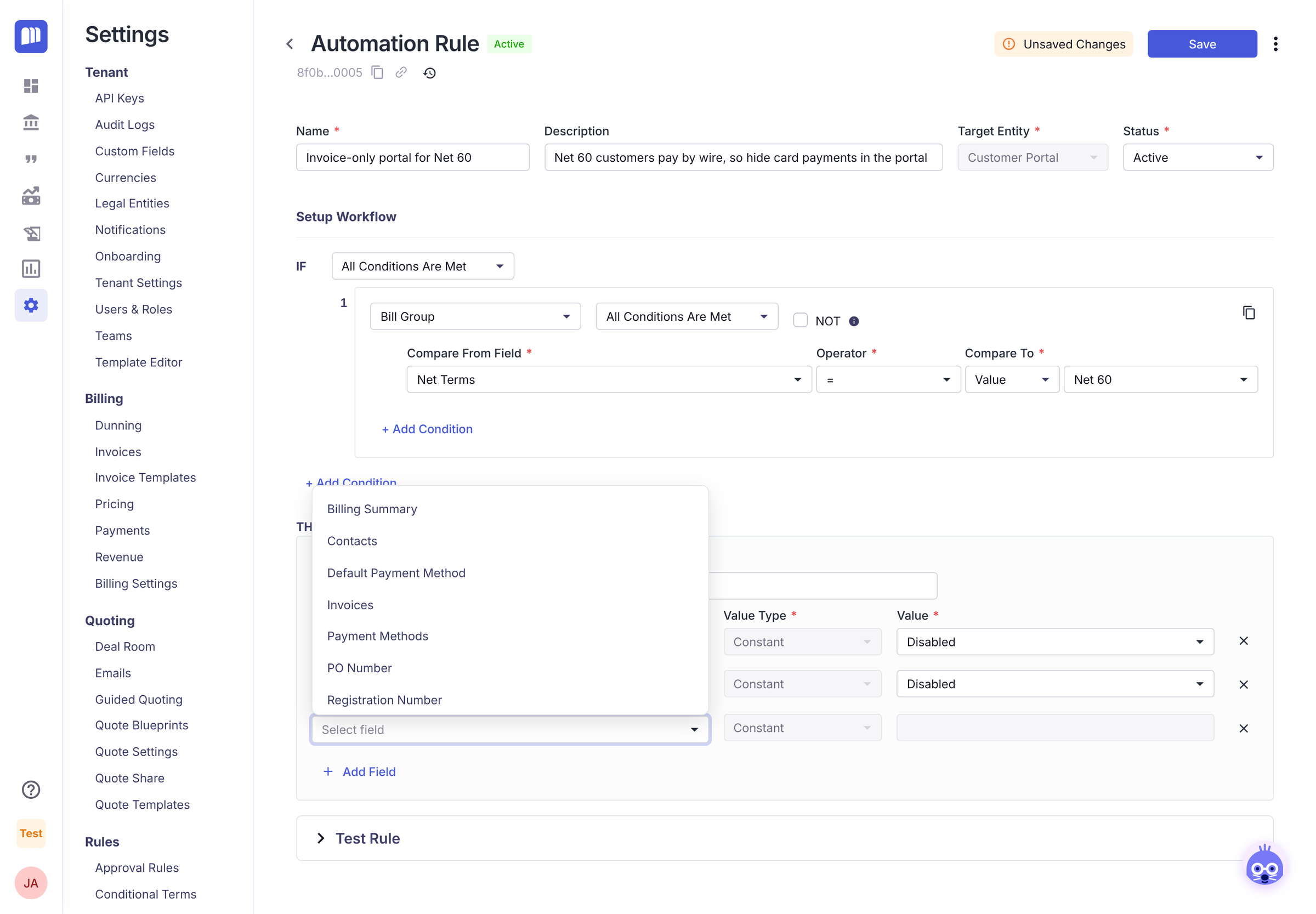
Changes apply the next time the customer opens or refreshes their portal.
Change, copy or switch off a rule
How-to
From the ⋮ menu on any rule in Settings → Rules → Record Automation:
- Edit: change the rule. Bill Group rules affect new bill groups only. Customer Portal changes apply from the customer's next visit.
- Clone: start a new rule from a copy.
- Deactivate / Activate: switch the rule off or back on.
The download button at the top of the page exports your Record Automation rules.
Rules worth building
Ideas. Copy these or adapt them. Each one can be built with the steps in the tutorial.
Billing on autopilot (Bill Group)
| Idea | IF | THEN |
|---|---|---|
| Hands-off small deals | Quote → Amount < 5000 | Auto-Email Invoice = Automatically, Collect Invoice Balance Automatically = True |
| Review big deals before invoicing | Quote → Amount > 50000 | Create Invoices = Manually, Auto-Email Invoice = Manually |
| High-touch dunning for key accounts | Bill Group → Account → Custom Fields → Segment = Enterprise | Dunning Process = your enterprise process (see Dunning) |
| Copy your finance team on large invoices | Quote → Amount >= 100000 | CC Emails = [email protected] |
| Invoice as soon as the deal closes | Quote → Contract Length >= 12 | First Invoice Creation Strategy = Generate On Quote Processed |
| Charge cards at send time, not creation | Quote → Currency = USD | Auto-Payment Timing = Invoice Send |
| Carry a sales choice into billing | Quote → Custom Fields → Invoice Delivery exists | Custom Fields → Invoice Delivery = Field: Quote → Custom Fields → Invoice Delivery |
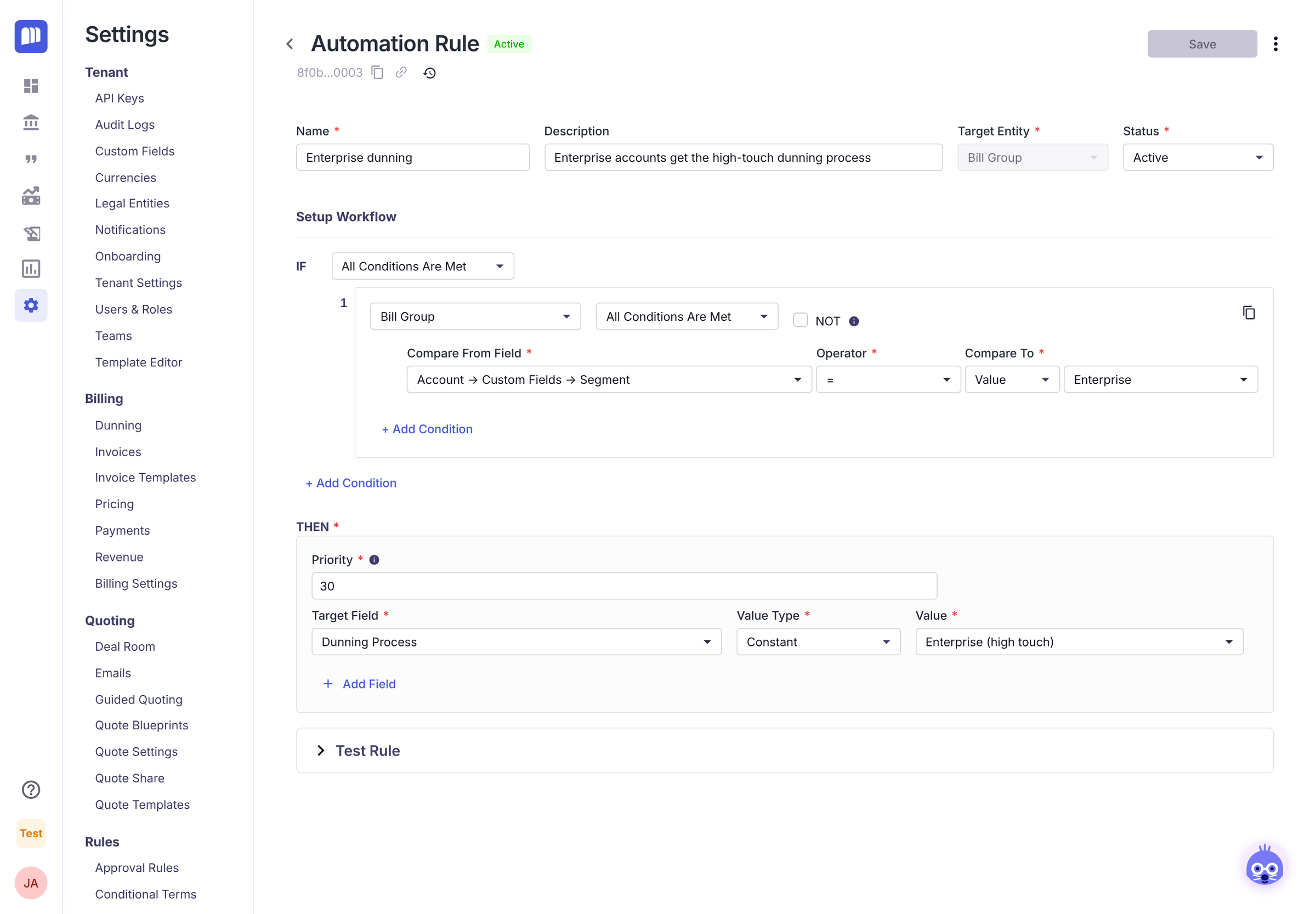
A tailored portal (Customer Portal)
| Idea | IF | THEN |
|---|---|---|
| Wire-only customers | Bill Group → Net Terms = Net 60 | Allow Payment = Disabled, New Payment Method = Disabled |
| Enterprise contacts managed by you | Account → Custom Fields → Segment = Enterprise | Contacts = View |
| Let customers fix their own tax details | Bill Group → Billing Address → Country = GB | VAT = Edit |
| Keep test accounts quiet | Account → Is Test Account = True | Invoices = Hidden, Subscriptions = Hidden |
Patterns that work well
- Start broad, then add exceptions. Give a general rule priority 100, then a more specific one priority 10 to override it for a segment.
- Keep one idea per rule. Smaller rules are easier to test, name and switch off.
- Drive rules from custom fields. A custom field on the account or quote (synced from your CRM) such as Segment or Region lets sales or ops steer billing without touching rules.
Reference
Rule settings
| Setting | Meaning |
|---|---|
| Name | Required. Shown in the rules list and in test results. |
| Description | Optional. Up to 500 characters. |
| Target Entity | Bill Group (default) or Customer Portal. Can't be changed after the rule is saved. |
| Status | Active rules run. Inactive rules don't. |
| IF | Choose All Conditions Are Met, Any Condition Is Met or Custom Logic Is Met (for example 1 AND (2 OR 3)). Group conditions by where they look. Tick NOT to reverse a group. |
| Priority | Required. Whole number, 1 or more. Lower wins when rules set the same field. |
| Target Field / Value Type / Value | The field to set and its value. Add Field sets more than one field. Each field can appear once per rule. |
Condition operators
| Operator | Meaning |
|---|---|
= / != | Is / isn't |
> / >= / < / <= | Greater than / at least / less than / at most |
| Exists | Has any value |
Text, list and date fields offer more operators, for example contains, starts with, in and in the last / next N days. The available operators depend on the field you pick.
Bill Group: fields a rule can set
| Target Field | Values |
|---|---|
| Accounting Date Calculation Strategy | Billing Anniversary · Closest Date Within Invoicing Period · Closest Date Within Usage Period |
| Auto-Email Invoice | Automatically · Manually |
| Auto-Payment Timing | Invoice Generation · Invoice Send |
| CC Emails / BCC Emails | Email addresses, separated by commas. Invoices are also sent to these. |
| Collect Invoice Balance Automatically | True · False |
| Create Invoices | Automatically according to Billing Schedule · Manually |
| Dunning Process | Any of your dunning processes |
| First Invoice Creation Strategy | Follow Existing Settings · Generate On Quote Processed |
| Offset from Billing Schedule | How many days before or after the billing schedule invoices are created |
| Custom Fields → your field | Bill group custom fields of type text, number, checkbox, date, dropdown or multi-select |
Every Bill Group field accepts a Constant value or a Field (copied from the quote or bill group).
A Status → Inactive action exists for bill groups but is only shown if MonetizeNow has enabled it for your tenant. Setting a bill group to Inactive stops invoicing and can't be reversed, so contact support before using it.
Customer Portal: what a rule can control
| Target Field | Values | Controls |
|---|---|---|
| Allow Payment | Enabled · Disabled | Paying open invoices from the Invoices tab. Invoices can still be viewed and downloaded. Needs a payment gateway. |
| Billing Summary | View · Hidden | The summary card (next billing date, balance, frequency, auto-pay) and the billing details section. Hiding it also hides PO Number, VAT and Registration Number. |
| Contacts | View · Edit · Hidden | Billing and shipping contacts and addresses. Edit lets customers update them. |
| Default Payment Method | View · Edit · Hidden | Whether customers can choose their default payment method. Needs a payment gateway. |
| Invoices | View · Hidden | The Invoices tab. |
| New Payment Method | Enabled · Disabled | Adding new payment methods. Needs a payment gateway. |
| Payment Methods | View · Hidden | The Payment Methods tab. Shown only with a payment gateway. |
| PO Number | View · Edit · Hidden | The PO Number field in billing details. |
| Registration Number | View · Edit · Hidden | The Registration Number field in billing details. |
| Subscriptions | View · Hidden | The Overview tab with current subscriptions. |
| VAT | View · Edit · Hidden | The VAT Number field in billing details. |
Customer Portal rules always use Constant values.
Who can use Record Automation
| Role | Access |
|---|---|
| Tenant Admin, Sales Admin | Open Settings → Rules → Record Automation and create, edit, test and switch rules on or off |
| Settings Read Only | Can open the page |
FAQ
My rule didn't change an existing bill group. Why?
Bill Group rules only run when a processed quote creates a new bill group. Change existing bill groups by hand, or from the bill group page.
Two rules set the same field. Which one wins?
The one with the lower Priority number. Use Test All Rules to see the result for a real bill group.
Can I delete a rule?
No. Set it to Inactive (or choose Deactivate in the list) to stop it running.
Where did my Quote Share rules go?
To Settings → Quote Share → Quote Share Rules. Rules you created before the move keep working.
Updated 17 days ago