

Payments & Collection
MonetizeNow can charge a customer's card or bank account for each invoice automatically. Three things must be in place: an active payment gateway, a payment method on the customer's account, and a bill group with Collect Invoice Automatically checked and that payment method selected.
This page is for billing admins and finance teams. Jump to what you need:
| If you want to… | Go to |
|---|---|
| Set up a customer for automatic payments, start to finish | Tutorial |
| Do one specific task | How-to guides |
| Find where a setting lives or what a field means | Reference |
| Understand why auto-collection behaves the way it does | How it works |
| Get a quick answer | FAQ |
Prefer to click through it? Follow the interactive walkthrough below.
Tutorial: set up a customer for automatic payments
In this tutorial you'll set up one customer so MonetizeNow charges their card for each invoice. It takes about 5 minutes. You need the Tenant Admin or Billing Admin role.
Step 1: Check your payment settings
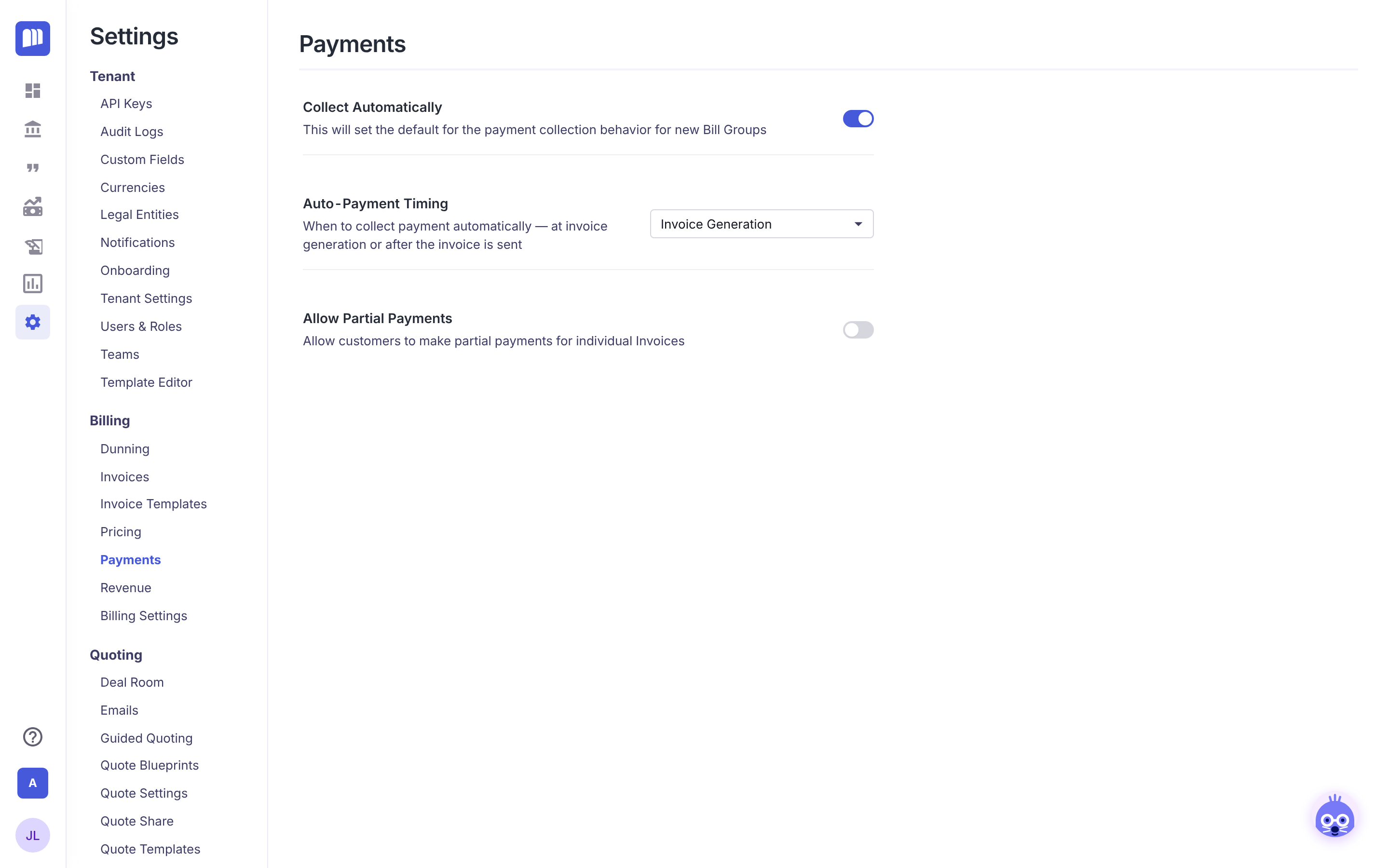
- Click Settings (the gear icon in the left menu).
- Under Billing, click Payments.
- Look at Collect Automatically. When it's on, bill groups created from quotes and contracts start with automatic collection turned on.
Step 2: Confirm your payment gateway is connected
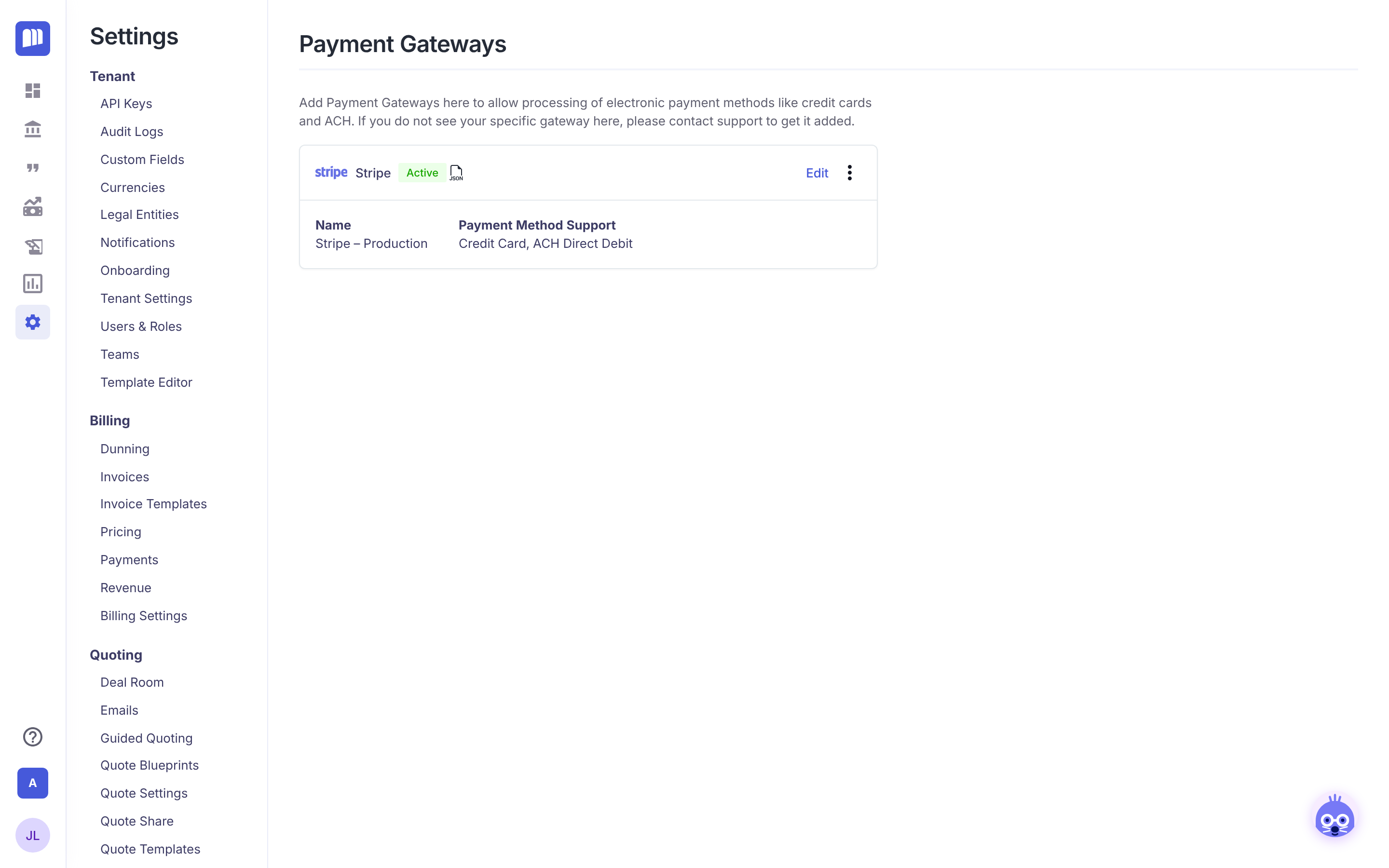
- Still in Settings, scroll to Integrations and click Payment Gateway.
- Check that your Stripe gateway shows Active.
- Check that Payment Method Support lists Credit Card, plus ACH Direct Debit if you accept bank debits.
No gateway yet? See "Connect Stripe" in the How-to guides below.
Step 3: Add the customer's card
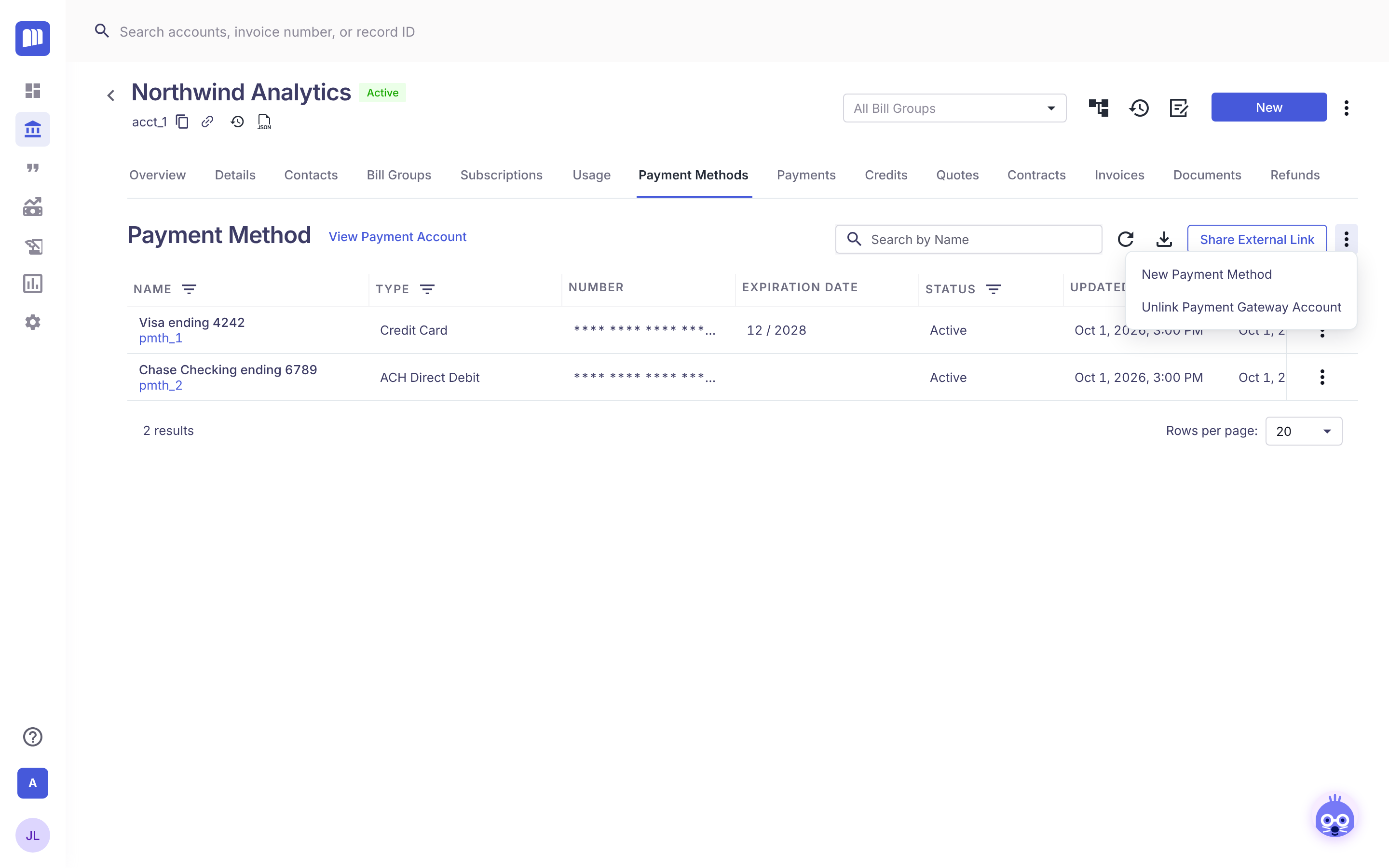
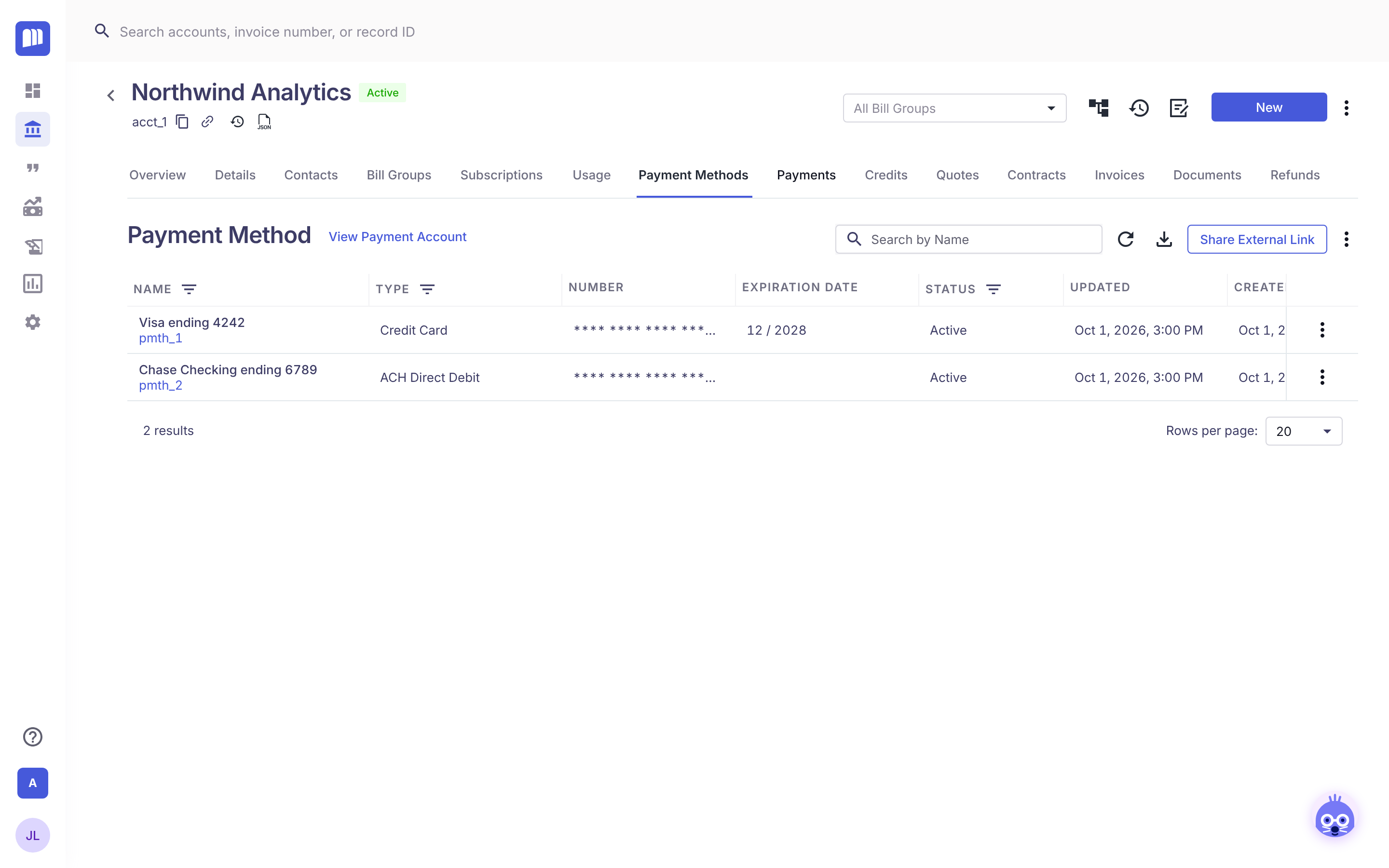
- Open the customer's account and click the Payment Methods tab.
- Click the ⋮ menu and choose New Payment Method.
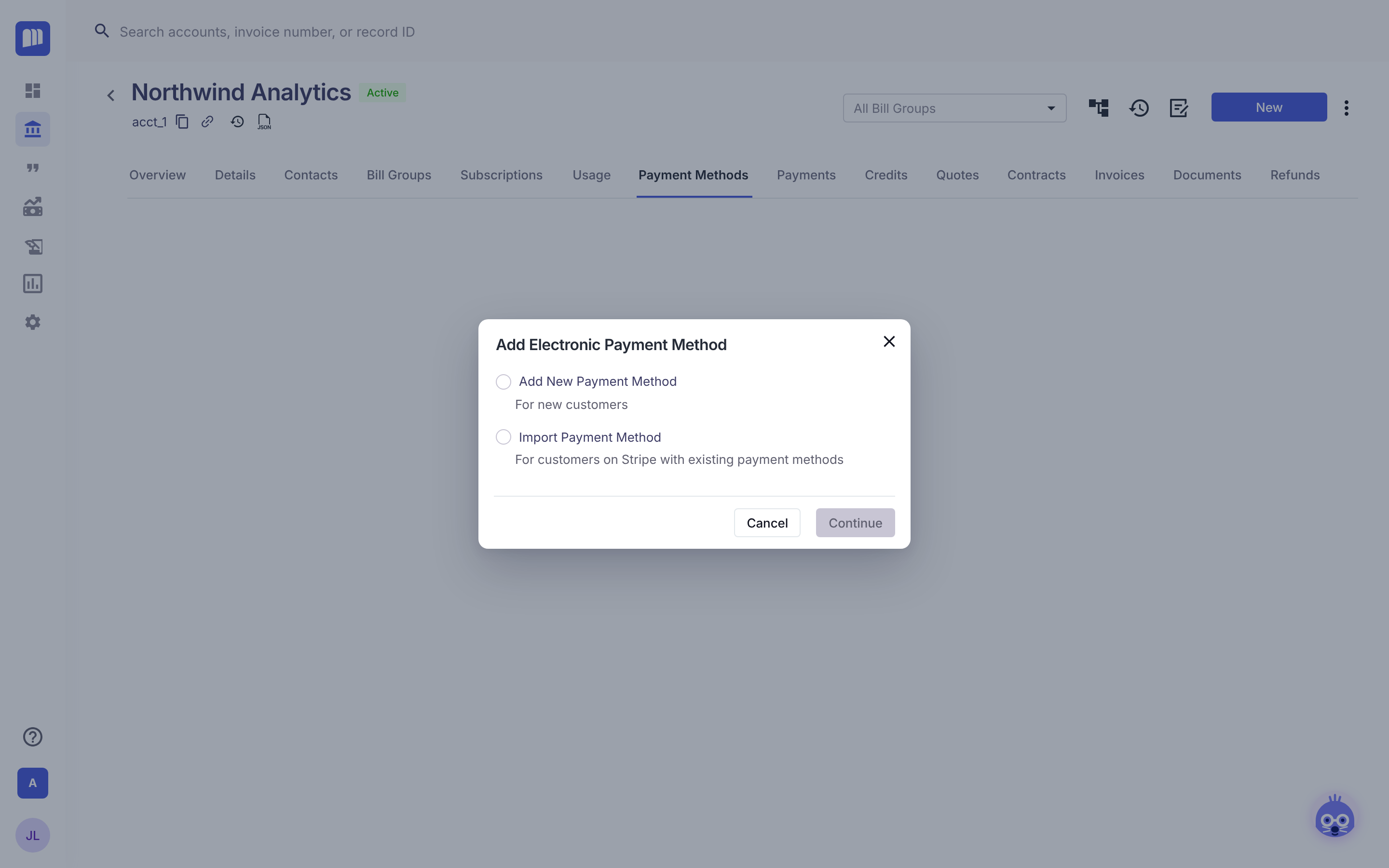
- Choose Add New Payment Method, then click Continue.
- Pick the Contact, enter the card details, and click Save.
Step 4: Turn on automatic collection for the bill group
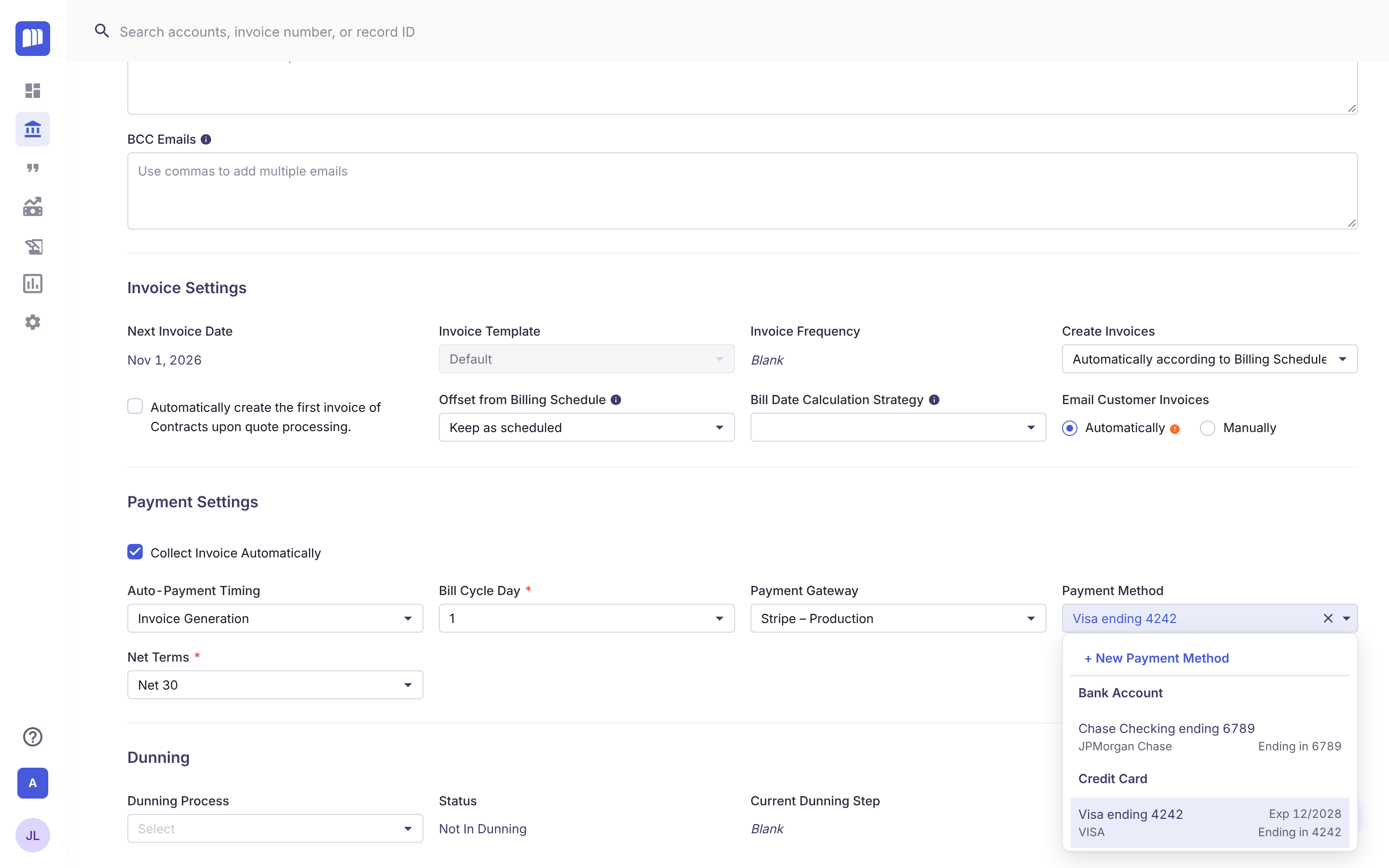
- On the account, click the Bill Groups tab and open the bill group.
- Click Edit next to Details.
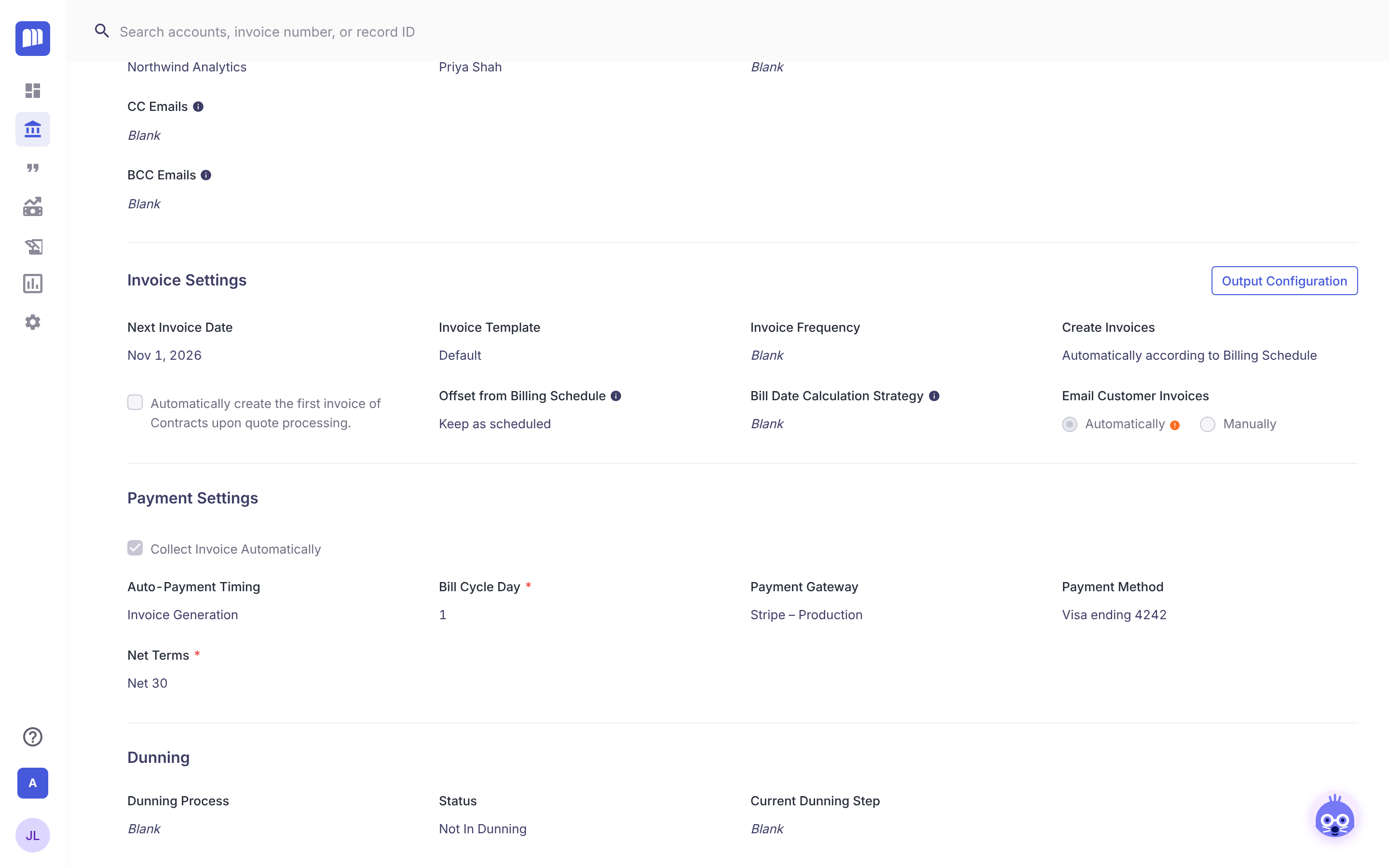
- Scroll to Payment Settings and check Collect Invoice Automatically.
- Choose your gateway in Payment Gateway.
- Choose the card in Payment Method.
- Click Save at the top of the page.
What you've done
The bill group now shows Collect Invoice Automatically checked and the card under Payment Method. MonetizeNow will charge that card for this bill group's invoices.
How-to guides
Connect Stripe
- Go to Settings > Integrations > Payment Gateway.
- Click the Stripe card ("Connect to Stripe").
- Enter a Name your team will recognize, such as "Stripe – Production". This is the name you'll pick on bill groups.
- Leave Status as Active.
- Under Payment Method Support, check what you accept: Credit Card, ACH Direct Debit, US Bank Transfer.
- Under Keys, paste the Secret Key and Publishable Key from your Stripe account.
- Click Test Connection and wait for Success!.
- Click Save.
If you don't see your gateway listed, contact MonetizeNow support.
Set minimum and maximum payment amounts
Use limits to stop very small or very large charges, for example card payments over $25,000.
- Go to Settings > Integrations > Payment Gateway.
- Click Edit on your gateway.
- Under Payment Amount Configuration, find the payment type (Credit Card, ACH Direct Debit or Bank Transfer (USD)).
- Enter a Minimum Payment Amount, a Maximum Payment Amount, or both. Leave a box empty for no limit.
- To set limits for another currency, click + Add and pick the Currency. Bank Transfer (USD) is USD only.
- Click Save.
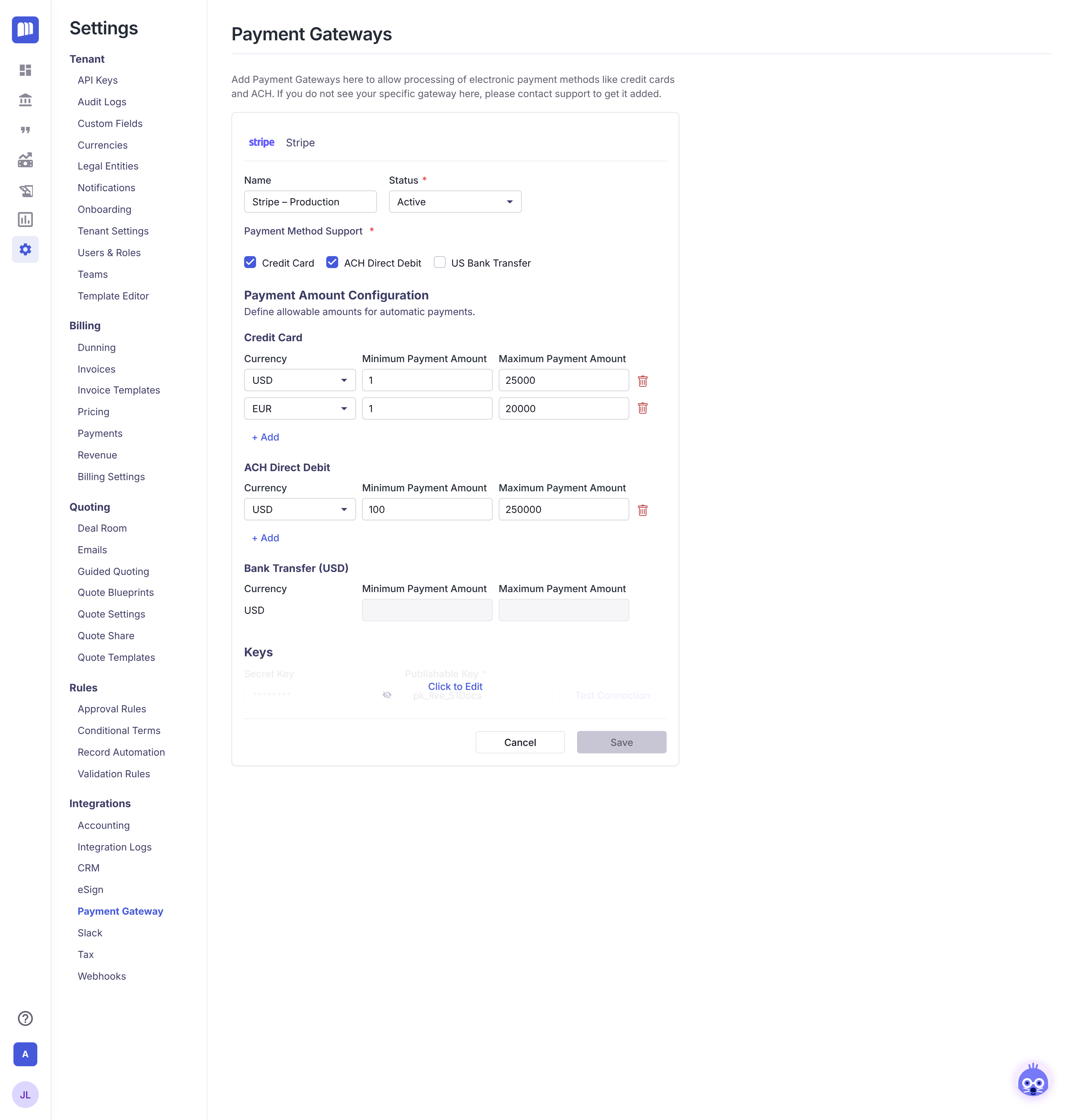
A section stays greyed out until its payment type is checked under Payment Method Support.
Where the limits apply: automatic charges, payments customers make through an invoice link or the customer portal, and dunning retries. Where they don't: payments a Tenant Admin or Billing Admin takes on an invoice inside MonetizeNow, and manual payments you record.
Add a payment method for a customer
Option A: add it yourself
- Open the account and click the Payment Methods tab.
- Click the ⋮ menu and choose New Payment Method.
- Choose one option and click Continue:
- Add New Payment Method: enter new card or bank details.
- Import Payment Method: bring in a card or bank account the customer already has saved in Stripe.
- Complete the form and click Save.
Option B: send the customer a secure link
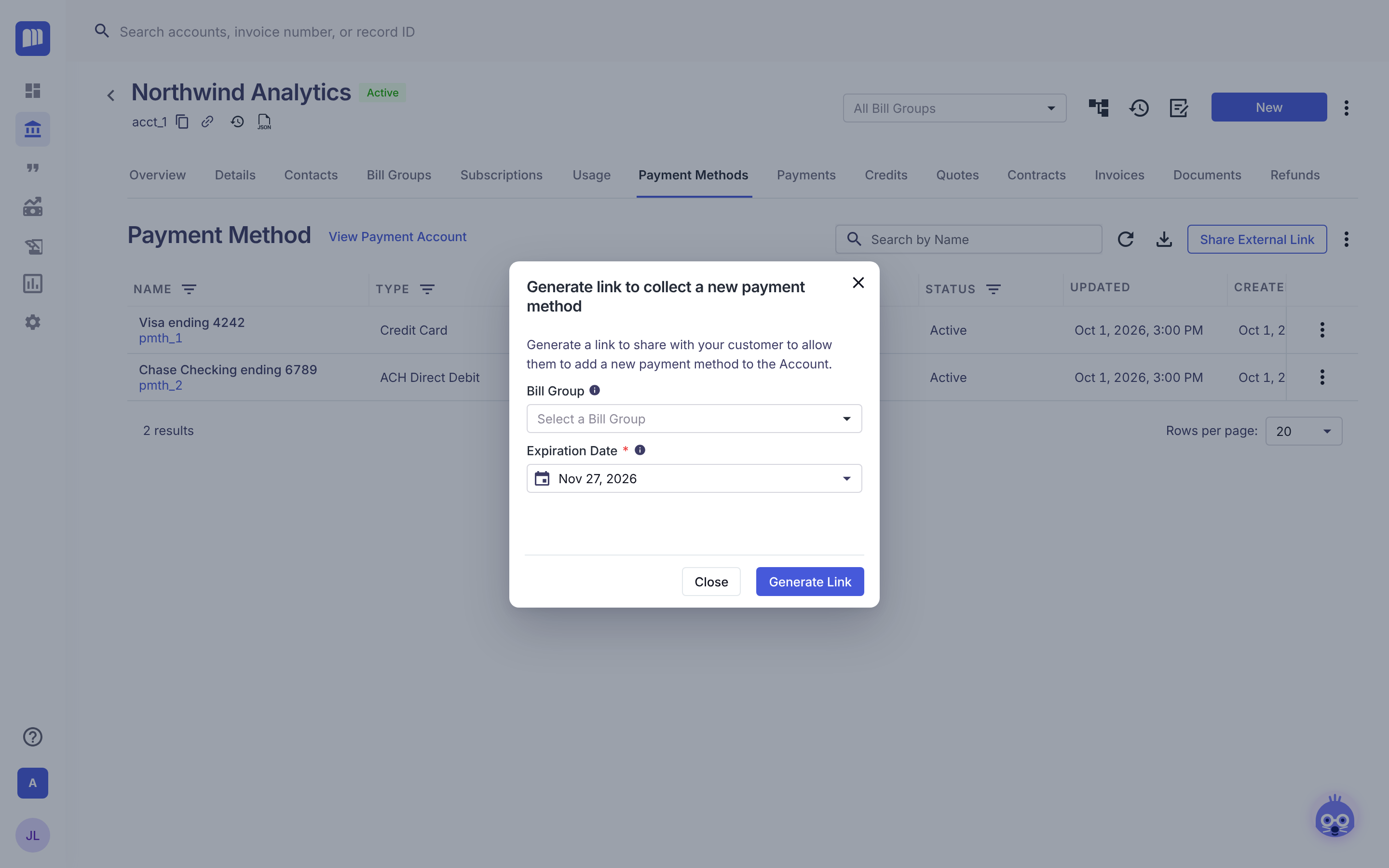
- On the Payment Methods tab, click Share External Link.
- Optional: pick a Bill Group. The new payment method is attached to it automatically.
- Choose an Expiration Date.
- Click Generate Link, copy the link, and send it to your customer.
The link stops working once the customer adds a payment method.
Tip: The first payment method added to an account becomes the account's default.
Turn on automatic collection for a bill group
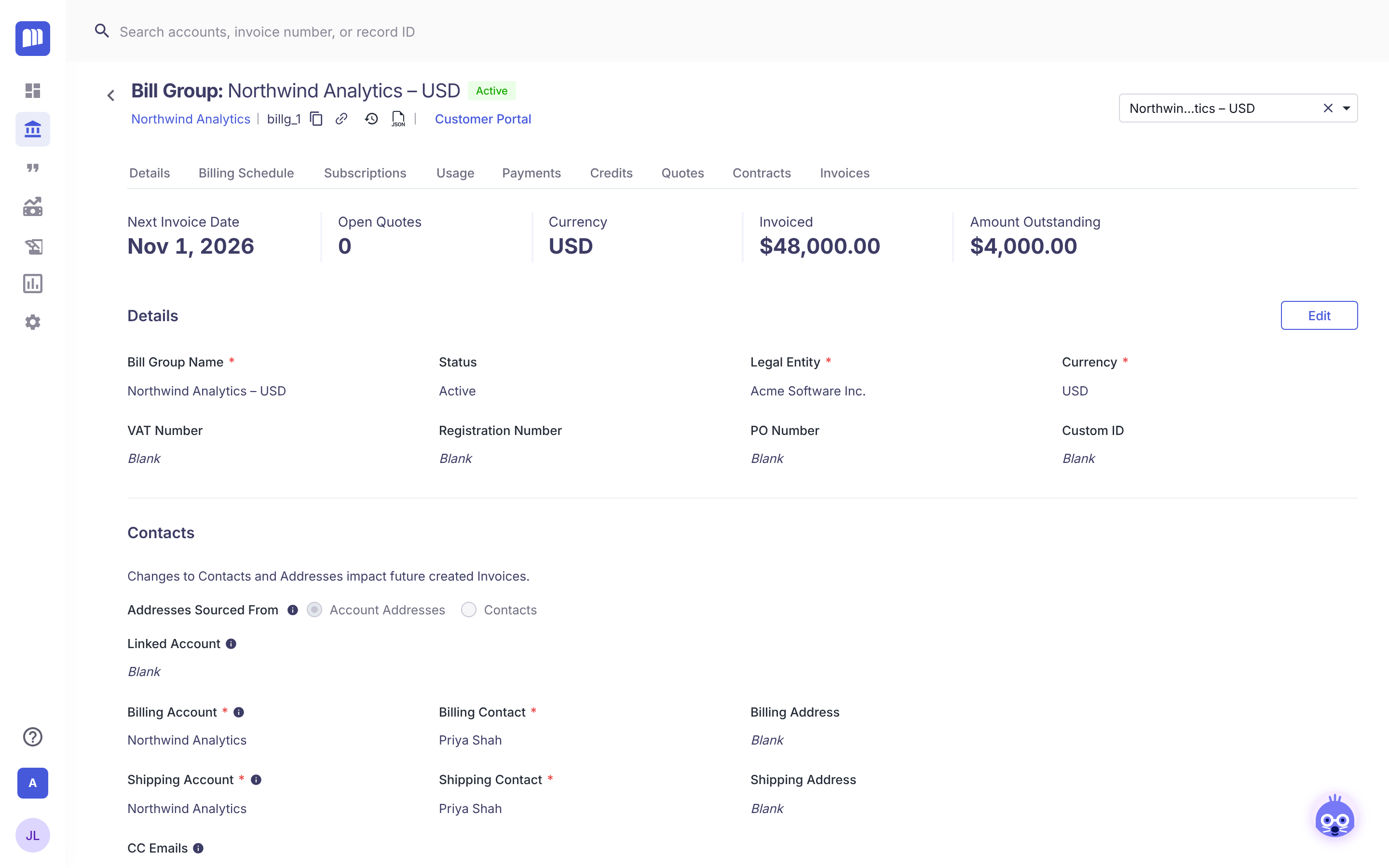
- Open the account, click the Bill Groups tab, and open the bill group.
- Click Edit next to Details.
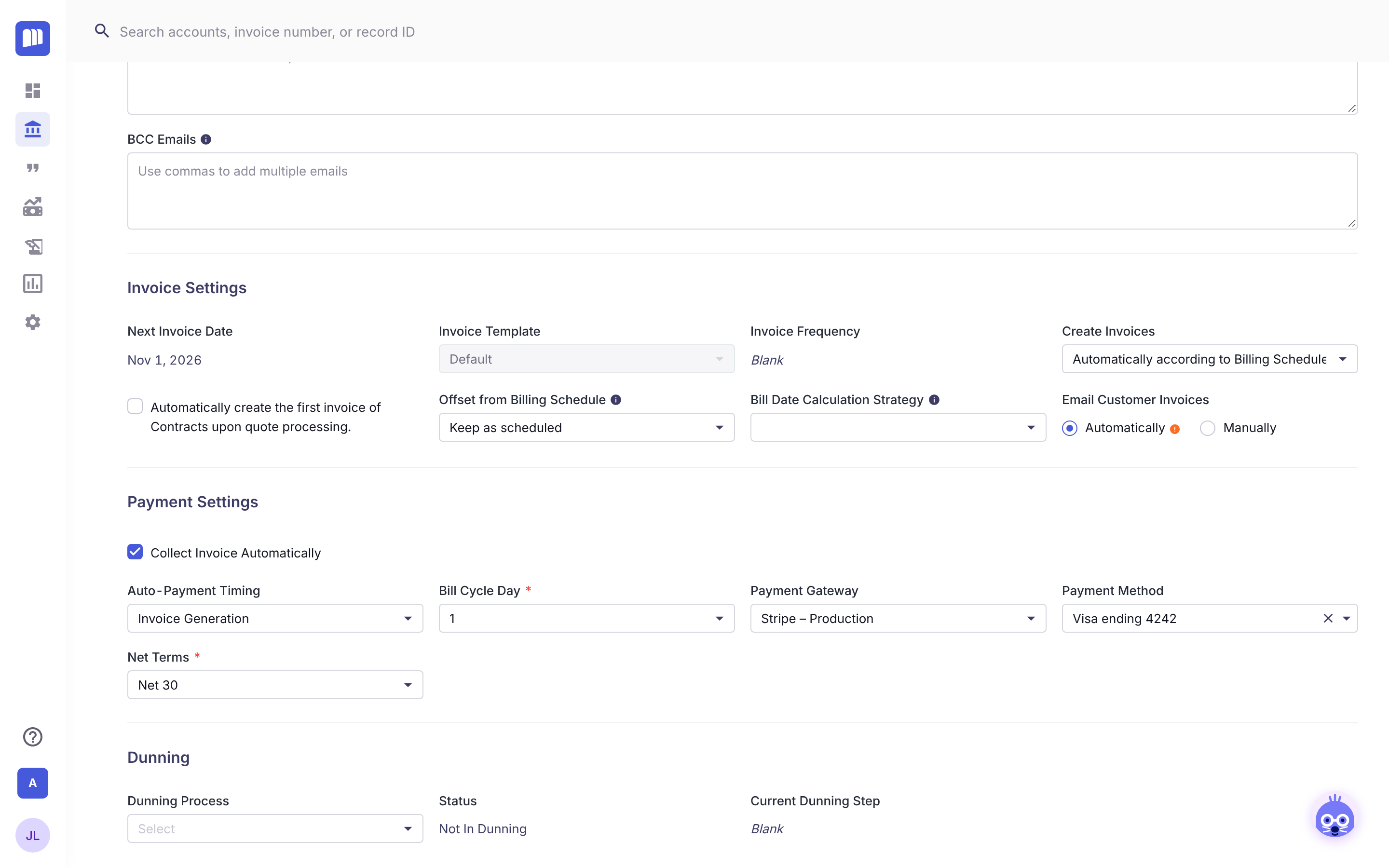
- Scroll to Payment Settings.
- Check Collect Invoice Automatically.
- Choose a Payment Gateway.
- Choose a Payment Method. Only active cards and ACH Direct Debit accounts are listed. To add one on the spot, choose + New Payment Method.
- Click Save at the top of the page.
To stop automatic collection, uncheck Collect Invoice Automatically, or clear Payment Method, then click Save.
Set the default for new bill groups
- Go to Settings > Billing > Payments.
- Turn Collect Automatically on or off. It saves right away.
- Under Auto-Payment Timing, choose when the charge happens:
- Invoice Generation: when the invoice is created.
- Invoice Send: when the invoice is sent. If the bill group emails invoices automatically, the charge happens when the invoice is created and emailed.
This default applies to bill groups created when a quote is processed or a contract is renewed. Bill groups that already exist are not changed. Bill groups you create by hand use whatever you choose on the bill group.
Reference
Where to find each setting
| What | Where |
|---|---|
| Default for new bill groups | Settings > Billing > Payments > Collect Automatically |
| Gateway and payment amount limits | Settings > Integrations > Payment Gateway |
| A customer's cards and bank accounts | Account > Payment Methods tab |
| Auto-collection for one bill group | Account > Bill Groups tab > open bill group > Edit > Payment Settings |
Who can do it
| Task | Roles |
|---|---|
| Change Settings > Payments | Tenant Admin, Billing Admin |
| Change Settings > Payment Gateway | Tenant Admin, Billing Admin, Sales Admin |
| Add payment methods, edit bill groups | Tenant Admin, Billing Admin, Billing |
Users with Settings Read Only can view the settings pages but not change them.
Payment method types
| Type | Can be charged automatically on a bill group | Payment amount limits |
|---|---|---|
| Credit Card | Yes | Per currency |
| ACH Direct Debit | Yes (USD) | Per currency |
| Bank Transfer (USD) | No | USD only |
| Wire transfers and manual payments | No | No |
Bill group Payment Settings
| Field | What it means |
|---|---|
| Collect Invoice Automatically | Turns automatic charging on for this bill group. |
| Auto-Payment Timing | When the charge happens: Invoice Generation or Invoice Send. Only available when Collect Invoice Automatically is checked. |
| Bill Cycle Day | Day of the month (1–31) the bill group bills on. |
| Payment Gateway | The gateway that processes the charge. |
| Payment Method | The card or bank account that is charged. Blank means nothing is charged. |
| Net Terms | Days the customer has to pay. |
How it works
Turning it on is not the same as charging
Collect Invoice Automatically tells MonetizeNow to try to charge. A charge only happens when all of these are true:
- The bill group has a Payment Method selected.
- That payment method is Active.
- The payment gateway is Active and supports that payment type.
- The invoice amount is within your payment amount limits.
If anything is missing, the invoice isn't charged. Nothing breaks, and the invoice stays unpaid.
Why you can turn it on before there's a card
This is on purpose. When onboarding a customer, you can check Collect Invoice Automatically first, then send a Share External Link. When the customer adds a card through a link tied to the bill group, it's attached to that bill group and collection can start.
How a bill group gets its payment method
- Bill groups created from quotes and contracts: MonetizeNow copies the account's default payment method onto the new bill group, as long as your gateway is active.
- Bill groups you create by hand, or that already exist: nothing is copied. Choose the payment method on the bill group yourself.
- Turning auto-collection on later doesn't add a payment method either. Check that Payment Method isn't blank.
- The customer portal: when a customer clicks Set as default there, that card is used for that bill group.
What happens to unpaid invoices when a card is added later
Adding a card doesn't charge anything on the spot. Once it's on the bill group and Collect Invoice Automatically is checked, unpaid invoices on that bill group are picked up by MonetizeNow's nightly automatic collection run.
FAQ
| Question | Answer |
|---|---|
| Can I turn on auto-collection without a payment method? | Yes. Nothing is charged until a payment method is selected on the bill group. |
| Which payment methods can be charged automatically? | Credit Card and ACH Direct Debit. Bank transfers, wires and manual payments can't. |
| Do I need a payment gateway? | Yes. Charges only go through an active gateway, such as Stripe. |
| Does turning on Collect Automatically in Settings change my existing bill groups? | No. It only sets the starting value for bill groups created from quotes and contracts. |
| If I turn on auto-collection on an existing bill group, does it pick up the account's default card? | No. Choose the card in Payment Method on the bill group. |
| Can an account have more than one payment method? | Yes. Each bill group charges the one selected in its Payment Method field. |
| Do payment amount limits apply when I take a payment myself? | No. Limits apply to automatic charges, customer payments through invoice links or the portal, and dunning retries. |
| The customer added a card after billing started. Will old invoices be collected? | Not immediately. Once the card is on the bill group with auto-collection on, unpaid invoices are picked up in the nightly automatic collection run. |
Updated 18 days ago