
Quote Approval Rules
Quote Approval Rules let Sales Leadership, RevOps, Finance, and Legal require sign-off before a Sales Rep can send a quote to a prospect or customer. When a quote meets a rule's conditions, the rule's approvers must approve the quote before it moves to Approved and can be sent.
This page is organized into three parts:
- Understanding approvals explains how rules, approvers, and ordering work.
- How-to guides gives step-by-step instructions for admins, reps, and approvers.
- Reference lists every field, status, icon, and notification.
Only Active approval rules are evaluated. A deactivated rule no longer adds approvals to quotes.
Understanding approvals
What an approval rule is made of
Each approval rule has three parts:
- Name and description. The name is what reps and approvers see on the quote when the rule applies.
- Workflow condition(s). These are conditions on the quote, its offerings, its items, its conditional terms, or its documents. Groups of conditions are combined with AND, OR, or custom logic. When the conditions evaluate to true, the rule applies to the quote.
- Approver(s). One or more individual users or teams. Each must approve, in the order listed.
All days vs. every day of the quote
The FOR setting on a rule controls how the quote's dates are handled when the conditions are checked.
- All days of the Quote (the default) treats the entire contract term as one block. If the conditions are met anywhere in the term, the rule applies, even if the matching items appear at different times. For example, "Silver is on the quote and Gold is on the quote" is true even when Silver ends in March and Gold starts in April.
- Every day of the Quote checks each day separately. The rule applies only if the conditions are all true on the same day. In the same example, the rule applies only if Silver and Gold overlap on at least one date. A clean handoff from Silver to Gold doesn't count.
When rules are evaluated
Rules are evaluated against the quote while it is in Draft, and again when the rep submits it. A rep can see which approvals a draft quote will need before submitting it. The second step of the quote progress bar shows Get N Approvals, and clicking it lists the rules and approvers that currently apply. N counts the rules that apply, not the individual approvers.
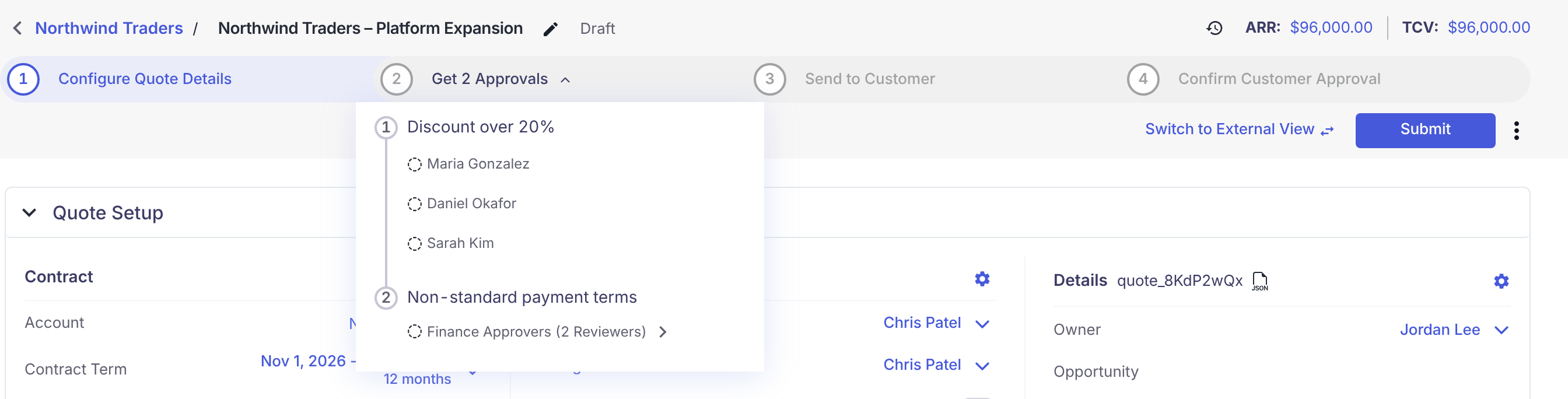
If the quote changes while it is a draft, the list updates. For example, lowering a discount below a rule's threshold removes that rule. If no rules apply, the step reads No Approvals Required, and submitting the quote moves it straight to Approved.
Approvers within a rule are sequential
When a rule has more than one approver, they approve one at a time, in the order listed on the rule:
- On submission, an email and/or slack notification goes only to the first approver.
- Approver 2 is emailed only after Approver 1 approves, and so on down the list.
- A later approver cannot approve while an earlier approver on the same rule is still pending.
If the approver is a team, every member of the team receives the email, and any one member can approve or deny for the whole team.
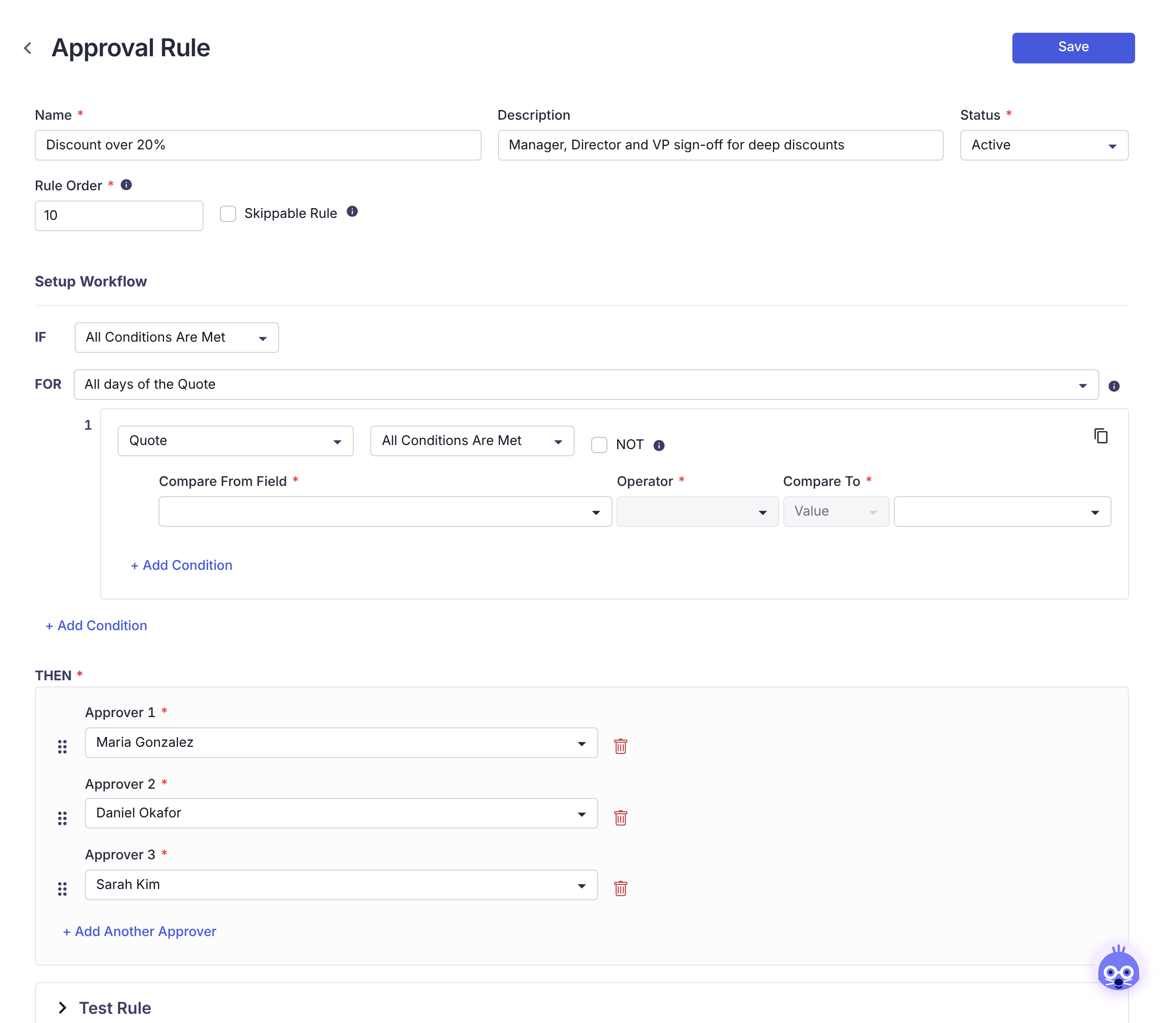
Example. A "Discount over 20%" rule lists Maria Gonzalez (Manager), Daniel Okafor (Director), and Sarah Kim (VP).
- When the quote is submitted, only Maria is emailed.
- When Maria approves, Daniel is emailed.
- When Daniel approves, Sarah is emailed.
- If Daniel denies the quote instead, Sarah is never emailed and the quote moves to Denied.
Rule Order controls the order across rules
When several rules apply to one quote, Rule Order decides which rules are worked first:
- Rules with a lower Rule Order must be fully approved before approvers on rules with a higher Rule Order are emailed.
- Rules with the same Rule Order run in parallel. Their first approvers are emailed at the same time.
In the progress list, rules appear in Rule Order sequence, numbered 1, 2, 3, and so on.
Spacing Rule Order values out (for example 10, 20, 30) makes it easier to insert a new rule between existing ones later.
Skippable rules
A rule marked Skippable is auto-approved when a rule with an equal or higher Rule Order is approved. Use this when a more senior approval makes a lower-level review unnecessary. Skippable rules show as approved on the quote, just like rules approved by a person.
When the rep is also an approver
If the quote owner is the first approver on a rule and submits the quote themselves, that step is approved automatically.
When something changes after submission
To change a quote that is in review, approved, or denied, the rep clicks Edit Quote. This returns the quote to Draft and revokes the approvals already granted. The rules are evaluated again on the edited quote, and the rep must resubmit it.
If your admin allows it, users in specific roles can choose to keep existing approvals when they edit. See Retain approvals when editing a quote.
How-to guides
Create an approval rule
Who can do this: users with the Tenant Admin or Sales Admin role. Users with Settings Read Only can also open these pages.
-
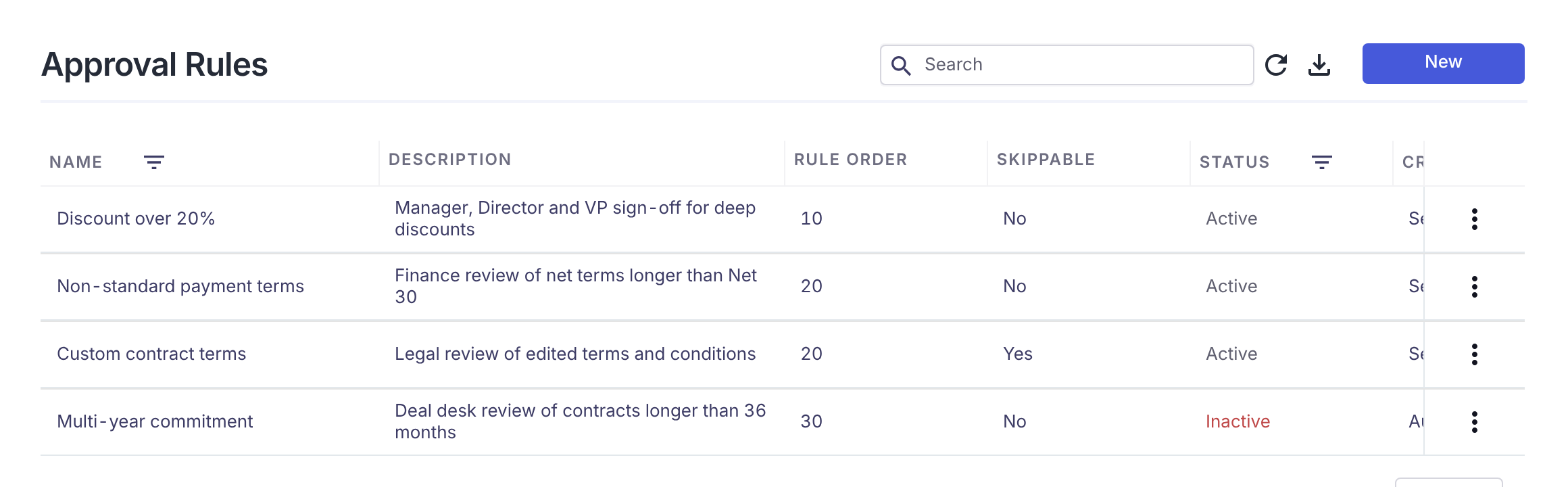
Go to Settings → Rules → Approval Rules.
The list shows each rule's Name, Description, Rule Order, Skippable, Status, and created and updated dates.
-
Click New.
-
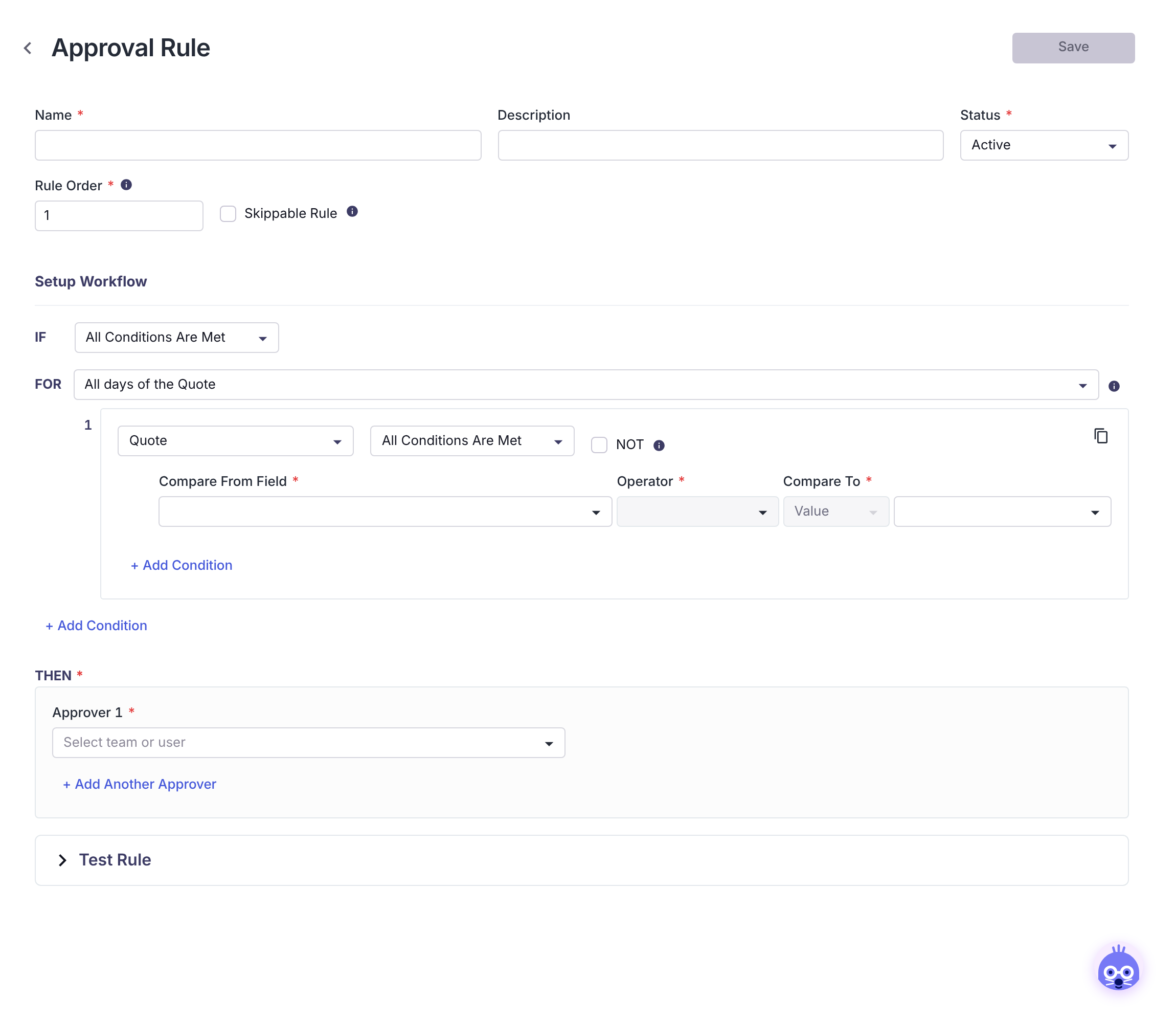
Enter a Name (required, up to 255 characters). Reps and approvers see this name on the quote. Optionally add a Description (up to 500 characters).
-
Leave Status as Active, or choose Inactive to save the rule without enforcing it yet.
-
Set Rule Order. It defaults to 1, and lower numbers are approved first. See Rule Order controls the order across rules.
-
Select Skippable Rule only if this rule should be auto-approved when a rule with an equal or higher order is approved.
-
Under Setup Workflow, build the conditions:
- In IF, choose All Conditions Are Met, Any Condition Is Met, or Custom Logic Is Met. Custom logic accepts expressions such as
(1 AND 2) OR (3 AND NOT 4). - In FOR, choose All days of the Quote or Every day of the Quote. See All days vs. every day of the quote for how they differ.
- In condition group 1, choose what to evaluate: Quote, Quote Conditional Terms, Quote Offering, Quote Item, or Quote Documents.
- Fill in Compare From Field, Operator, and Compare To. Compare To can be a fixed Value or another Field.
- Use + Add Condition inside the group to add another condition to that group. Use + Add Condition below the group to add another group.
- In IF, choose All Conditions Are Met, Any Condition Is Met, or Custom Logic Is Met. Custom logic accepts expressions such as
-
Under THEN, add the approvers in the order they should approve:
-
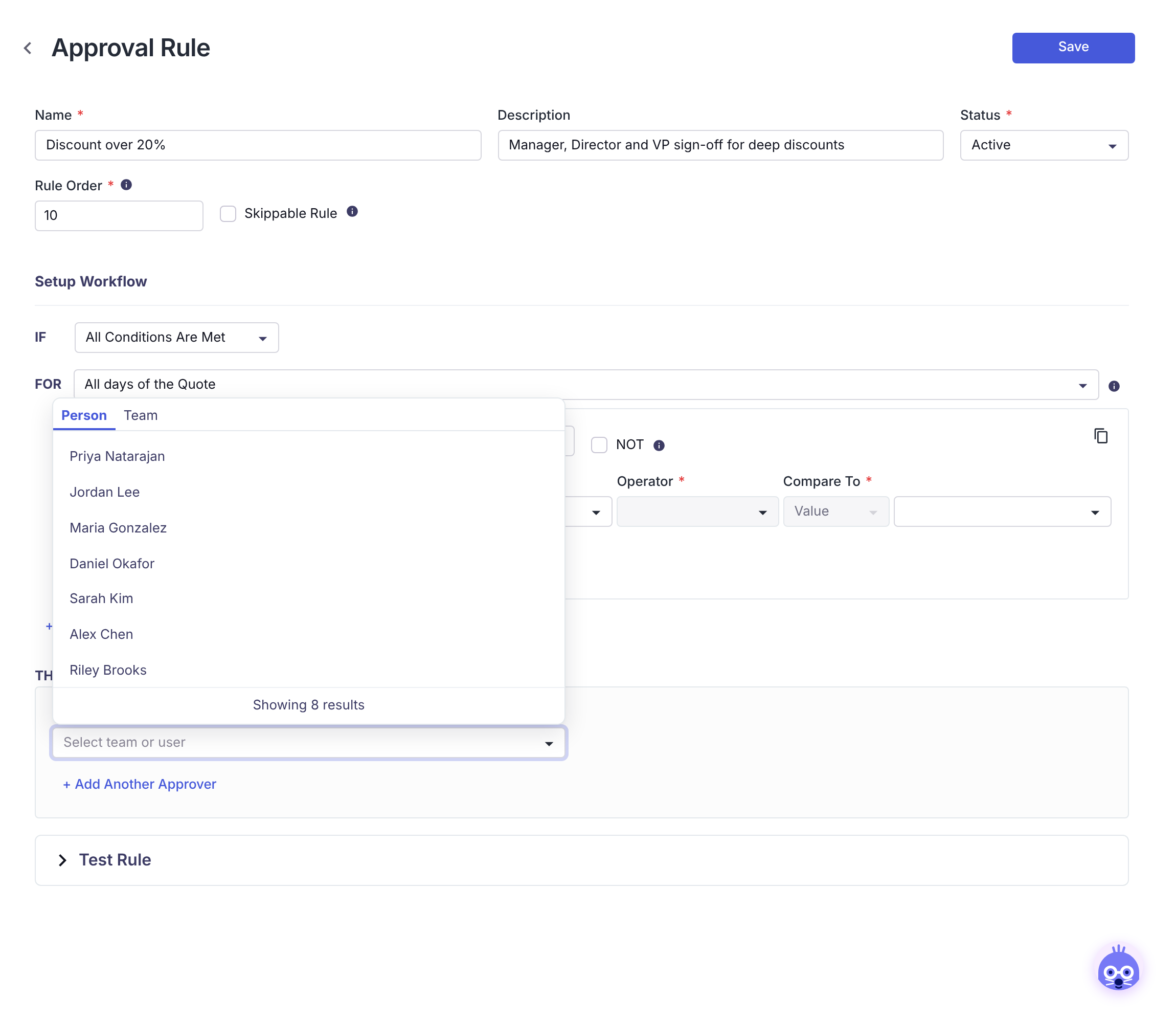
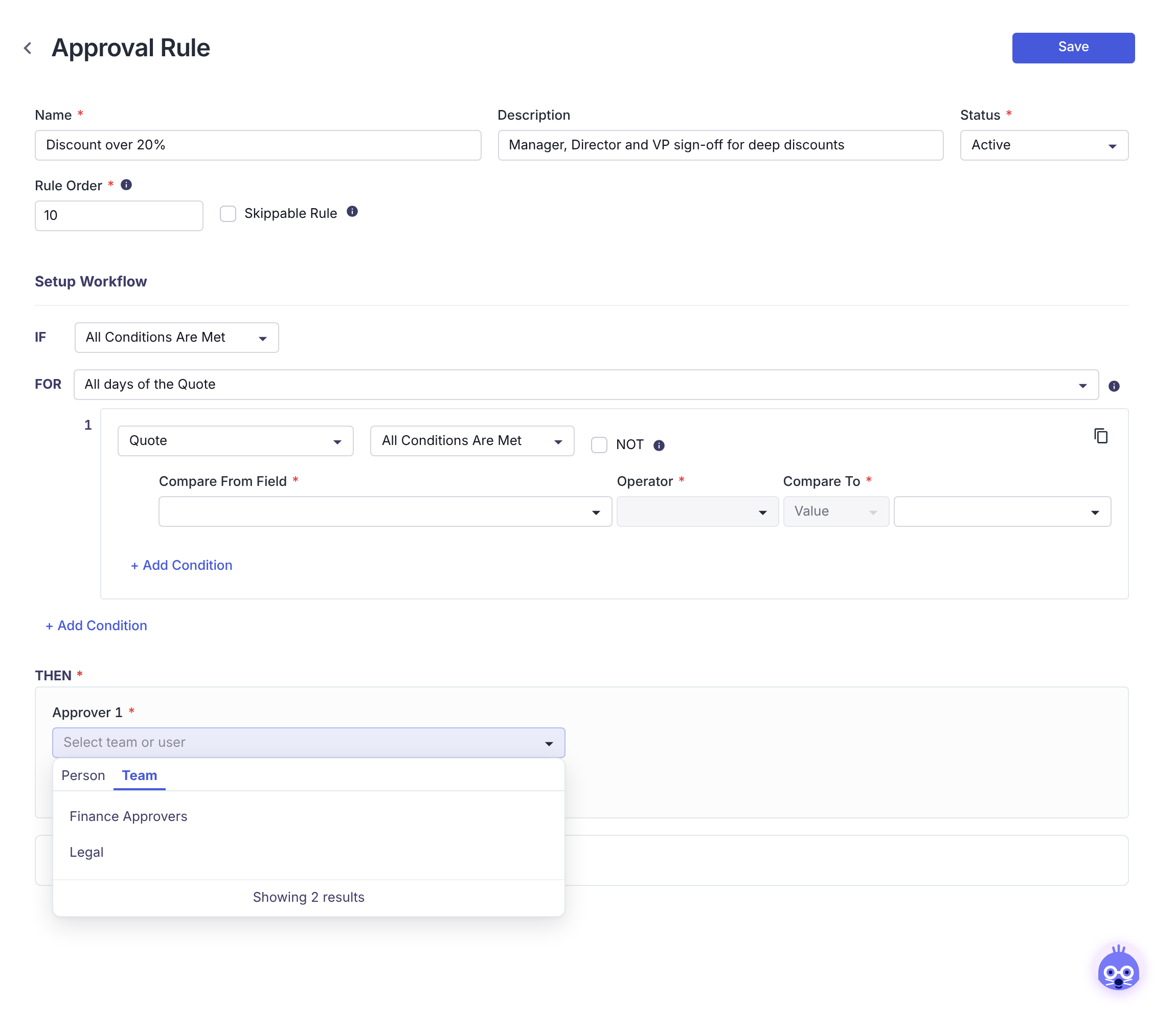
Click Select team or user. Use the Person tab to pick an individual user, or the Team tab to pick a team.
-
Click + Add Another Approver for each additional approver. Each person or team can appear only once per rule.
-
To reorder approvers, drag the handle to the left of a row. To remove one, click its trash icon. The handle and trash icon appear once a rule has two or more approvers.
-
-
Optional: expand Test Rule, choose a quote, and click Test Rule to see whether the rule and each condition evaluate to true or false for that quote.
-
Click Save.
Activate, deactivate, clone, or edit a rule
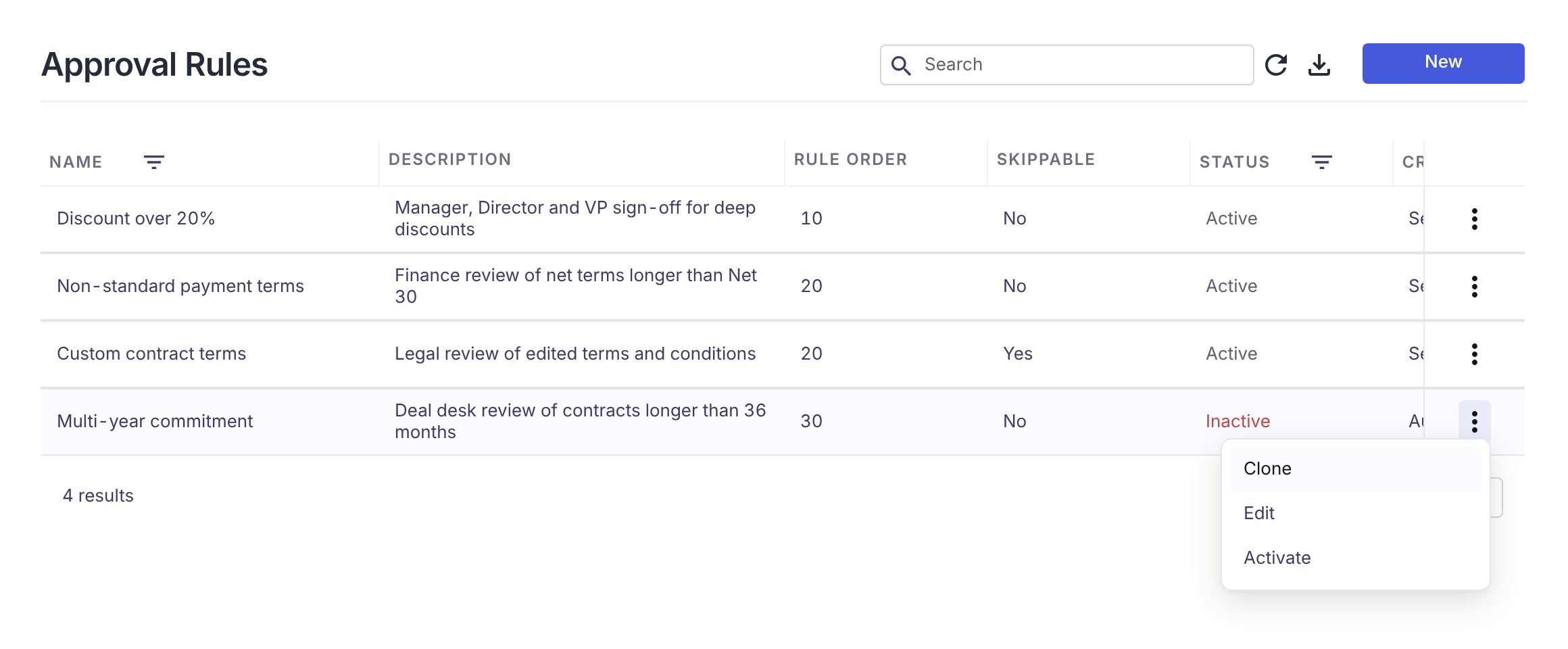
On Settings → Rules → Approval Rules, click the ⋮ menu at the end of a rule's row:
- Clone opens a new rule pre-filled with this rule's settings and named "Copy of …".
- Edit opens the rule. You can also click the row itself.
- Activate appears only on inactive rules.
- Deactivate asks you to confirm. Once deactivated, the rule is no longer applied to quotes.
Rules cannot be deleted. Deactivate a rule you no longer need.
Submit a quote for approval
Who: the Sales Rep or quote owner.
- Open the draft quote. Click the second step of the progress bar (Get N Approvals) to review which approvals the quote needs.
- Click Submit. If Submit is disabled, hover over it to see what must be resolved first, such as validation errors or a missing offering.
- In Submit quote for approval, enter Approval Notes. This field is required. The note is saved to the quote's Notes panel so approvers can read it.
- Click Send.
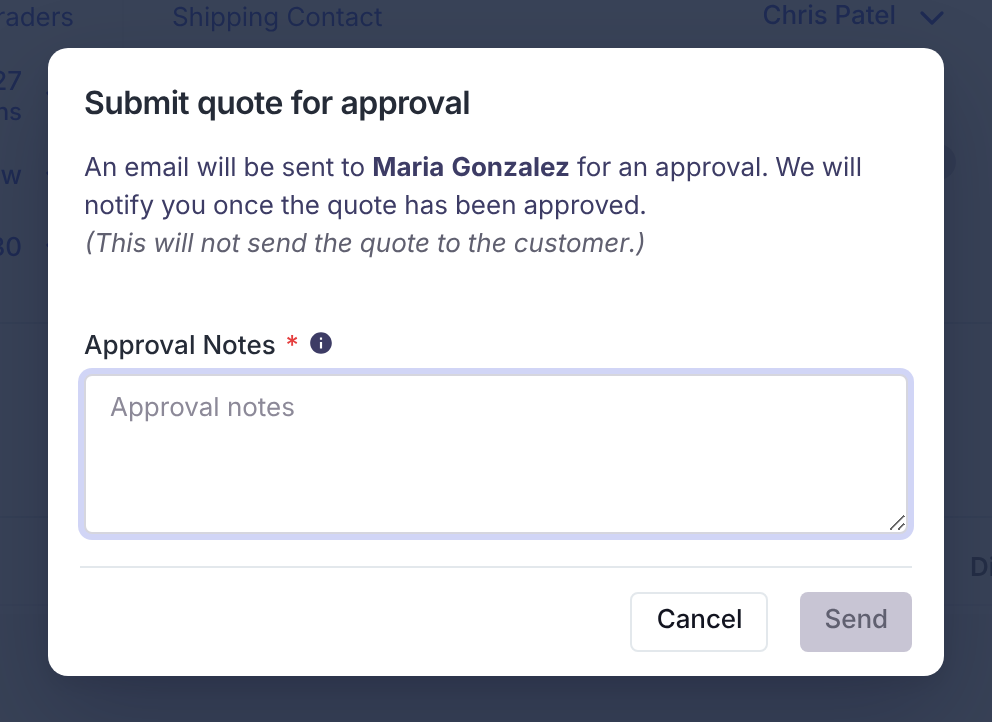
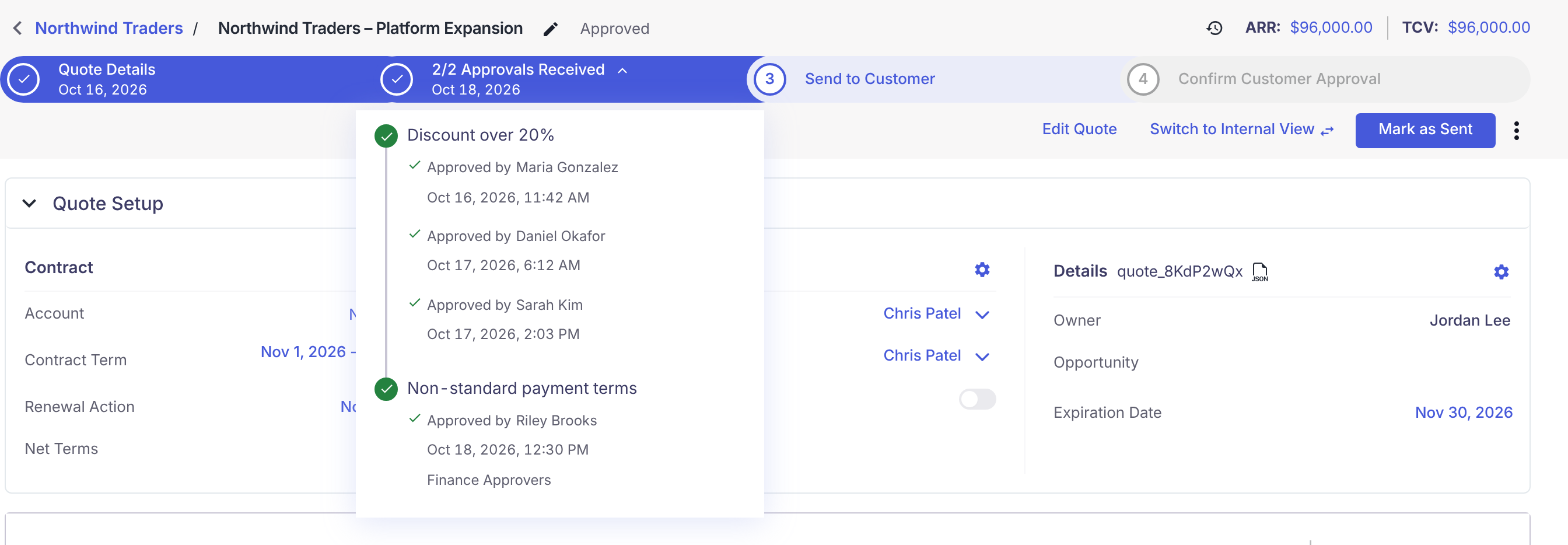
The quote's status changes to Review, and the first approver of each rule at the lowest Rule Order is emailed. Submitting does not send the quote to the customer.
If your admin has turned on Approval Notes under Settings → Quote Settings → Approval, the admin's message also appears in this dialog, and the confirm button reads Save instead of Send.
Track approval progress on a quote
Who: anyone who can open the quote.
- Open the quote. The second step of the progress bar shows X/N Approvals Received.
- Click that step to open the approval list.
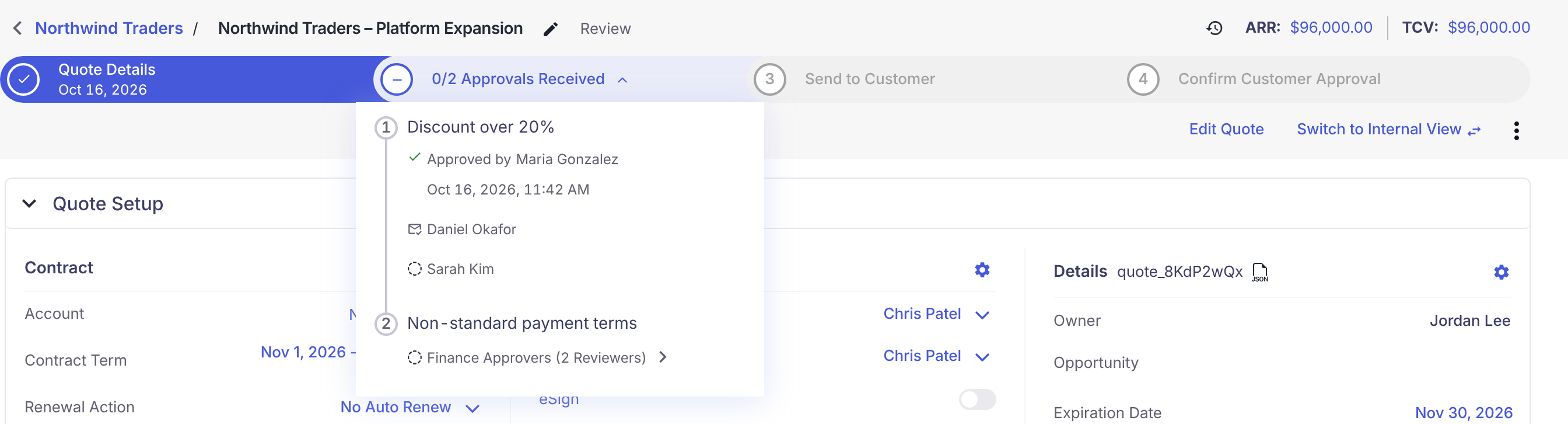
In this example:
- Maria (Manager) has approved.
- Daniel (Director) has been emailed and has not responded yet.
- Sarah (VP) is not emailed until Daniel approves.
- Non-standard payment terms has a higher Rule Order, so the Finance team has not been emailed yet.
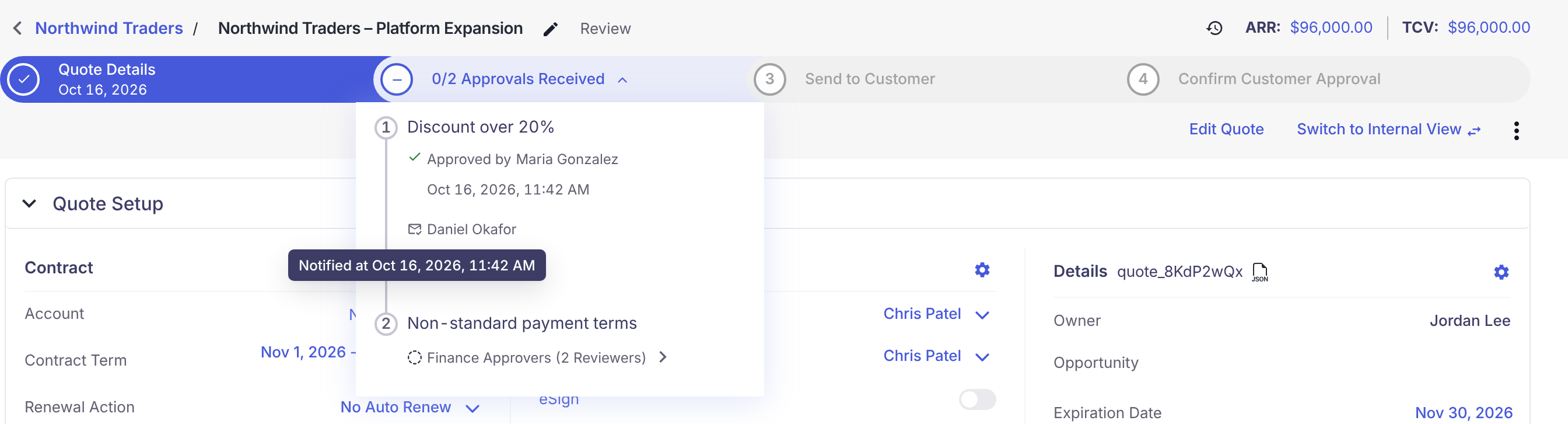
To see when an approver was emailed, hover over the envelope icon:
To see who belongs to a team approver, click the team name or its arrow:
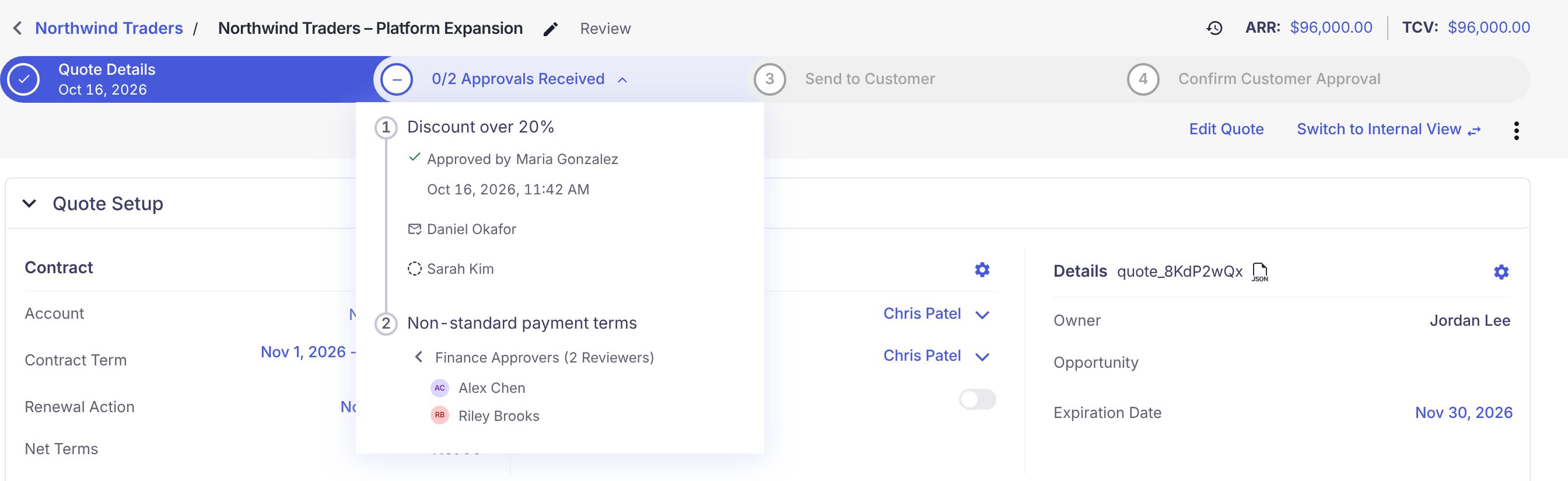
The icons are described in Approval status indicators.
Approve or deny a quote
Who: the approver whose turn it is. Approvers who belong to a team can act for that team.
-
Open the quote from the link in the approval email, or from Dashboard → Approvals, which lists quotes pending approval.
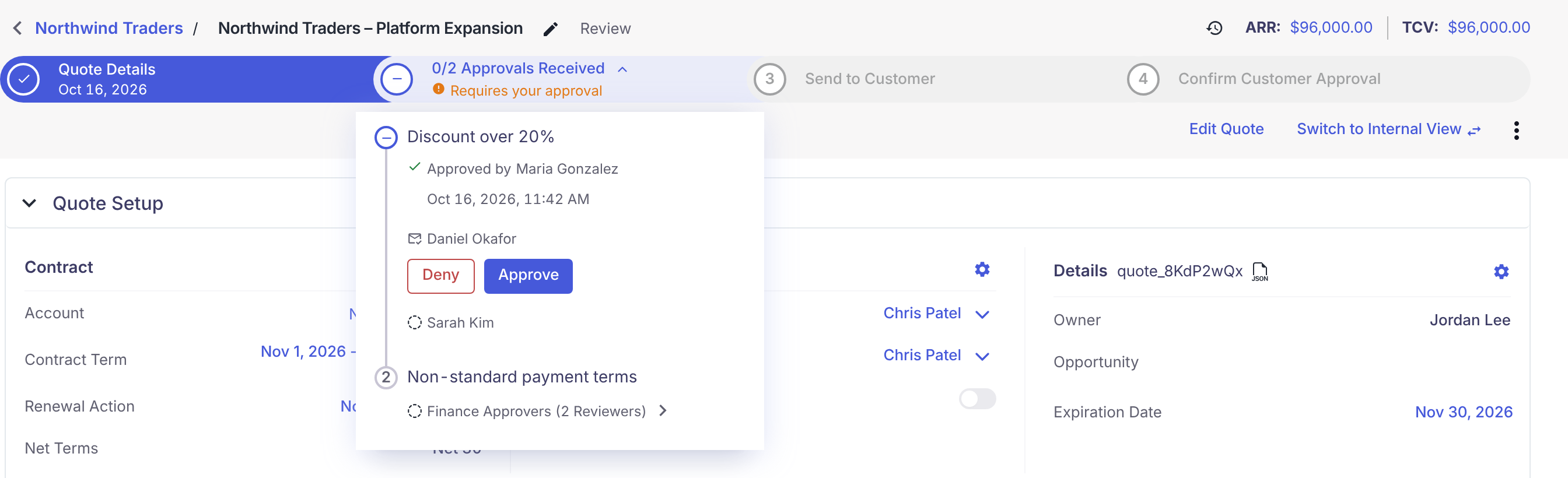
When it is your turn, the progress bar shows Requires your approval and the approval list opens automatically.
-
Click Approve to approve your step, or Deny to reject the quote.
-
If you click Deny, enter a Reason (required, up to 500 characters) and click Save.
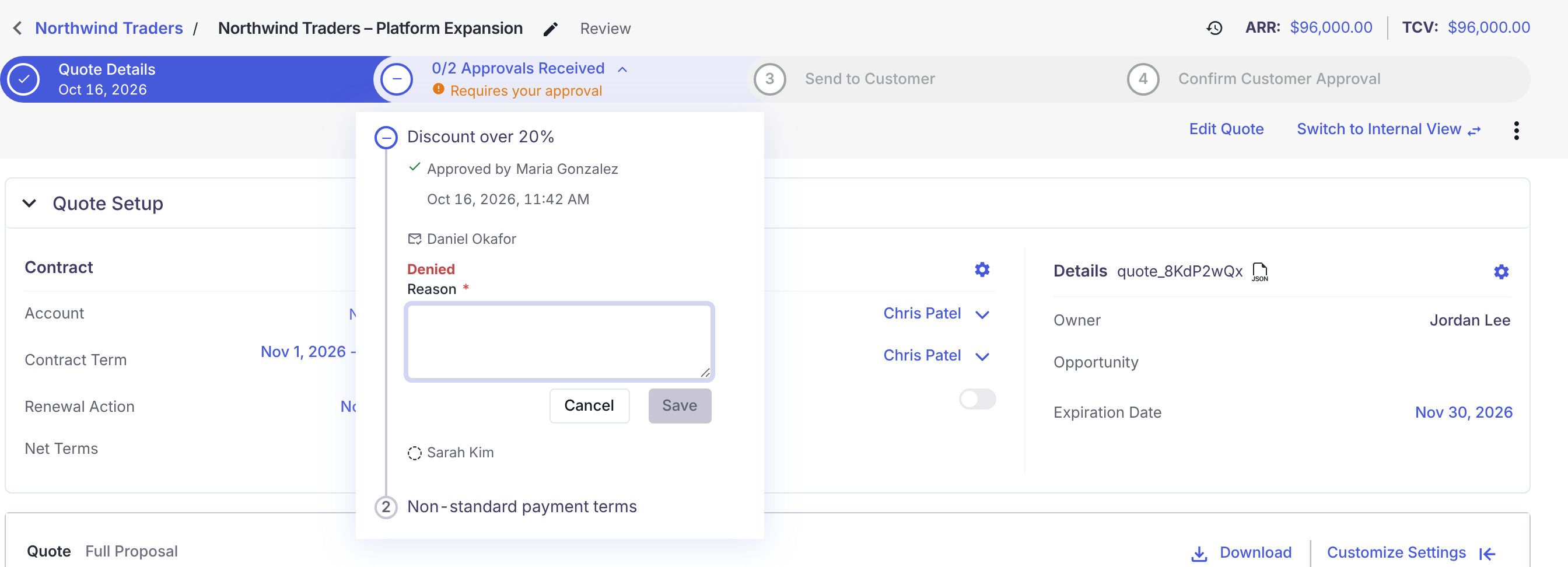
After you approve: the next approver on the rule is emailed. If every rule at the current Rule Order is complete, the first approvers of the next Rule Order are emailed. When all approvals are complete, the quote moves to Approved and the quote owner receives an email.
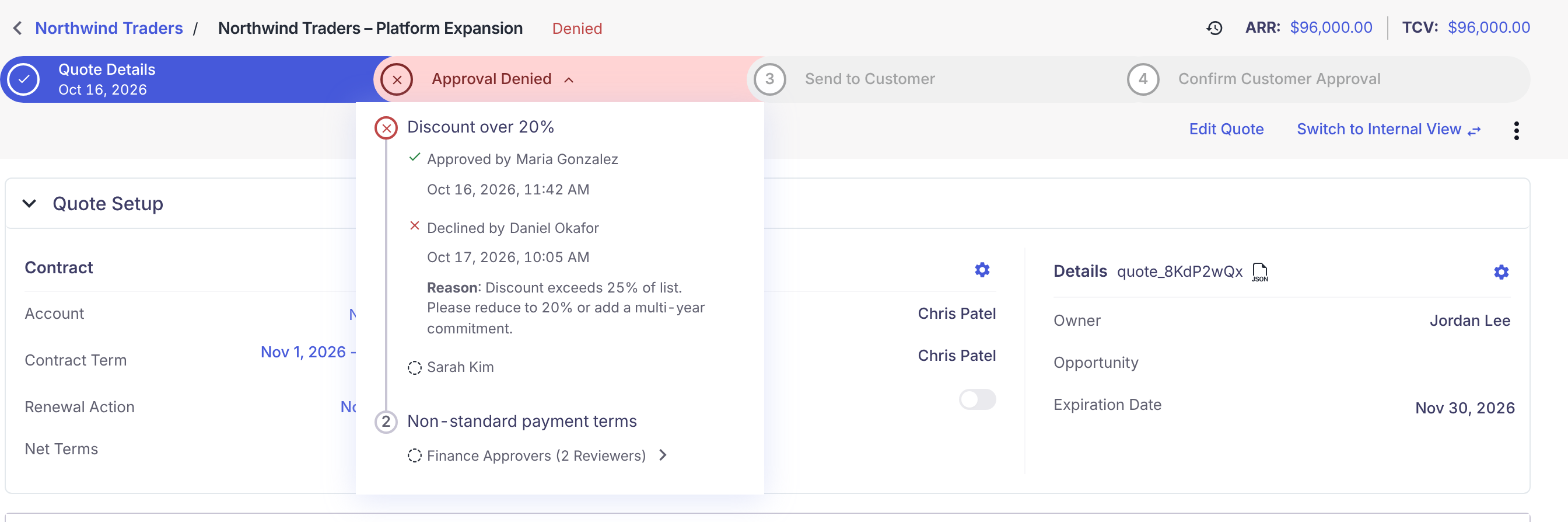
After you deny:
- The quote moves to Denied.
- The quote owner receives an email that includes your reason.
- No further approvers are emailed.
- The rep must click Edit Quote to return the quote to Draft, make changes, and resubmit.
Approval emails and slack notifications contain a View Quote button that opens the quote in MonetizeNow. Approving and denying happen on the quote, not in the email (they can happen in the slack notification).
Edit a quote after approvals were granted
-
On the quote, click Edit Quote.
-
If approvals have already been granted, a confirmation lists each approval that will be revoked, with who approved it and when.
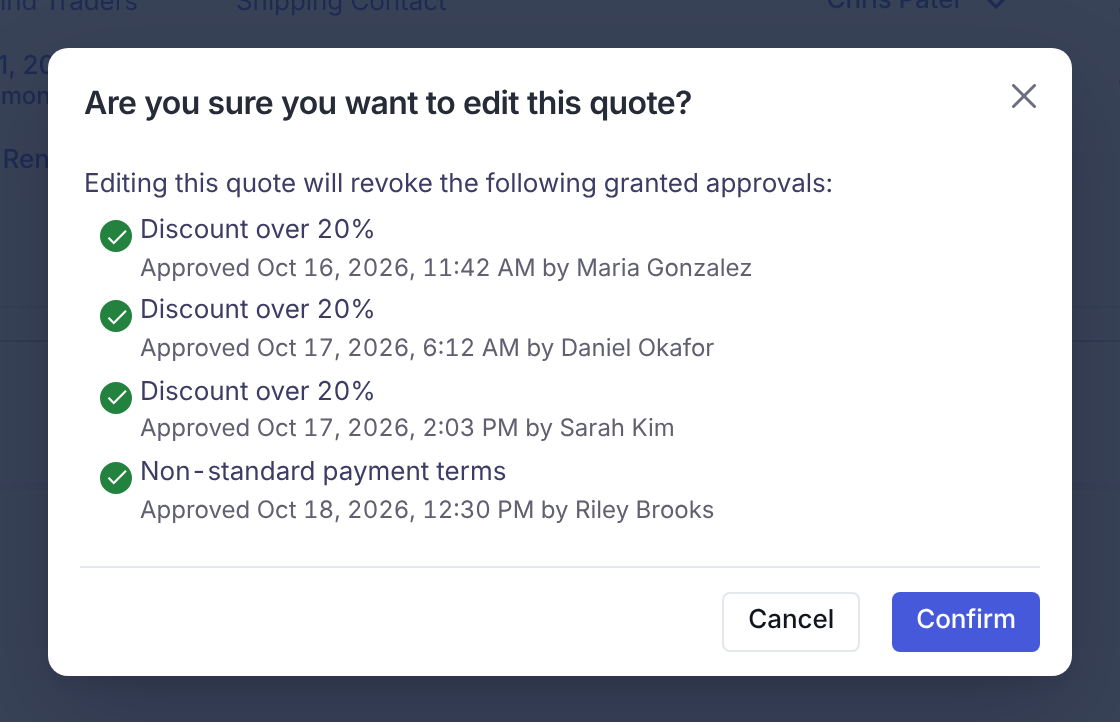
-
Click Confirm. The quote returns to Draft, and the approvals listed are reset.
-
Make your changes and Submit again. The approval process restarts from the first approver.
Retain approvals when editing a quote
Admins can let specific roles keep granted approvals when they edit a quote.
- Go to Settings → Quote Settings and expand Approval.
- In Which Roles Can Retain Approvals When Moving Quote to Edit Mode, choose the roles.
Users in those roles see a Retain Existing Approvals switch in the edit confirmation dialog. When the switch is on, approvals are kept during editing unless the edit causes the rule to no longer apply. When the quote is resubmitted, the retained approvals still count as approved.
Reference
Approval rule fields
| Field | Required | Default | Notes |
|---|---|---|---|
| Name | Yes | Up to 255 characters. Shown to reps and approvers on the quote. | |
| Description | No | Up to 500 characters. | |
| Status | Yes | Active | Active or Inactive. Only active rules are applied. |
| Rule Order | Yes | 1 | Lower numbers are approved first. Rules with equal numbers run in parallel. |
| Skippable Rule | No | Off | When on, the rule is auto-approved when a rule with an equal or higher order is approved. Shown as Skippable: Yes/No in the rules list. |
| IF | Yes | All Conditions Are Met | All Conditions Are Met (AND), Any Condition Is Met (OR), or Custom Logic Is Met. |
| FOR | Yes | All days of the Quote | All days of the Quote applies the rule if the conditions are met anywhere in the term. Every day of the Quote applies it only if all conditions are true on the same day. |
| Condition group | Yes | Quote | Evaluates Quote, Quote Conditional Terms, Quote Offering, Quote Item, or Quote Documents. Each group has its own AND/OR/custom logic and a NOT option that negates the group's result. |
| Compare From Field / Operator / Compare To | Yes | The fields and operators available depend on the condition group. Compare To can be a fixed Value or another Field. | |
| + Aggregate Condition | No | Quote Offering and Quote Item groups only. Evaluates a count, sum, or same/different-value check across all matching records. | |
| Include Deleted Records | No | Off | Quote Offering and Quote Item groups only. By default, deleted offerings and items are not evaluated on amendment and renewal quotes. |
| Approver 1…N | At least one | Each approver is a person or a team. Approvers act in the order listed. Each person or team can be used once per rule. |
Approval status indicators
These icons appear in the approval list on a quote.
| Indicator | Meaning |
|---|---|
| Dotted circle beside the approver's name | The approval request has not been sent yet. The quote is still a draft, or an earlier approver or a lower Rule Order has not finished. |
| Envelope beside the approver's name | The approval email has been sent and the approver has not responded. Hover over the icon to see Notified at with the date and time. |
| Green check with Approved by <name> | The step was approved. Shows the approval date and time and, for team approvals, the team name. Auto-approved (skippable) steps also appear this way. |
| Red × with Declined by <name> | The step was denied. Shows the date and time and the Reason. Long reasons have a More / Less toggle. |
| Deny and Approve buttons | It is your turn to act on this step. |
Each rule in the list has a numbered circle. It shows a green check when every approver on the rule has approved, a red × when any approver denied, and a dash when it is waiting on you.
Approval step labels in the quote progress bar
| Label | When it appears |
|---|---|
| No Approvals Required | No active rule applies to the quote. |
| Get N Approvals | Draft quote. N is the number of rules that currently apply. |
| X/N Approvals Received | Submitted quote. X rules are fully approved out of N. The approval date appears when all are complete. |
| Requires your approval | Shown under the step label when you are the approver whose turn it is. |
| Approval Denied | An approver denied the quote. |
Quote statuses involved in approvals
| Status | Meaning |
|---|---|
| Draft | Being edited. Rules are evaluated as the quote changes. |
| Review | Submitted and waiting on approvals. |
| Approved | All required approvals received, or no rules applied. The quote can now be sent. |
| Denied | An approver denied the quote. The rep must use Edit Quote to return it to Draft. |
Notifications
| Notification | Sent to | When |
|---|---|---|
| Approval request (email and/or Slack) | The next approver. For a team, every member. | When the quote is submitted (first approver of each rule at the lowest Rule Order), and after each approval, to the next approver in line. |
| Quote approved | Quote owner | When the quote moves to Approved. Not sent when the owner was the only approver. |
| Quote rejected | Quote owner | When an approver denies the quote. Includes who denied it and the reason. |
Updated 8 days ago