
Common Rule Examples
How to use this page
These are real rules that MonetizeNow customers use. Each one solves a common problem, and you can rebuild any of them in a few minutes, then adjust the values to fit your business.
Who this is for: Admins setting up the rules engine. If you haven't built a rule before, start with the Rules Engine overview.
Before you start
You need admin access to Settings. If you're new to rules, the Rules Engine overview explains conditions, operators, and how rules are evaluated.
How each example is laid out
| Section | What it tells you |
|---|---|
| Problem | The situation the rule fixes |
| Rule type | Which kind of rule to create, and so where to build it |
| Condition | What the rule checks |
| When it fires / What it does | What the rep or customer sees, or what changes on the quote |
| Steps | How to build it, field by field |
| Good to know | Settings it depends on and mistakes to avoid |
| Variations | Other ways to use the same pattern |
Where each rule type lives
| Rule type | Use it to | Where to build it |
|---|---|---|
| Validation | Block a quote that doesn't meet a requirement | Settings › Rules › Validation Rules |
| Approval | Send a quote to someone for sign-off | Settings › Rules › Approval Rules |
| Quote Share rule | Change Quote Share settings for specific quotes | Settings › Quoting › Quote Share › Quote Share Rules |
Adapting an example
- Find the example closest to what you need. The pattern matters more than the exact field. For example, the MSA rule works for any document type.
- Change the values, such as the document type, character limit, or discount threshold, to match your process.
- Name the rule after what it does, e.g. "Discount over 20% – Manager approval," so your rules list is easy to scan.
- Test it on a draft quote before reps start using it. Try one quote that should trigger the rule and one that shouldn't.
Tips
- Check the NOT box carefully. It reverses the condition, and it's the most common reason a rule fires at the wrong time.
- Write validation messages for the rep. Tell them exactly what to fix, e.g. "Attach an MSA before submitting this quote."
- Pause a rule instead of deleting it. Set its Status to Inactive to turn it off for a while.
Require an MSA on every quote
Problem: Reps sometimes send quotes without the master services agreement attached.
Rule type: Validation
Condition: The quote doesn't include a document of type MSA.
When it fires: The rep sees a validation message and must attach an MSA before the quote can move forward.
Steps
- Go to Settings › Rules › Validation Rules and add a new rule.
- Name the rule, e.g. "MSA required," and write the message reps will see, e.g. "Attach an MSA before submitting this quote."
- In the conditions, set the scope to All days of the Quote.
- Choose Quote Documents as the object and All Conditions Are Met as the match type.
- Check NOT.
- Add a condition: Compare From Field = Document Type, Operator =
=, Compare To = Value, then select MSA. - Save, then test it on a draft quote with no MSA attached.
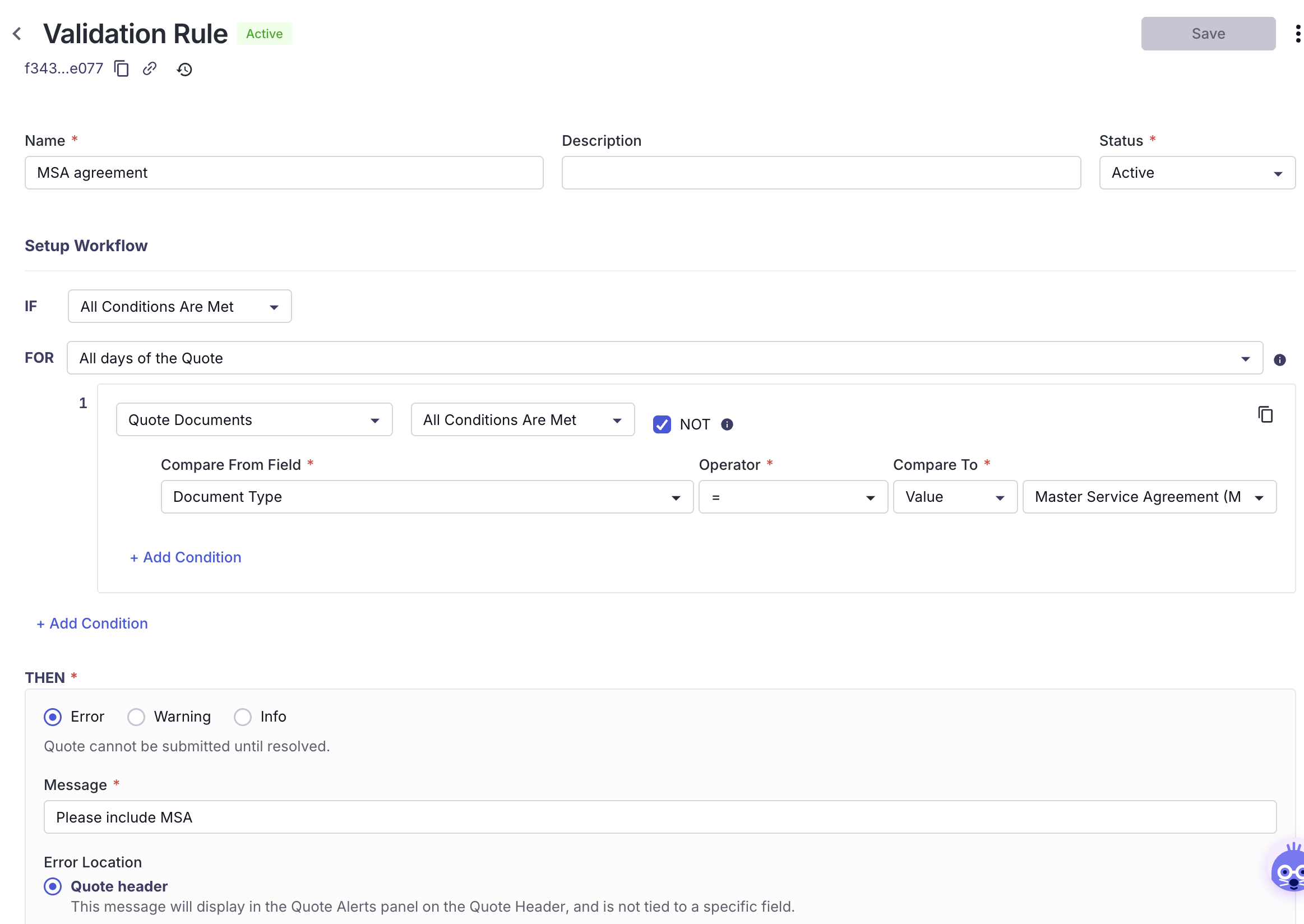
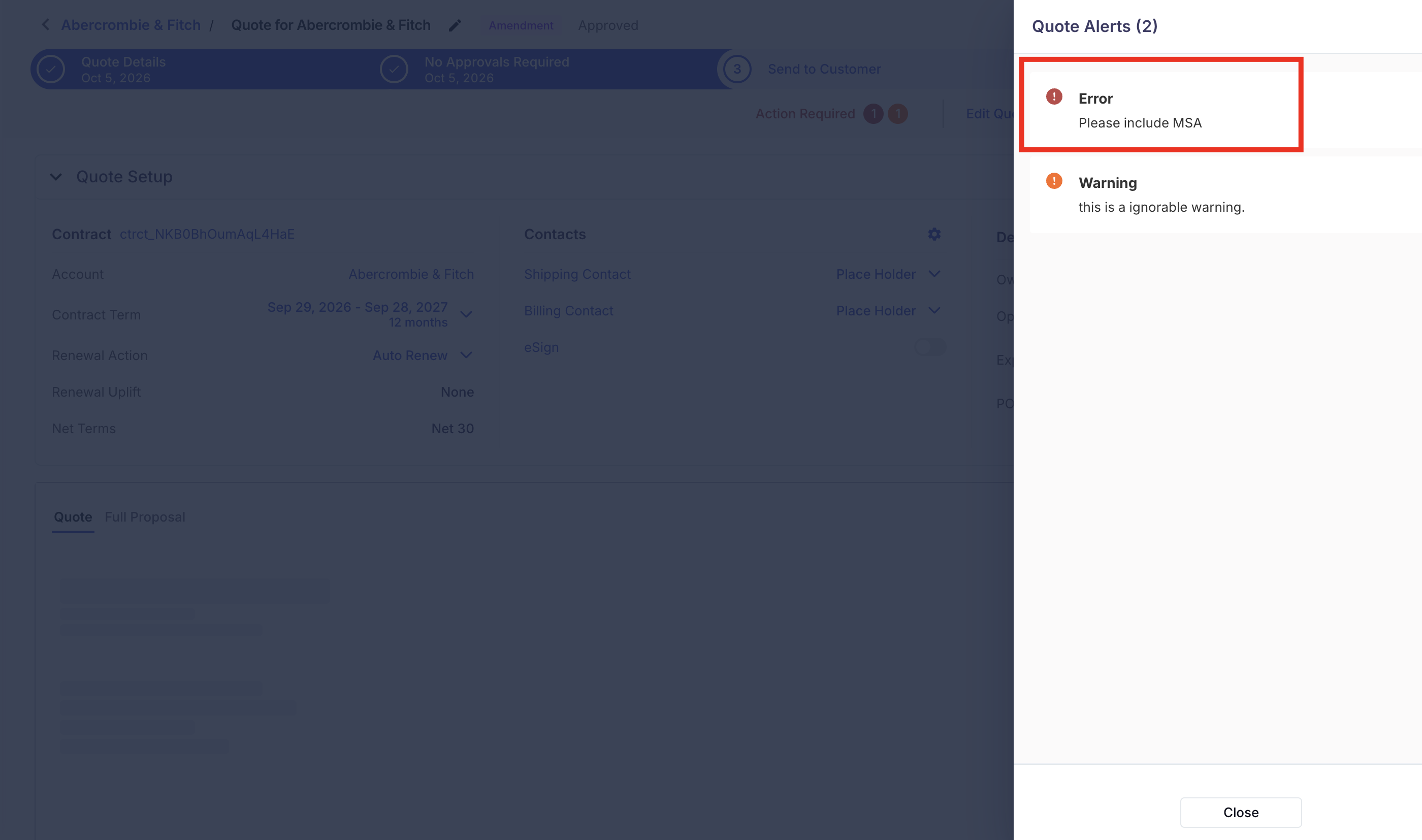
Variations: Swap MSA for SOW, DPA, or any document type you've defined to require that document instead. Create one rule per required document.
Good to know: This rule uses Quote Documents, which is part of the current document management experience. If you only see fields marked (Legacy), contact your MonetizeNow team.
Limit PO Number length to match your ERP
Problem: Your ERP or accounting system caps the PO Number at a set number of characters. A longer PO Number makes the sync fail or get cut off.
Rule type: Validation
Condition: The PO Number on the quote is longer than the limit.
When it fires: The rep sees a validation message and must shorten the PO Number.
Steps
- Go to Settings › Rules › Validation Rules and add a new rule.
- Name it, e.g. "PO Number max 35 characters," and set the message, e.g. "PO Number can't be longer than 35 characters."
- In the conditions, set the scope to All days of the Quote and choose Quote as the object.
- Add a condition: Compare From Field = PO Number. Under Operator, choose Length, then pick > from its sub-list. Set Compare To = Value, 35.
- Save, then test by entering a 36-character PO Number on a draft quote.
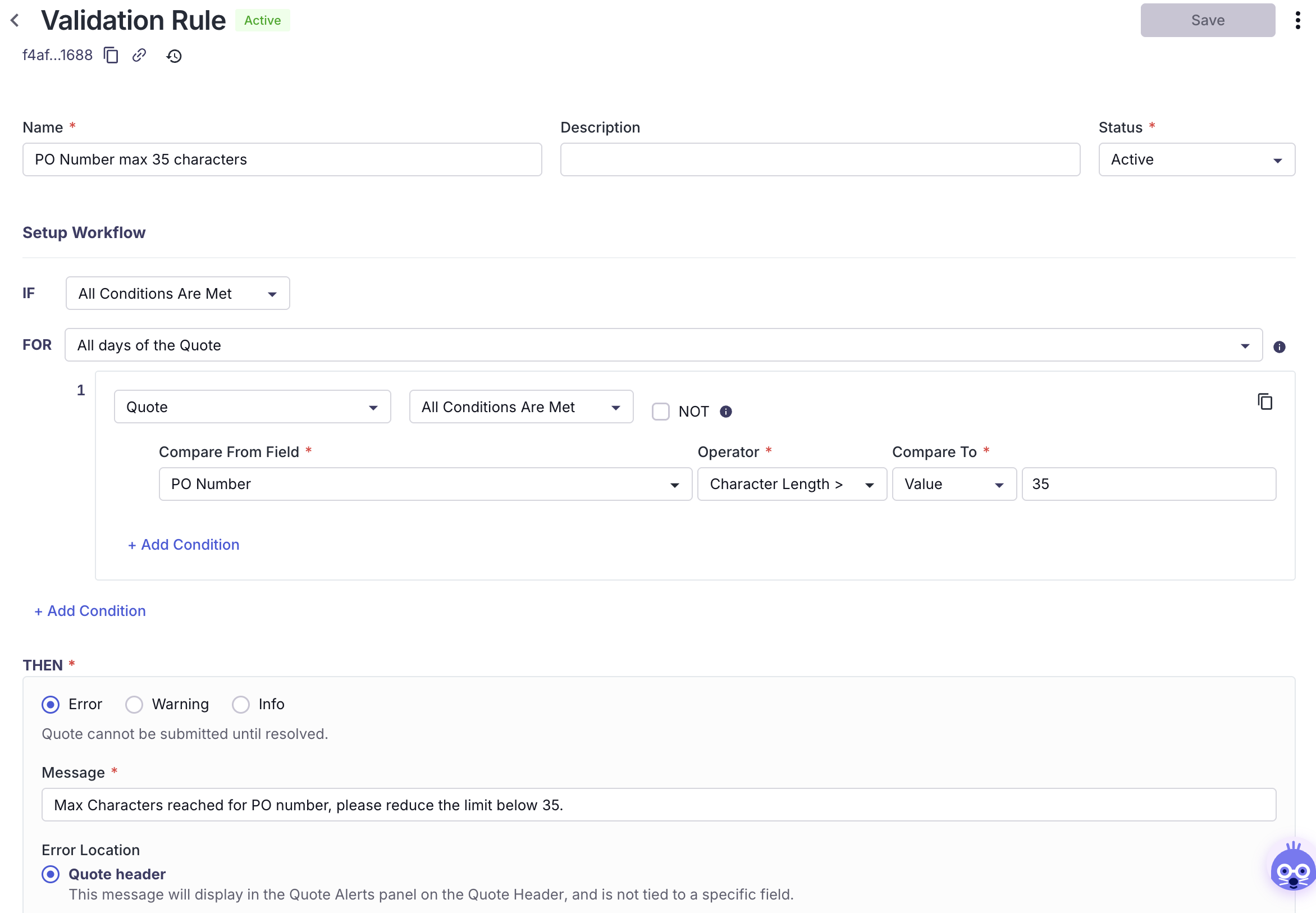
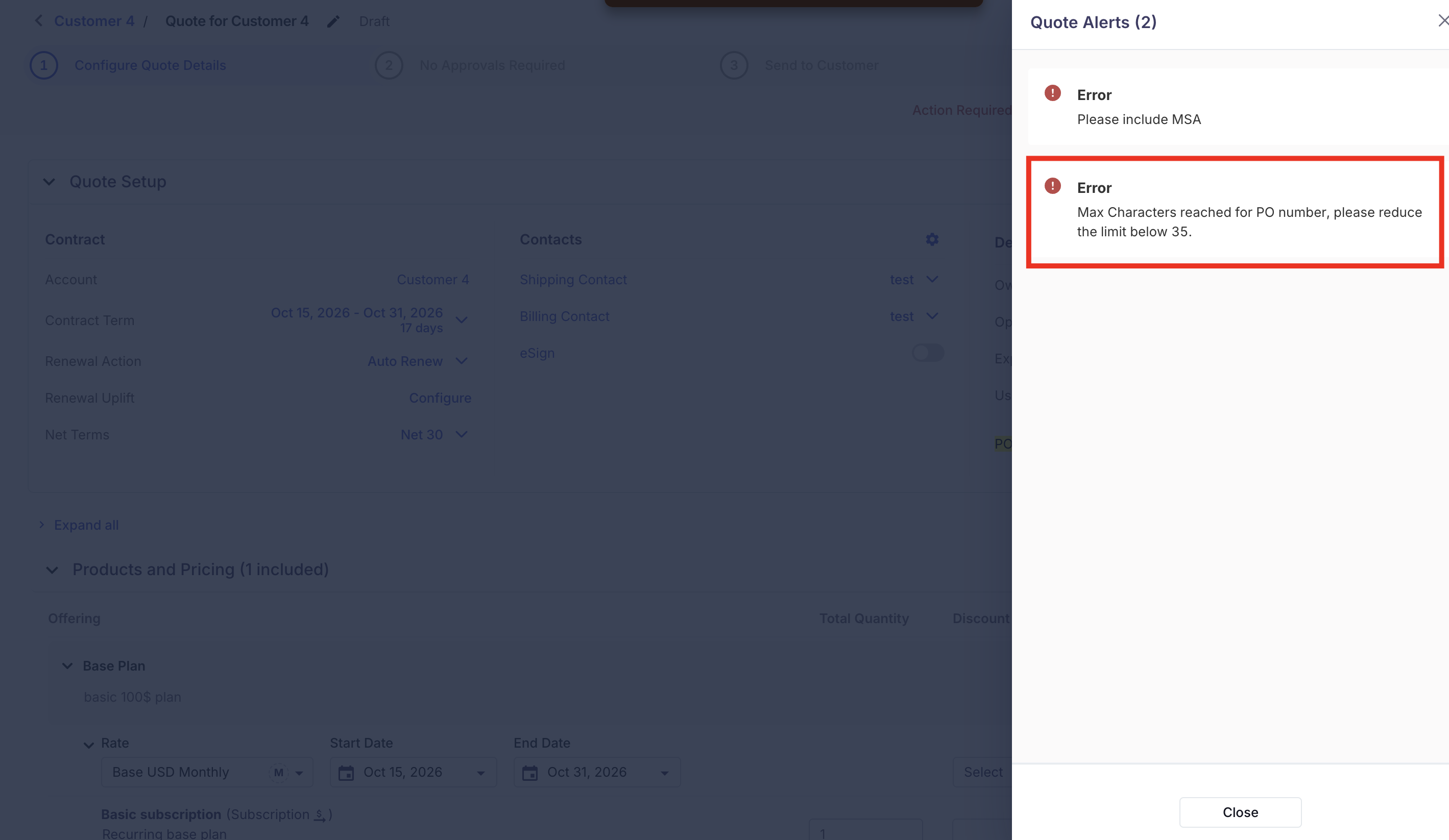
Good to know:
- Length counts characters. It doesn't compare the value itself.
- Length only works on text fields, and the value must be a whole number greater than 0.
- Use your target system's actual limit. 35 is only an example.
Variations: Use the same pattern for any text field that syncs to a system with a character limit, including custom text fields.
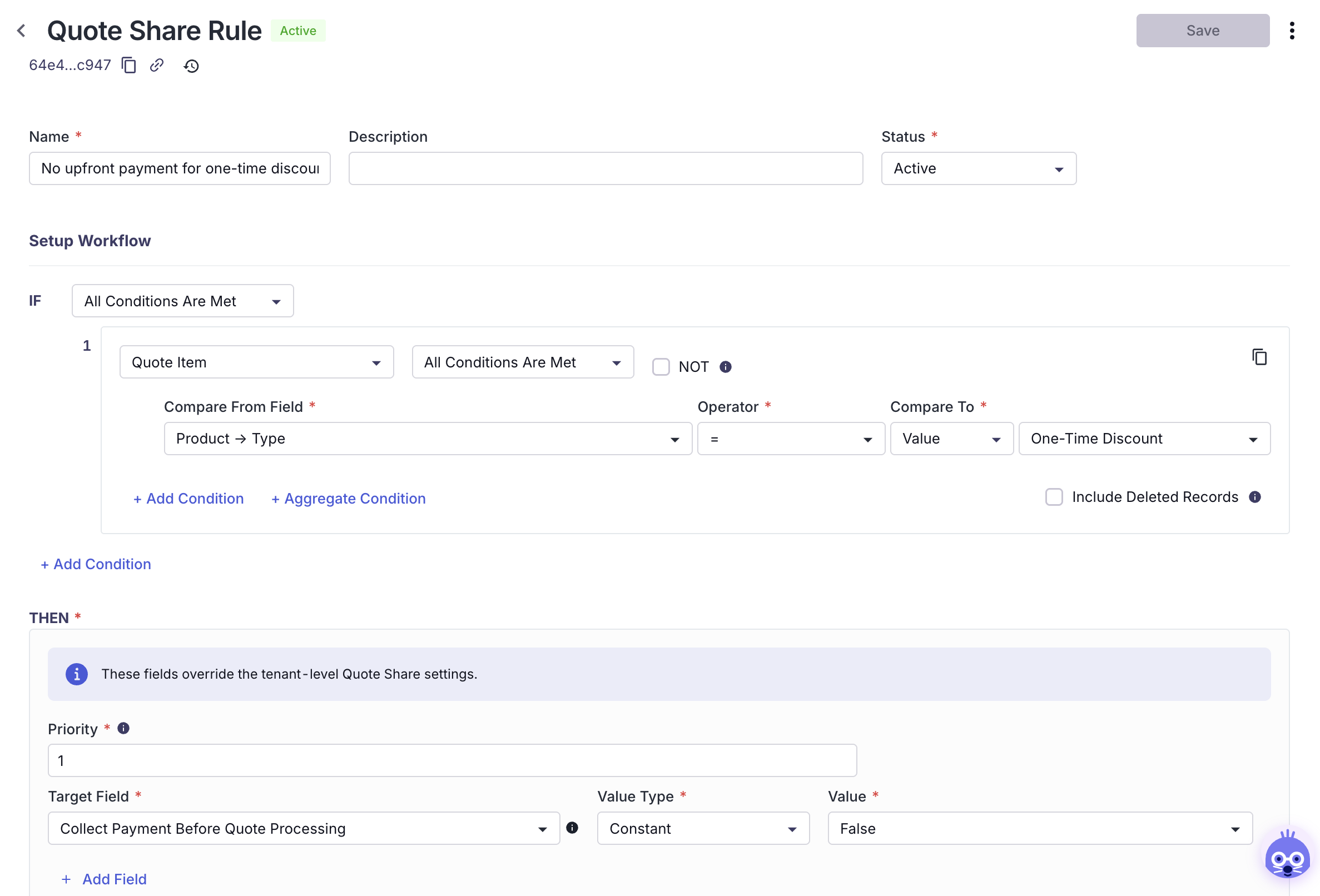
Skip collecting payment up front when a quote includes a one-time discount
Problem: Your tenant collects payment before the quote is processed, but some deals, like those with a one-time discount, shouldn't be charged up front.
Rule type: Quote Share rule
Condition: The quote includes a product of type One-Time Discount.
What it does: Sets Collect Payment Before Quote Processing to False for that quote. This overrides the tenant setting for that quote only.
Steps
- Go to Settings › Quoting › Quote Share. Under Quote Share Rules, click New Rule.
- Enter a Name, e.g. "No upfront payment for one-time discount deals," and set Status to Active.
- Under Setup Workflow › IF, add a condition that checks for a product of type One-Time Discount on the quote.
- Under THEN, choose Collect Payment Before Quote Processing, keep Value Type as Constant, and set Value to False.
- Click Save.
- Test by sharing one quote with a one-time discount product and one without. Only the second should ask for payment before processing.
[SCREENSHOT: Quote Share rule with the THEN field set]
[GUIDEJAR: Build a Quote Share rule]
Good to know:
- This rule only has an effect if Collect Payment Before Quote Processing is turned on in Settings › Quoting › Quote Share. The rule turns it off for matching quotes.
- The rule's value always overrides the tenant setting for that quote.
Variations: Reverse it. Keep the tenant setting off, and use a rule to set it to True only for deals where you want payment up front.
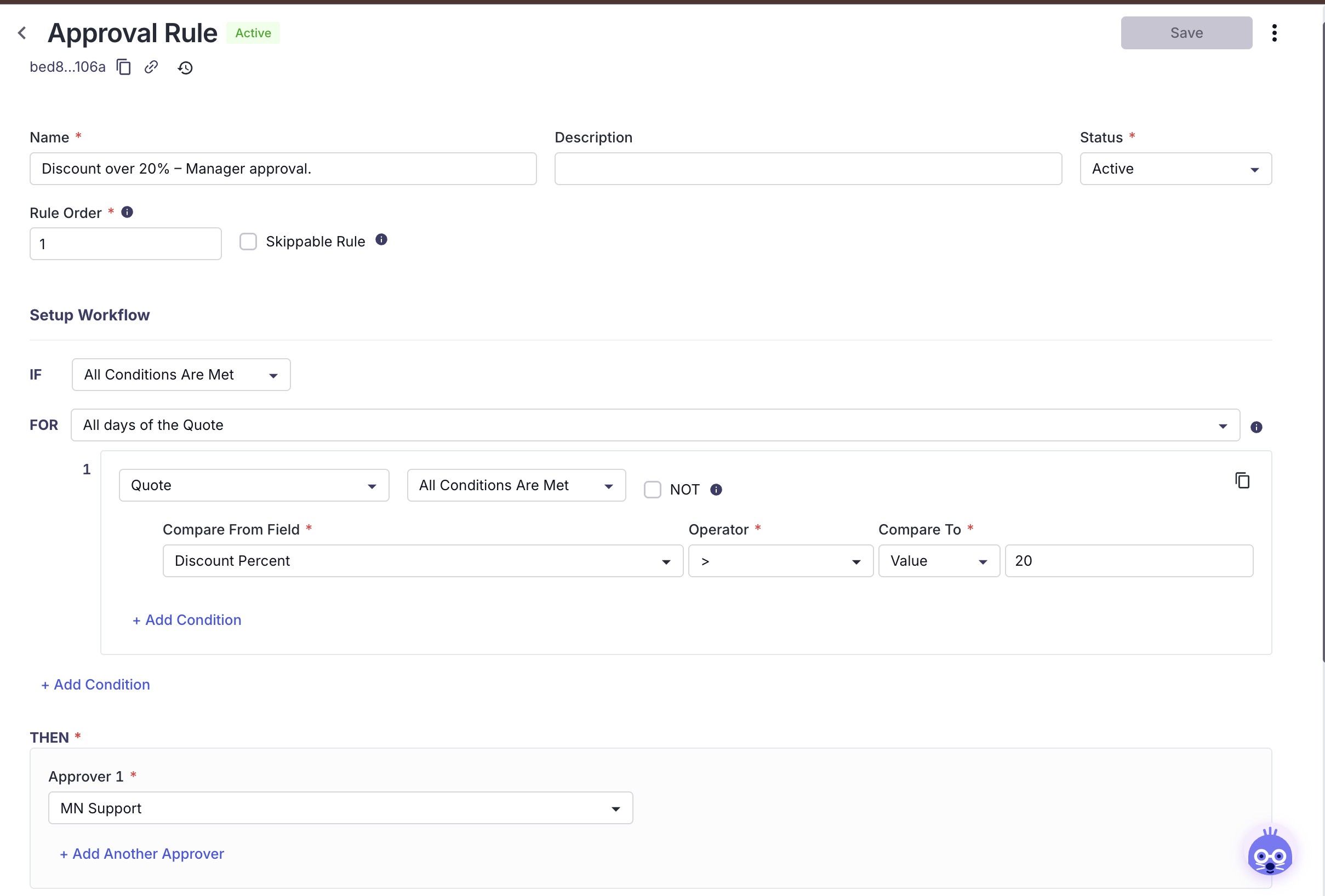
Require approval for large discounts
Problem: Reps can discount deeply without anyone signing off.
Rule type: Approval
Condition: The discount on the quote is above your threshold, e.g. 20%.
When it fires: The quote is sent to the approver you choose and can't be sent to the customer until it's approved.
Steps
- Go to Settings › Rules › Approval Rules and add a new rule.
- Name it, e.g. "Discount over 20% – Manager approval."
- Add a condition: Compare From Field = Discount Percent, Operator =
>, Compare To = Value, 20. - Choose who approves the quote.
- Save, then test with one quote discounted above the threshold and one below.
Variations: Stack tiers. For example, add one rule for 20–30% that goes to a sales manager and another above 30% that goes to the VP of Sales.
Related: Rules Engine · Validation Rules · Approval Rules · Quote Share · Record Automation
Updated about 1 hour ago