
Xero Configuration Guide
Connect MonetizeNow to Xero
To enable data synchronization from MonetizeNow to Xero, you must connect your MonetizeNow tenant to a Xero organization. Follow the instructions below based on whether your Xero account has a single company or multiple companies.
One Xero Company
Follow the instructions below if your Xero account has a single company:
- In MonetizeNow, navigate to Settings (gear icon) → Integrations → Accounting.
- Click Connect to Xero.
- You’ll be redirected to the Xero login page.
- Log in to your Xero account (see screenshot: Xero Login Page).
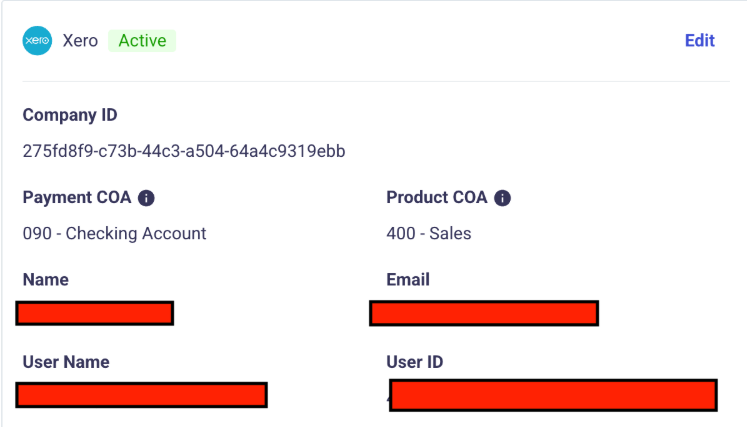
- Once the connection is successful, you’ll see an active connection in the UI with the Company ID displayed (see screenshot: Successful Setup).
Multiple Xero Companies
- In MonetizeNow, navigate to Settings (gear icon) → Integrations → Accounting.
- Click Connect to Xero.
- You’ll be redirected to the Xero login page.
- Select the company you would like to sync accounting data to.
- Log in to your Xero account (see screenshot: Xero Login Page).
- Once the connection is successful, you’ll see an active connection in the UI with the Company ID displayed (see screenshot: Successful Setup).
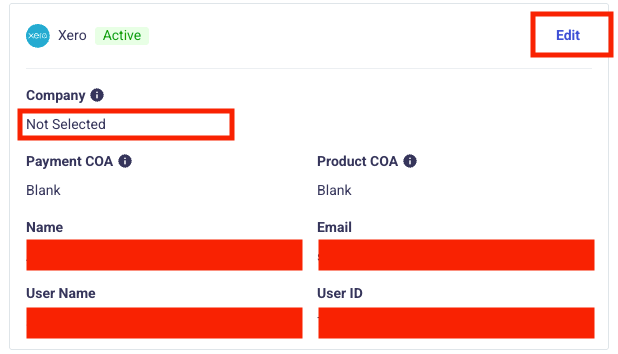
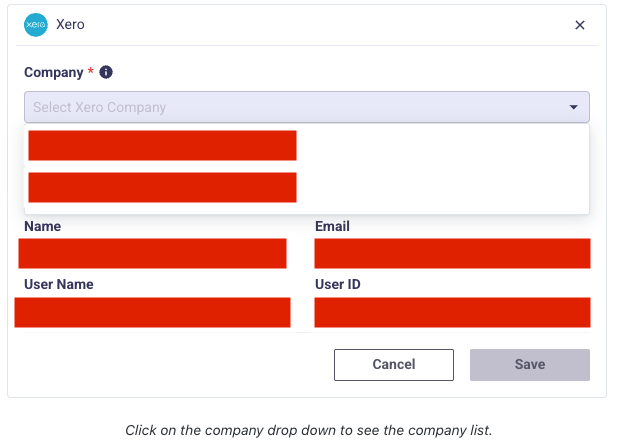
- Select “Edit” and select the company from the dropdown menu.
- Click “Save” to save the connection.
Note: One company can only be connected with one MonetizeNow Tenant
Disable Sales Tax in Xero
MonetizeNow does not currently support Xero tax calculation. To ensure the sync between MonetizeNow and Xero is successful, disable Sales Tax in Xero.
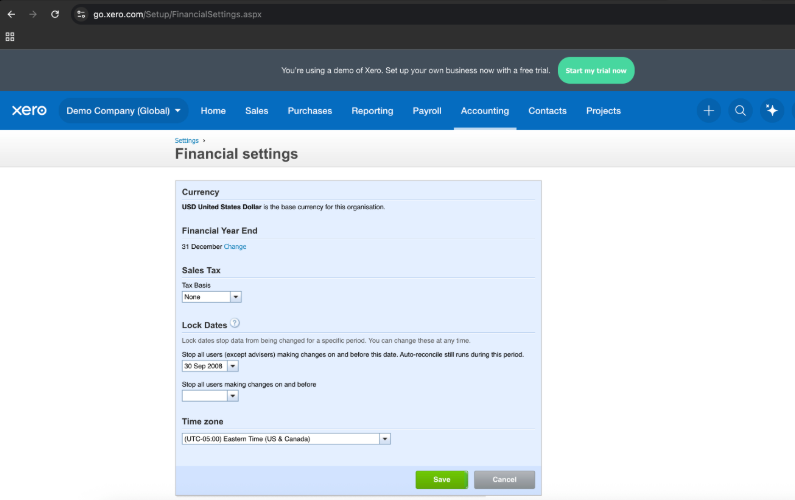
Note: The sync from MonetizeNow to Xero will not work as expected if sales tax in Xero is enabled.
Chart of Accounts Mapping
By default, all invoice line items from MonetizeNow are mapped to the 400 Sales account in Xero. If needed, you can override this default behavior and map individual products to different accounts.
Customize Invoice Account Mapping
To control which account an invoice line item posts to in Xero:
- Navigate to the Product in MonetizeNow.
- Update the Finance ID field.
- Enter the account code from your Xero Chart of Accounts where the corresponding invoice line items should be booked.
Important: The Finance ID entered in MonetizeNow must exactly match the account code in Xero (including formatting) for the mapping to succeed.
Payment Mapping
To enable payment syncing, you must first configure a Bank Account in Xero. Payments cannot be successfully synced unless a bank account is set up in your Xero organization.
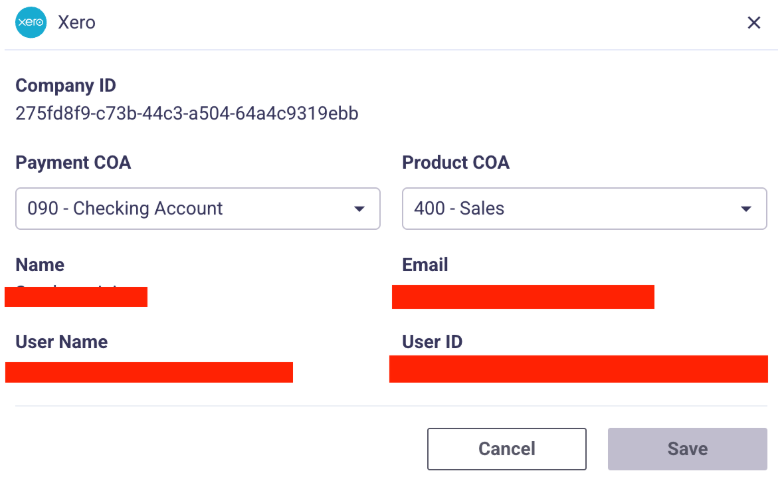
You can configure which Chart of Account payments and products map to directly from the Settings page.
- Navigate to Settings.
- Click Edit.
- You will see two dropdown fields:
- Payment COA
- Product COA
- Use these dropdowns to select the desired default Chart of Accounts for both payments and products.
- You will see two dropdown fields:
Product Account Mapping Priority
For invoice line items, the account mapping follows this priority order:
- Account defined on the Product (in the Finance ID field)
- Default Product Account defined in Settings
- 400 – Sales (system default)
This ensures that product-level mappings always take precedence over global defaults.
Best PracticeConfirm the exact Account Codes in your Xero Chart of Accounts before updating the Finance ID in MonetizeNow.
Updated 7 months ago