
Linked Accounts with HubSpot
Overview
You can now include an additional company on a HubSpot deal and carry that relationship through to the MonetizeNow quote without leaving your normal workflow.
The quote is always created under the primary account (primary company on the deal), but you can route billing and shipping to a linked account (such as a partner or reseller) in just a few clicks.
Linked Accounts currently apply to the quoting experience only.
Quotes can include contacts from both accounts, but billing and contract records will still be created under the primary account.
HubSpot Configuration
Before creating a MonetizeNow Quote, make sure the secondary account (i.e. a partner or reseller) is properly linked to the deal in HubSpot.
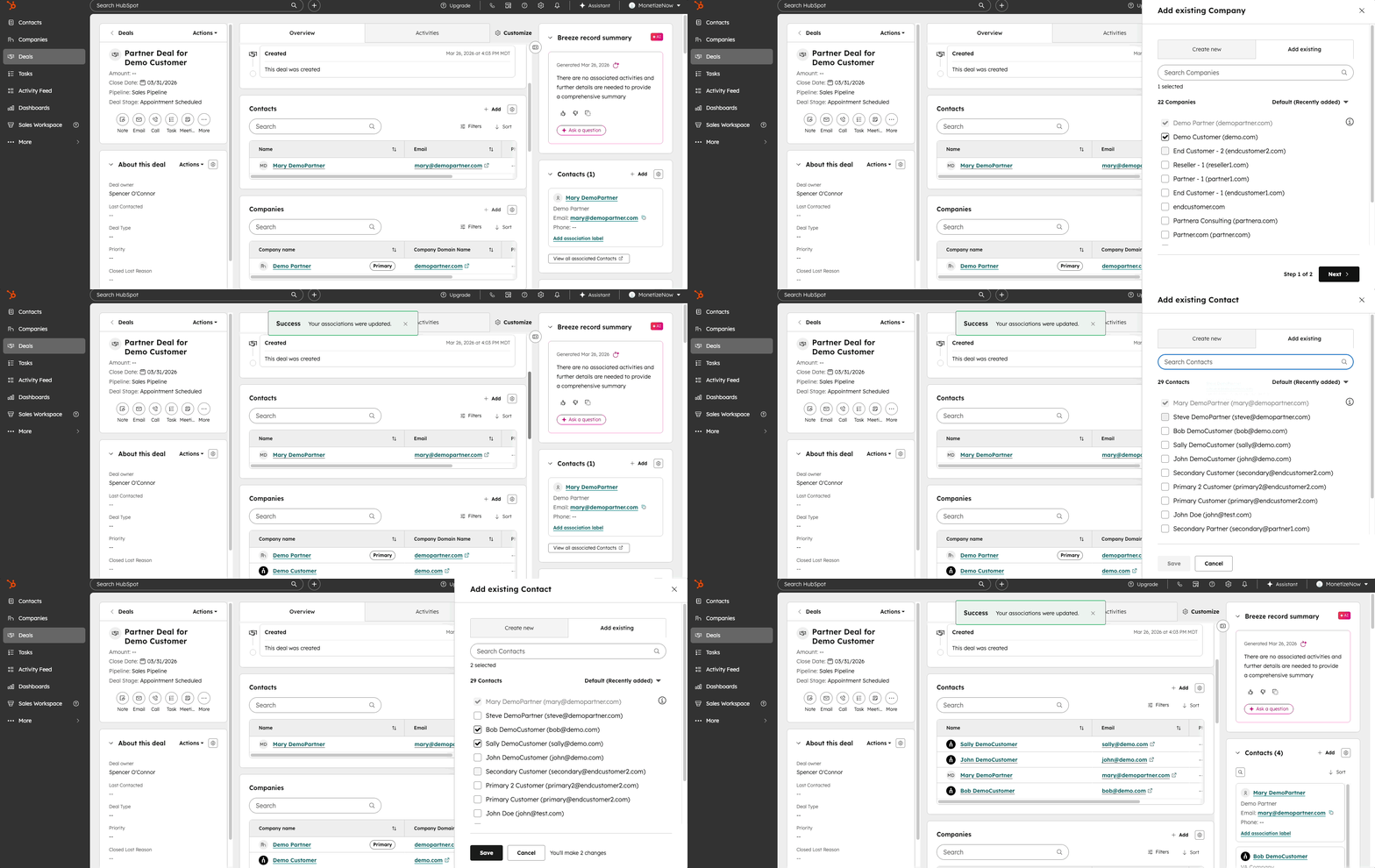
Add the Company to the Deal
- Open the deal in HubSpot.
- In the Associations panel, add the secondary Company to the deal.
Important: The company must be directly associated with the deal. Companies that exist in the CRM but are not associated with the deal will not appear when creating the quote.
Add Contacts from that Company
Once the company is associated with the Deal, add the relevant contacts from each company to the deal.
Important: Each contact must have a primary association with the company in HubSpot.
Contacts may not sync if they:
- Are primarily associated with a different company, or
- Are associated with a company that is not linked to the deal.
Create a MonetizeNow Quote with a Linked Account
The Linked Account field allows you to associate a secondary account with the quote.
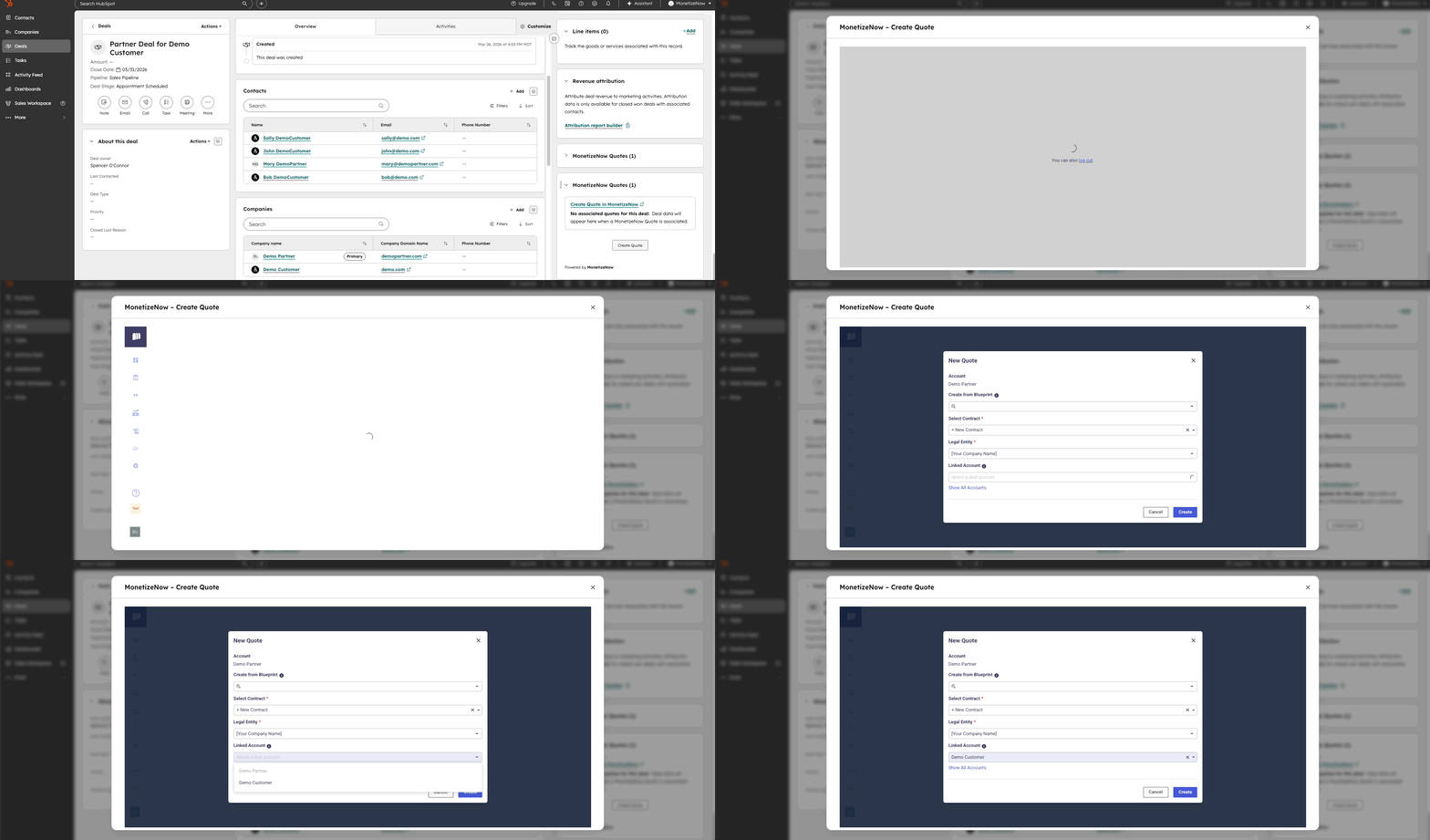
- From your HubSpot deal, click Create MonetizeNow Quote.
- In the quote creation modal, select a Linked Account.
- By default, only companies already associated with the deal are shown to keep the list relevant.
- If needed, click Show All Accounts to search across all accounts.
- Click Create Quote.
- The quote will always be created under the primary account.
Update the MonetizeNow Quote
After the quote is created, you can optionally change which account handles billing and shipping.
For example, a reseller may handle billing while the end customer receives the product.
To update this:
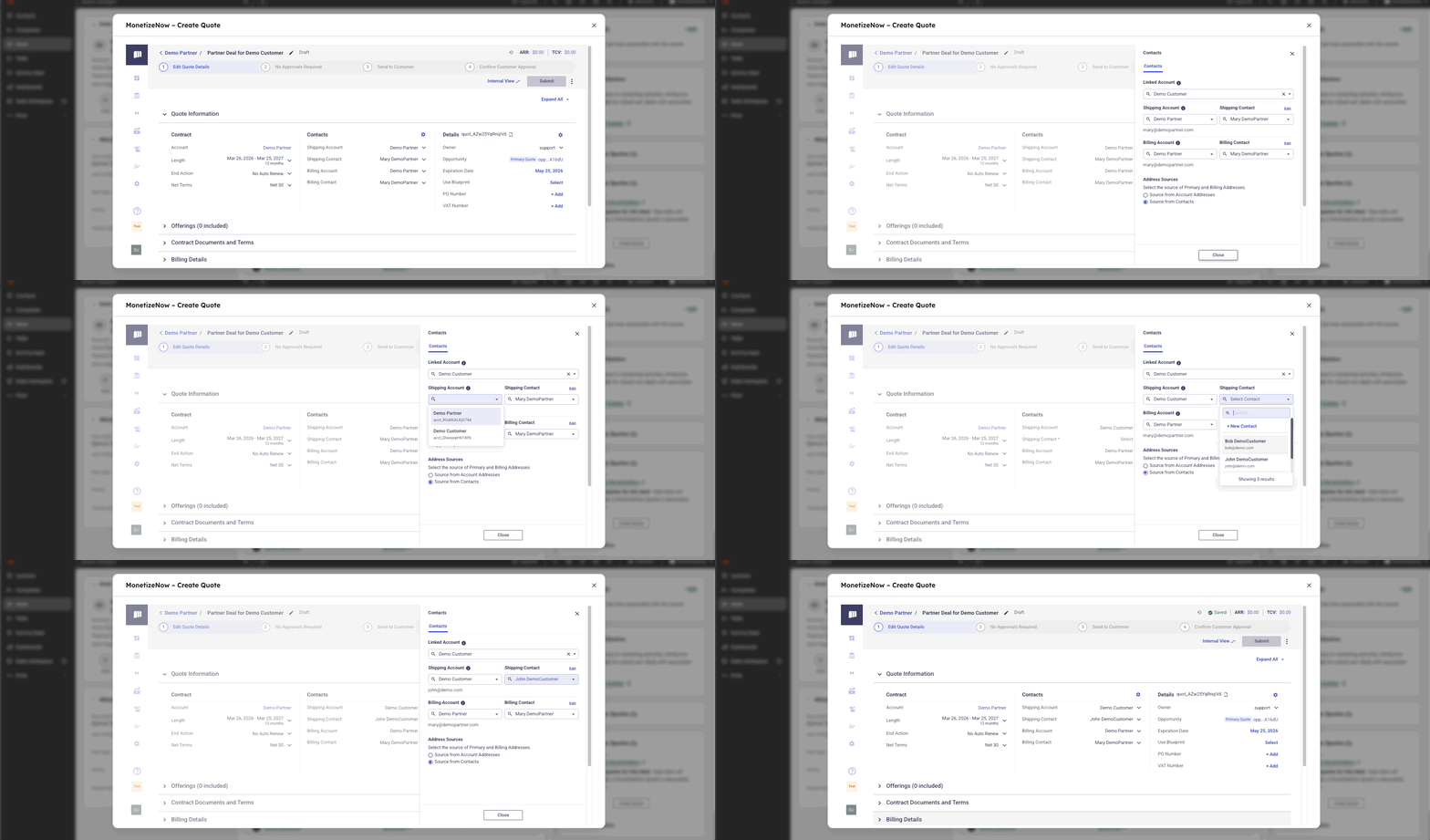
- Open the quote in MonetizeNow.
- In the Contacts section of the quote header, you can choose if the Billing and/or Shipping Account should be the Primary (i.e. Partner) or Linked Account (i.e. End Customer).
- After selecting the account, choose the appropriate contact for that account.
Process the Quote
When the quote is processed:
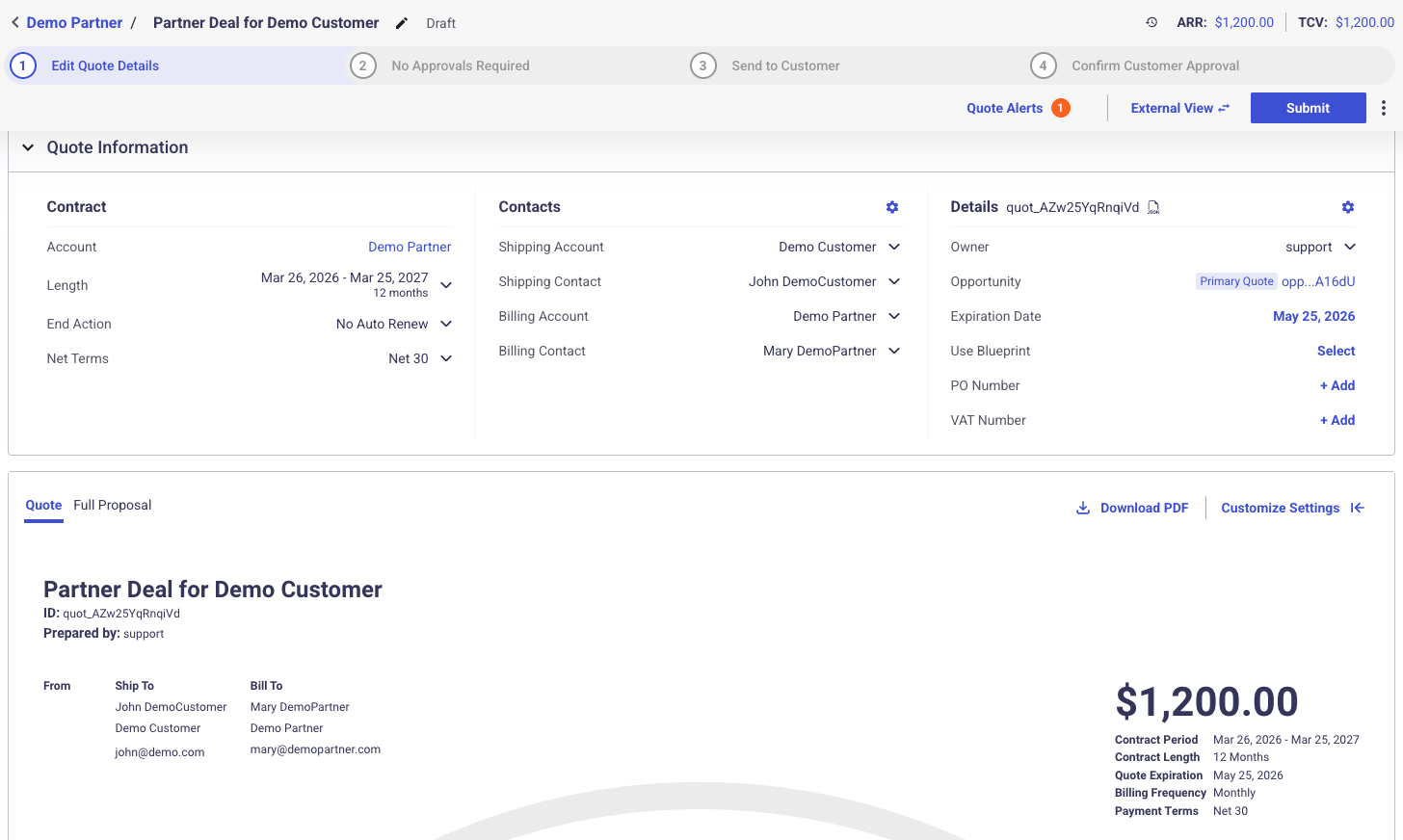
- The Bill To and Ship To accounts and addresses reflect the selected accounts (including linked accounts).
- The Contract is always created under the Primary Account that the quote was created on.
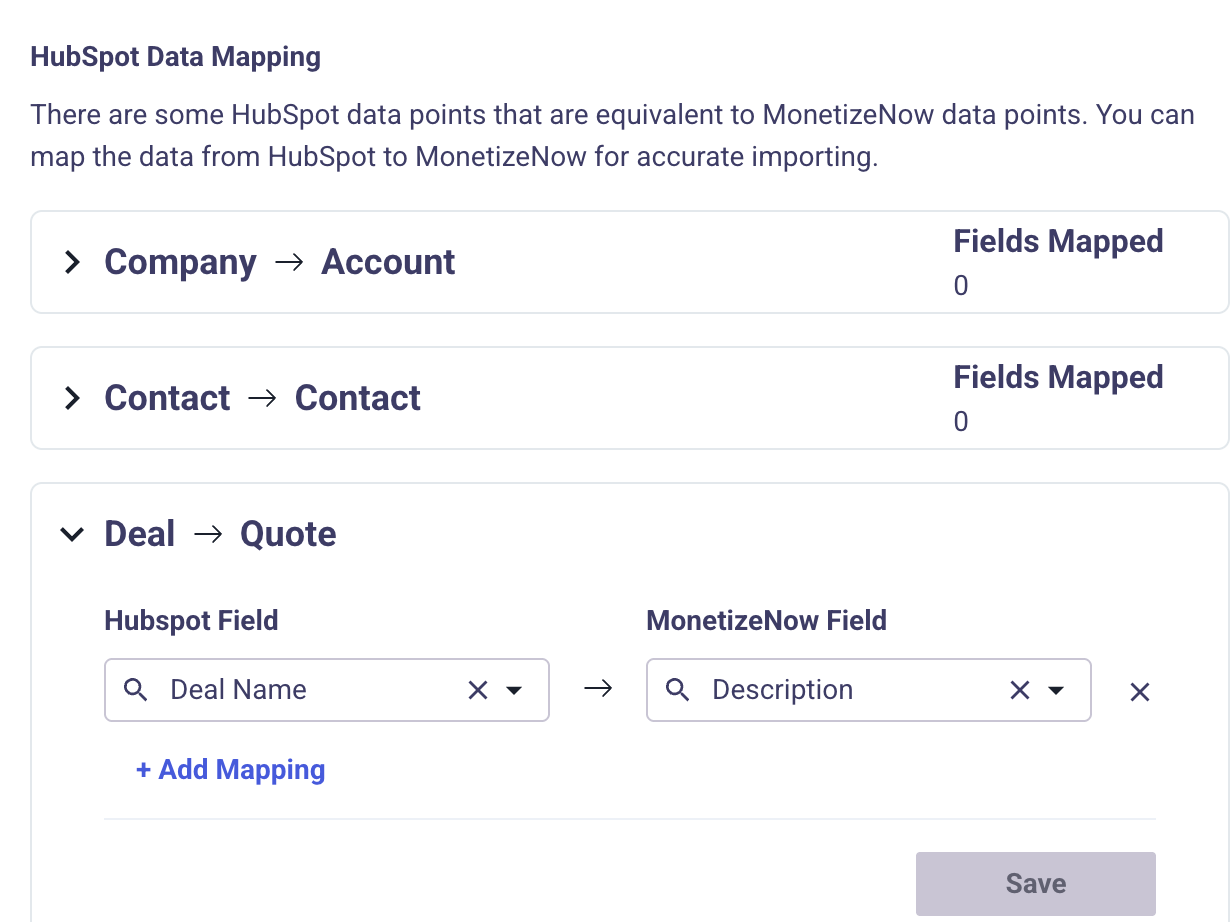
Optional: Map an Alternative Quote Name
By default, MonetizeNow names the quote “Quote for [Primary Account Name]”. When including a linked account that is responsible for billing or shipping, you may want the quote name to reflect something else (such as the HubSpot Deal Name).
To change this:
- In MonetizeNow, go to Settings → CRM.
- Under Deal → Quote, add a field mapping.
- Map a field such as Deal Name to the Quote Description (Name) field.
Updated 6 months ago