
Undo a catalog import
Roll back recently uploaded products, offerings or rates.
Roll back products, usage types, offerings or rates that were uploaded recently.
What Undo does
- It acts on every record of that type created in the time window, not just records from your file and not just records you created. A teammate who added a product by hand in the same window is included too.
- Products, offerings and usage types are deactivated (set to Inactive), not deleted.
- Rates are deleted.
- There is no cascade. Undoing products doesn't touch the offerings or rates built on them.
- The window choices are 5 minutes, 10 minutes, 30 minutes, 1 hour (default), 2 hours, 6 hours, 12 hours and 24 hours.
Steps
Work in reverse order (rates → offerings → products) so nothing is left pointing at a deactivated record.
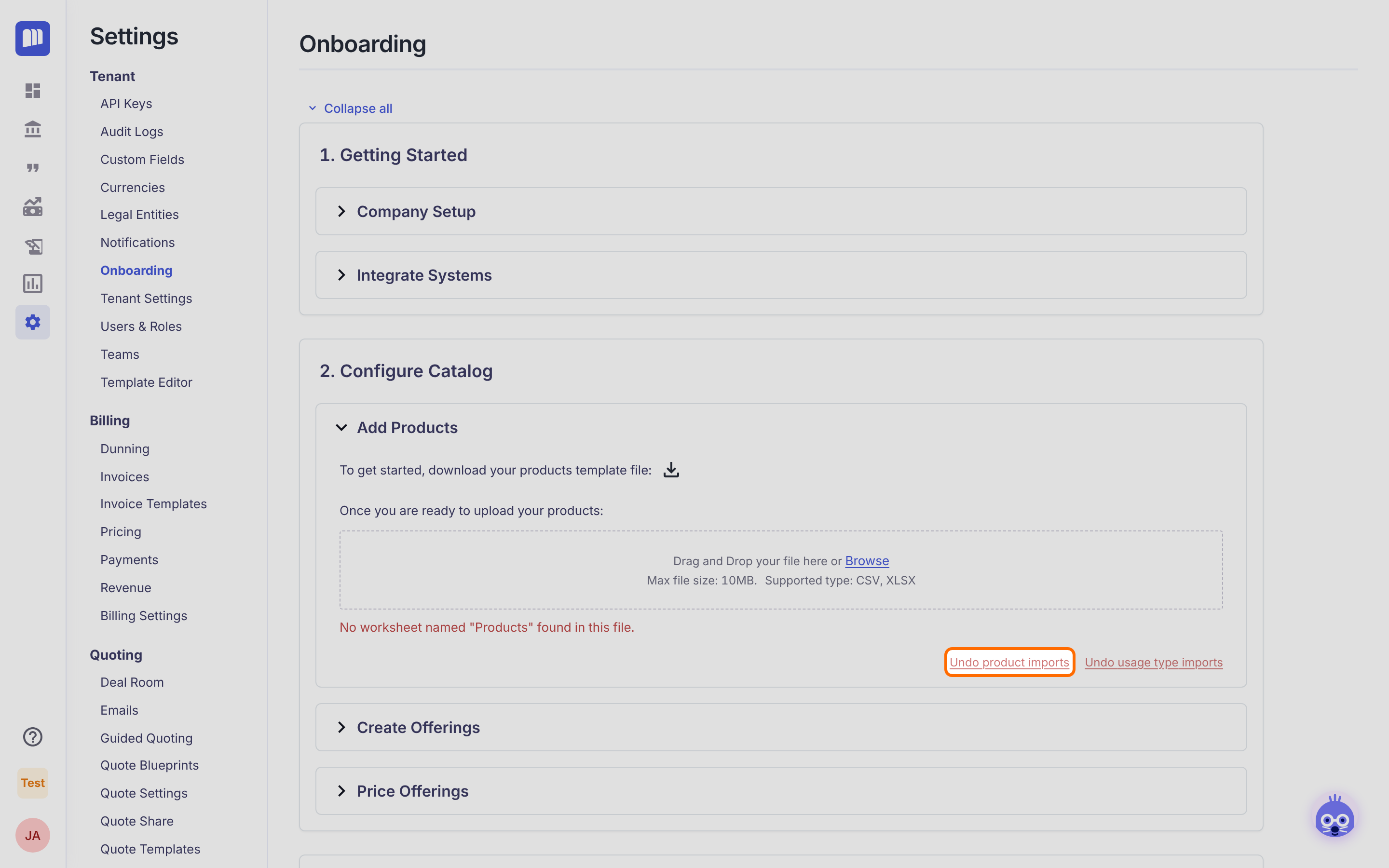
- Go to Settings → Onboarding → 2. Configure Catalog and expand the section you want to roll back.
- Click the red link at the bottom right of the section:
| Section | Link(s) |
|---|---|
| Add Products | Undo product imports, Undo usage type imports |
| Create Offerings | Undo offering imports |
| Price Offerings | Undo rate imports |
- In the dialog (for example, Undo Products Uploads), choose how far back to go in the last … dropdown.
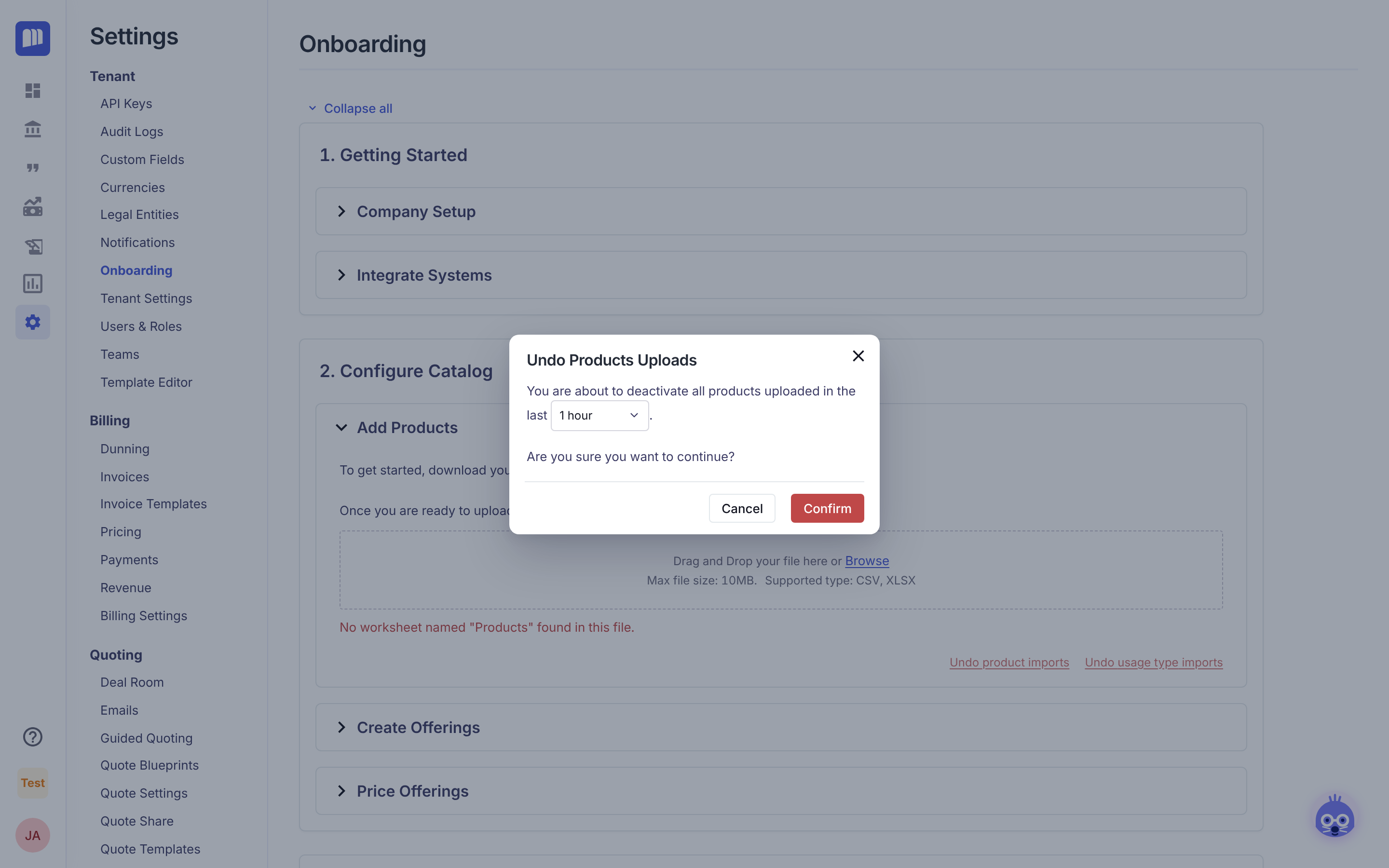
- Click Confirm (red) to proceed, or Cancel to back out.
- Repeat for the other sections if needed, then upload your updated file.
Tips
- Pick the shortest window that covers your upload.
- In Production, check with your team before you use Undo, because it includes everything created in the window.
- Uploads only create records. To change a catalog you already uploaded, undo the import (or edit the records in the catalog) and upload again.
Updated about 2 hours ago
Did this page help you?