
Customer Portal
The Customer Portal allow your customers to directly manage their billing relationship, view and pay invoices, and more, so that you can streamline your billing relationship with your customers.
Through the portal, customers can:
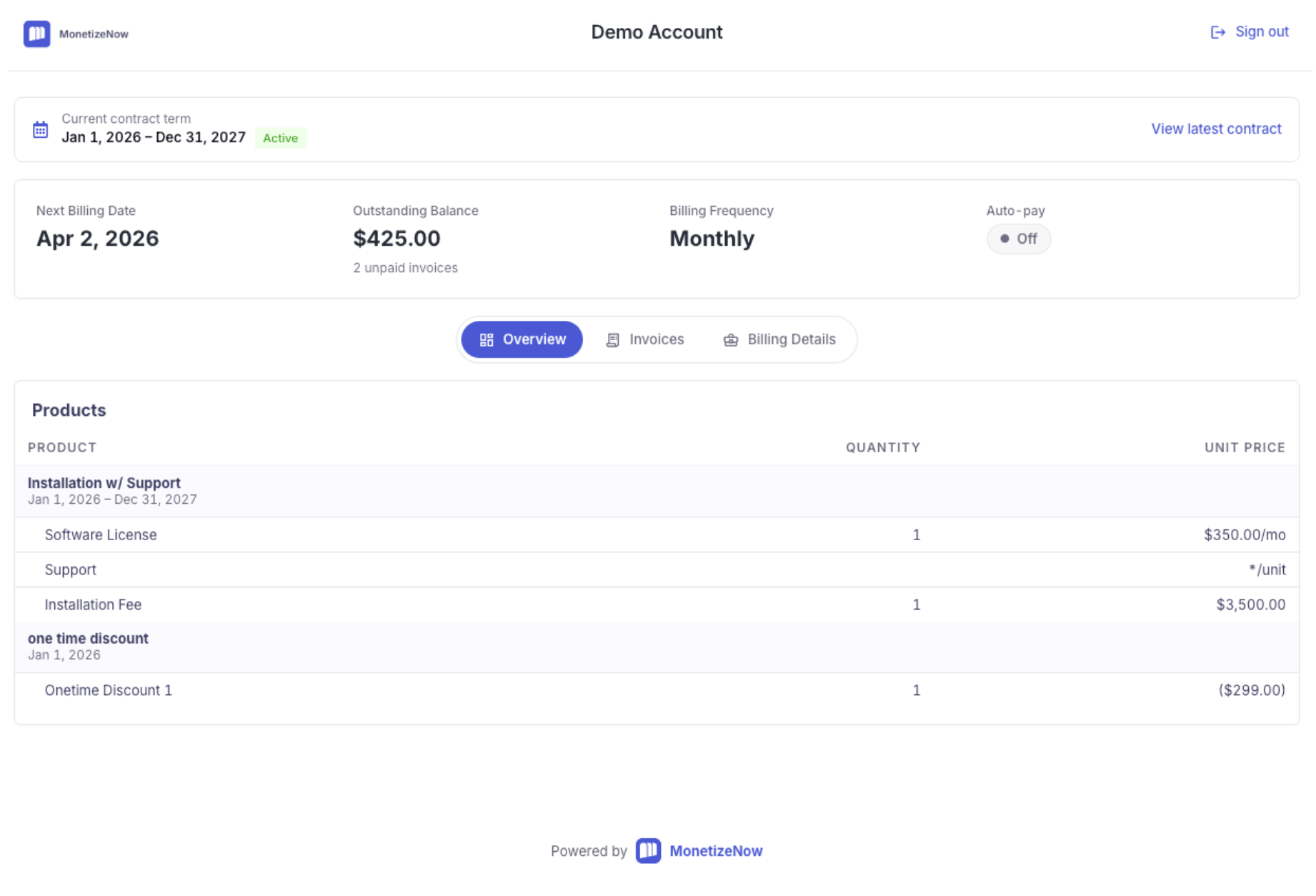
- See an at-a-glance view of their active subscriptions and the products they own
- View a copy of their most recent Quote
- View, download, and pay invoices
- View and update key billing details and contacts, including PO number, VAT number, and registration number
- View and update payment methods
Customize the Portal Experience
Record Automation provides granular control to admins to customize the customer portal experience for all, or specific, customers. Use it to set rules that control what customers on a specific account or Bill Group can see and do in the portal, without changing the experience for everyone else.
By default, every section below in the customer portal is visible and editable to any users provisioned access. Record Automation rules only need to be configured to further restrict access.
Access Level
| Section | Access Options |
|---|---|
| Billing Summary | View: Displays billing summary overview (including next billing date, outstanding balance, billing frequency, auto-pay details) and billing details section (PO, VAT, and Registration Number information) Hidden: Hides billing summary overview and billing details section |
| Contacts | View: User can view billing and shipping contact information in read-only mode Edit: User can edit billing and shipping contact information Hidden: Hides billing and shipping contact section |
| Default Payment Method | View: User can view payment methods in read-only mode Edit: User can edit which payment method is default Hidden: Hides which payment method is default (but allows user to view payment methods in read-only mode) |
| Invoices | View: Displays list of all invoices associated with the bill group. User can view or download any invoice PDF, or pay unpaid invoices Hidden: Hides invoices section |
| New Payment Method | Enabled: User can add a new payment method Disabled: User cannot add a new payment method |
| Payment Methods | View: Displays list of all payment methods, optionally allows user to add new payment methods or define a default payment method Hidden: Hides payment method section |
| PO Number | View: User can view PO Number in read-only mode Edit: User can edit PO Number Hidden: Hides PO Number field (in Billing Details section) |
| Registration Number | View: User can view Registration Number in read-only mode Edit: User can edit Registration Number Hidden: Hides Registration Number field (in Billing Details section) |
| Subscriptions | View: Displays a at-a-glance list of offerings and products, along with quantity and unit price, along with the subscription dates. Hidden: Hides subscriptions overview section |
| VAT | View: User can view VAT Number in read-only mode Edit: User can edit VAT Number Hidden: Hides VAT Number field (in Billing Details section) |
If a section is hidden, the customer won't see it in the portal at all; this takes precedence over any configured editability settings.
Branded Experience
The entity logo is displayed in the portal to provide a branded experience for your customers.
Overview
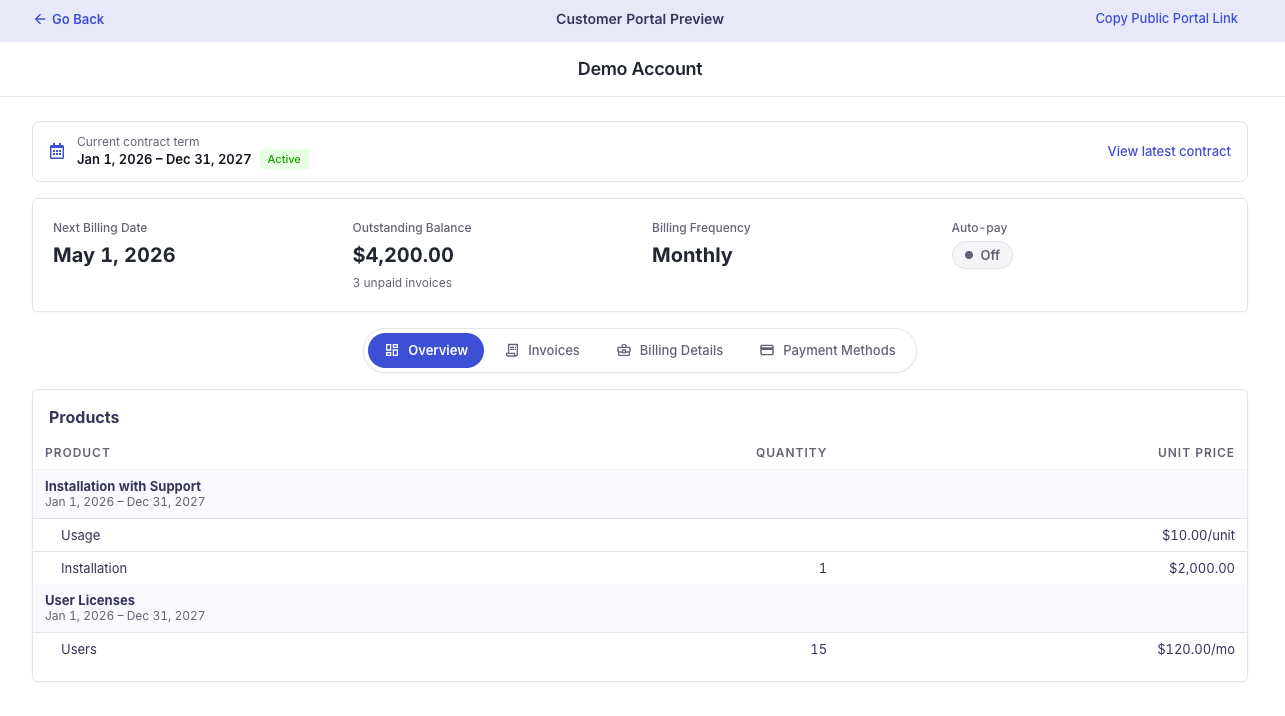
Customers can easily view their current contract term and view and download a copy of their latest quote.
The Billing summary allows customers to view key billing details, including:
- Next billing date
- Outstanding balance
- Billing frequency
- Auto-pay status
Subscriptions
Customers can view all subscriptions associated with the bill group, including:
- Subscription status
- The products or services they currently own
This makes it easy for customers to understand what they are subscribed to.
Invoices
Customers can view all invoices associated with their account.
For each invoice they can:
- See the invoice status
- View and download the invoice
- Pay any unpaid invoices
Billing Details
Customers can add or update their:
- PO Number
- VAT Number
- Registration Number
- Change the default Payment Method
- Billing contact
- Shipping contact
Payment Methods
Customers can view the payment methods associated with their account.
Currently:
- Payment methods can be viewed
- Customers can add a new payment method or change their default payment method
Portal Access and Scope
The Customer Portal is scoped to a Bill Group.
- Each Bill Group has its own portal access settings.
- If a customer has multiple Bill Groups, access must be configured separately for each one.
How to Set Up Customer Portal Access
Step 1: Open the Bill Group
This billing portal is available for any customers that have an active contract.
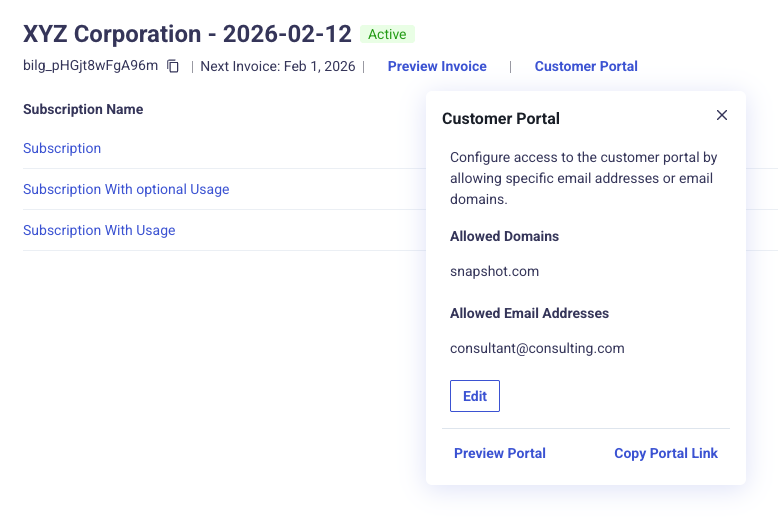
- Navigate to the Account Overview or a specific Bill Group.
- Click on the "Customer Portal" button
- Choose which email domains or individual email addresses have access to the portal for this account
- Click "Copy Portal Link"
Step 2: Grant Access
You can grant access in two ways:
- Domain Access
- Allow all users from a specific domain to access the portal.
- Example: company.com
- Any user with an email from that domain can sign in.
- Individual Email Access
- Grant access to specific email addresses.
- Enter the email address
- Click Add to include additional users
- Note: Email addresses must be added individually and cannot be comma-separated.
- Grant access to specific email addresses.
The system prevents overlapping access rules. For example, you cannot add an email address if its domain is already granted access.
Step 3: Share the Portal Link
Once access is configured:
- Copy the Customer Portal link
- Share it with your customer
How Customers Sign In
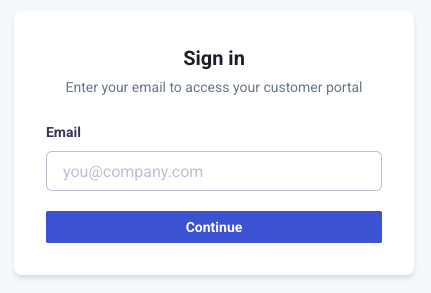
When a customer opens the portal link:
- They enter their email address
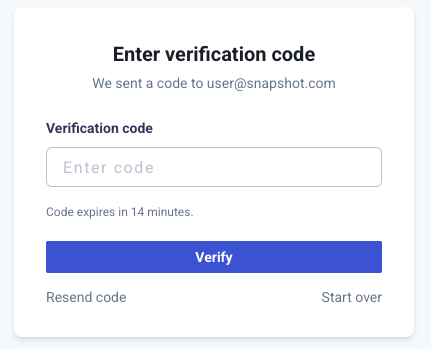
- They receive a verification email
- They click the verification link to sign in
No password is required.
Previewing What Your Customer Will See
You can use the Preview Portal button (from the Bill Group) to see the portal exactly as your customer will experience it, prior to sharing the link with your customer.
Updated 7 days ago