

Revenue Contracts and Schedules
Closed beta. Revenue Recognition is in closed beta for customers using both MonetizeNow CPQ and Billing. See Revenue Recognition.
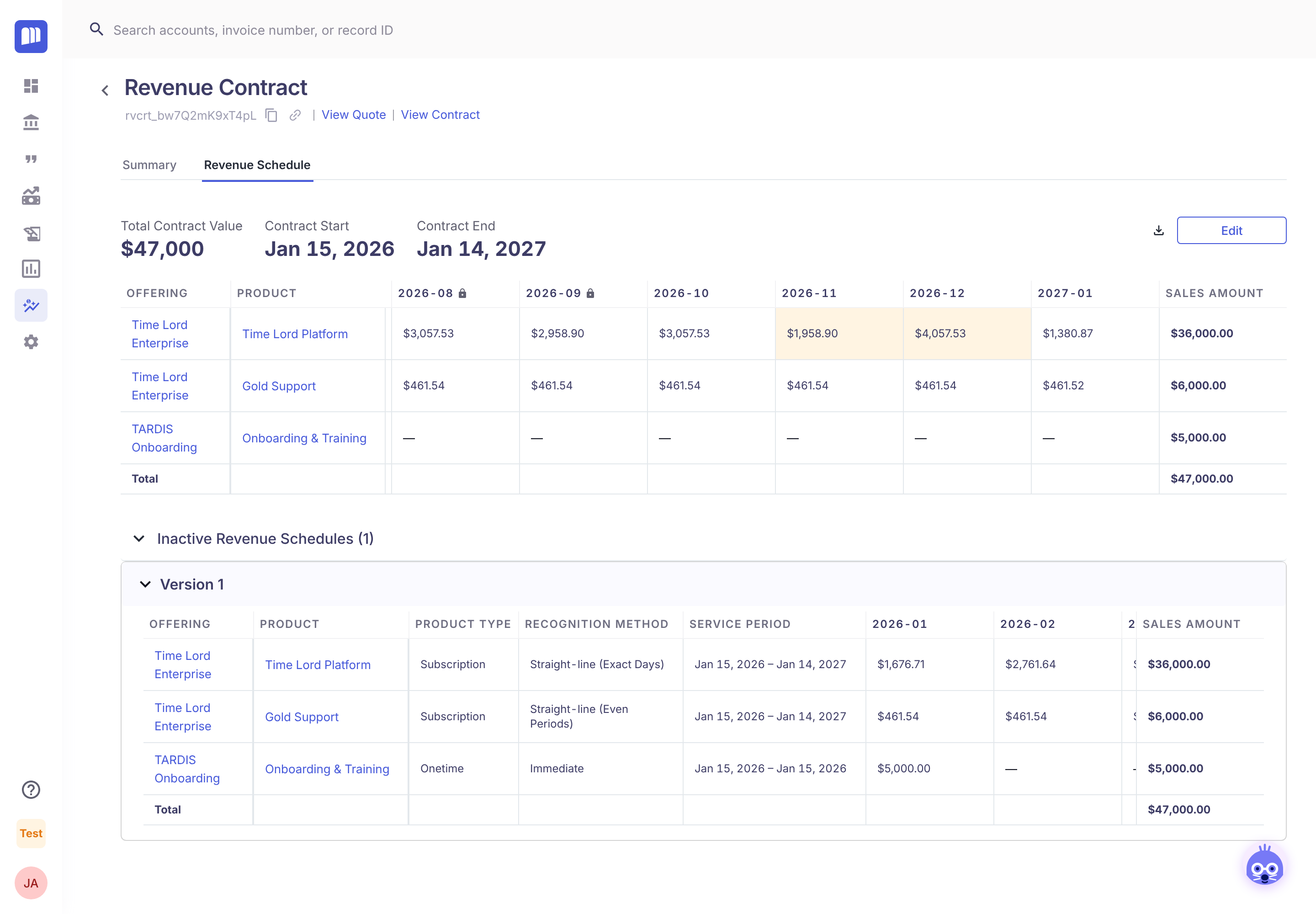
Every processed quote gets a revenue contract: one per MonetizeNow contract. It holds the contract's revenue schedule, a month-by-month plan for recognizing its revenue, along with every earlier version of that schedule.
| I want to… | Go to |
|---|---|
| Find a contract's schedule | Find a revenue contract |
| Understand what I'm looking at | Read a schedule |
| Move revenue between months | Edit a revenue schedule |
| Know what happens when a contract is amended | Amendments |
Find a revenue contract
How-to. Requires Tenant Admin or Billing Admin, plus permission to edit quotes for the Quote Analytics route.
-
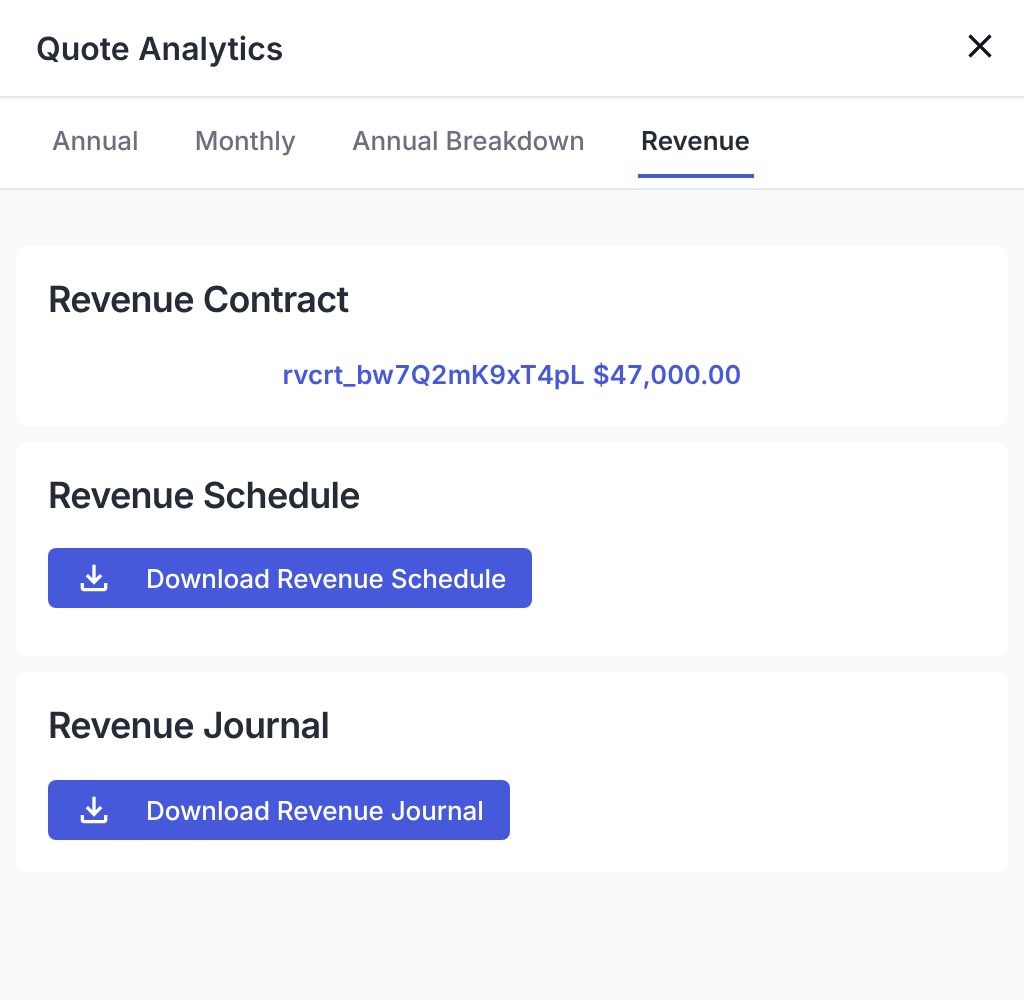
Open the processed quote, open Quote Analytics (click the TCV amount, or ⋮ → Revenue) and go to the Revenue tab.
-
Click the Revenue Contract ID.
-
On the revenue contract:
- Summary lists the lines.
- Revenue Schedule shows the latest version month by month.
- View Quote and View Contract link back to where the revenue came from.
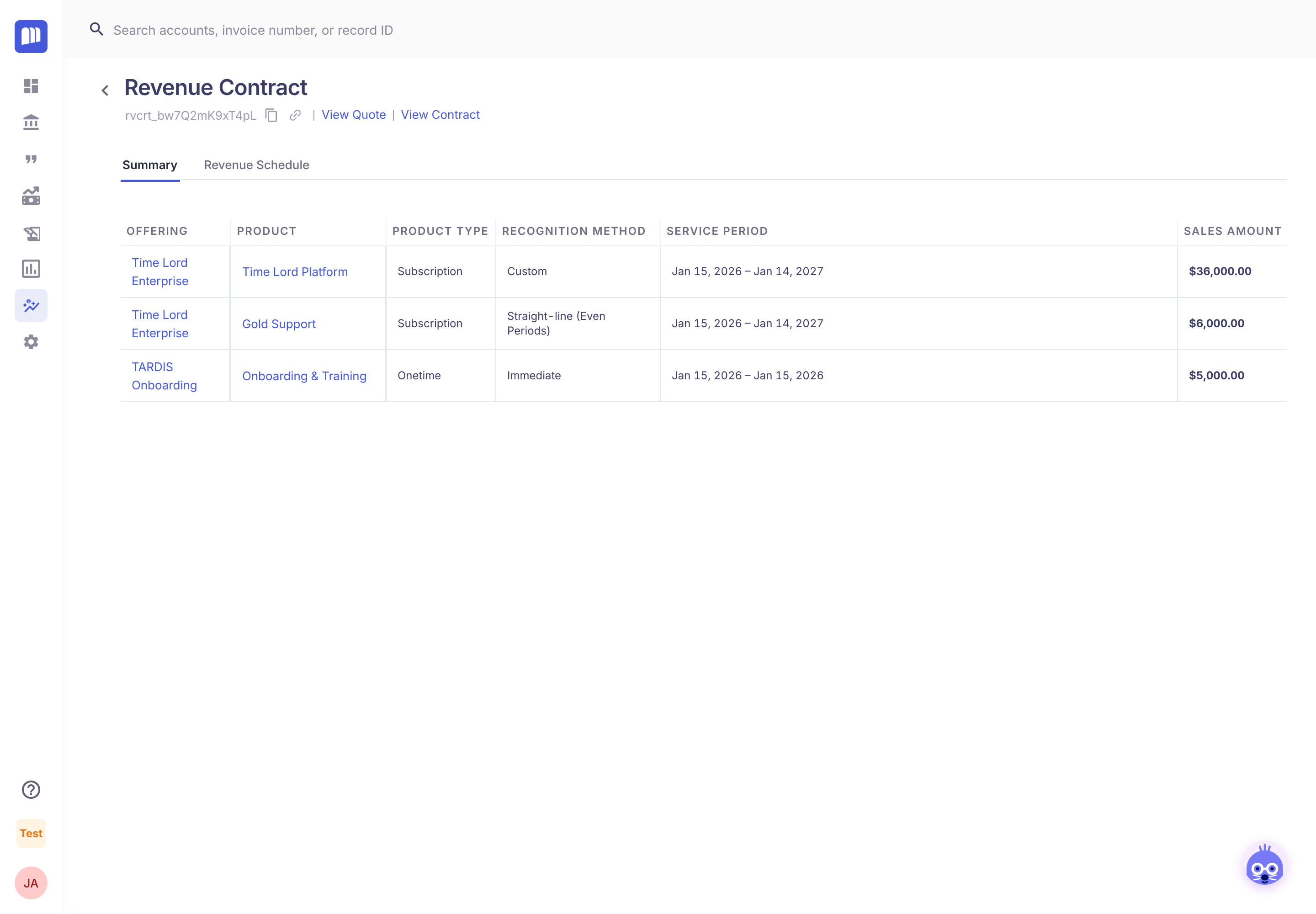
On an amended contract, the revenue contract is the same before and after the amendment. Its schedule simply gets a new version.
Read a schedule
Explanation
| Part | What it shows |
|---|---|
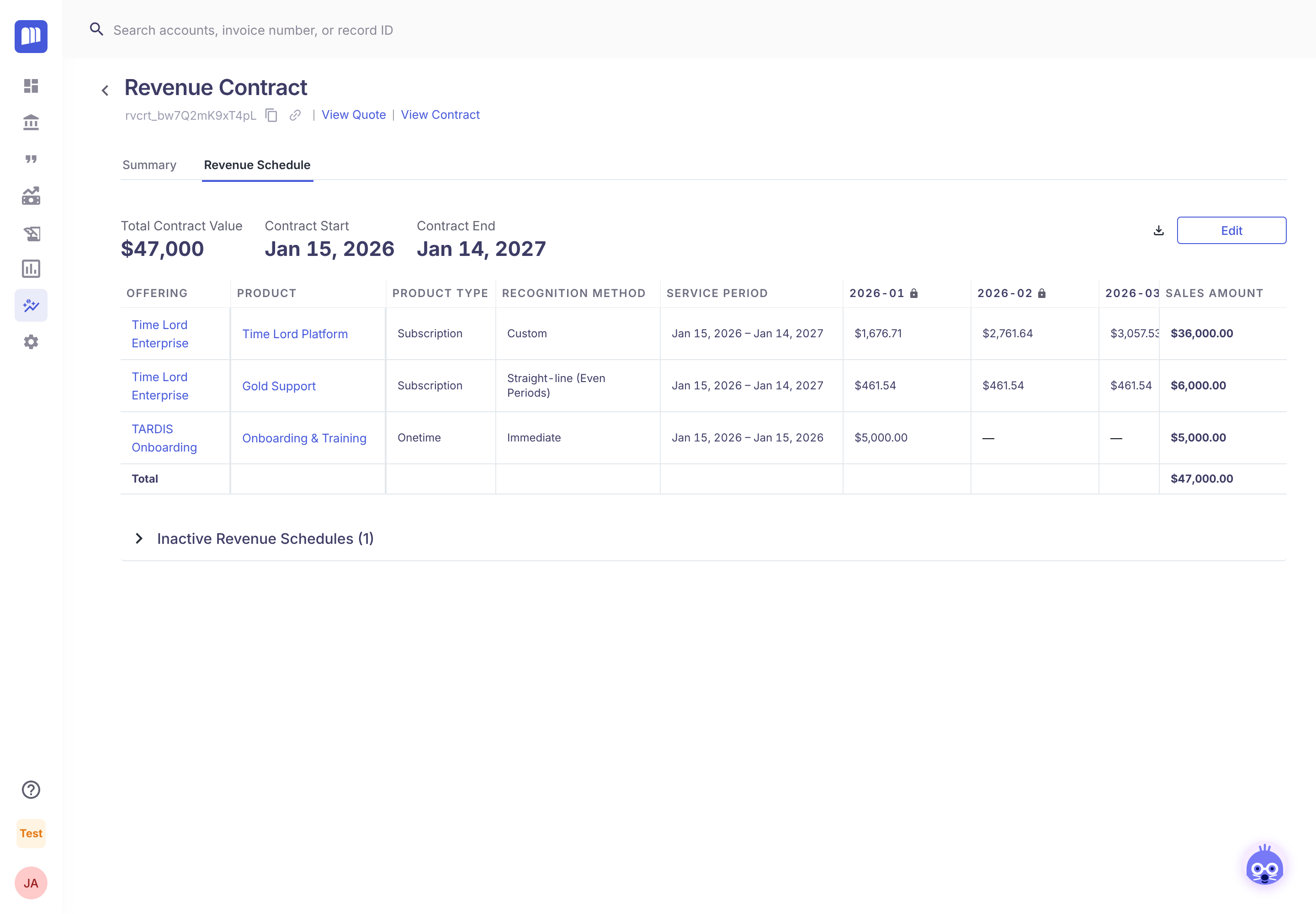
| Total Contract Value, Contract Start, Contract End | The contract the schedule must add up to |
| One row per product line | Offering, product, product type, recognition method and service period |
One column per month (YYYY-MM) | Revenue recognized in that month. A padlock means the month is locked. |
| Sales Amount | The line's total. The Total row should equal the Total Contract Value. |
| Highlighted cells | Months someone edited by hand |
| Download icon | The latest version as a CSV |
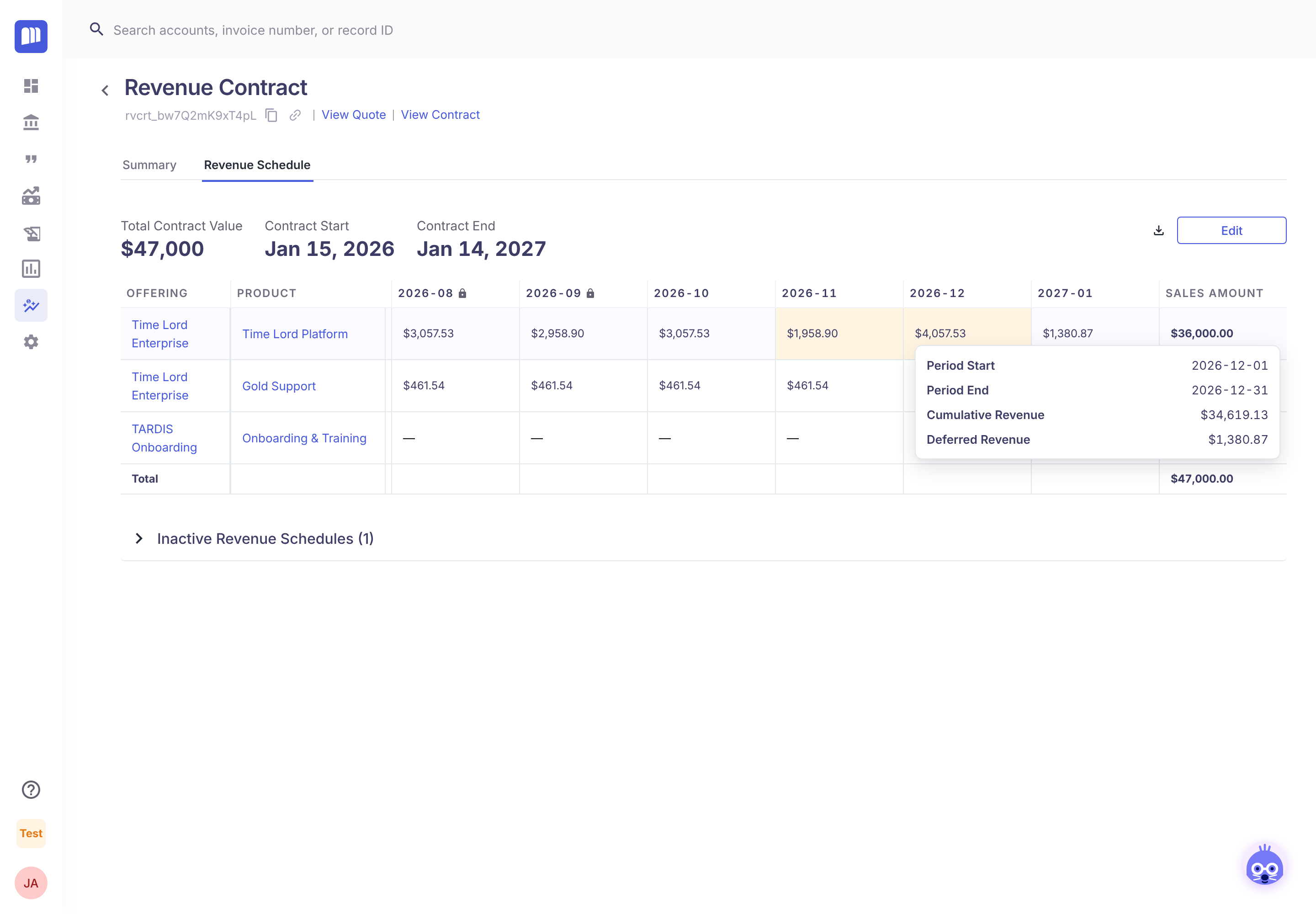
Click any amount to see that month's dates, Cumulative Revenue (earned so far) and Deferred Revenue (still to earn).
Edit a revenue schedule
How-to. Requires Tenant Admin.
Use this when revenue should fall differently from what the method produced. For example, a go-live slipped and you need to move revenue to a later month.
-
On the revenue contract, open Revenue Schedule and click Edit.
-
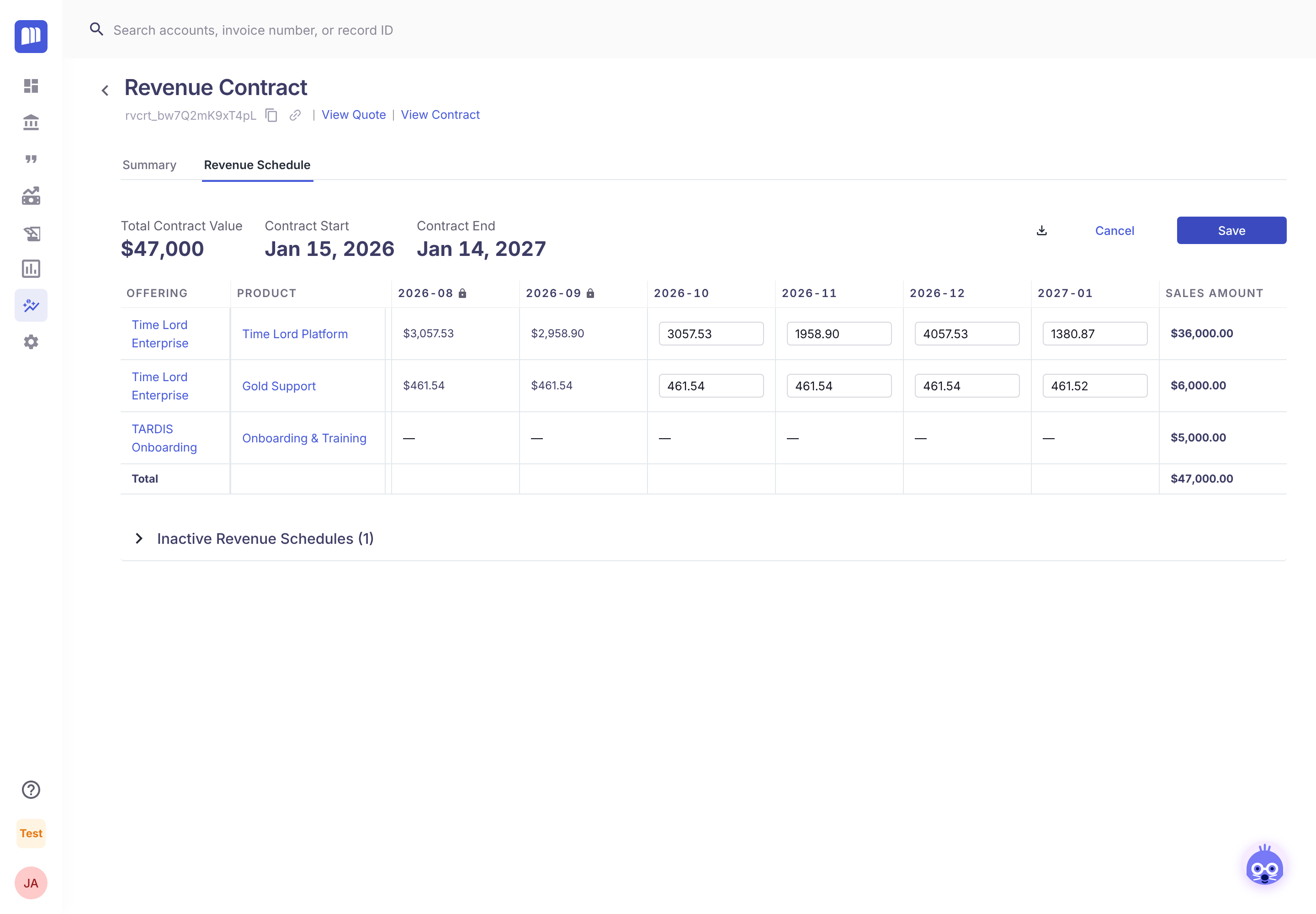
Change the amounts in the open months. Some cells can't be edited:
- Locked months (marked with a padlock) are read-only.
- Months that have already ended are read-only, even if they aren't locked.
-
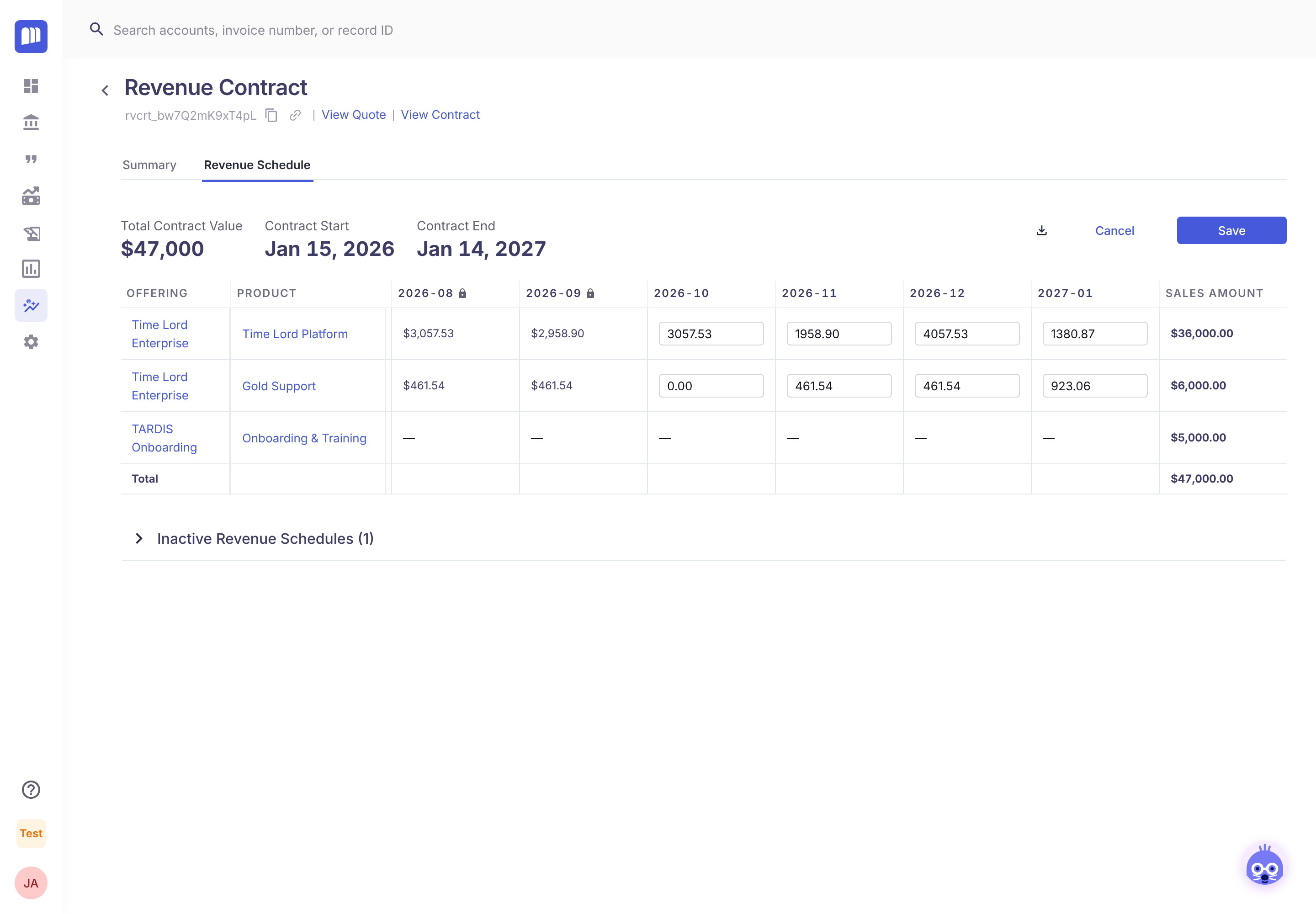
Keep the total equal to the Total Contract Value. A warning icon appears on the total if it doesn't match, and the schedule can't be saved until it does. The usual way to keep it balanced is to move an amount: take it out of one month and add it to another.
-
Click Save, then Confirm & Save.
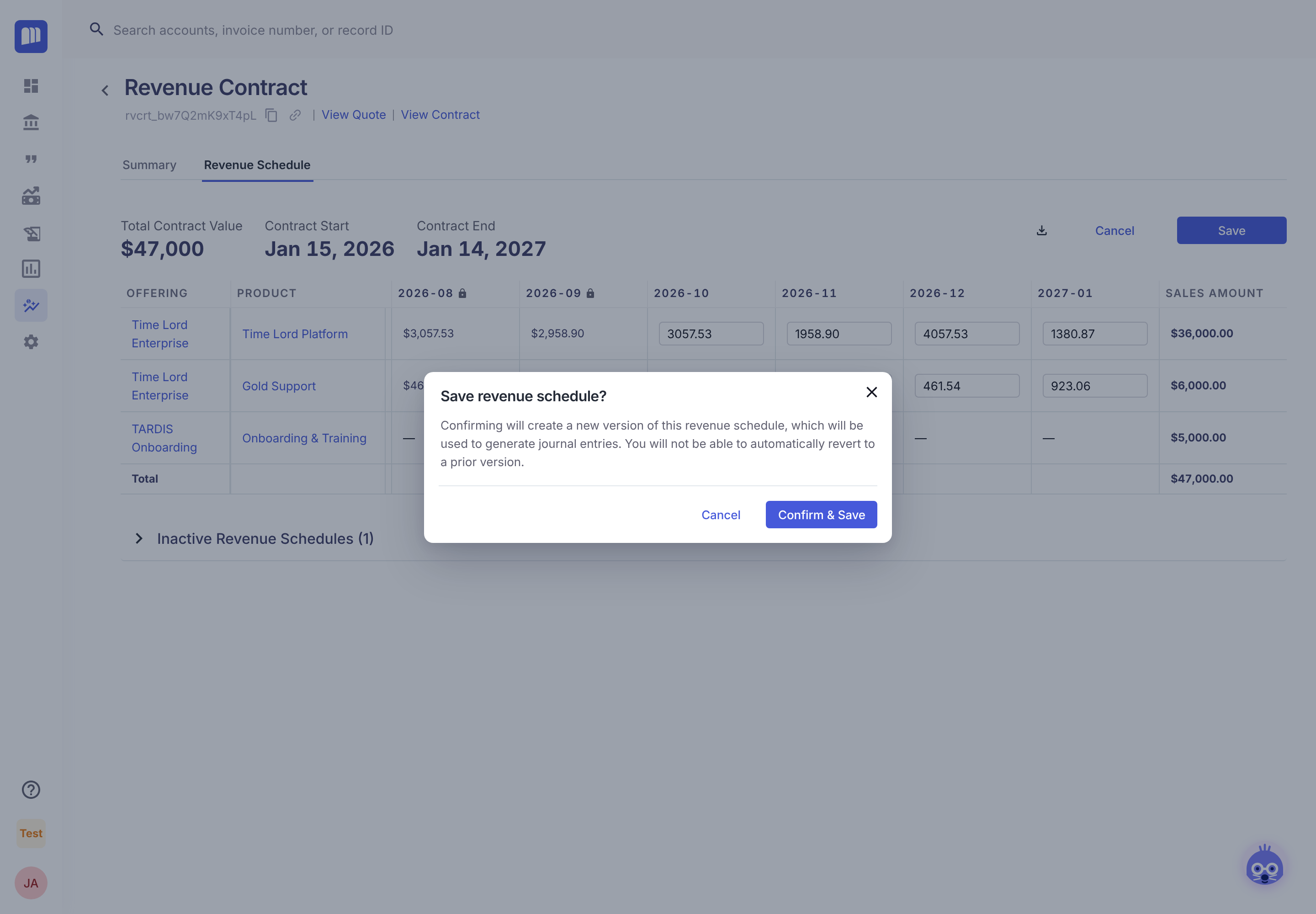
What happens next:
-
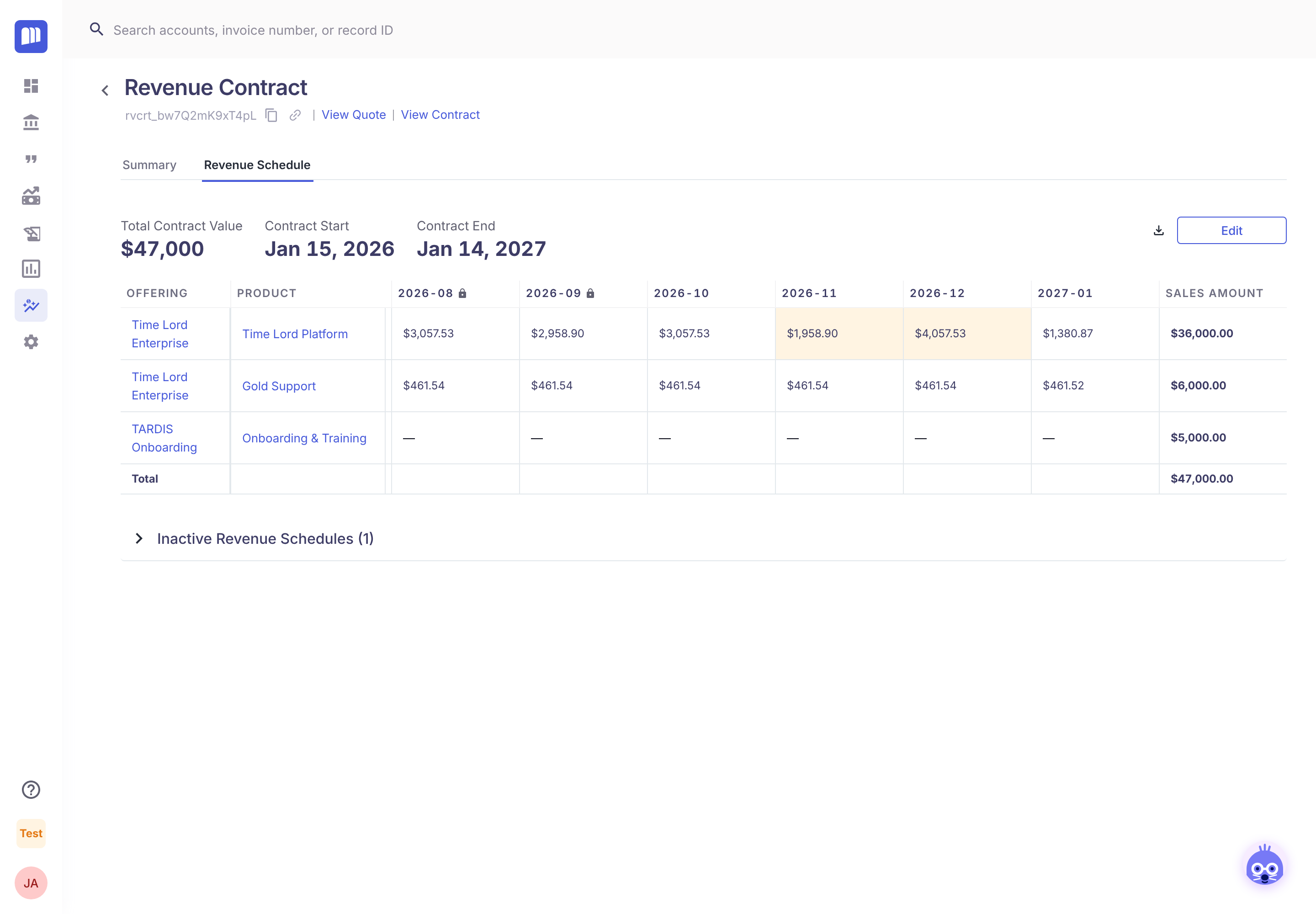
A new version of the schedule is created, with new journal entries.
-
Edited cells are highlighted, and the edited line's method shows as Custom.
-
The previous version moves to Inactive Revenue Schedules. There's no undo: to go back, edit the amounts again.
Tip: the schedule records which cells were edited, but not why. Keep a note of your reason with your close files.
Amendments
Explanation
When an amendment to a contract is processed, MonetizeNow creates a new version of that contract's schedule:
- Unchanged lines keep the revenue they already had.
- Changed lines are recalculated from the date the change takes effect. Earlier months keep their existing revenue.
- Added and removed lines are recalculated for the amended contract.
- Lines with manual edits are copied exactly as they were. Review those lines after an amendment, because they aren't recalculated.
If an amendment would change revenue in a locked month, the difference is moved into the first open month. See Locked periods and catch-up.
Renewal quotes and older (legacy) amendments don't get schedules in the beta. See Beta Scope, Limitations and Troubleshooting.
Related
Updated 20 days ago