

Month-End Close and Period Locks
Closed beta. Revenue Recognition is in closed beta for customers using both MonetizeNow CPQ and Billing. See Revenue Recognition.
When you close a month, lock it in MonetizeNow so its revenue can't change. Locking keeps your revenue numbers in line with the books you've already closed.
| I want to… | Go to |
|---|---|
| Lock a month | Lock an accounting period |
| See who locked what | View lock history |
| Understand what happens to later changes | Locked periods and catch-up |
| Follow a close routine | Month-end close checklist |
Lock an accounting period
How-to. Requires Tenant Admin.
-
Go to Revenue in the main menu. The current lock appears at the top right as Current Rev Rec Lock Period.
-
Click the pencil icon, choose the month you've closed, and click Save.
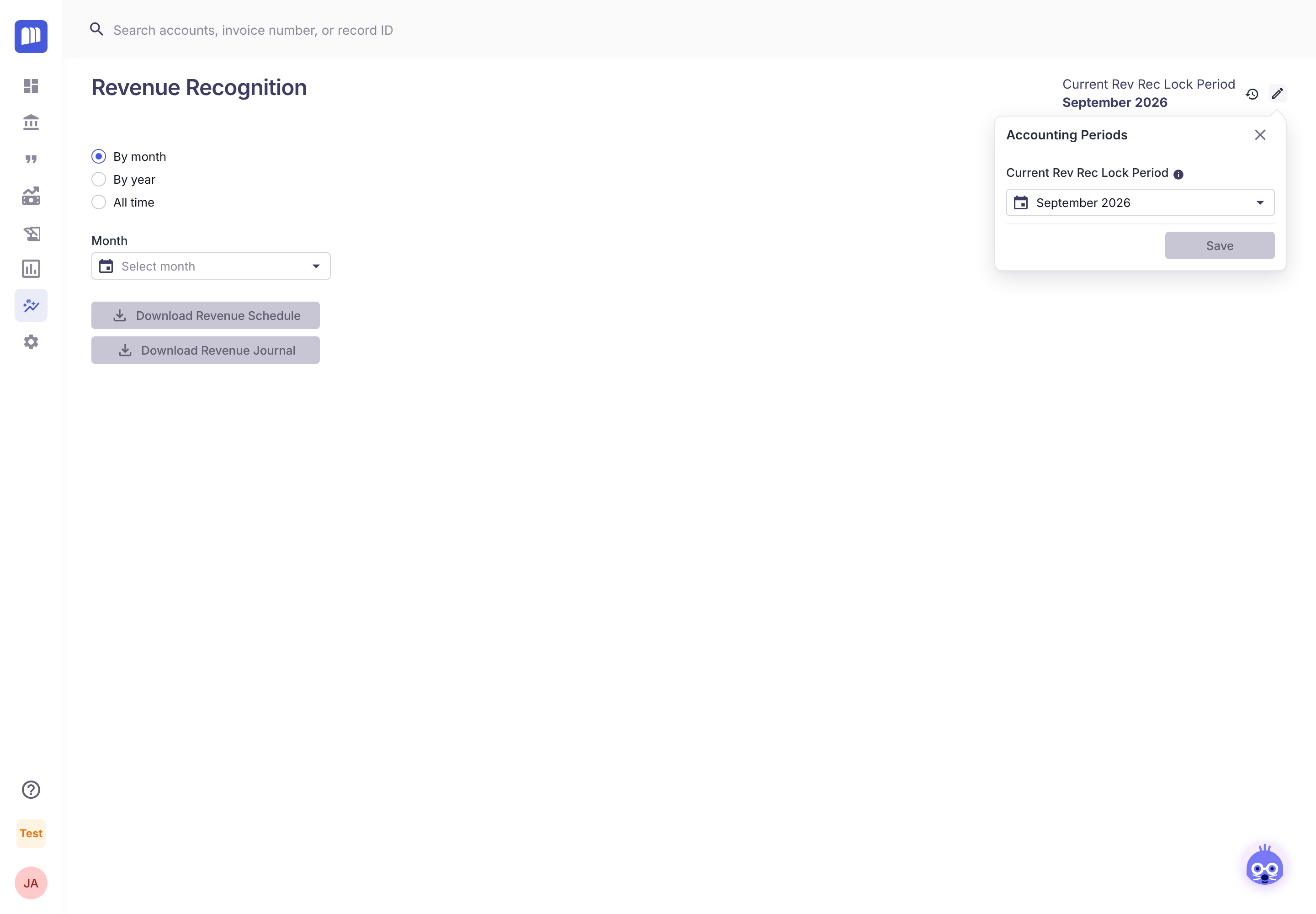
That month and every month before it are now locked. Locks have a few rules:
- You can only lock a month that has ended. You can't lock the current month or a future one.
- Locks only move forward. You can't move the lock back to an earlier month, so double-check before saving.
- Locked months can't be edited on any schedule, and are marked with a padlock.
View lock history
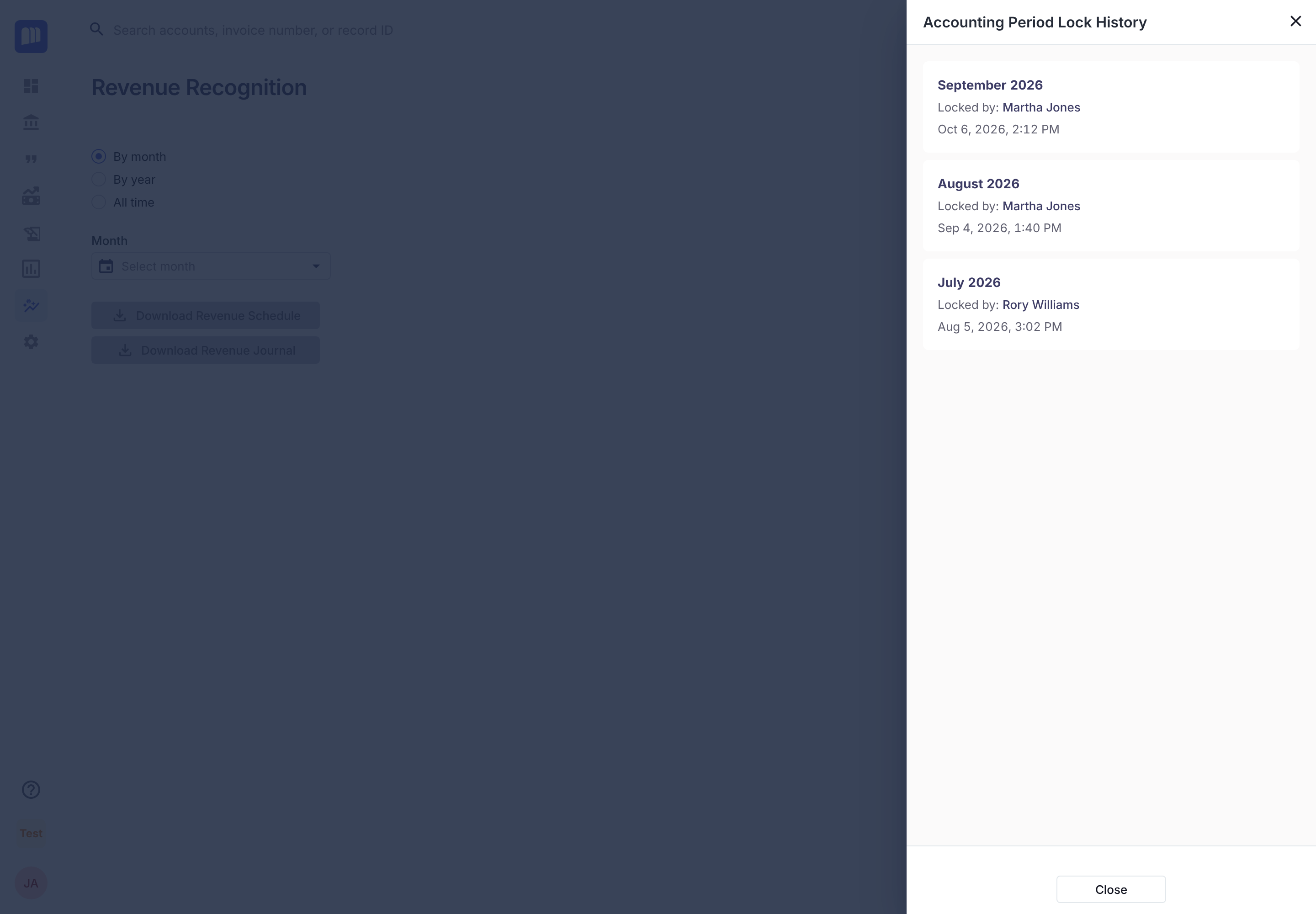
Click the history icon next to the lock period. Accounting Period Lock History lists each lock with who set it and when.
Locked periods and catch-up
Explanation
Once you lock a month, its numbers are final. When an amendment would change revenue in a locked month:
- the locked months keep their original amounts, and
- the net difference is moved into the first open month (the month after the lock) for that product line.
The schedule still adds up to the full contract value, but nothing you've already closed moves.
Example. September 2026 is locked, and an amendment adds a line backdated to July. The July–September revenue for that line is recognized in October instead.
Month-end close checklist
How-to. General guidance, not accounting advice. Agree your close process with your accountant.
- Check new contracts. Every quote processed this month should have a revenue contract. Spot-check the Revenue tab on large deals.
- Review amendments, especially on contracts that had manual edits, because those lines aren't recalculated.
- Make any edits before you lock the month. See Edit a revenue schedule.
- Download the month's journal and schedule (Revenue Reports and Journal Entries), remove superseded versions, and reconcile:
- recognized revenue against your general ledger, and
- deferred revenue against your balance sheet.
- Lock the month once the books are closed.
Related
Updated 20 days ago