
Vertex
Overview
You can utilize Vertex to calculate taxes on your invoices.
This guide will walk you through the following steps:
- Configuration
- Ensure Vertex is correctly configured for taxation
- Generate an Client ID, Client Secret in Vertex
- Connect MonetizeNow to Vertex
- Configure your product catalog in MonetizeNow and Vertex
- Tax Calculation
- Correcting Tax Errors
- Troubleshooting
Best PracticeAs with all integrations, it is a best practice to test your tax configuration using a sandbox.
Configuration
Connect MonetizeNow to Vertex
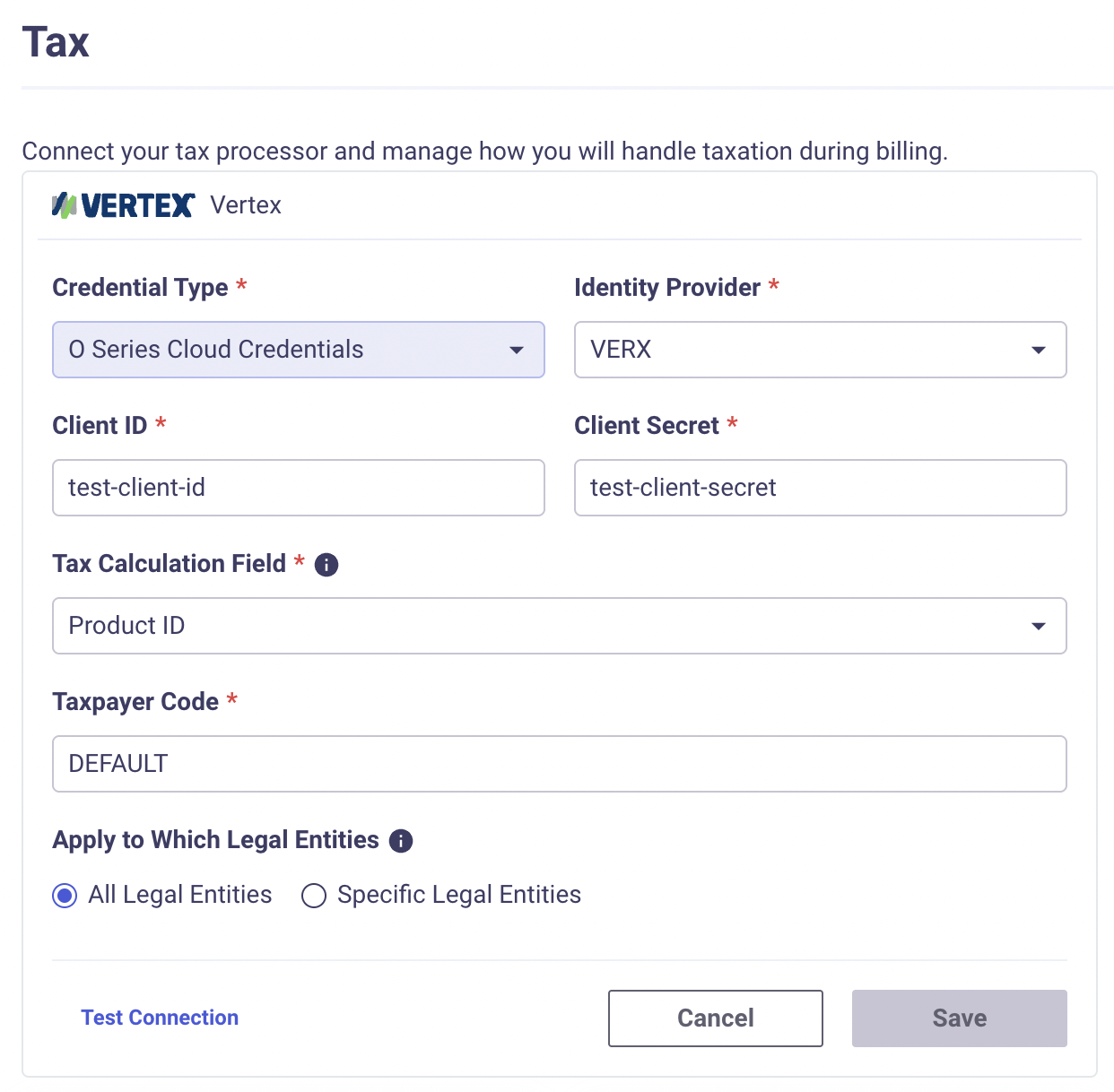
- Click the gear on the sidebar to open settings, and choose Tax under the Integrations section
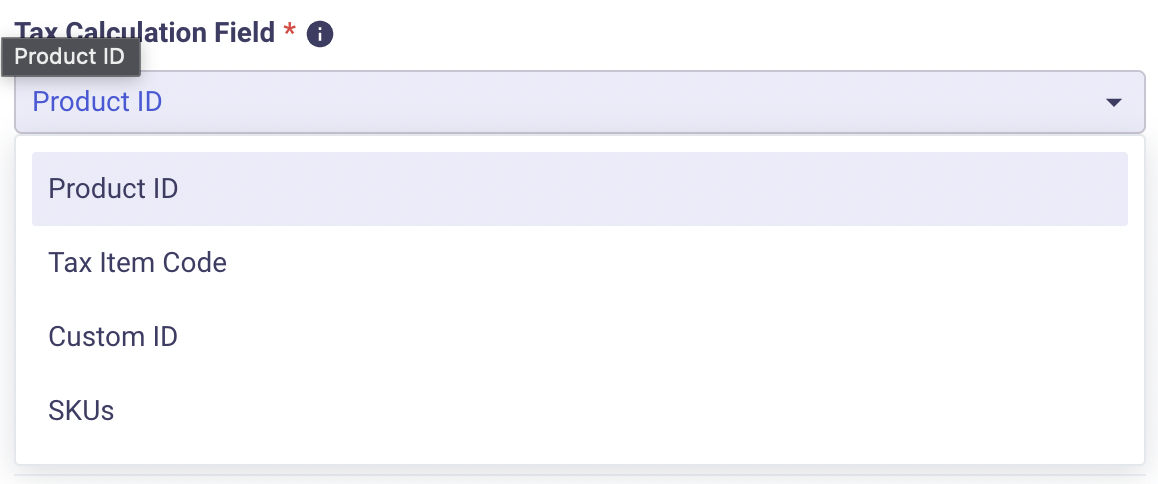
- Choose a Tax Calculation Field
- This option determines which field in MonetizeNow is mapped to Vertex’s Product Codes. See more details in the following section.
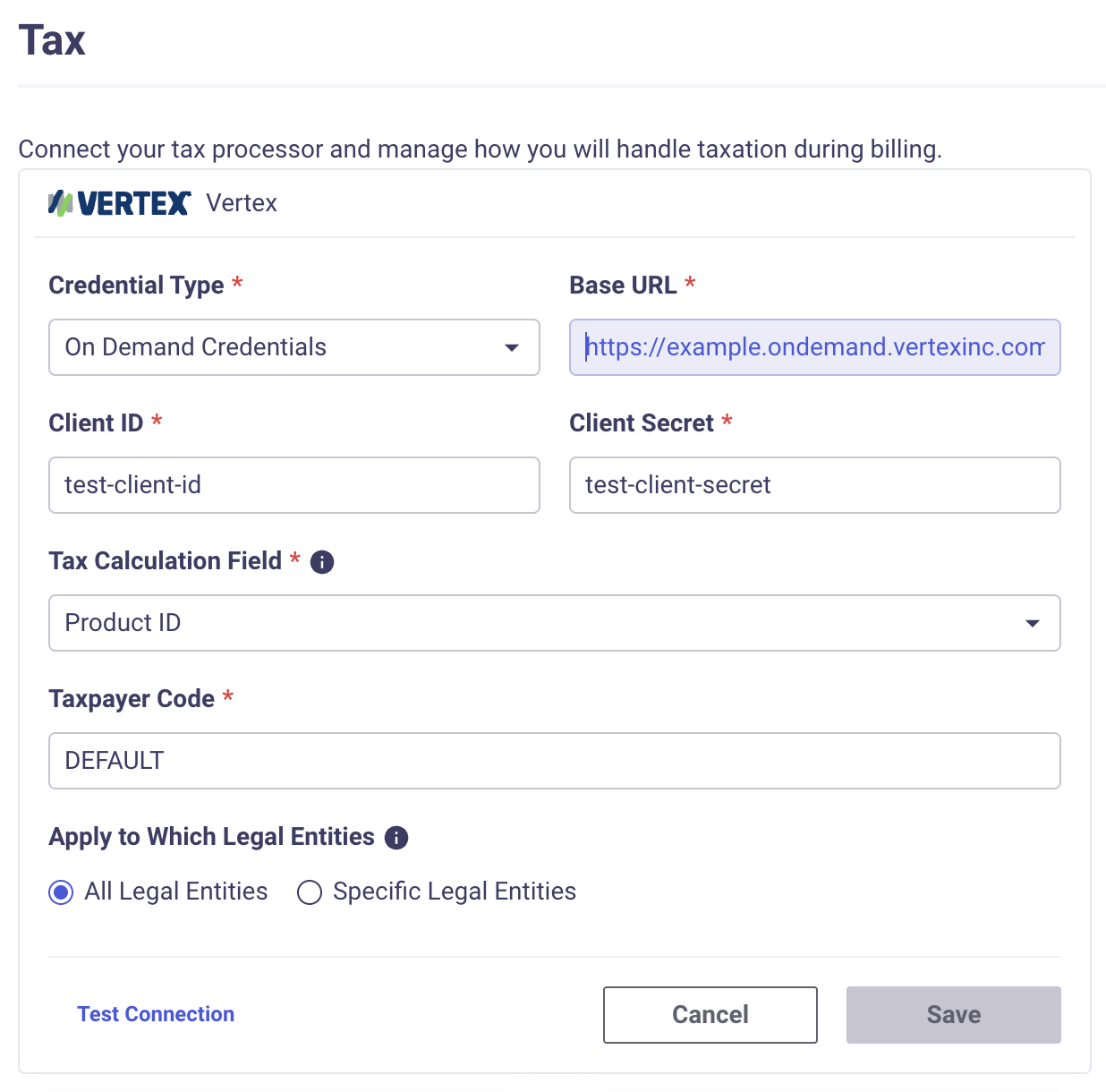
- Enter your Client Id, Client Secret along with Identity Provider (IDP) (for O Series Cloud Credentials) or Base URL (for On Demand Credentials) provided by Vertex
- Base URL for On Demand Credentials should be look like -
https://<CUSTOMER>.ondemand.vertexinc.com
- Base URL for On Demand Credentials should be look like -
- Enter Taxpayer Code from Vertex
- Click Test Connection to ensure that your configuration is valid and press Save
Example Vertex Configuration for O Series Cloud credential
Example Vertex Configuration for On Demand Credential
Configure your product catalog in MonetizeNow and Vertex
In order for taxes to be correctly calculated by Vertex, you will need to configure your product catalog in both MonetizeNow and Vertex.
You will need to make sure that the products in MonetizeNow can be correctly mapped to the products in Vertex.
Configure product field
Choose which field from each product you would like MonetizeNow to send to Vertex for tax calculation.
Tax Item Code and Product SKU are usually the best options to choose from.
If you already have product identifiers in your systems, then it would make sense to set that as the Product SKU and choose that as the mapping value.
If you have many products that are the same with only minor variations, you may want to have multiple products in MonetizeNow map to just one product in Vertex, assuming the tax treatment is 100% identical. In this case, you may want to choose Tax Item Code as the mapping value.
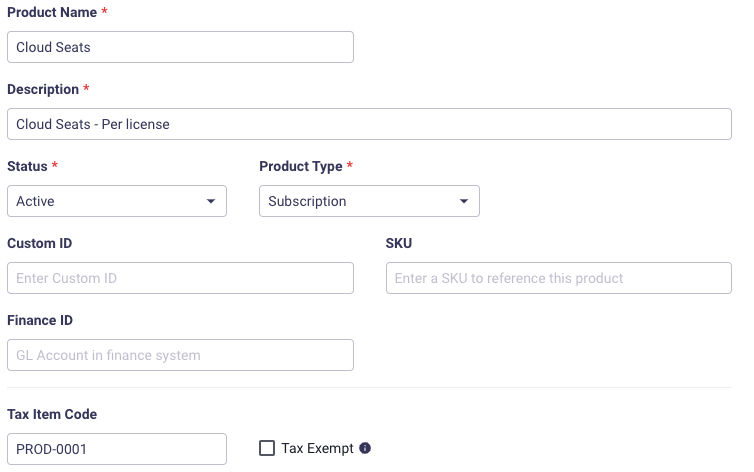
Configure your products in MonetizeNow
Based on how you configured the Tax Calculation Field, make sure that your product has a value in the appropriate field so that it can be mapped to Vertex.
Any time you add products to your catalog, you will need to ensure that there is a mapping to Vertex's product catalog.
It is a best-practice to include all of your products in Vertex and configure taxability within Vertex, but if you don't want MonetizeNow to send the product to Vertex for calculation, then you can select the "Tax Exempt" checkbox in MonetizeNow.
Configure Vertex's Product Catalog
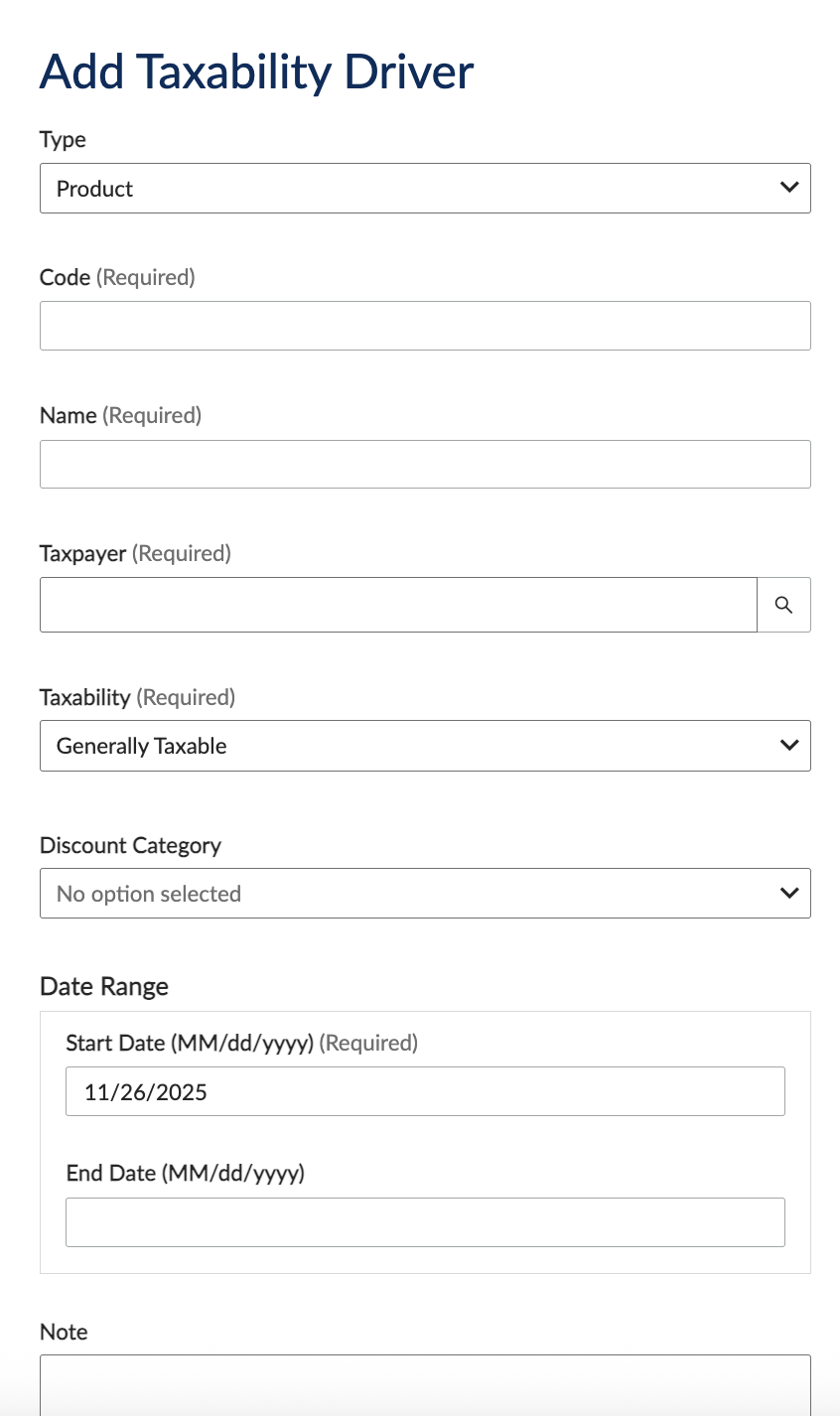
Create all your Taxability Drivers (Product) in Vertex with the proper tax treatment and ensure that the Product Code in Vertex is set to the same value as configured in MonetizeNow. And you should choose the same taxpayer as you gave in MonetizeNow. The value chosen will vary depending on what Tax Calculation Field you selected in MonetizeNow.
Tax Calculation
Tax Addresses
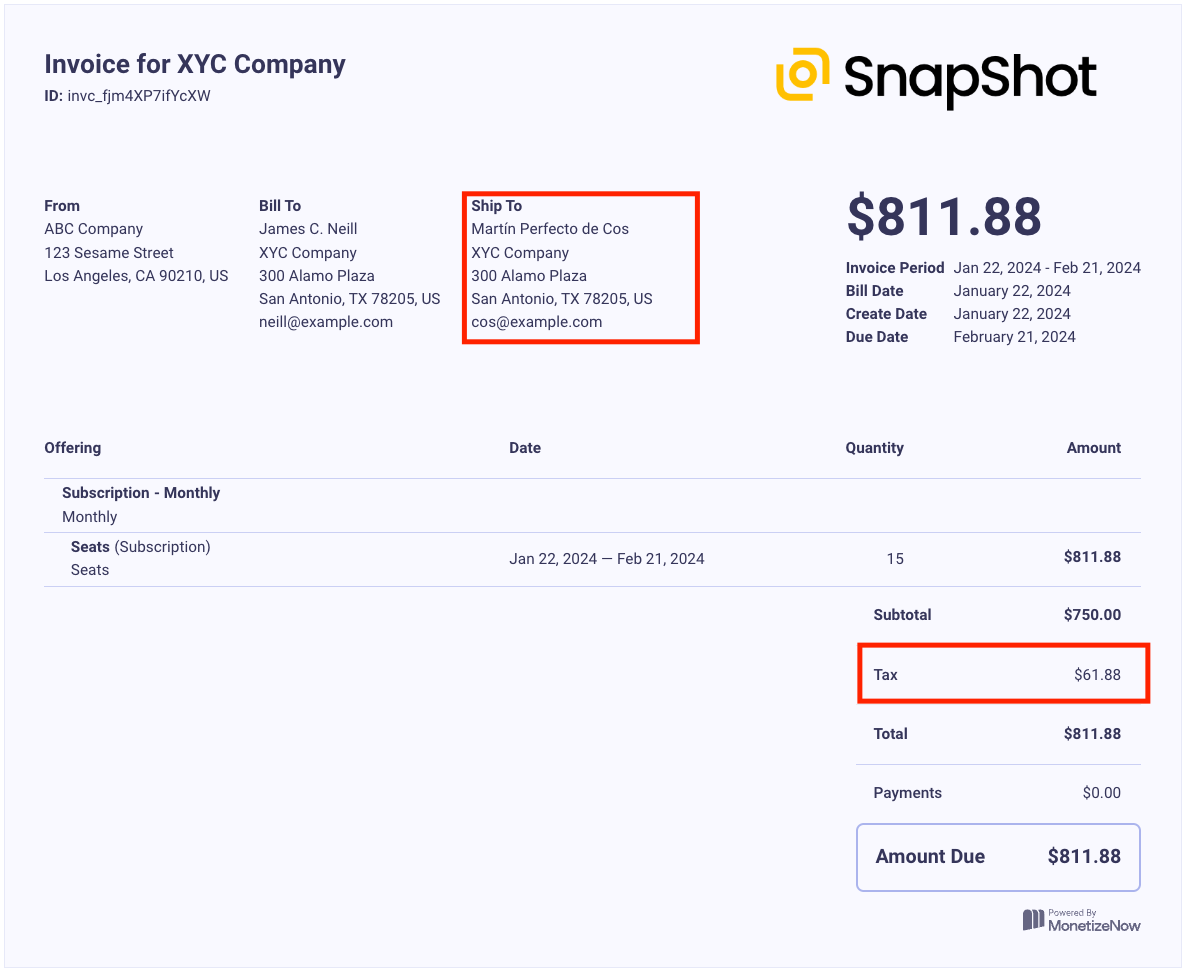
In order for Vertex to properly determine tax liability for an invoice, you must have accurate address details. MonetizeNow will send the Shipping Address to Vertex.
- The Shipping Contact's address on an invoice is used for tax calculations.
- Invoice contacts are sourced from the Bill Group's shipping and billing contacts.
- Bill Group contacts are set from the Quote's contacts. The Primary contact turns into the Shipping Address on the Bill Group once the quote is Processed.

Testing your configuration
- Ensure that you have configured your Tax Integration as described previously in this guide
- Create a new quote and add some products
- Create or select a primary and billing contact and ensure that a valid address is configured for a taxable jurisdiction, based on your Vertex configuration
- Move the quote through to Processed
- Navigate to the account and click on the Invoices tab
- Open the invoice and review the calculated taxes
Handling Incorrect Tax Amounts
It is possible that during the sales process, the address collected on the Quote was incorrect or incomplete.
As long as the invoice has not yet been paid and does not have any credits applied, then you will have the ability to edit the contact details to re-calculate the tax.
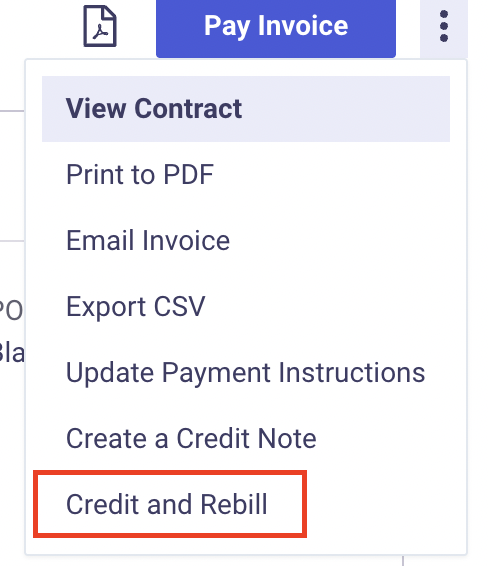
- Open the invoice actions menu and choose Credit and Rebill
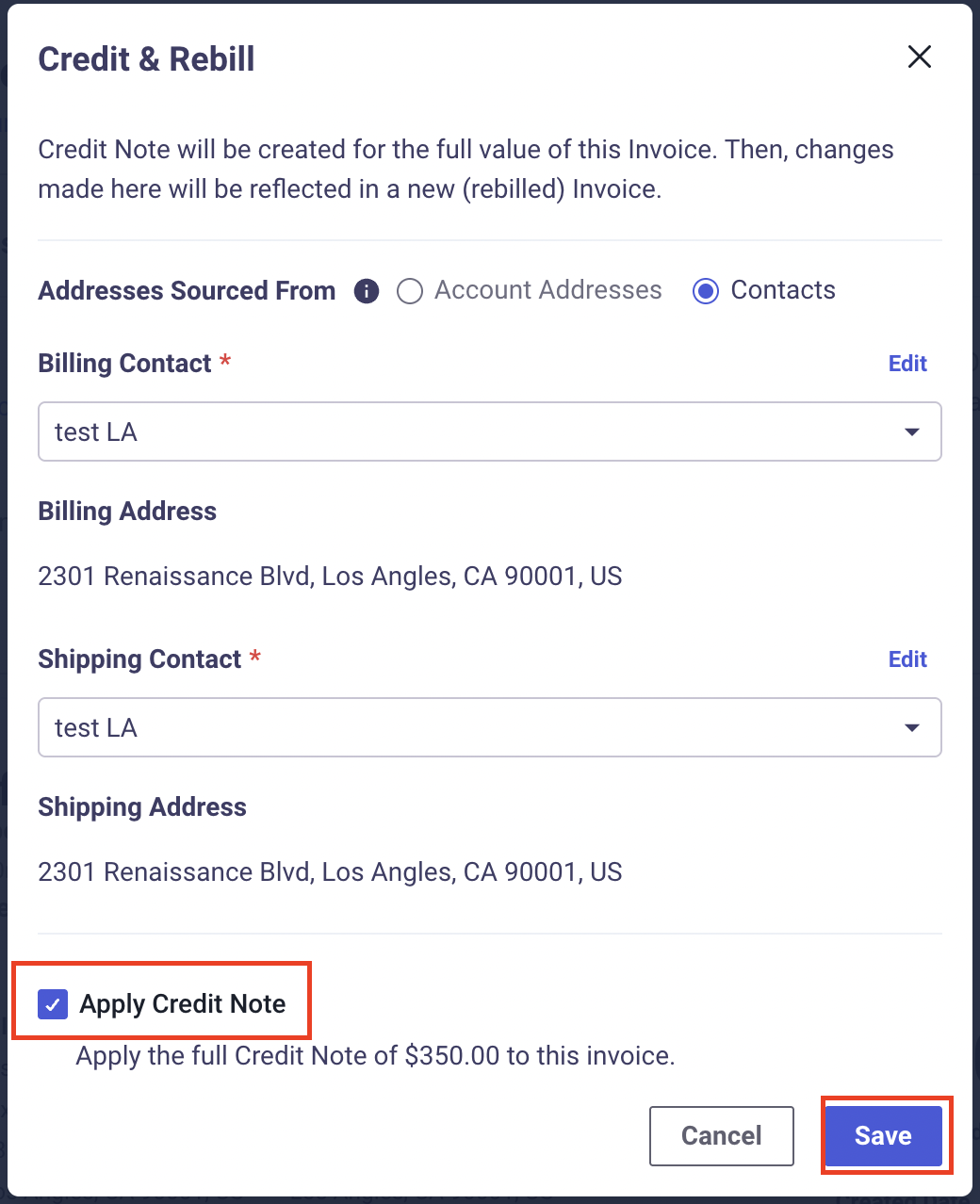
- Choose a different contact or edit the address details of the existing contact
- Choose Apply Credit Note if you want to generate a credit note for the current invoice
- Save
Correcting Tax Calculation Errors
It is possible that tax calculation may have failed. When this happens, you will need to take action to fix the invoice and re-calculate the taxes.
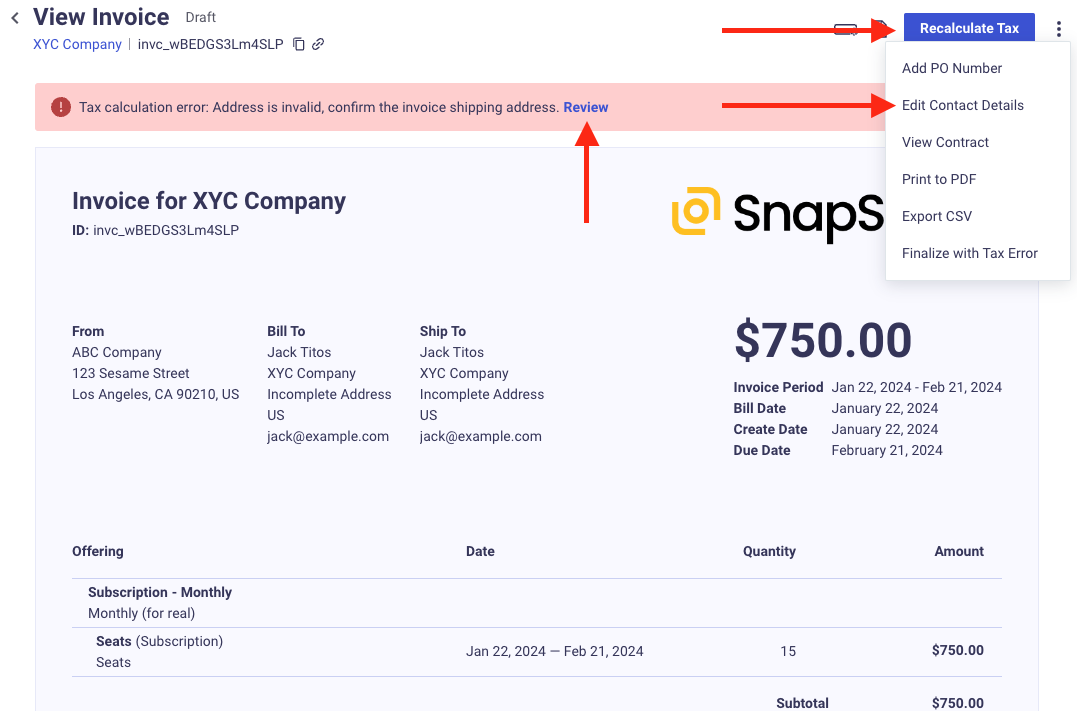
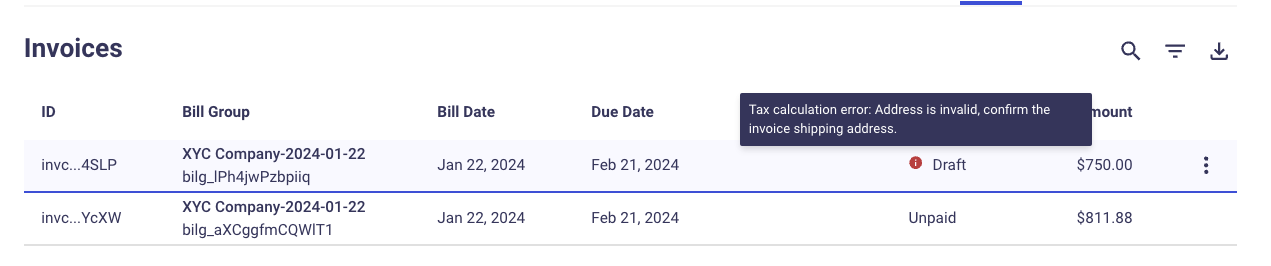
You will need to review the error message displayed on the invoice to determine what action to take to make the correction. If possible, MonetizeNow will provide a Review link you can click on to get directed to where you need to correct the problem.
InformationWhen an invoice has a tax calculation error, it will remain in Draft status until you correct and finalize the invoice. The invoice cannot be emailed to your customer and cannot be paid while in Draft.
Additionally, no additional invoices for this bill group will be created until you resolve this invoice.
While not recommended, you can finalize the invoice without resolving the tax calculation error.
The most common errors are:
- The address is invalid
- Update the shipping contact's address to correct this
Tax Exemptions
For tax exempt customers, you will need to create the customer with Taxability - 100% Exempt and with code => MonetizeNow account id so that taxes are not charged.
If your customer does not yet exist in Vertex and you want to ensure they are configured for exemption prior to their first invoice, then you will need to manually create the customer in Vertex. Use the MonetizeNow account id as the Code in Vertex.
Troubleshooting
An invoice does not include tax, but I expected tax to be calculated
- Ensure that the invoice start date is not before your Tax calculation start date for the jurisdiction in question based on what is configured in Vertex
- Ensure that the Shipping Address has a correct address
- Review the Transactions listed in Vertex for additional calculation information
Updated 8 months ago